
How to Use Happy Horse 1.0 on VidMuse AI
Happy Horse 1.0 is now accessible inside the VidMuse AI workflow as a supported image and reference generation model. To use it on VidMuse AI, start a new project, select your template, upload your music track, and choose Happy Horse 1.0 from the model switcher in the image generation stage. VidMuse's agent-based pipeline then uses the model's output as visual reference material for storyboarding and video scene generation.
Create Your AI Video with Happy Horse
Turn your music, references, and creative brief into a storyboarded AI music video with VidMuse.
Key Takeaways
- Happy Horse 1.0 (officially "快乐小马") is Alibaba ATH Innovation Unit's video and image generation model, currently available via grayscale testing, with strong prompt-following and high reference fidelity reported across community benchmarks.
- VidMuse AI's agent-based workflow means you do not need to craft manual prompts for Happy Horse 1.0. VidMuse's Creative Brief stage translates your intent into structured scene and shot instructions automatically.
- The integration is most valuable at the Reference Generation and Storyboard stages of VidMuse's workflow, where Happy Horse 1.0's image-to-video capability and style consistency can anchor the visual direction of your MV.
- Use Studio Mode when visual fidelity and shot coherence are the priority; switch to Lite Mode for fast iteration and credit efficiency during early drafts.
- Current community data notes that Happy Horse 1.0 text rendering can produce garbled characters in some scenes, so avoid making stylized text-heavy shots the primary creative direction when using this model.
What Is Happy Horse 1.0?
Happy Horse 1.0 is a multi-capability AI video generation model developed by Alibaba's ATH Innovation Unit. It supports text-to-video, image-to-video, and video editing workflows, generating clips from 3 seconds up to 15 seconds at resolutions up to 1080p.
According to community-compiled architecture notes and the model's Arena.ai leaderboard performance, Happy Horse 1.0 ranked second in text-to-video, image-to-video, and video editing categories, placing just behind ByteDance Seedance 2.0. Its reported strengths include:
- Strong prompt-following ability
- Reliable camera movement and composition control
- High reference fidelity when converting a still image into video motion
- Multi-shot coherent short-form storytelling
The model entered grayscale testing in China on April 27, 2026, accessible through Alibaba Cloud Bailian, the Qwen App, and the Happy Horse official website.
It is important to note that Happy Horse 1.0 has not been officially open-sourced. Community information about its architecture, including reports of a 15-billion-parameter unified Transformer with native audio-video generation, comes from independent observers and should be treated as unverified until an official technical report is published.
Why This Integration Matters for VidMuse Users
VidMuse AI is built around an agent-based creation logic. Rather than asking you to write one-shot prompts, it plans your entire music video as a director would, moving through Creative Brief, Reference Generation, Scene & Shot List, Storyboard, and Video Generation.
Happy Horse 1.0's inclusion in VidMuse's model matrix fills a specific gap: high-fidelity reference imagery and image-to-video transitions that the VidMuse agent can use to lock in visual style before committing credits to full video generation.
For indie musicians turning Suno or Udio tracks into full MVs, this matters because your visual identity, including character design, costume consistency, and location palette, needs to be established before the timeline is built. Happy Horse 1.0 excels at converting a single reference image into a consistent motion sequence, which directly feeds VidMuse's Asset Library & Memory feature introduced in VidMuse 2.0.
Step-by-Step: Using Happy Horse 1.0 on VidMuse AI
Create a project
Start a new VidMuse project, choose the right MV template, and set the aspect ratio and draft quality.
Upload or generate music
Add your track so VidMuse can analyze rhythm, mood, lyrics, and pacing before planning scenes.
Write the creative brief
Describe your subject, mood, lighting, palette, and reference-image needs in natural language.
Generate references with Happy Horse 1.0
Use Happy Horse 1.0 during reference generation to establish character, style, and scene direction.
Review and refine the storyboard
Use Shot Refine by Quoting to adjust individual shots without restarting the full workflow.
Generate and edit the final video
Approve the storyboard, generate clips, and arrange them in the VidMuse Timeline Editor.
Step 1: Create a New Project and Choose a Template
Open VidMuse AI and start a new project. Select the template that matches your creative goal:
- Story MV: narrative-driven videos with plot and character arcs
- Abstract MV: mood and atmosphere over literal storytelling
- Performance MV: character-forward singing or dancing content
- Viral Short: optimized for social media aspect ratios and pacing
- TVC: brand or product advertisement formats
- Explainer: information-driven visual storytelling
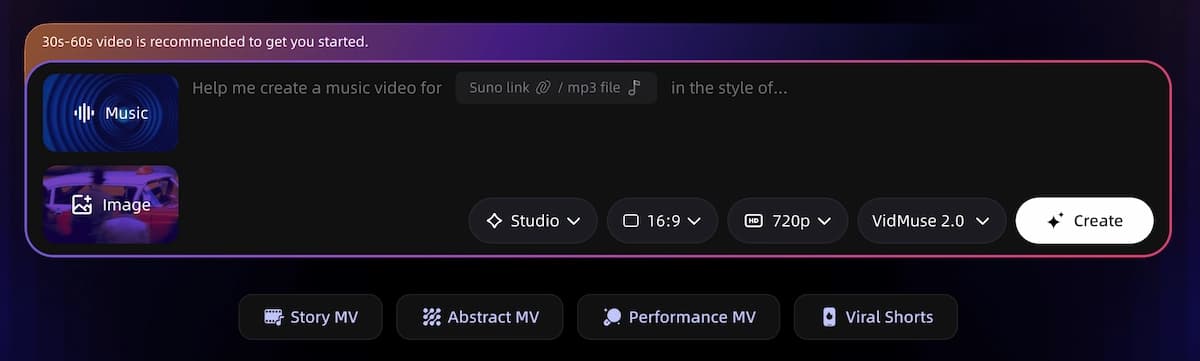
Choose your aspect ratio (Landscape or Portrait) and resolution (1080p for final output; 720p for drafts to conserve credits).
Step 2: Upload Your Music Track
Click Music in the project panel and upload your audio file. VidMuse analyzes the rhythm, mood, and lyrical structure of the track and uses this analysis to align shot timing and visual pacing. For your first run with Happy Horse 1.0, start with a 30-60 second clip. Shorter tracks use fewer credits and give you faster feedback on whether the model's output matches your visual intent.
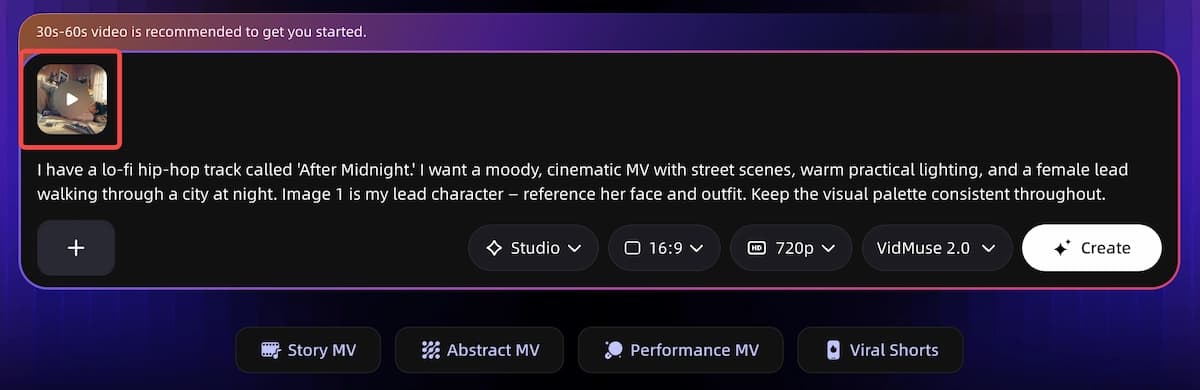
If you do not have a track yet, VidMuse integrates SUNO directly, so you can compose inside the platform and proceed to video generation without switching tools.
Step 3: Input Your Creative Brief
In the chat panel, describe your project clearly. You do not need to engineer prompts for Happy Horse 1.0 directly. VidMuse's agent translates your plain-language brief into structured model instructions.
A strong brief for an MV using character reference imagery might look like this:
I have a lo-fi hip-hop track called "After Midnight." I want a moody, cinematic MV with street scenes, warm practical lighting, and a female lead walking through a city at night. Image 1 is my lead character. Reference her face and outfit. Keep the visual palette consistent throughout.
The specificity in this brief, including subject, mood, lighting, palette, and character instruction, gives VidMuse's agent the context it needs to plan scenes and assign the right model at the right stage.
Step 4: Reference Generation with Happy Horse 1.0
At the Reference Generation stage, VidMuse prompts you to generate or upload visual references. This is where Happy Horse 1.0 enters the workflow.
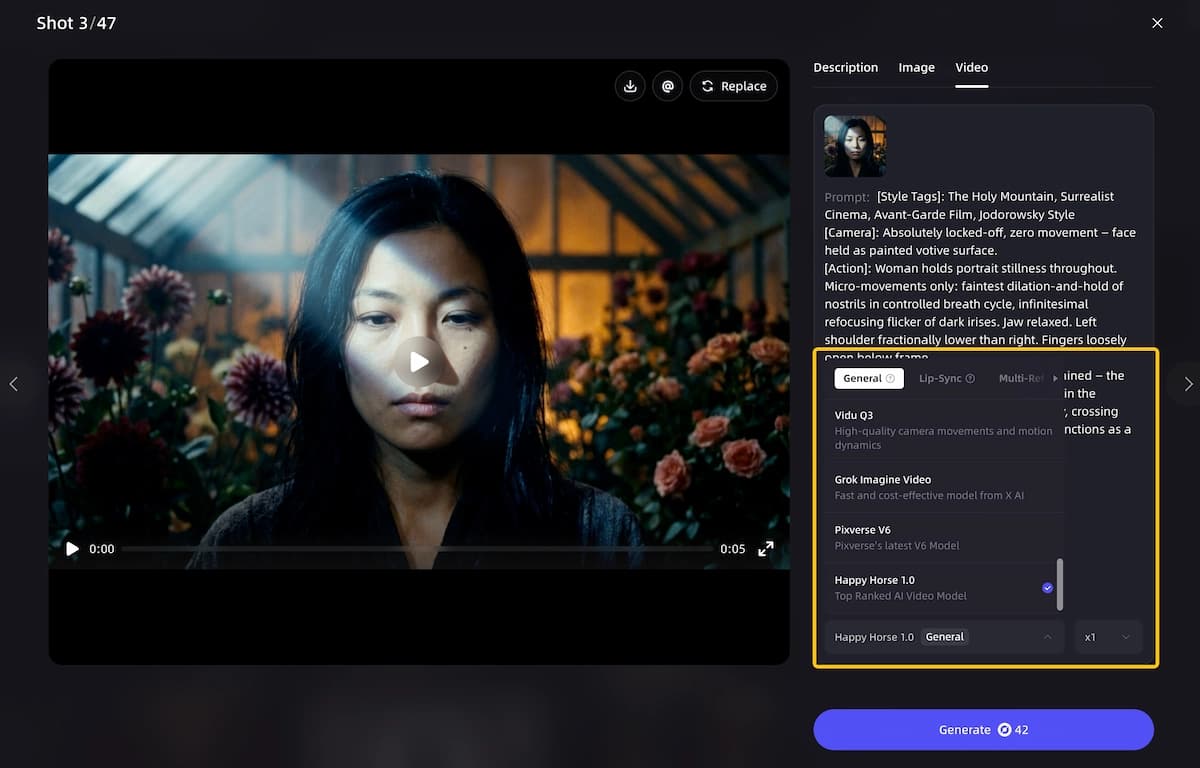
Select Happy Horse 1.0 from the model switcher in the video generation panel. The model will produce reference stills based on the scene descriptions generated from your brief. Review each output in the Canvas panel on the left and provide feedback in the Chat panel on the right if adjustments are needed.
Important reference image rules that apply to all VidMuse projects:
- Upload one person per image. The model cannot isolate individuals from group shots.
- Use clean, unobstructed backgrounds.
- Ensure facial consistency across all character images you upload.
Step 5: Review the Storyboard
VidMuse auto-generates a scene and shot list from your brief and the confirmed reference images. Review each shot in the storyboard view. Use the Shot Refine by Quoting feature in VidMuse 2.0 to highlight specific shots and instruct the agent to adjust composition, action, or pacing without regenerating the full sequence.
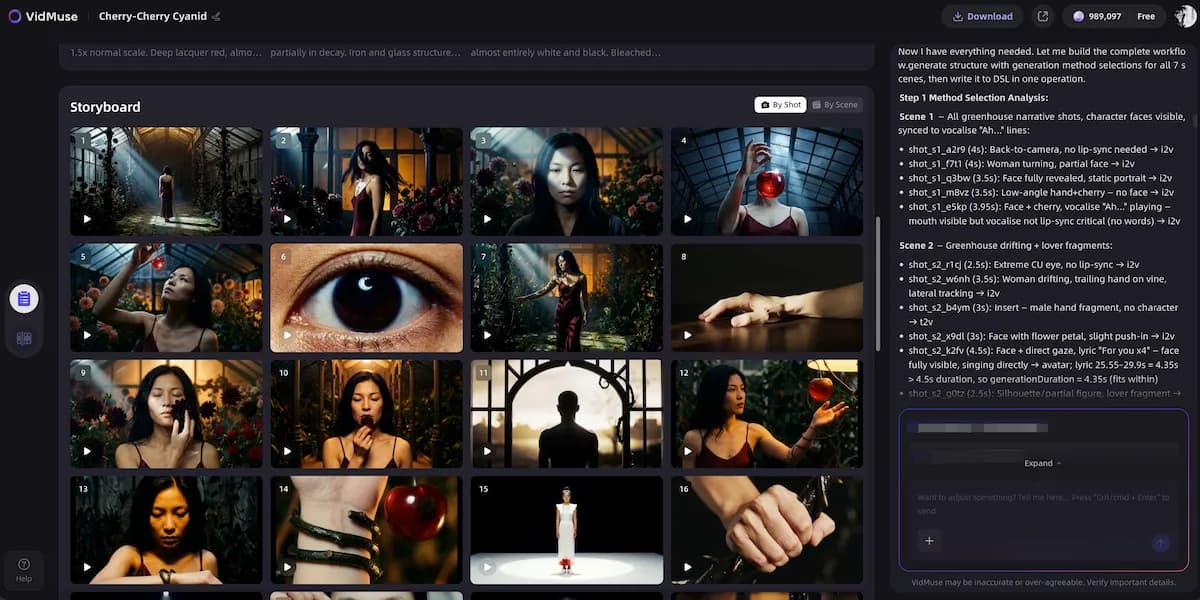
Step 6: Video Generation and Timeline Edit
Approve your storyboard and initiate video generation. VidMuse selects from its video model matrix, including Happy Horse 1.0, Seedance 2.0, Kling V2.6 Pro, Veo 3.1, Sora 2 Pro, Hailuo 2.3 Pro, Vidu Q2, and Wan V2.6, based on the mode you have selected and the shot type.
Use the Timeline Editor in VidMuse 2.0 to arrange, trim, and sequence clips after generation. Assets approved during Reference Generation are stored in the Asset Library & Memory, keeping character and scene consistency locked across the full MV.
Build a Complete AI Music Video Workflow
Use VidMuse to move from music analysis to reference generation, storyboard, video generation, and final timeline edits.
Studio Mode vs. Lite Mode: Which to Use With Happy Horse 1.0?
VidMuse offers two generation modes, and the right choice depends on your project stage.
Studio Mode
Best for
- Best for final, deliverable MV generation
- Higher priority on visual fidelity and shot coherence
- Stronger fit for client work or public releases
Watch out
- Uses more credits than early draft workflows
Lite Mode
Best for
- Best for fast creative direction tests
- Useful for storyboard and reference feedback cycles
- More credit-efficient during early exploration
Watch out
- Not ideal when final shot fidelity is the main priority
Use Studio Mode when:
- You are generating the final, deliverable version of your MV.
- Shot quality, color fidelity, and character consistency are non-negotiable.
- You are working with a client brief or releasing to a public audience.
Use Lite Mode when:
- You are testing a creative direction before committing credits.
- You want fast turnaround on reference image feedback cycles.
- You are iterating on storyboard structure rather than final visual quality.
For Happy Horse 1.0 reference generation specifically, starting in Lite Mode to validate composition and character direction, then switching to Studio Mode for the final video generation pass, is a credit-efficient approach.
Getting the Most from Happy Horse 1.0 Image Outputs in VidMuse
Happy Horse 1.0's reported strengths, including prompt-following, camera control, and reference fidelity, align well with VidMuse's storyboard-first workflow. To take full advantage:
- Lead with visual intent, not technical parameters. VidMuse's agent handles model-specific instructions; you describe the scene in plain language.
- Upload a clear character reference before the Reference Generation stage. Happy Horse 1.0 performs well on image-to-video tasks when the source reference is high-quality and unambiguous.
- Use the Shot Refine tool instead of regenerating. If a generated reference does not match your intent, quote the specific shot in the chat and request targeted adjustments rather than restarting the reference batch.
- Store approved assets immediately. Use VidMuse 2.0's Asset Library to save approved stills and character references so the agent can maintain consistency across every scene.
Common Mistakes to Avoid
Using the wrong template for your genre.
VidMuse templates are knowledge frameworks, not visual filters. Applying a TVC template to a Story MV significantly reduces output quality. Match your template to your actual creative format.
Ignoring the Music Analysis step.
This stage costs a small number of credits but is foundational. It aligns your shot list and pacing to the actual rhythm and lyrical structure of your track. Skipping it produces visually disconnected scenes.
Uploading group reference images.
Happy Horse 1.0, like all models in VidMuse's matrix, cannot isolate individuals from multi-person images. Every reference must contain exactly one person.
Expecting text to render cleanly.
Community notes on Happy Horse 1.0 flag text rendering as an area where garbled or incorrect characters can appear. Do not design shots where stylized text is the primary visual element when using this model.
Treating the agent like a prompt box.
VidMuse's value is in its planning logic. The more context you give the agent in the Creative Brief, including mood, character, lighting, and pacing, the better each downstream model, including Happy Horse 1.0, performs.
FAQ
What is Happy Horse 1.0 and how does it work with VidMuse AI?
Happy Horse 1.0 is a video and image generation model developed by Alibaba's ATH Innovation Unit. On VidMuse AI, it functions within the Reference Generation and storyboard stages, converting creative briefs and reference images into high-fidelity scene stills and short motion sequences that the VidMuse agent uses to plan and generate your full music video.
Can I use Happy Horse 1.0 for image generation on VidMuse AI?
Yes. Within VidMuse's workflow, Happy Horse 1.0 is selectable at the image and reference generation stage. The model's strong image-to-video fidelity makes it particularly useful for establishing character consistency and visual palette before video generation begins.
How do I switch models in VidMuse AI?
Use the model switcher in the generation panel when prompted during your project workflow. Subscribers can also set a preferred model as the default. VidMuse's agent automatically routes to the appropriate model based on your mode selection and shot type.
Is Happy Horse 1.0 available in VidMuse Lite Mode?
Lite Mode on VidMuse uses the Seed series video models for fast, credit-efficient generation. Happy Horse 1.0 reference outputs can still be used as input assets during a Lite Mode session. The mode determines the downstream video generation model, not the reference generation model.
What should I do if my Happy Horse 1.0 reference images do not match my brief?
Use VidMuse 2.0's Shot Refine by Quoting feature. Highlight the specific reference shot in the chat panel, describe what needs to change, and the agent will refine that individual shot without regenerating your full reference batch.
Does Happy Horse 1.0 support audio-video generation on VidMuse?
Community-sourced architecture notes describe Happy Horse 1.0 as designed for joint audio-video generation, but this capability has not been officially confirmed. Within VidMuse's current workflow, audio is handled through the platform's SUNO integration and music upload pipeline.
What kind of music videos work best with Happy Horse 1.0 on VidMuse?
Happy Horse 1.0 is particularly effective for Performance MVs and Story MVs where character consistency and cinematic composition are priorities. Abstract MVs with heavy motion or effects may benefit from other models in VidMuse's matrix depending on the final quality target.
Final Words
Happy Horse 1.0 adds a capable reference and image-to-video layer to VidMuse AI's already deep model matrix. For indie musicians and creators, the practical benefit is clear: you can lock in character design, visual palette, and scene composition before spending credits on full video generation, and VidMuse's agent handles the translation from your creative intent to model-specific instructions.
Start with a short 30-60 second track, pick the template that matches your format, upload a clean character reference, and let the agent plan your MV. As Happy Horse 1.0 continues its rollout and VidMuse expands its integration, this workflow will only become more capable.
Ready to create your next music video? Open VidMuse AI and start your project today.
Create Your Next AI Music Video
Start with a short track, upload a clean reference, and let VidMuse plan the scenes, storyboard, and final video workflow.

Written By
VidMuse Team
Continue Reading
Latest blog posts related to AI video creation.
Best AI Music Generator 2026: Top Tools for Songs & Music Videos
Compare the best ai music generator options for songs, vocals, licensing, and music videos, with a practical checklist for creators and brands in 2026.
Lyric Video Generator: Make Synced Videos from Audio
Learn how a lyric video generator syncs audio, lyrics, and visuals, plus how to choose a tool, avoid timing errors, and publish release-ready videos online.
Vidu Q3 x VidMuse AI: Music Video Model Guide 2026
Discover how Vidu Q3 works with VidMuse AI for music videos, image-to-video shots, reference control, and model choices versus Seedance 2.0 or Kling 3.0.