
The Ultimate VidMuse Guide: Everything You Need to Know About AI MV Generation

VidMuse Team
6 min read
Welcome to the Creative World of VidMuse!
We’re sure you’ve already been blown away by VidMuse’s stunning MV effects and powerful AI capabilities, and you can’t wait to start creating.
But before you hit that “Generate” button, you might be wondering:
- How do I write a precise prompt?
- How can I get the most value out of my credits?
- Where do I begin with all these features?
Don’t worry—this document is your ultimate guide. We’ll walk you step-by-step from zero to a polished MV, with a detailed breakdown of every feature.
💡 Tip: You can click the table of contents on the left at any time to jump directly to the section you're interested in.
1. Quick Start: Discover VidMuse’s Core Features
Before you dive into creating, here are the essentials you need to know.
1.1 Model Switching 🌟
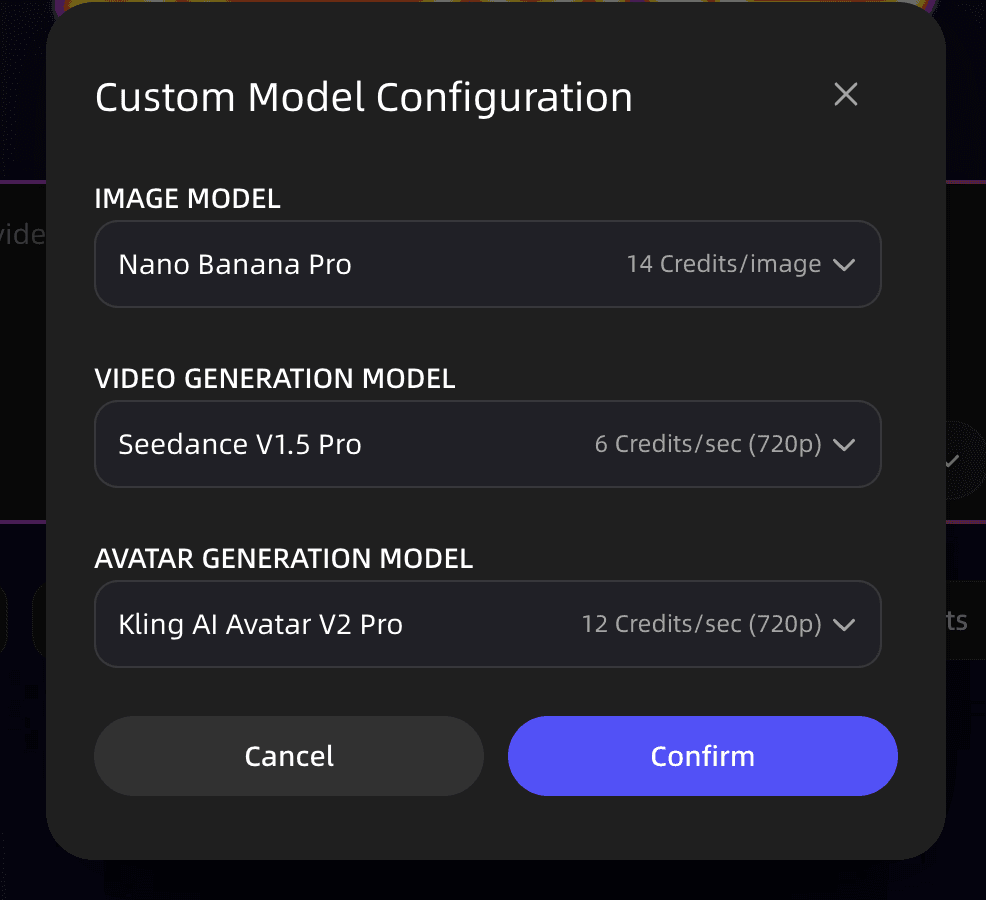
VidMuse is an AI MV Agent powered by the world's top computing capabilities. Simply put, we've packed flagship models like NanoBanana, Kling, and Seedance all into one box.
- Studio Mode: Uses the flagship models. It delivers the best image quality and supreme detail.
- Lite Mode: Uses the Seed series models. It's fast and credit-efficient.
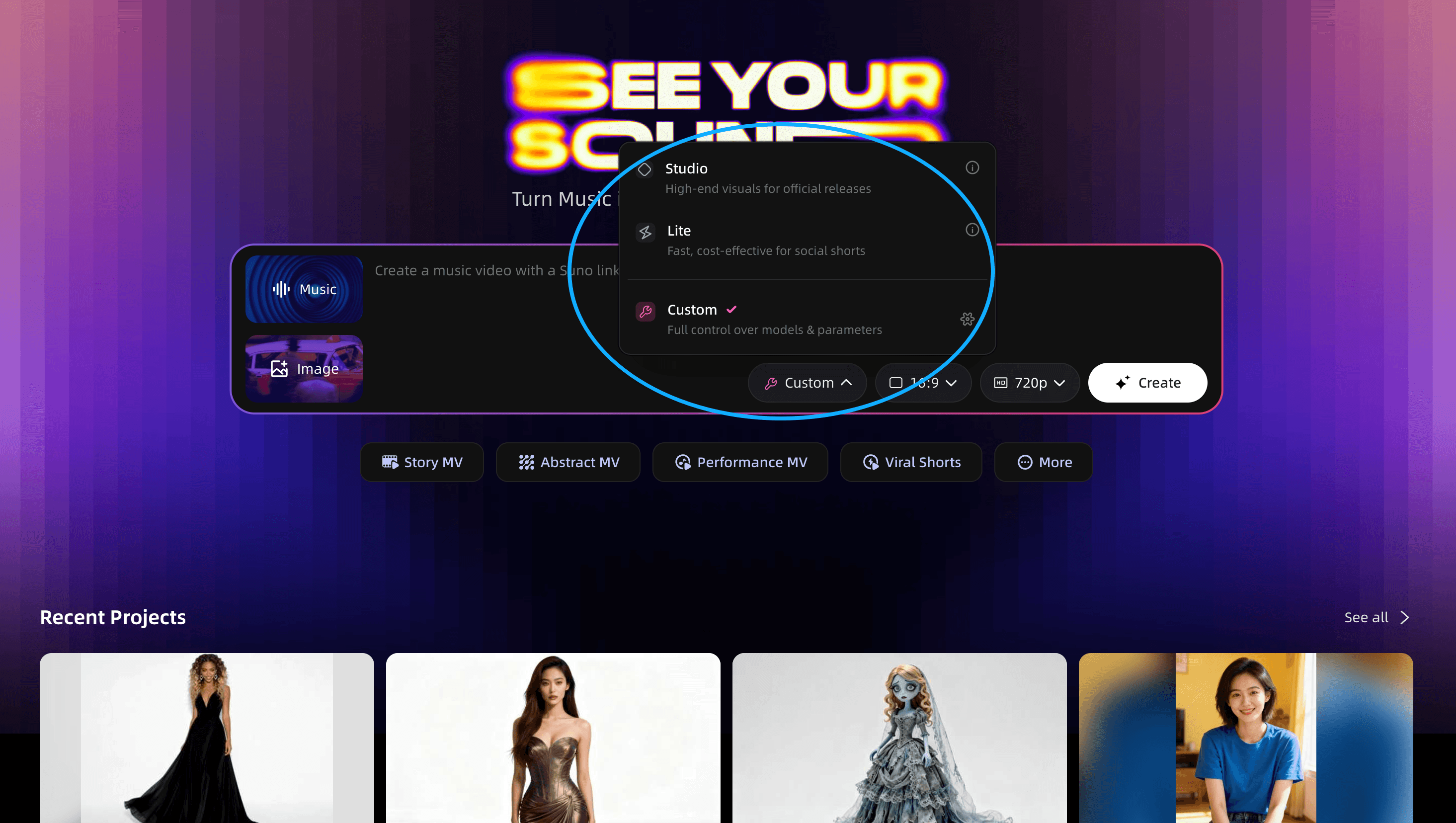
If you are a subscriber, you can set your preferred model as the default.
1.2 Aspect Ratio & Quality
Don't forget to set your canvas before you start:
- Aspect Ratio: Choose between Landscape or Portrait.
- Resolution: VidMuse supports 1080p and 720p.
2. Ready to Create
2.1 Choose a Template
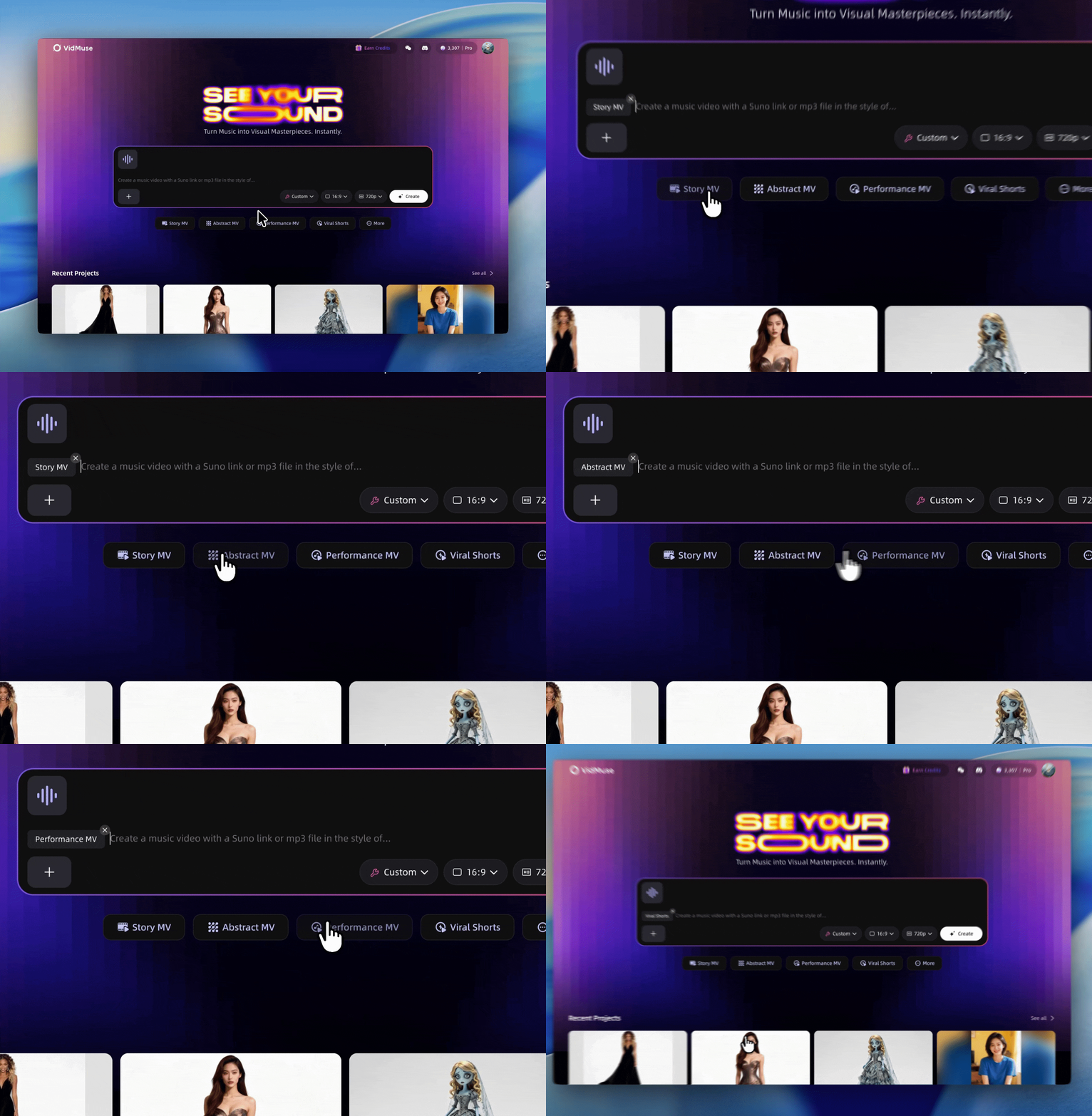
VidMuse provides thoughtful templates to get you started! Simply click a button to load a foundational structure, then input your instructions to customize it.
- Note: Templates are not fixed "props" like in TikTok filters; they are creative frameworks. The plot and visuals will still be generated entirely based on your specific prompts.
“Each template is a knowledge base tailored to a specific video genre. Picking the right one lets you produce high-quality content faster and more efficiently. If you’re unsure what to create, skip the selection and chat with us—our system will recommend the best knowledge base for your idea. Just don’t mismatch: using the wrong template for a different genre will seriously hurt your results. ” — PM Yang
Current Templates:
- Story MV: Narrative-driven music videos.
- Abstract MV: Visuals focused on mood and artistic expression.
- Performance MV: Focus on characters singing or dancing.
- Viral Short: Optimized for social media engagement.
- TVC: Commercials and advertisements.
- Explainer: Visual storytelling for information.
2.2 Upload Music
Click Music to upload your track. VidMuse works with any duration. It analyzes the mood, rhythm, and lyrical expression of your music to plan the video accordingly.
- Note: Longer tracks consume more credits.
- Recommendation: For your first attempt, we suggest using a 30s–60s clip to get the hang of it.
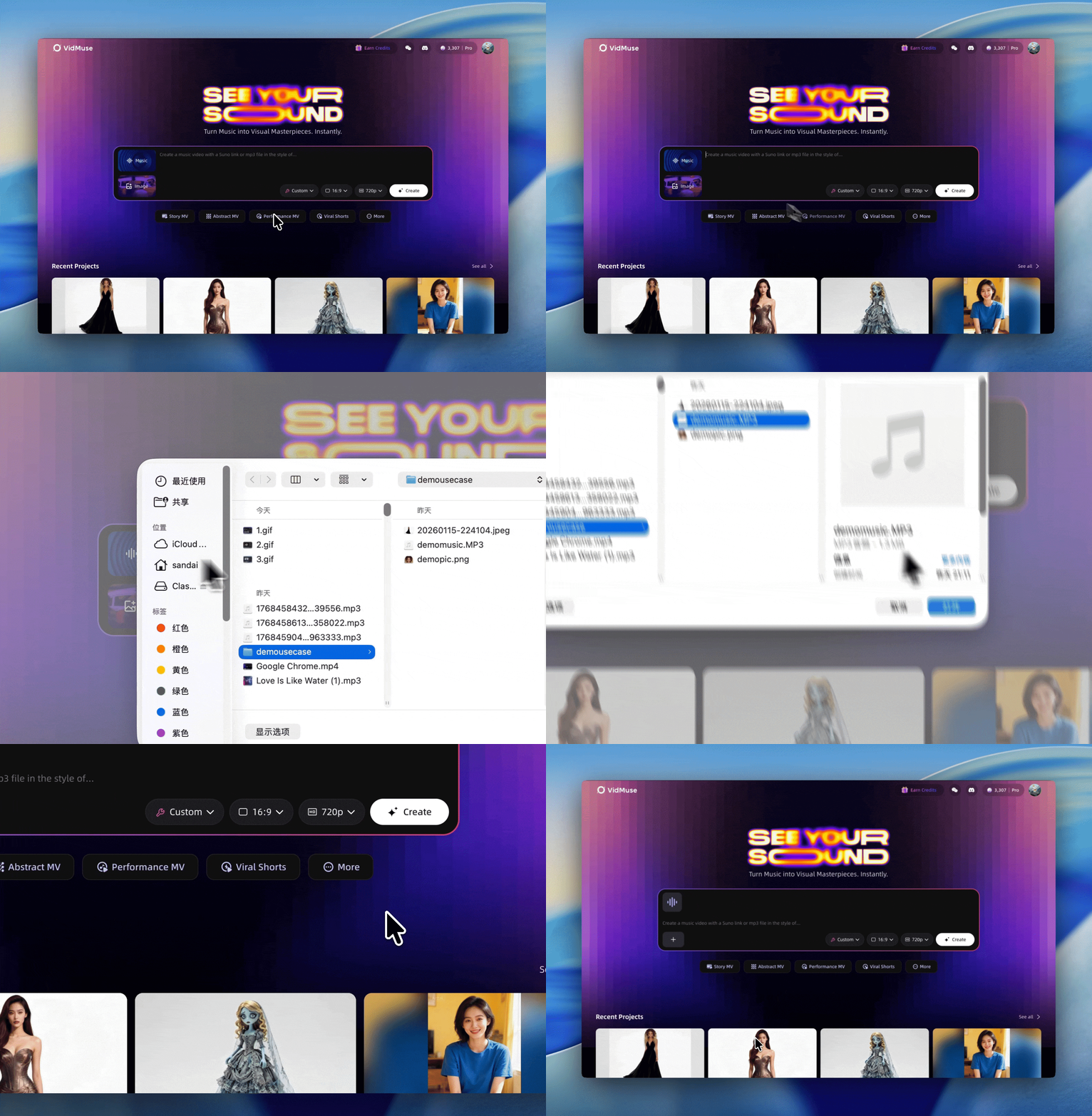
Better yet, compose your music right inside VidMuse! We’ve integrated the leading AI music-generation models, so you can craft original tracks without ever leaving the platform.
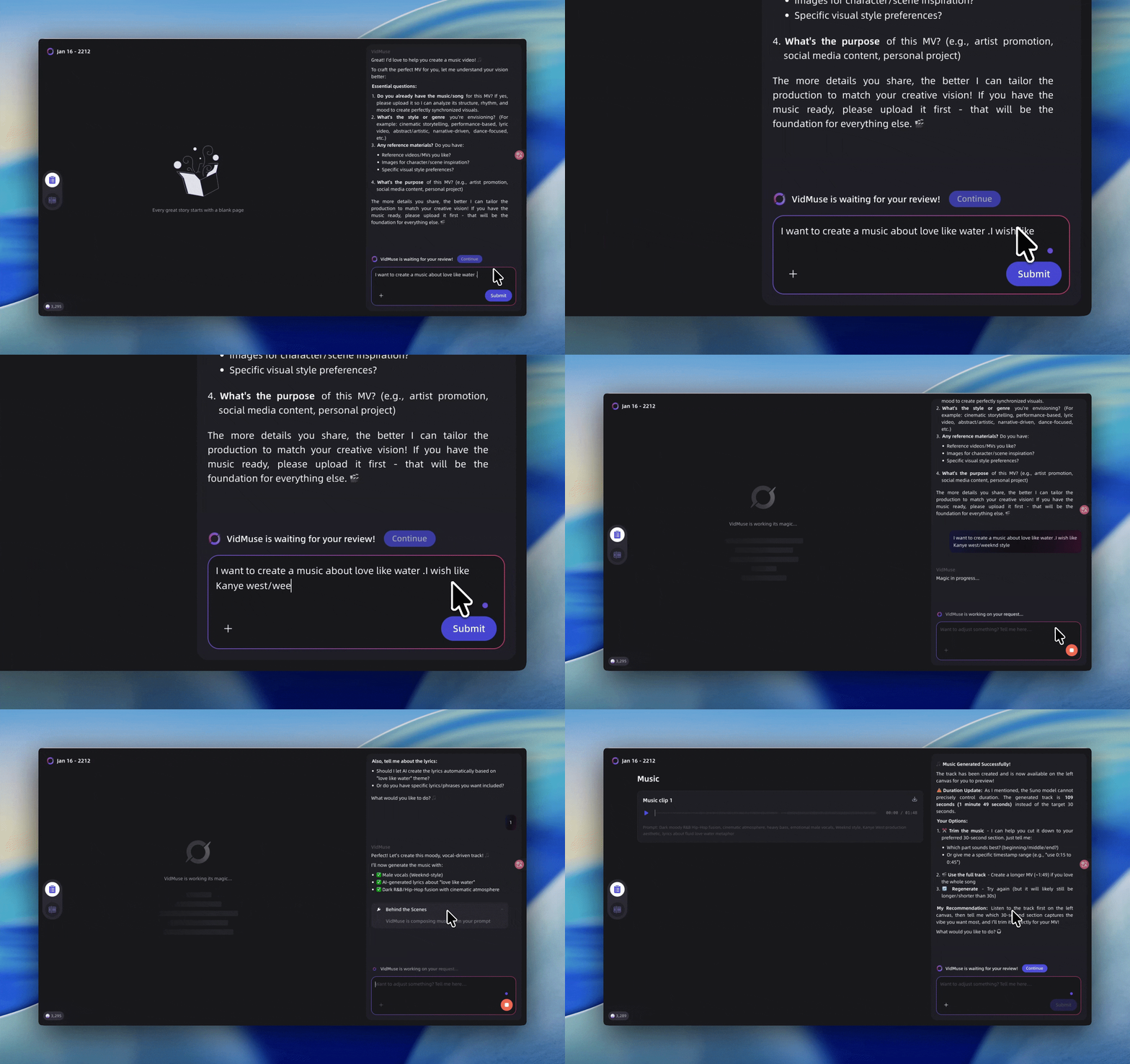
Pro Tip: VidMuse isn't just for MVs; it handles TVCs and narrative performances too. You can upload files containing voiceovers, BGM, or dialogue, and VidMuse will process them intelligently.
2.3 Upload Reference Images 🌟
You can upload images for your singers, lead actors, or supporting cast. You can even design specific costumes! VidMuse also supports props like necklaces, journals, or tools.
Of course! You can also upload your images after the project has started. VidMuse is very flexible. You can provide reference images right at the beginning, or wait until later in the process when the AI asks for your input on specific visuals.
💡 Tip: When uploading a character reference image, clarify in the chat whether you want the AI to reference only the person’s face or both the face and the outfit. —— PM Yang
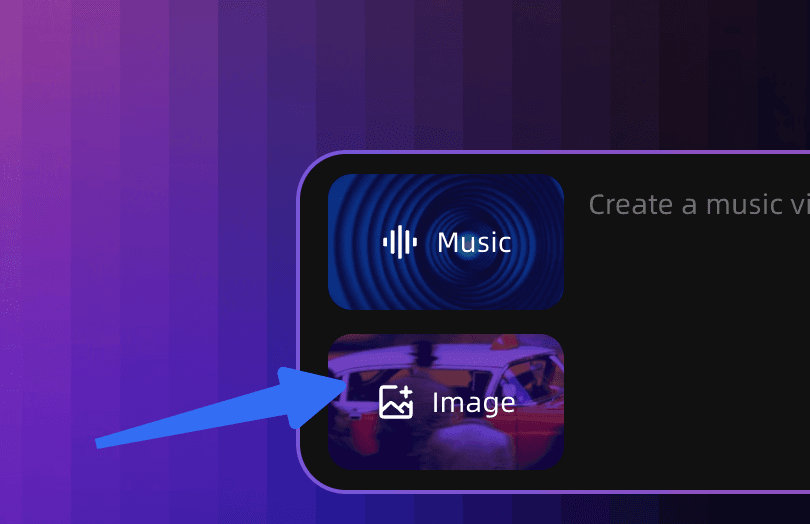
VidMuse will apply these images to maintain consistency throughout the MV. However, please keep two rules in mind:
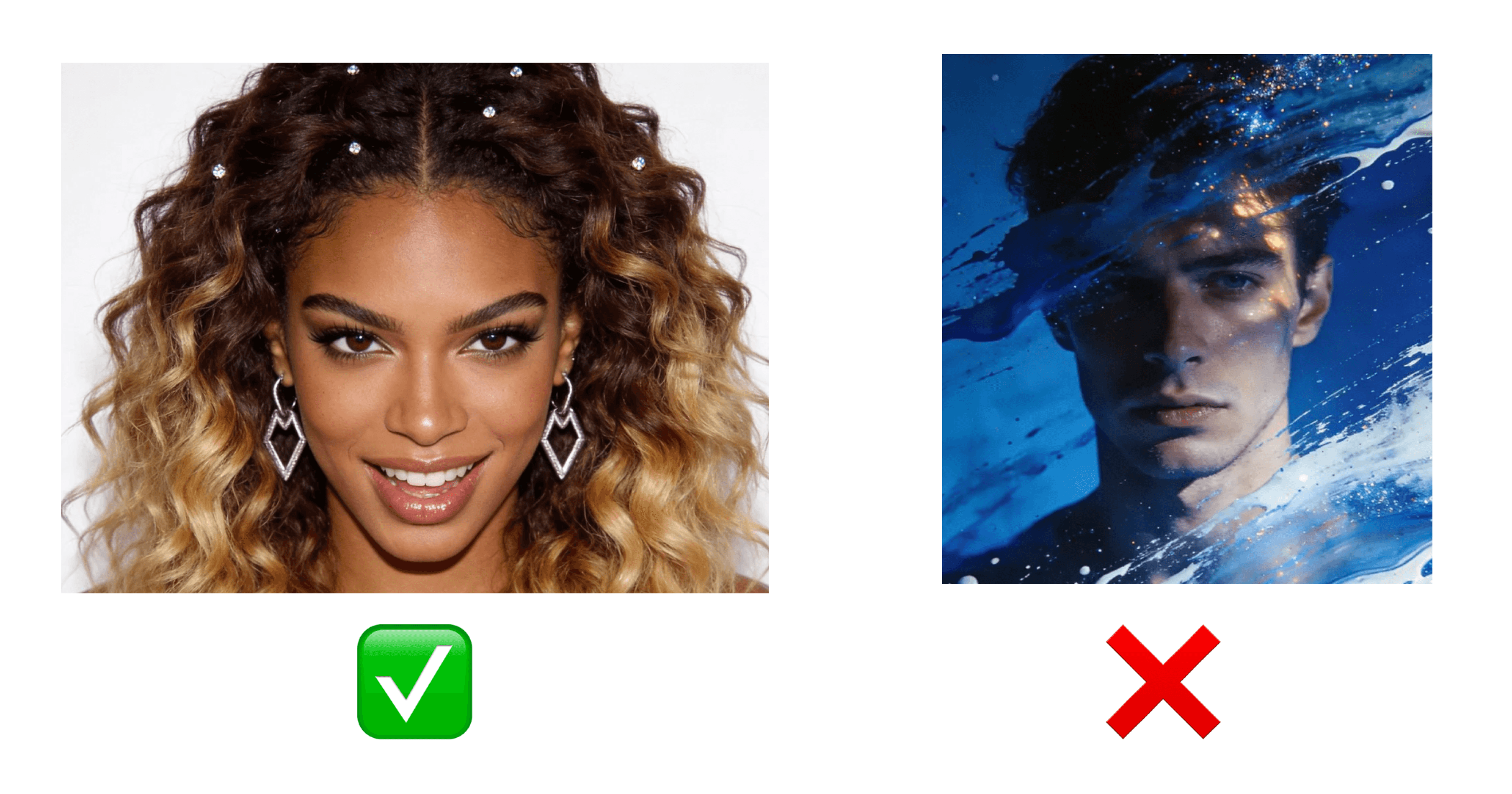
- One Person Only: Make sure every reference image contains exactly one person!! The model can’t pick out “the third person in the crowd”; it has no way to know who you mean.
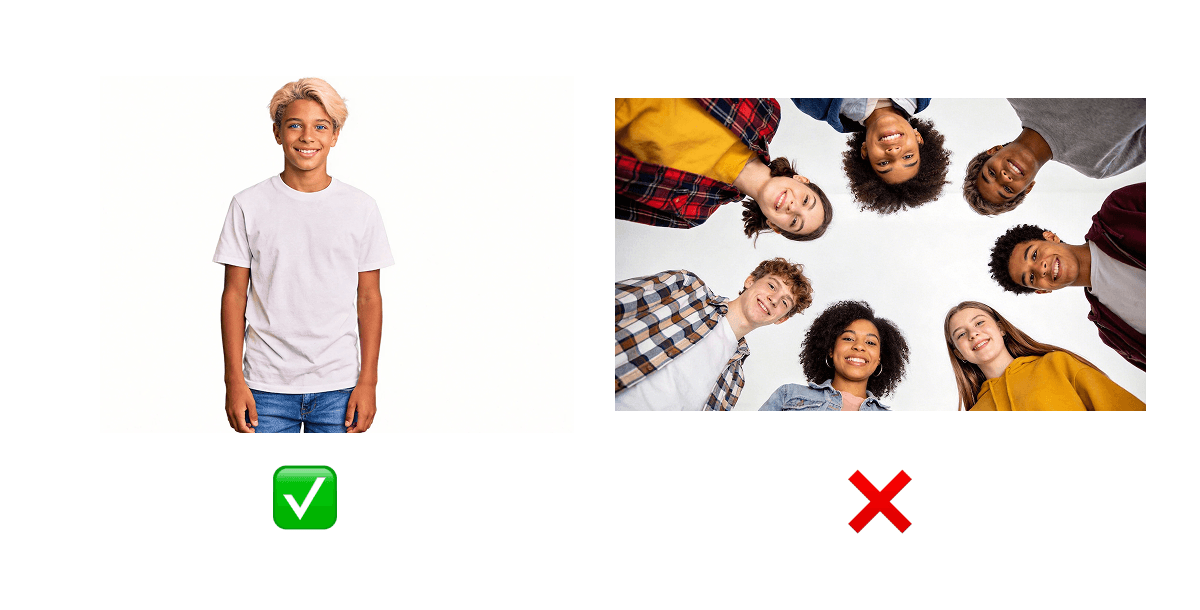
- Clean Backgrounds: Ensure your character images have a clean background and the face is clear and unobstructed. Otherwise, the model may misinterpret your request.
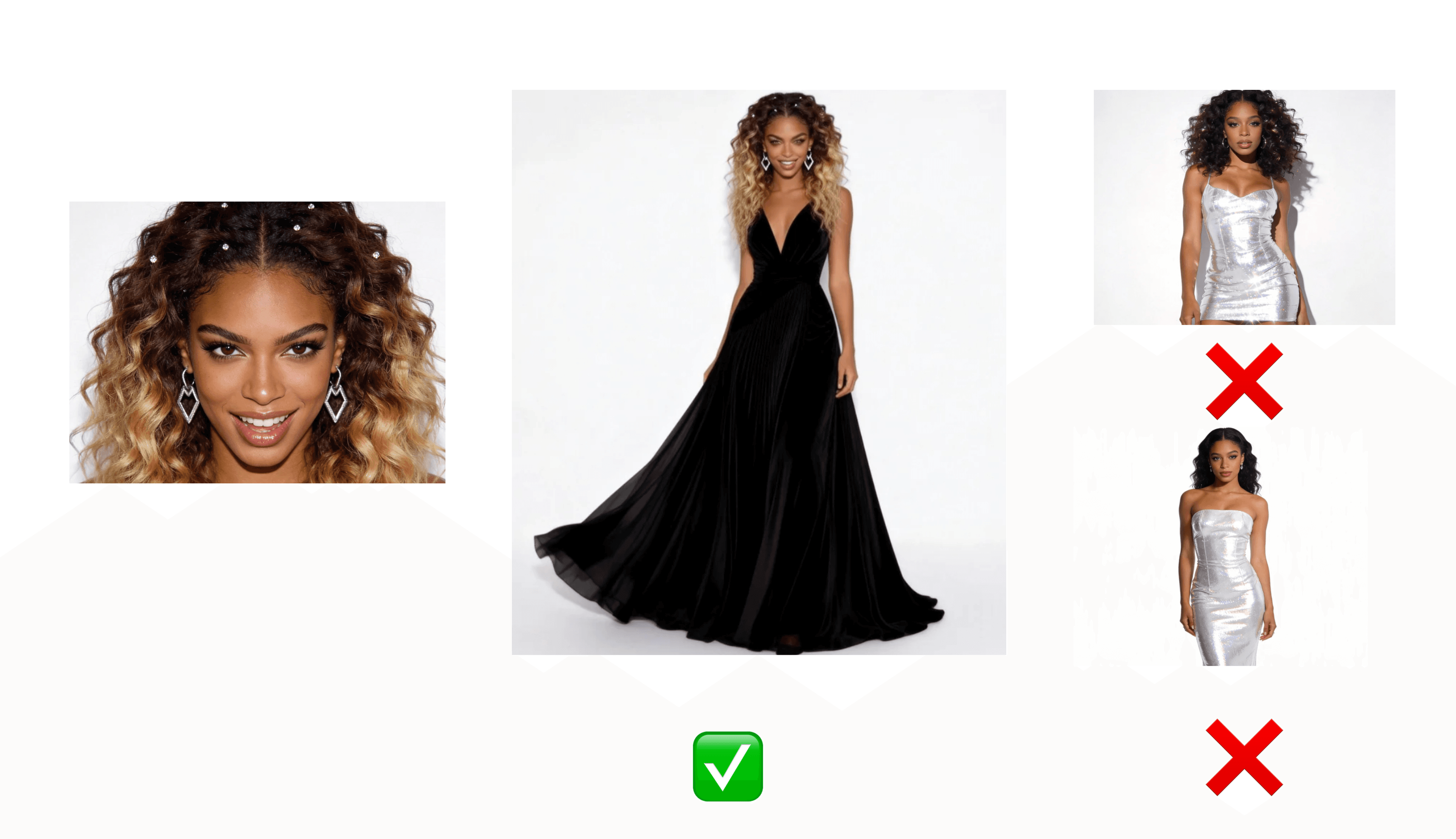
- Consistency: When designing costumes, ensure the character's face remains consistent across the images you upload. If the faces conflict, VidMuse may get confused, affecting the final consistency.
2.4 Input Your Requirements 🌟
When using VidMuse, forget complex "Prompt Engineering" tricks. You only need to do one thing: Describe your needs clearly.
- You don’t have to start with a super-detailed requirements doc—though that’s great if you do. Just say hi and let the conversational AI guide you step-by-step.
Example 1: Narrative & Vibe
"I created an R&B song called 'Love Like Water.' I want to express how close the distance is between love and dreams. I want the MV to include both acting and singing performance, along with many atmospheric shots (B-roll). Image 1 is my female lead. Image 2 is the performer (he does not sing). Image 3 is the outfit I want for the female lead."
Example 2: Specific Action
"Here is my song, the lyrics are... [insert lyrics]. I want the MV to feature a group dance sequence. Start creating!"
The Golden Rule: Be clear about what you want.
3. Start to Work: The Workflow
Once you enter the project, pay attention to the Canvas (left) to preview results and the Chat (right) to communicate with VidMuse.
3.1 Rename Project
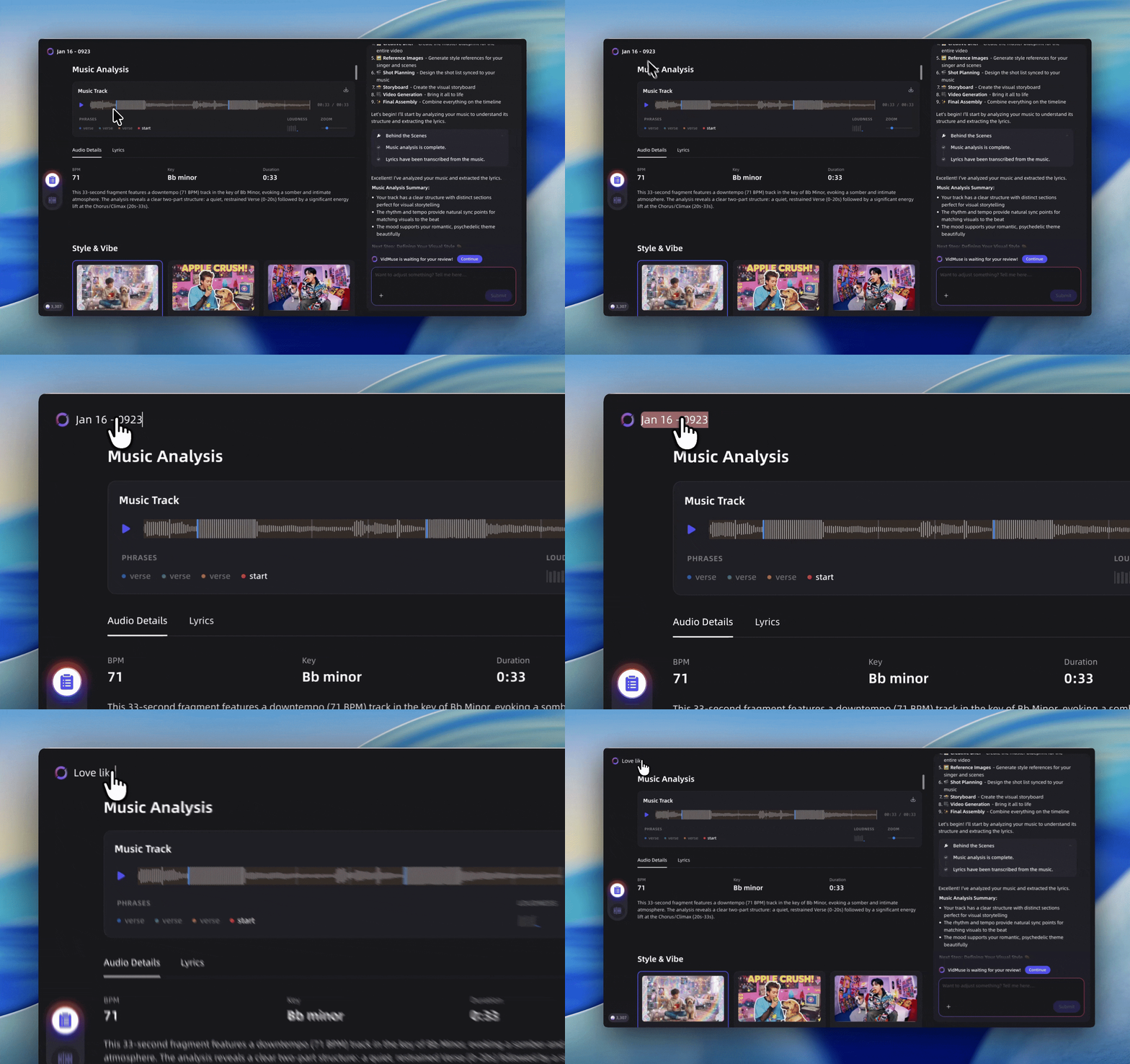
Click the top left corner to rename your masterpiece.
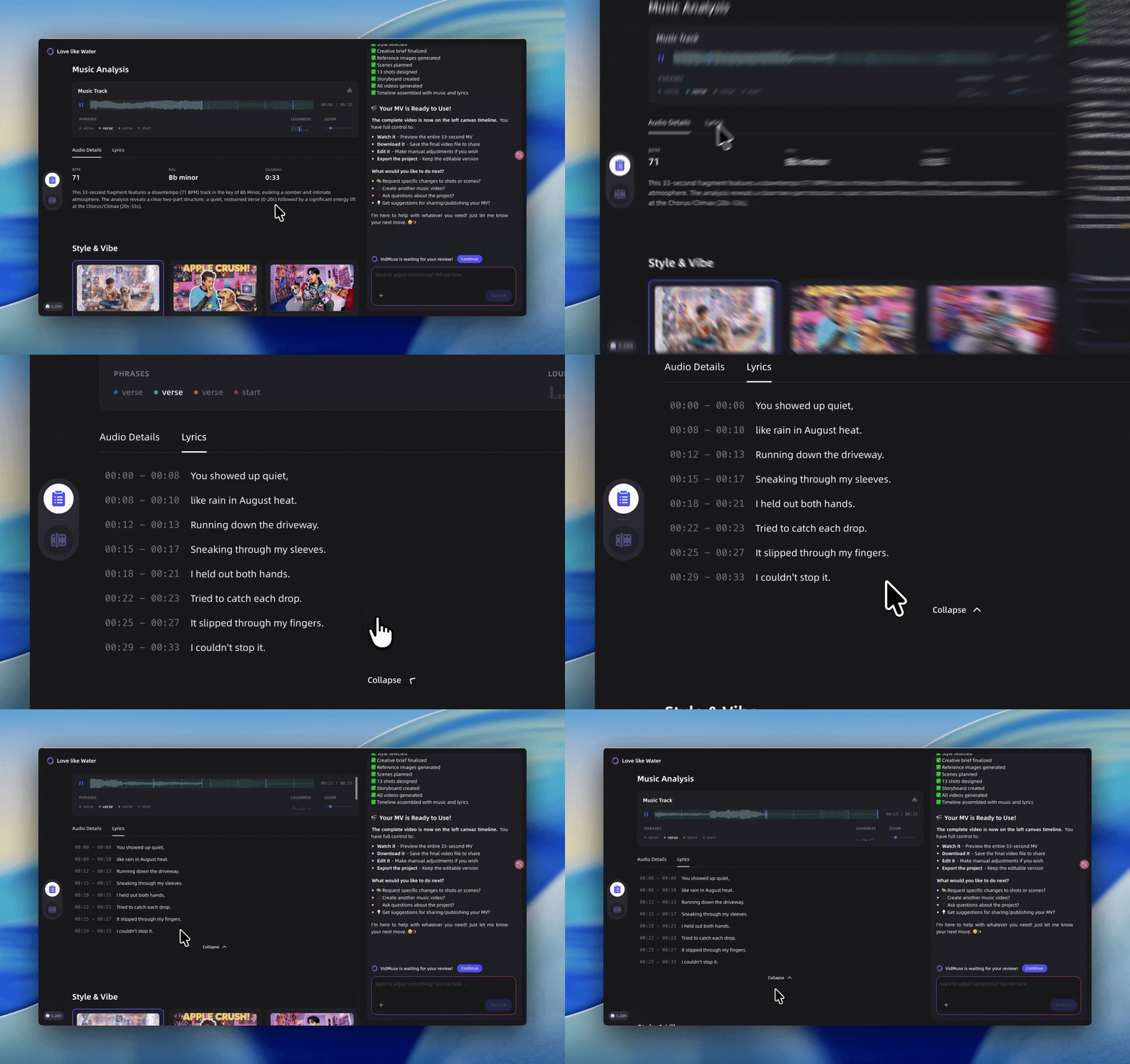
3.2 Music Analysis 🌟
(Consumes a small amount of credits)
VidMuse analyzes your music's segments, rhythm, and lyrics.
Why is this important? It helps VidMuse "hear" your song and plan the storyboard timing perfectly. Due to model instability, lyrics parsing may occasionally contain errors.If the lyrics are incorrect, you can tell VidMuse in the chat, and it will correct them!
3.3 Style Selection / Customization 🌟
(No credit consumption)
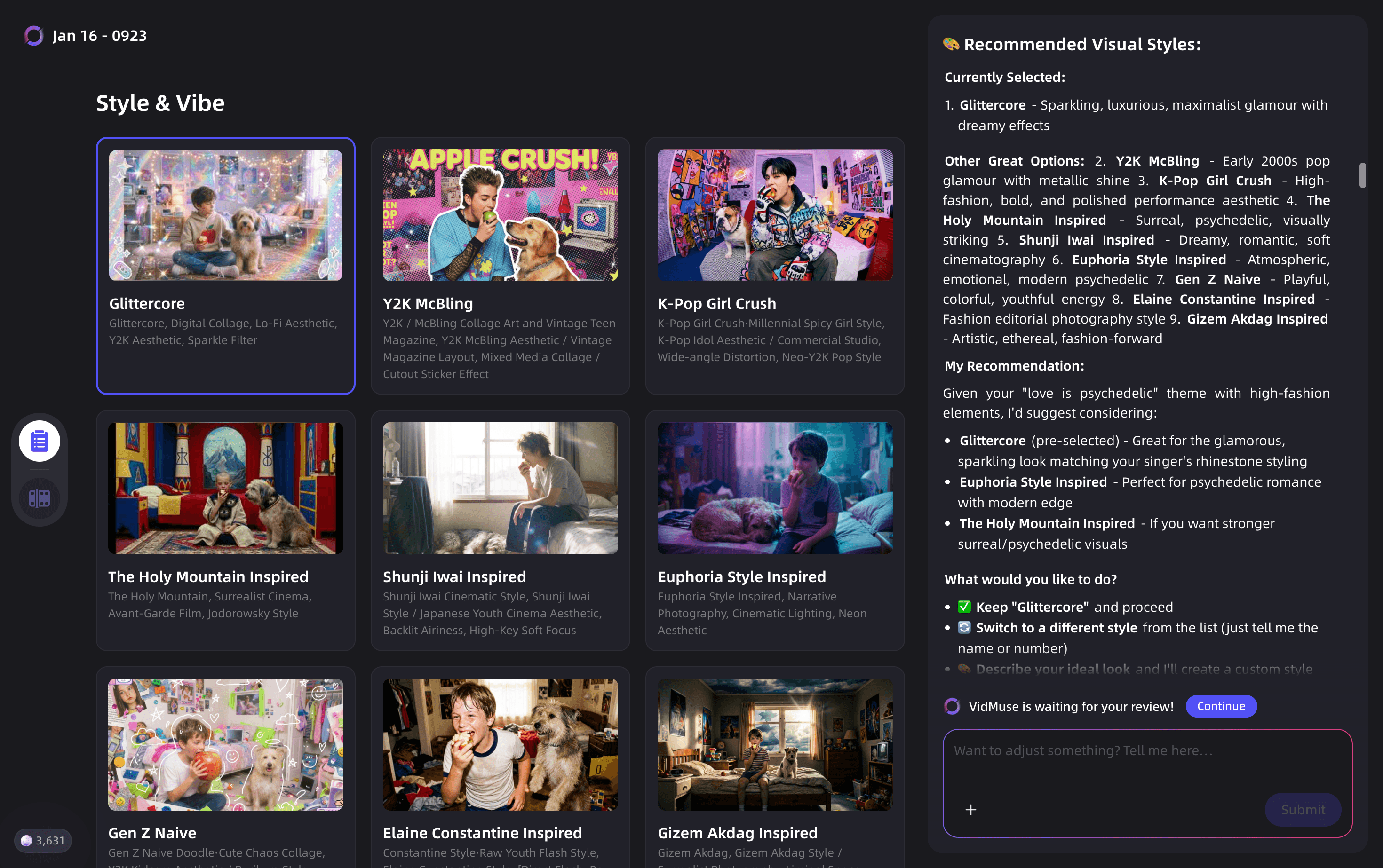
Based on your inputs, VidMuse suggests initial styles. You can select one or describe your preferred style in the chat (e.g., "Cyberpunk," "Vintage 90s," "Watercolor"). If you aren't satisfied, keep refining the request—VidMuse will adapt!
3.4 Creative Brief 🌟🌟🌟🌟🌟
(No credit consumption)
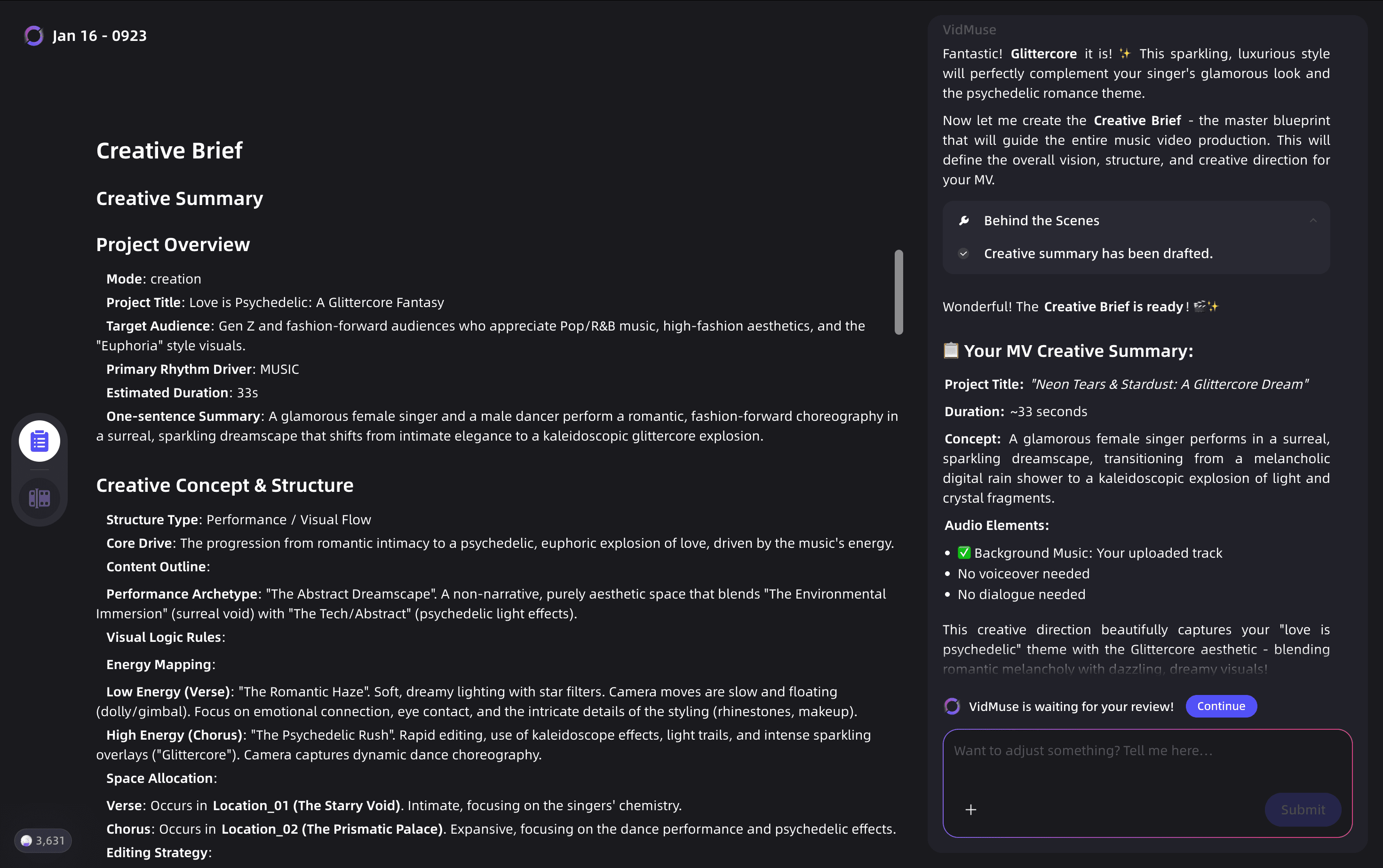
VidMuse will generate a Creative Brief—think of this as the "Director’s Script." It defines the plot, visual style, and overall pacing of your project.
We know it’s a lot of text, but please review it line by line before hitting "Continue." Spending 3 minutes here can save you 30 minutes of rework and a significant amount of credits! The more precise you are now, the smoother the process will be.
Tips: Use this stage to communicate openly with VidMuse to fine-tune the brief. Most issues during execution happen because the final product conflicts with the original brief.
3.5 References
(Consumes a small amount of credits)
Once the brief is approved, VidMuse generates reference images for:
- Characters
- Styling/Costumes
- Scenes/Locations
- Props
How to Modify: If you don't like an image (e.g., "Character-02 looks too tough"), you have two options:
- Chat: Tell VidMuse: "I don't like Character-02's look. His face is too sharp; make the expression softer."
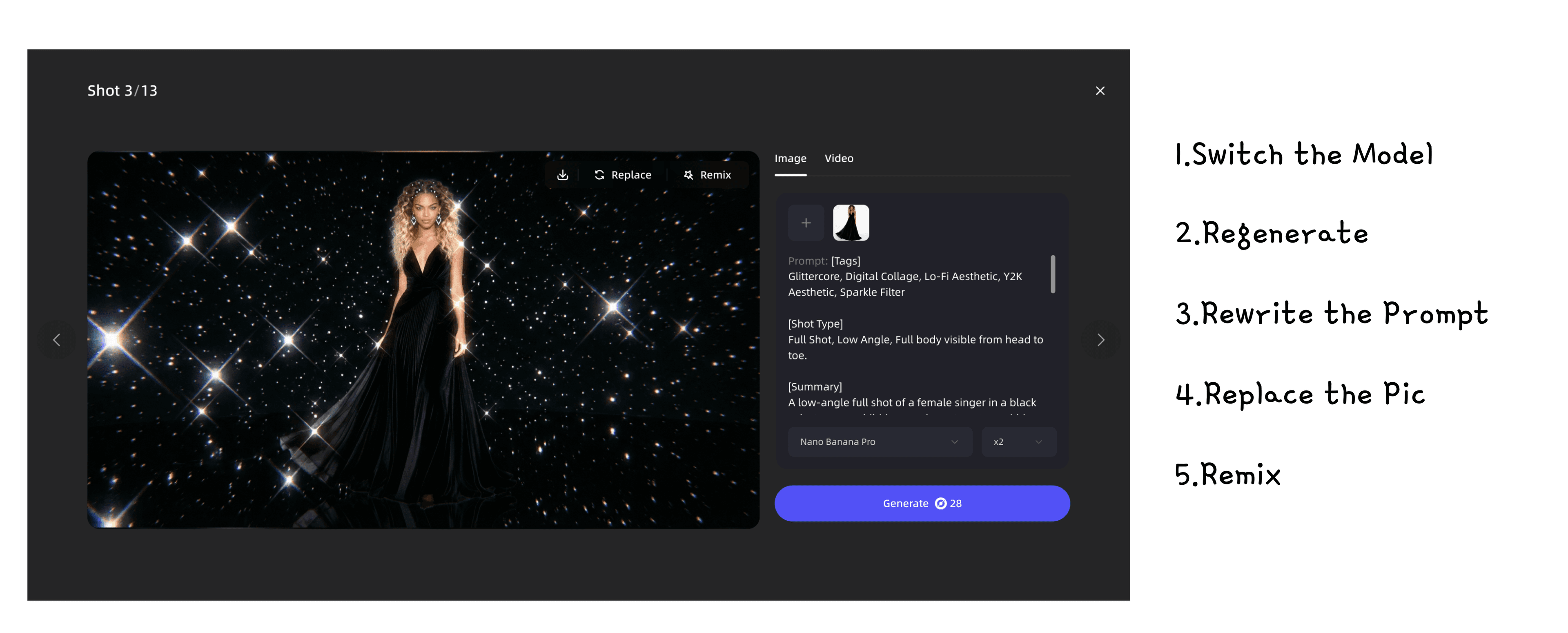
- Click & Edit: Click the image to access 4 modification tools:
- Change the Model.
- Modify the Prompt.
- Replace with an external image.
- Remix.
⚠️ Critical Warning: Confirm your style here. Changing the style after this step is not recommended as it will waste a significant amount of credits.
3.6 Scene and Shot List 🌟
(No credit consumption)
This is the most important part. The Shot List is the blueprint of your video.
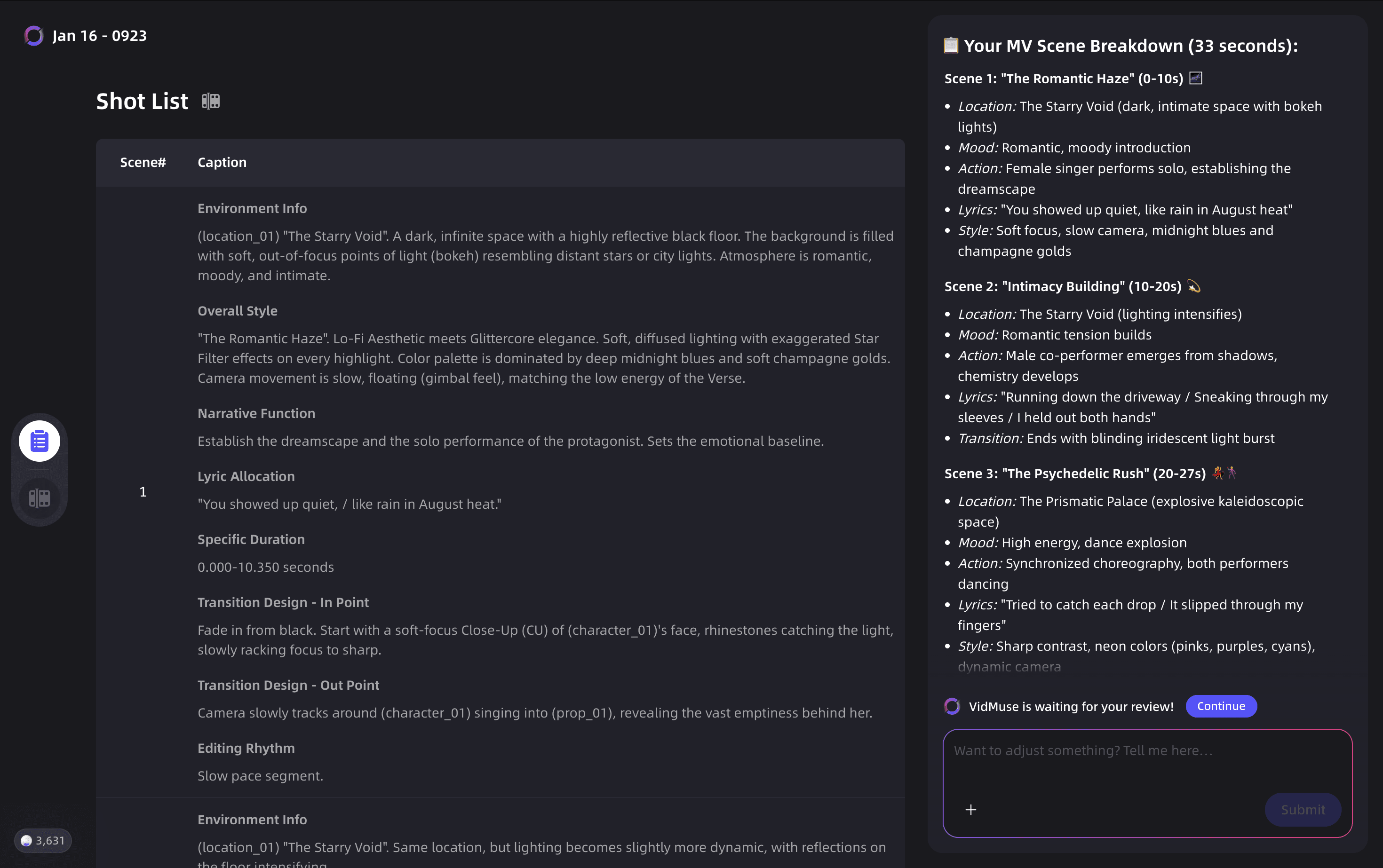
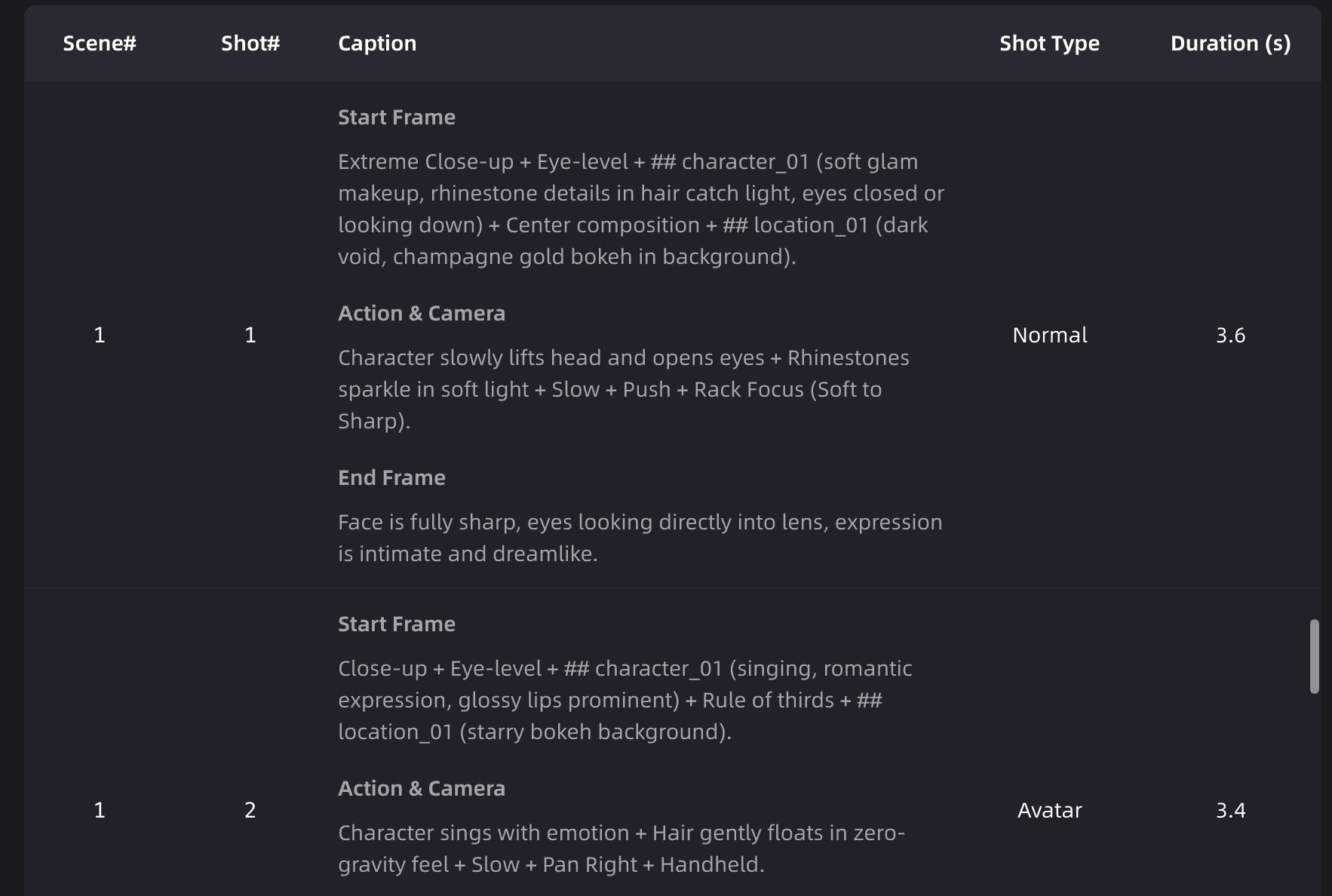
Key Elements:
- Scene: Breaks the MV into narrative sections (different environments/moods).
- Shot List: Specific camera directions.
- Start Frame: The visual look.
- Action & Camera: Movement guidance.
- Shot Type: Normal (Acting/Cinematography) or Avatar (Lip-syncing focus).
- Duration: How long the shot lasts.
- End Frame: The closing state of the shot.
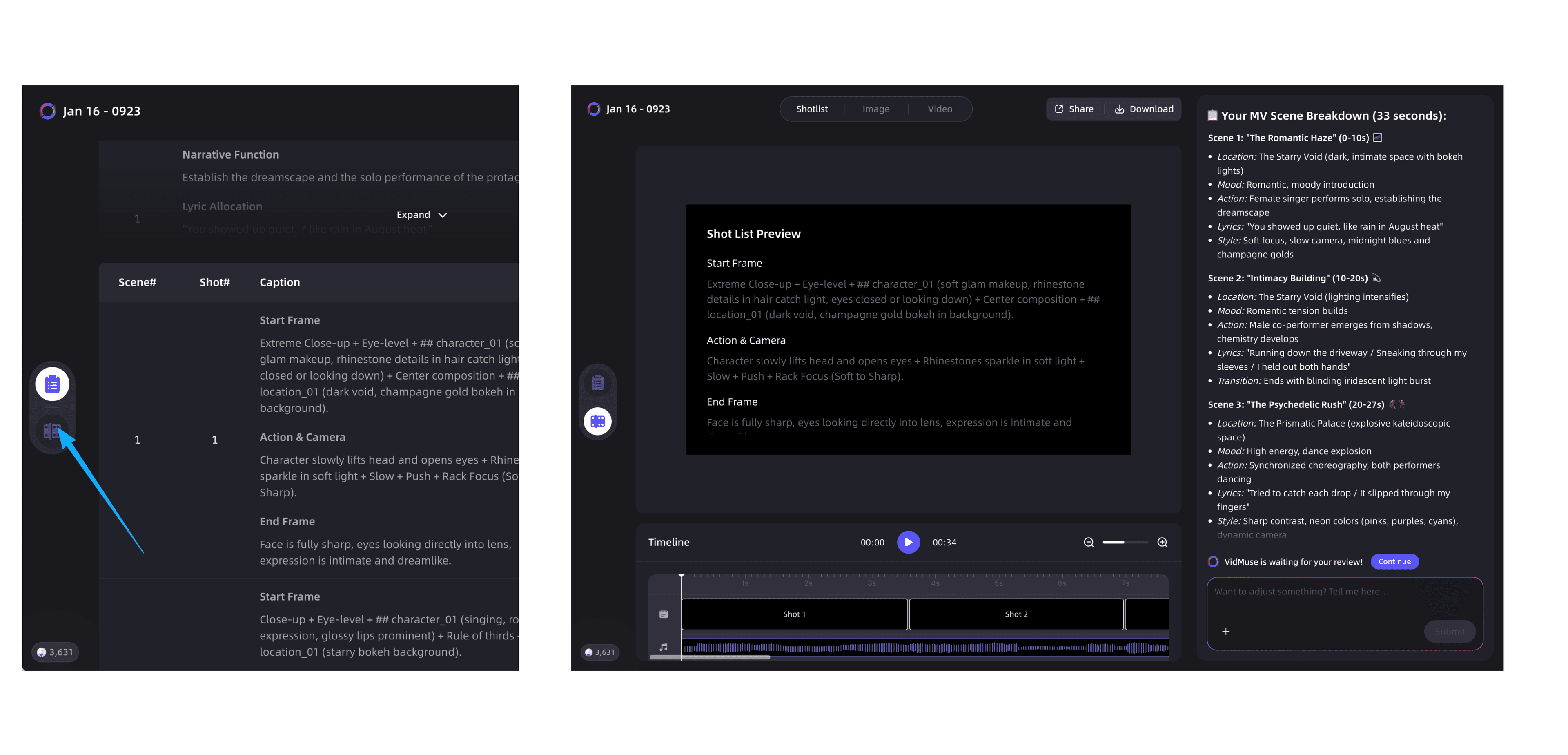
Preview Mode: List view too tiring? Click the button to enter Player Mode. You can play the timeline to feel the rhythm and cuts. Adjust now: If the rhythm feels off, ask VidMuse to change it here. Modifying timing later costs credits!
3.7 Storyboard 🌟
(High credit consumption)
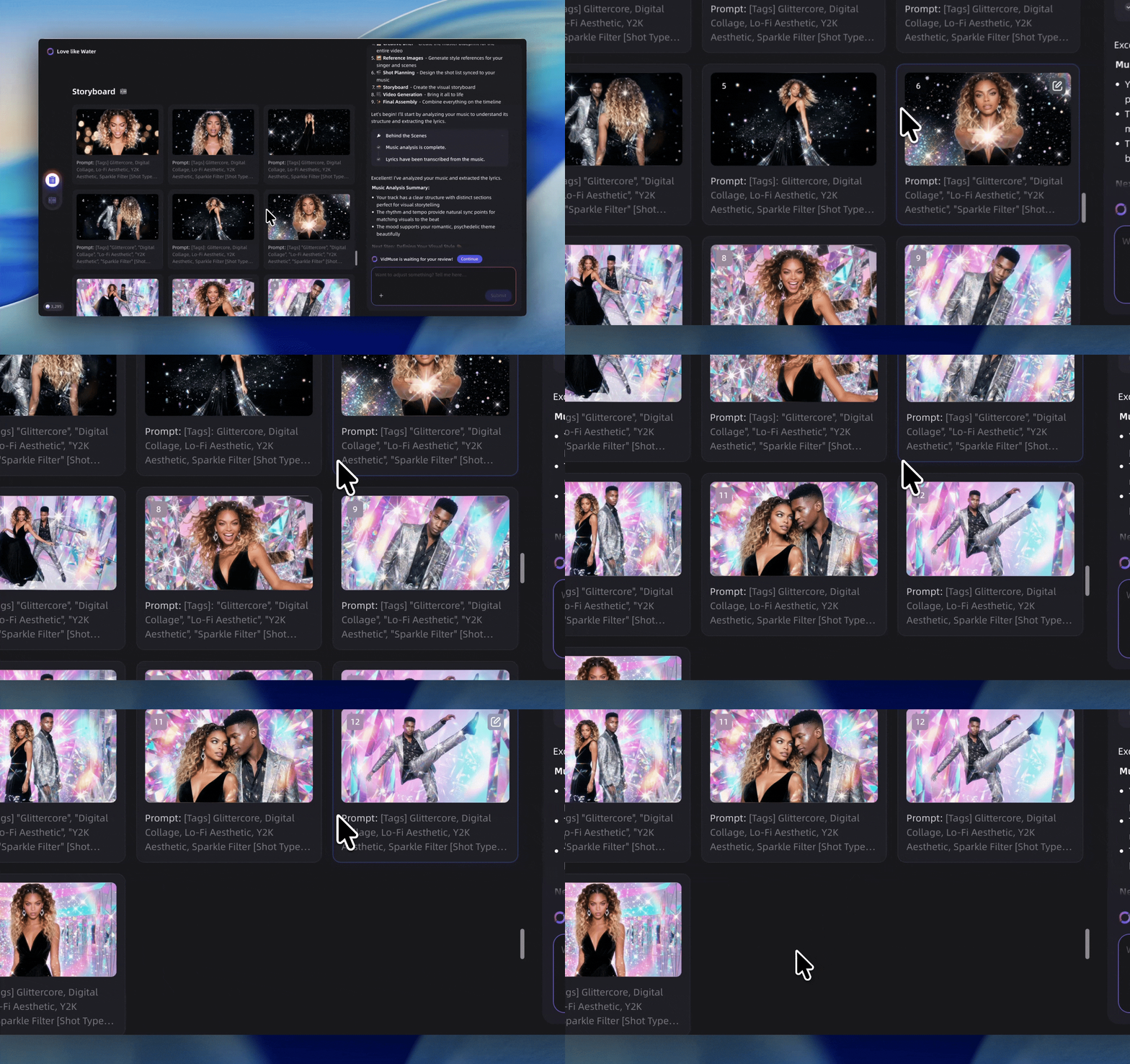
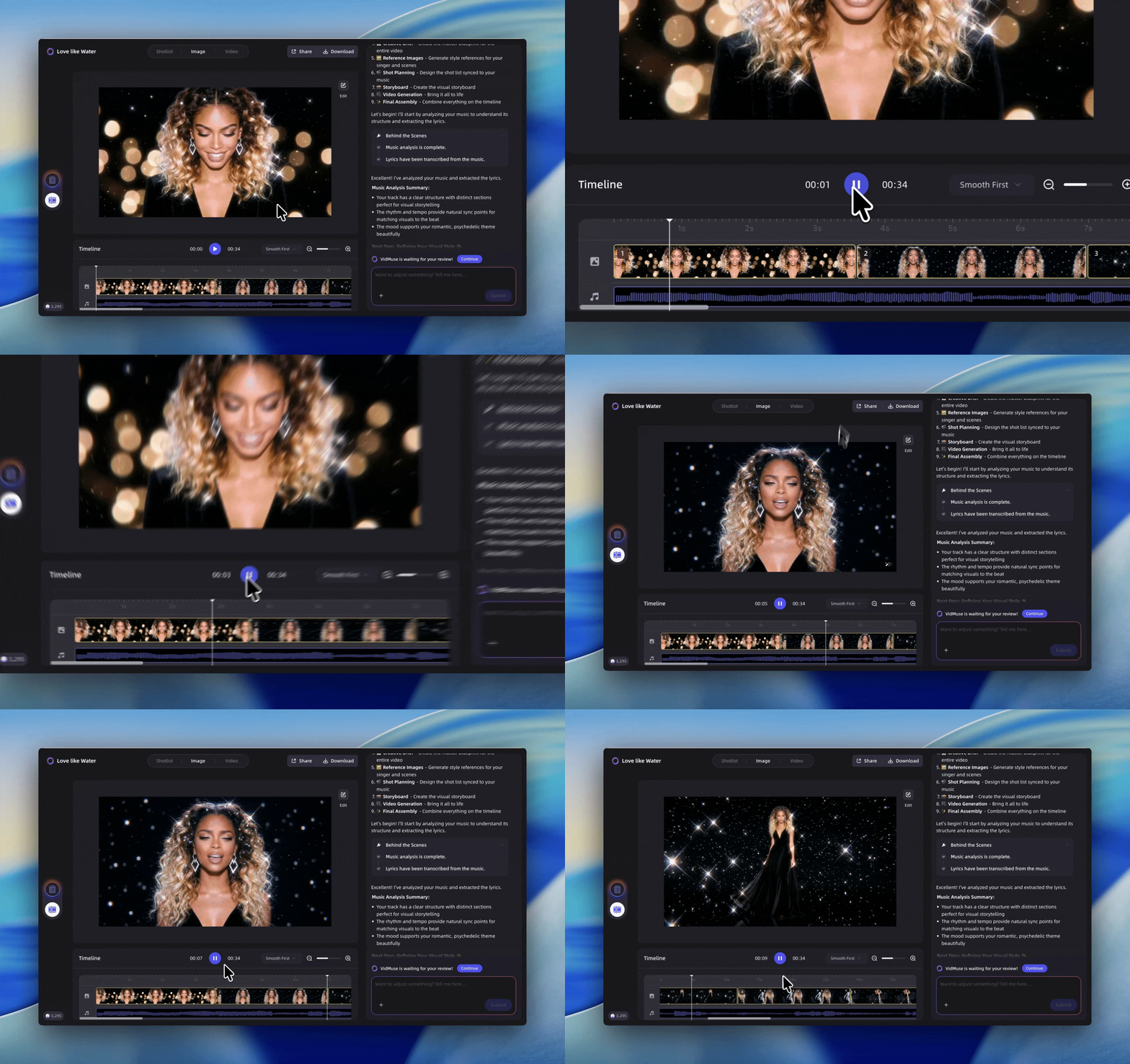
VidMuse now uses image generation models to visualize every shot.
View Modes:
- List Mode: See shots in sequence.
- Clip Mode: See shots on a timeline.
How to Modify:
- Direct Click: Click an image to regenerate or edit.
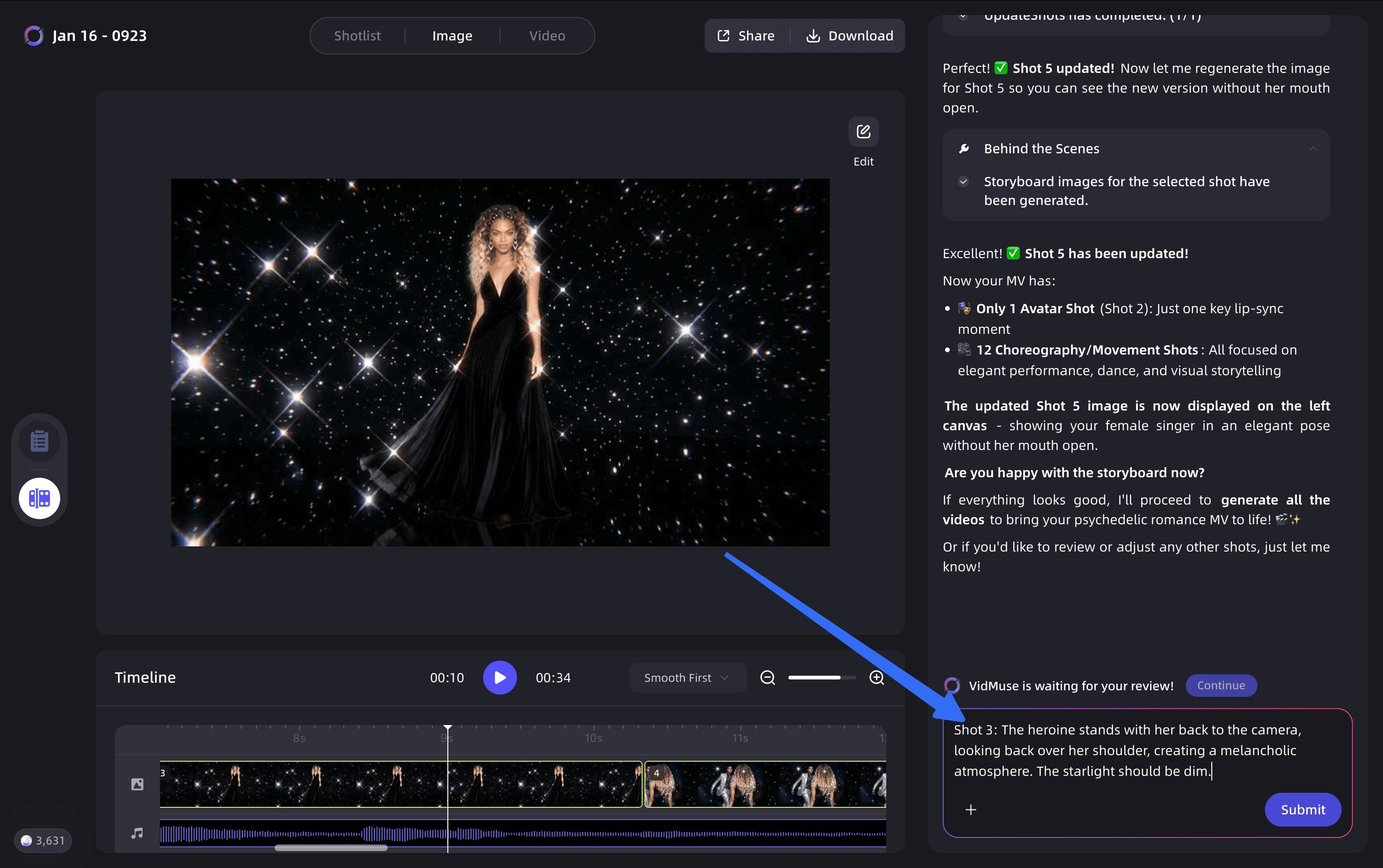
- Chat: Give specific instructions.
"For shot #3, I want the female lead to have her back to the camera, looking back over her shoulder with a melancholic expression. Make the starlight dimmer."
Pro Tip: Avoid vague feedback like "It's ugly, redo it." Be specific about lighting, composition, or emotion to save credits.
3.8 Generate Videos
Once the Storyboard looks perfect, it's time to animate!
- Preview in the Canvas. 
In-Shot Editing:
You can select specific segments within a shot for better performance via the Video Details page.
3.9 Final Preview & Export
You've made it! Preview the full sequence in Edit Mode. Once satisfied, VidMuse generates the final masterpiece.
Download Options:
- The final rendered Video file.
- The full Project Clip file (for further editing in professional software like Premiere or DaVinci).
4. Advanced Tuning & Troubleshooting
(Coming soon: How to maximize efficiency and avoid common pitfalls)
Written By
VidMuse Team
Continue Reading
Latest blog posts related to AI video creation.
Best AI Music Generator 2026: Top Tools for Songs & Music Videos
Compare the best ai music generator options for songs, vocals, licensing, and music videos, with a practical checklist for creators and brands in 2026.
Lyric Video Generator: Make Synced Videos from Audio
Learn how a lyric video generator syncs audio, lyrics, and visuals, plus how to choose a tool, avoid timing errors, and publish release-ready videos online.
Vidu Q3 x VidMuse AI: Music Video Model Guide 2026
Discover how Vidu Q3 works with VidMuse AI for music videos, image-to-video shots, reference control, and model choices versus Seedance 2.0 or Kling 3.0.