

AI Music Visualizer: The Complete Tutorial
A music visualizer is a video that reacts in real time to your audio — displaying waveforms, frequency bars, or abstract motion that pulses with your track. An AI music visualizer goes further: it uses machine learning to generate scene-matched visuals, sync effects to beats automatically, and in advanced platforms, produce full cinematic music video sequences from a single audio file. Whether you're an indie musician uploading to YouTube or a producer promoting AI-generated tracks, the right music visualizer workflow can turn raw audio into scroll-stopping content in under an hour.
Key Takeaways
- A music visualizer syncs motion graphics or AI-generated visuals to your audio; the AI-powered version automates beat detection, scene generation, and animation.
- Free tools like Vizzy and Specterr work well for waveform-based visualizers; they cap out at template visuals and cannot generate original cinematic footage.
- For a full AI-directed music video — not just an audio spectrum layer — platforms like VidMuse use agent-based logic to plan scenes, generate shots, and assemble a timeline from your creative brief.
- Export settings matter as much as the visual itself: always target 1080p minimum, 16:9 for YouTube, and 30fps or above.
- Choosing the right tool depends on one question: do you want an audio spectrum overlay, or do you want a genuine music video?
What Is an AI Music Visualizer?
An AI music visualizer is software that analyzes the frequency, tempo, and dynamic range of an audio file and generates synchronized visual output — automatically, without manual keyframing. Traditional visualizers display static waveform templates; AI-driven tools go a step further by adapting colors, motion intensity, and visual complexity to the energy of the specific track.
At the basic end, an audio visualizer generator reads your file and maps amplitude data onto a bar spectrum or particle system. At the advanced end — as seen in platforms like VidMuse — the AI acts as a director: it reads your brief, plans a shot list, generates scene-matched footage using models like Seedance 2.0 or Veo 3, and assembles a timeline with a beginning, middle, and end.
The distinction matters because it defines what you actually need. A waveform overlay takes five minutes. A produced music video takes a structured workflow. Both start with a music visualizer — but they end in very different places.
Create Your AI Music Video in Minutes
Turn your idea into a music video with VidMuse.
Types of Music Visualizer Outputs
Understanding the output type before choosing a tool saves significant time. The three main categories are:
Audio Spectrum Visualizers display real-time frequency data as bars, waves, or particles that react to bass, mids, and highs. These are the most common type and are the focus of tools like Specterr, Vizzy, and Renderforest's audio templates.

Beat-Reactive Motion Graphics go beyond a single waveform element. The entire composition — backgrounds, text, logo animations — pulses with the track. Renderforest's more advanced templates fall into this category.

AI-Generated Music Video Sequences are the newest category. Instead of a reactive overlay, an AI generates original video footage matched to the mood, tempo, and genre of your audio. VidMuse operates at this level, using its agent-based workflow to produce shot-by-shot sequences rather than one-shot generations.
Each type has a legitimate use case. The mistake is applying the wrong tool to the wrong goal.
Visualizer Overlay
Best for
- Fast to make
- Good for YouTube uploads
- Works with free tools
Watch out
- Template ceiling
- Limited narrative value
- Often watermarked on free plans
Full AI Music Video
Best for
- Scene planning
- Original generated footage
- Better fit for artist storytelling
Watch out
- Requires a structured workflow
- Usually credit-based or paid
How to Create an AI Music Visualizer: Step-by-Step
This workflow covers the full range — from a simple online music visualizer to a produced AI video. Follow the path that matches your output goal.
Define your output goal
Decide whether the visualizer is the whole video or one layer inside a larger AI music video workflow.
Prepare your audio file
Export a high-quality WAV or 320kbps MP3, trim silence, and decide whether you need full runtime or a highlight cut.
Choose your tool based on output type
Use Specterr or Vizzy for waveform overlays, Renderforest for templates, VEED for edits, or VidMuse for a full AI music video.
Upload your audio and configure the visualizer
Select waveform or particle style, use high contrast, pull one brand color, and keep text minimal.
Sync to your key moments
Adjust intensity around drops, bridges, and percussive peaks so the best frames can become thumbnails.
Add branding elements
Add logo, typeface, album art, and consistent placement for repeatable channel identity.
Set export parameters correctly
Export 16:9 or 9:16, 1080p minimum, 30fps or higher, and MP4 H.264 for compatibility.
Run the full VidMuse pipeline
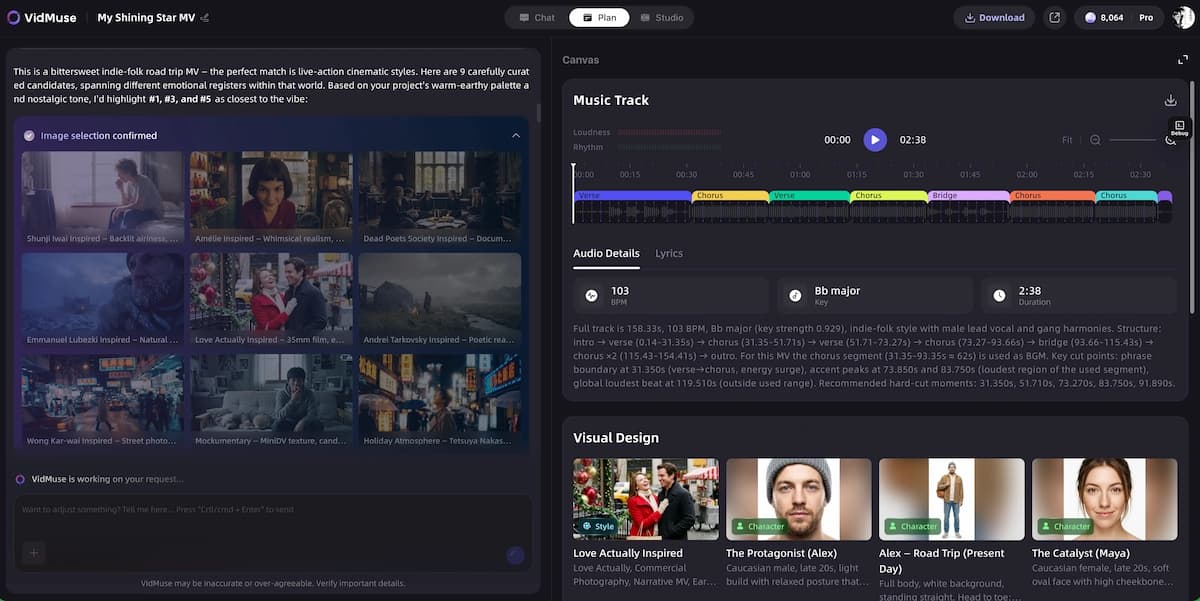
For produced MVs, use Creative Brief, Scene and Shots List, Storyboard, Video Generation, Timeline Editor, and Asset Library.
Step 1: Define your output goal
Before opening any tool, decide: is the visualizer the entire video, or one layer inside a larger edit? If you want a pure waveform video for YouTube, skip to Step 3. If you want a narrative music video with generated footage, continue through all steps.
Step 2: Prepare your audio file
Export your track as a high-quality WAV or MP3 (320kbps minimum). Most tools accept both, but WAV preserves the dynamic range that beat-reactive visuals depend on. Trim silence from the beginning and end. If your track is over two minutes, decide in advance whether you want the visualizer to cover the full runtime or just a highlight cut.
Step 3: Choose your tool based on output type
- Waveform overlay only: Specterr or Vizzy (both free to start)
- Fast, polished template: Renderforest
- Visualizer inside a full video edit: VEED
- Full AI-generated music video: VidMuse
Step 4: Upload your audio and configure the visualizer
In spectrum-based tools, upload your audio file and select a waveform or particle style. The best audio visualizer generator setups use:
- A high-contrast background (dark backgrounds make reactive elements pop)
- A single dominant color pulled from your album art or branding
- Minimal text — artist name and track title only
- No more than two visualizer layers (stacking too many muddies the output)
Step 5: Sync to your key moments
Most tools with a live preview allow you to scrub through the audio and adjust animation intensity at specific timestamps. Pay attention to the drop, the bridge, and any percussive peak moments. These are the frames that generate still thumbnails worth clicking.
Step 6: Add branding elements
A music video visualizer without branding is a missed channel-building opportunity. Add your logo, a consistent typeface, and — if available — your album or single artwork. Keep the logo placement consistent across all uploads.
Step 7: Set export parameters correctly
- Aspect ratio: 16:9 for YouTube standard, 9:16 for Shorts or Reels
- Resolution: 1080p minimum; 4K if the tool supports it and your background asset is high resolution
- Frame rate: 30fps minimum; 60fps for high-motion particle effects
- Format: MP4 (H.264) for broadest compatibility
Step 8 (For AI music video workflows): Run the full VidMuse pipeline
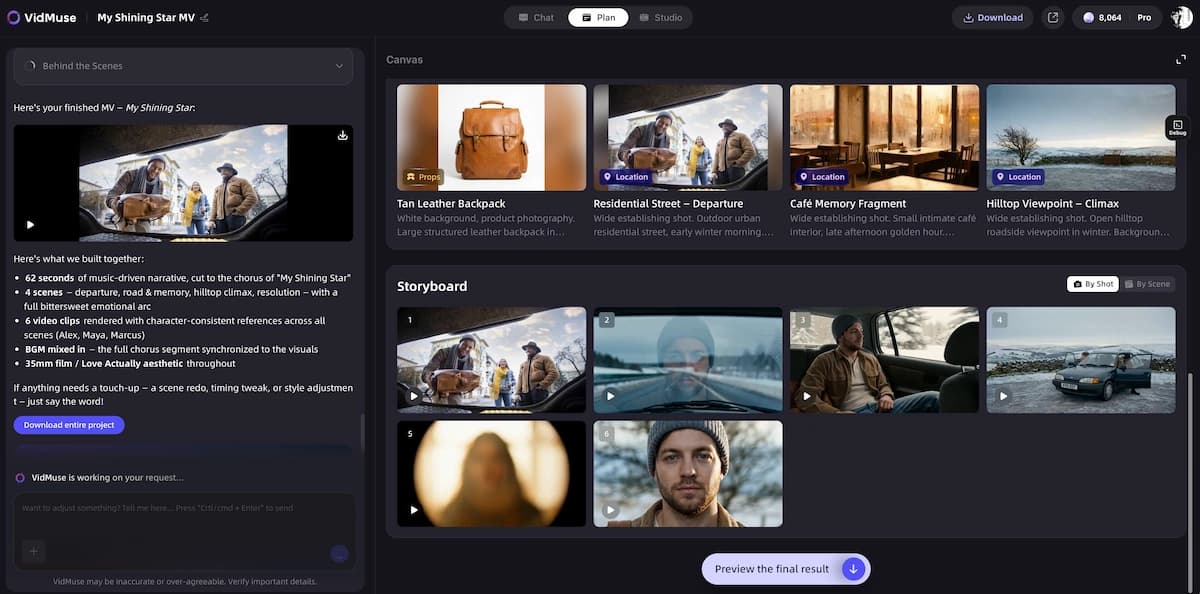
If your goal is a produced music video rather than a waveform loop, the workflow is different in structure. VidMuse's agent-based approach means you input a Creative Brief — genre, mood, visual references, track length — and the platform builds a Scene and Shots List, a Storyboard, and then generates video using models from its matrix (including Seedance 2.0 Pro, Kling V3.0 Pro, Veo 3.1, and others). The 2.0 features — Shot Refine by Quoting, Timeline Editor, and Asset Library & Memory — let you iterate on specific shots without regenerating the whole sequence. This is the workflow that takes a Suno-generated track and turns it into a two-minute cinematic MV.
Comparing the Best Online Music Visualizer Tools
Choosing an online music visualizer comes down to four variables: creative control, speed, cost, and output ceiling. Here is how the main options compare across those axes.
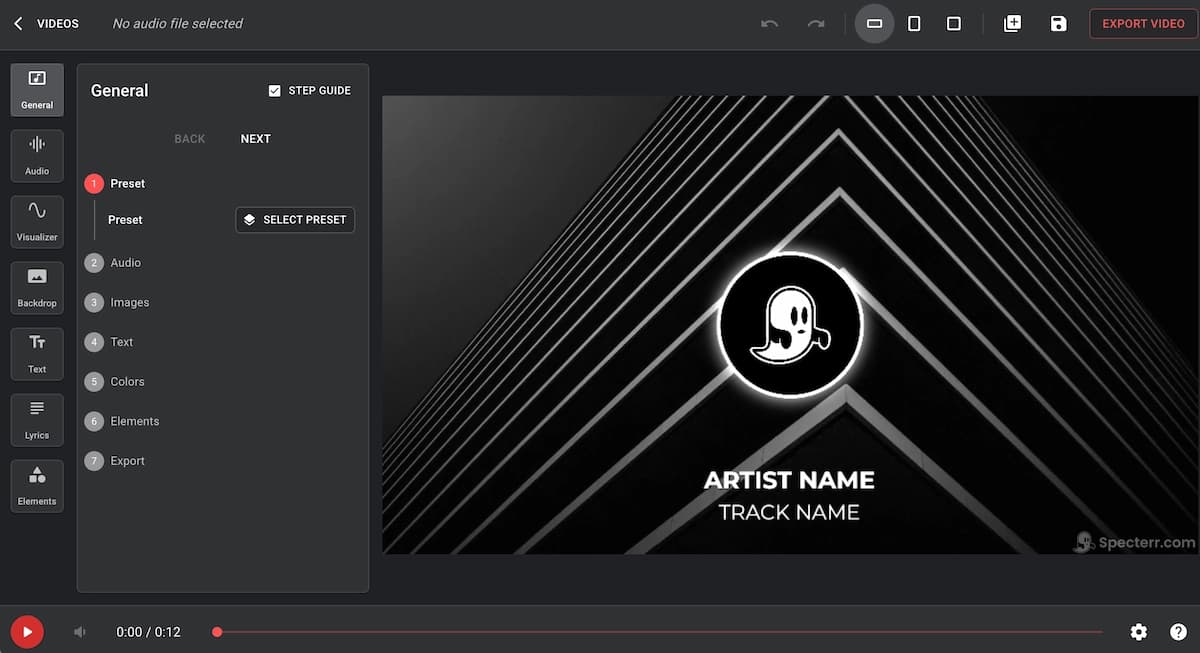
Specterr offers the deepest waveform customization of any browser-based tool. Up to seven independent visualizer layers, full particle control, and live preview make it the strongest choice for creators who want a unique audio spectrum identity rather than a recycled template. The free plan allows one daily export at 720p with a watermark — adequate for testing, limited for production.
Vizzy is fully free and open-source with no paid tier, no watermarks, and no export caps (within file size limits). The interface has a steeper learning curve than most tools, but the ceiling for customization is high. It is the best free music visualizer for technically minded users who want deep control without a subscription. The Reddit community of independent musicians has repeatedly flagged it as the standout free option, with users noting they eventually outgrew it only when they moved to professional NLEs like DaVinci Resolve.
Renderforest prioritizes speed and polish over control. Its template library is extensive, and many templates go beyond a simple waveform to include beat-reactive full compositions. The Renderforest music visualizer workflow — pick a template, upload audio, export — is genuinely the fastest path to a professional-looking result. The tradeoff is that your output will look like a Renderforest template, which limits visual differentiation across uploads.
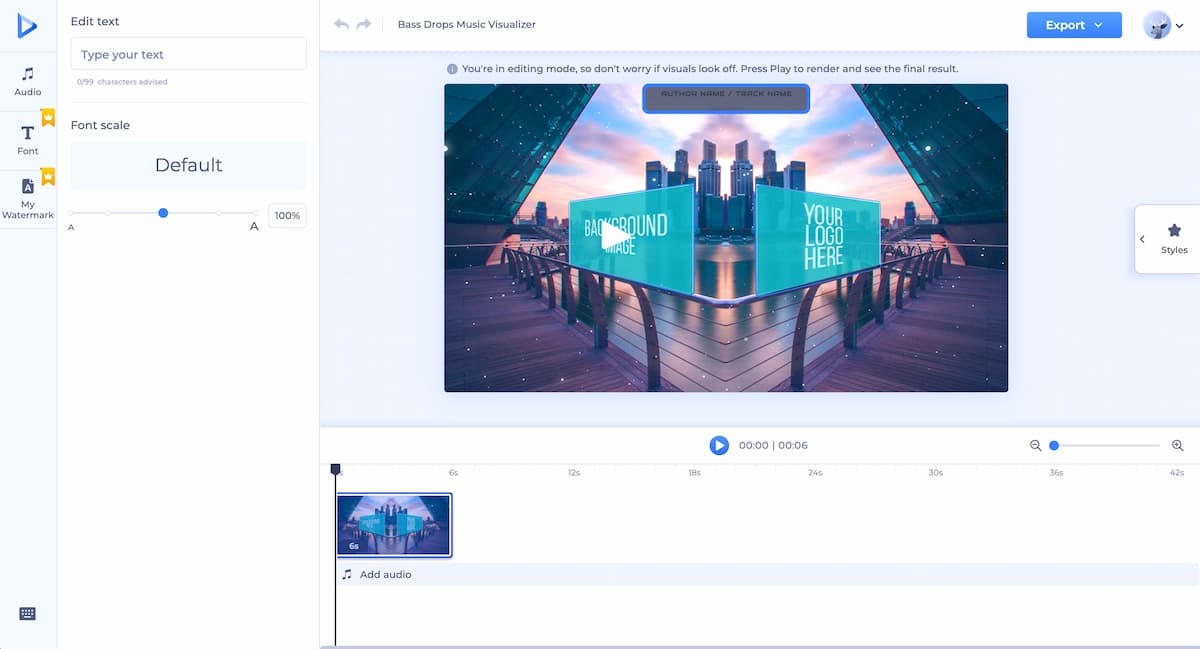
VEED is a full video editor with a visualizer layer, not a visualizer tool with editing features. This distinction matters if your production involves lyrics sync, stock footage, AI-generated images, or timeline-based cuts. The audio spectrum options in VEED are limited to around a dozen presets, but the editorial flexibility makes it the right choice when the visualizer is one element inside a more complex video.
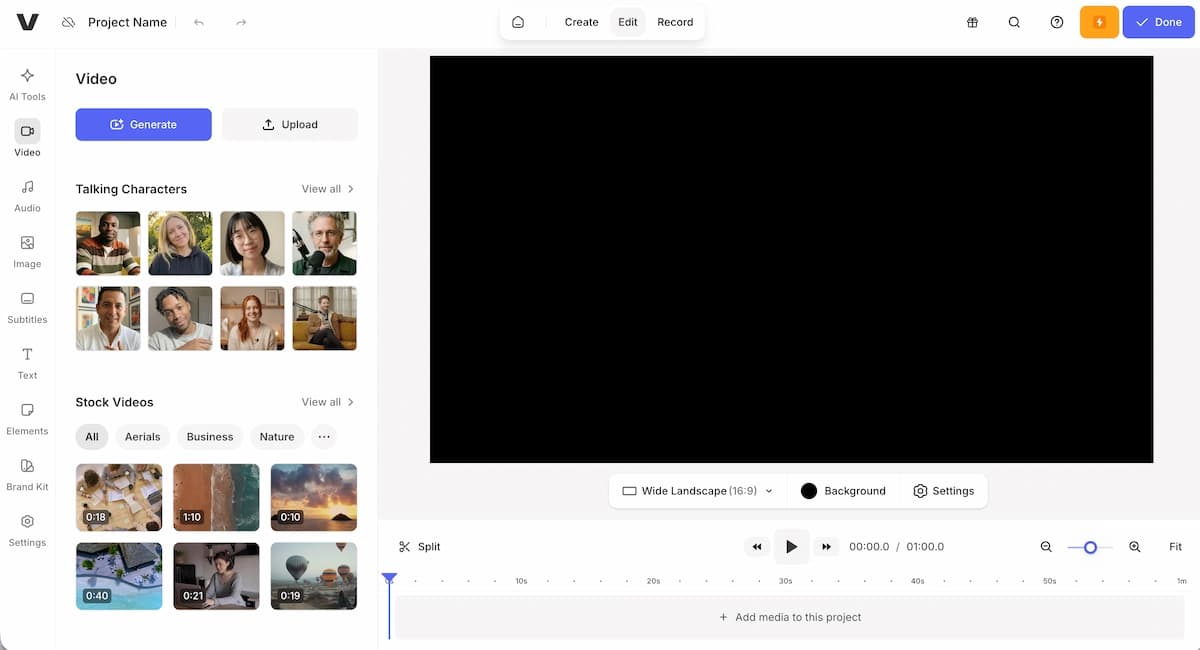
CapCut is worth noting for its scale — it is the most searched creator tool in the market by a significant margin — but it does not natively support an audio spectrum visualizer layer in the way dedicated tools do. It remains the dominant choice for general short-form video editing, not specifically for beat-reactive visualizers.
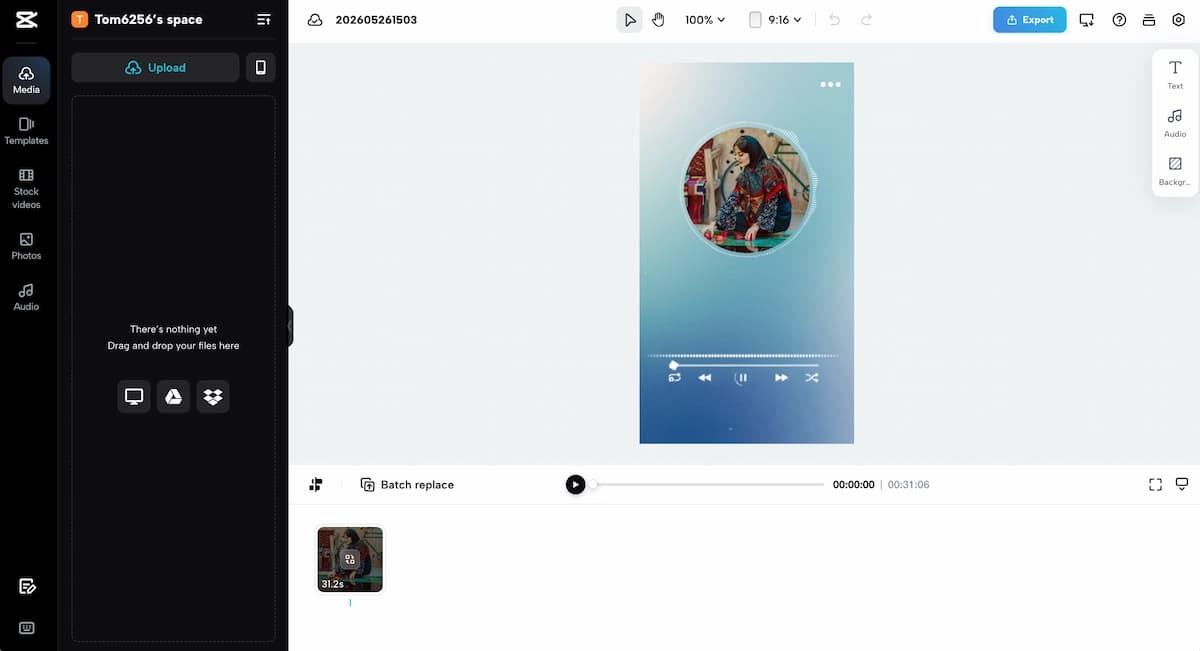
None of the above tools generate original video footage. They all work from your supplied background assets — images, video clips, or their own stock libraries. If you want the AI to generate the visuals themselves, not just react to the audio with motion graphics, that is a different category of tool entirely.
From Visualizer to Full Music Video: The VidMuse Approach
VidMuse is designed for indie musicians who need studio-level music video production without a studio budget. The platform positions itself as an AI Director — not a one-shot prompt tool, but a structured production pipeline that plans the full MV before generating a single frame.
Create Your AI Music Video in Minutes
Turn your idea into a music video with VidMuse.
The core workflow moves through five stages:
- Creative Brief — You define the track's mood, genre, visual references, and intended audience. The platform uses this to generate a directorial context.
- Reference Generation — AI-generated reference images establish the visual language for your video before any footage is produced.
- Scene and Shots List — The agent breaks your track into scenes and assigns shot types, camera movements, and visual treatments to each segment.
- Storyboard — A visual storyboard gives you frame-level review before any generation credits are spent.
- Video Generation — Shots are generated using the model matrix. Studio mode (flagship quality) uses models like Seedance 2.0 Pro, Kling V3.0 Pro, Veo 3.1, and Sora 2 Pro. Lite mode uses Seed series models for faster, more cost-efficient output.
The 2.0 features address the main pain point of AI video workflows: regenerating a full sequence to fix one shot. Shot Refine by Quoting lets you select a specific shot and regenerate only that segment. The Timeline Editor gives you editorial control over pacing and cut points. The Asset Library and Memory stores your visual references, character descriptions, and style choices so they persist across projects.
For musicians who generate original tracks using Suno AI — which is integrated directly into VidMuse — the entire pipeline from audio creation to final MV export can run inside a single platform. VidMuse also supports AI Avatar models (including Omnihuman V1.5 and Kling AI Avatar V2 Pro) for artists who want a consistent on-screen visual presence without filming themselves.
The template types — Story MV, Abstract MV, Performance MV, Viral Short, TVC, Explainer — cover the primary formats indie musicians need for YouTube, social campaigns, and sync licensing pitches.
VidMuse is not the right tool if you only need a waveform loop over a static image. For that use case, Specterr or Vizzy is faster and cheaper. VidMuse's value is in the gap between "audio file" and "produced music video" — the workflow that most indie musicians have no affordable path to without it.
Common Mistakes and How to Avoid Them
Using a low-quality audio export.
Audio quality is the one input that all visualizers depend on. A 128kbps MP3 compresses the frequency data that beat-reactive tools need. Always export from your DAW at WAV or 320kbps MP3 minimum before uploading to any visualizer platform.
Overloading the composition with effects.
More layers do not produce better visualizers. A clean, high-contrast background with one well-calibrated waveform is consistently more watchable than five competing visual elements. Restraint is a production decision, not a shortcut.
Ignoring the thumbnail frame.
YouTube thumbnails are pulled from the video. For visualizers, the peak moment of the drop — where the waveform is at maximum expression — is the strongest thumbnail source. Preview your export and scrub to that frame before uploading.
Exporting at the wrong aspect ratio.
A 16:9 visualizer will be letterboxed or cropped on Shorts or Reels, and vice versa. Decide your primary platform before exporting and create a separate cut for secondary platforms if the budget allows.
Choosing a visualizer tool when you actually need a music video.
A waveform loop cannot convey narrative, character, or world-building. If your track has a story worth telling, a visualizer will underperform it. Use the right tool class for the creative goal — and if the goal is a full MV, use a pipeline built for that output.
Skipping branding consistency.
Artists who upload dozens of visualizer videos without a consistent color palette, logo placement, or typeface lose the compounding benefit of the format. Visualizers build channel identity over time — only if the visual language is consistent across uploads.
FAQ
What is an AI music visualizer and how does it work?
An AI music visualizer analyzes an audio file's frequency, tempo, and dynamics, then generates synchronized visual output — either as reactive motion graphics or as AI-generated video footage. Basic tools map amplitude data onto waveform templates. Advanced platforms use machine learning models to generate original cinematic scenes matched to the mood and energy of the track. The output can range from a simple audio spectrum layer to a fully produced music video.
How do I create an AI music visualizer for free?
Several free music visualizer tools are available without a subscription. Vizzy is fully free and open-source with no watermarks and no export caps within file size limits. Specterr offers one free export per day at 720p with a watermark, which is sufficient for testing. Both tools produce waveform-based output — they do not generate original video footage. For a produced AI music video, paid or credit-based platforms are necessary.
What is the best online music visualizer for YouTube?
The best online music visualizer for YouTube depends on what you need. For a fast, polished waveform video, Renderforest has the largest template library and the fastest workflow. For maximum creative control over the audio spectrum, Specterr offers the deepest customization. For a full music video with AI-generated footage rather than a template, VidMuse is the purpose-built option for indie musicians who want produced output rather than a reactive overlay.
Can I use a music visualizer for Spotify or streaming platforms?
A Spotify music visualizer in the traditional sense is a visual layer added to a track for YouTube or social distribution — not something Spotify natively displays on audio tracks. Artists use visualizer videos as companion content uploaded to YouTube or used as canvas videos on Spotify (a separate 8-second looping video format). For Spotify canvas specifically, export a 9:16 looping clip of your most visually compelling visualizer section.
What is the difference between a music visualizer and a music video?
A music video visualizer is a reactive graphic that responds to audio data — waveforms, spectrums, particles — typically layered over a static or minimally animated background. A music video is a produced sequence of footage — live performance, narrative, or AI-generated scenes — edited to the track. Visualizers are faster and cheaper to produce; music videos carry more storytelling capacity and higher production value. Platforms like VidMuse bridge the gap by generating scene-matched video footage using a structured director workflow rather than template overlays.
How do I make a beat visualizer that syncs tightly to my track?
Tight beat sync starts with a high-quality audio file — WAV or high-bitrate MP3. In tools that offer beat detection (Specterr, Vizzy), upload the file and let the tool analyze the waveform before configuring animation intensity. For the tightest sync, manually scrub through the preview and adjust sensitivity thresholds at the drop and percussive peak moments. In VidMuse's AI video workflow, the agent-based scene planning accounts for track energy and timing at the shot-list level, so beat sync is embedded in the production logic rather than applied as a post-hoc animation setting.
Is there a royalty-free music visualizer I can use commercially?
Most royalty-free music visualizer outputs depend on two things: the tool's licensing terms for exported video, and the licensing status of any background assets or stock footage you use. Specterr, Vizzy, and Renderforest all allow commercial use of exported visualizers on their paid plans, with varying conditions on their free tiers. Always confirm the specific export license before using visualizer content in commercial campaigns or sync licensing submissions. For music created inside VidMuse using Suno AI integration, confirm Suno's commercial licensing terms separately, as they govern the audio track, not the visual output.
Final Words
A music visualizer is one of the most practical content formats available to indie musicians today — fast to produce, platform-agnostic, and effective at holding attention without requiring performance footage or a production crew. The right tool depends entirely on your output goal: waveform overlay, template-based video, or fully produced AI music video.
For artists who want a simple audio spectrum, start with Vizzy (free, open-source, high ceiling) or Specterr (fast, deep customization). For a polished result in minutes, Renderforest's template library is the most efficient path. For a full music video — with generated scenes, a storyboard, and a production pipeline — VidMuse is built specifically for that gap between audio file and finished MV.
If you're producing music with AI tools like Suno and want your audio to reach its visual potential, explore VidMuse's AI Director workflow. The platform moves the entire pipeline — from creative brief to final export — into a single structured environment designed for indie musicians working without a production budget.
Ready to go beyond the waveform? Explore VidMuse AI and create your first AI-directed music video — no studio required.
Create Your AI Music Video in Minutes
Turn your idea into a music video with VidMuse.

Written By
VidMuse Team
Continue Reading
Latest blog posts related to AI video creation.
Free Music Visualizer: 10 Best Free Tools in 2026
Compare 10 best free music visualizers in 2026. Waveform tools, AI music video makers, watermark policies, export limits, and which tool fits your workflow.
How to Make Product Video Ads with AI (Step-by-Step)
Learn how to make product video ads with AI step by step. Full 6-phase VidMuse tutorial, input tips, ad type guide, and alternative approaches compared.
Best AI Clone Video Generator 2026: 7 Tools Compared
Compare the 7 best AI clone video generators in 2026. Avatar clones, viral ad clones, pricing, features, and how to pick the right tool for your workflow.