

How to Make Product Video Ads with AI (Step-by-Step)
To make product video ads with AI, supply your product information — a URL, photos, or text description — to an AI video ad generator, and the tool handles scripting, visuals, audio, and final assembly. VidMuse runs a 6-phase AI Director workflow that turns product inputs into publish-ready video ads: from understanding your product, through creative planning, asset generation, video clip creation, timeline assembly, to final render. No filming, no editing team, no video production experience required.
This tutorial walks you through the complete process: what inputs to prepare, a detailed 6-step VidMuse walkthrough, how to choose the right ad template for your goal, alternative approaches for different budgets, and the common mistakes that waste time. If you're looking for a broader tool comparison, see our AI video ad generator guide.
Key Takeaways
-
AI video ad generators turn product inputs (URL, photos, text) into publish-ready video ads without filming, actors, or editing skills.
-
VidMuse runs a 6-phase AI Director workflow: Input → Creative Planning → Asset Generation → Video Generation → Timeline Assembly → Render.
-
Input quality matters most: high-resolution product photos and clear descriptions produce significantly better AI output.
-
Choose your ad template before generating — UGC-style, unboxing, hero showcase, explainer, and lifestyle ads serve different goals and platforms.
-
AI Refine lets you revise individual clips on the timeline via chat, without regenerating the entire video.
What You Need Before You Start
Gather your product inputs before opening any AI tool — the quality of your inputs directly determines the quality of your output. You don't need all five input types listed below. A product URL alone is enough to start. But more inputs give the AI more context, which produces more accurate, on-brand results.
| Input Type | What It Gives the AI | Best Practice | Best For |
|---|---|---|---|
| Product URL (Amazon/Shopify/eBay) | Auto-extracts title, description, images, price, reviews | Use the live listing URL, not a draft page | Ecommerce sellers with existing listings |
| Product Photos | Visual reference for keyframes and scenes | White background, high-res (≥1000px), multiple angles | Products without online listings |
| Text Description | Selling points, features, audience, tone | Include USP, target audience, and key benefits explicitly | New products or custom ad angles |
| Reference Video | Style, pacing, and shot structure inspiration | Choose ads with formats you want to replicate — competitor ads, viral TikToks, or brand videos | Sellers who know their winning ad style |
| Brand Assets | Logo, color palette, fonts, tagline | Provide vector logo if possible; specify hex colors | Brands with established visual identity |
Tip: If you have a reference video — a competitor ad or viral clip with a format you like — include it. VidMuse uses it for creative direction (style, pacing, and structure), not copying. This produces ads that follow proven formats while containing entirely original content. For details on how reference-based creation works, see our video to video maker guide.
How to Make Product Video Ads with AI: 6-Step VidMuse Tutorial
This section walks you through VidMuse's full workflow, from product input to rendered MP4. Each step maps to one phase of the AI Director pipeline.
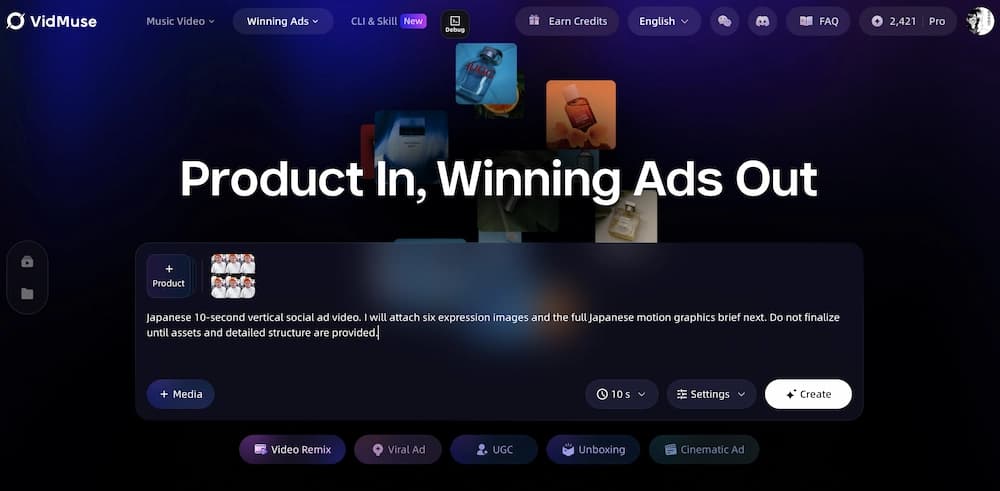
Turn Product Info into Video Ads
Paste a product URL or upload photos. VidMuse handles script, visuals, voiceover, music, and final assembly — no filming required.
Step 1: Input Your Product Information
Open VidMuse's AI ad generator and supply your product data. You have four input options:
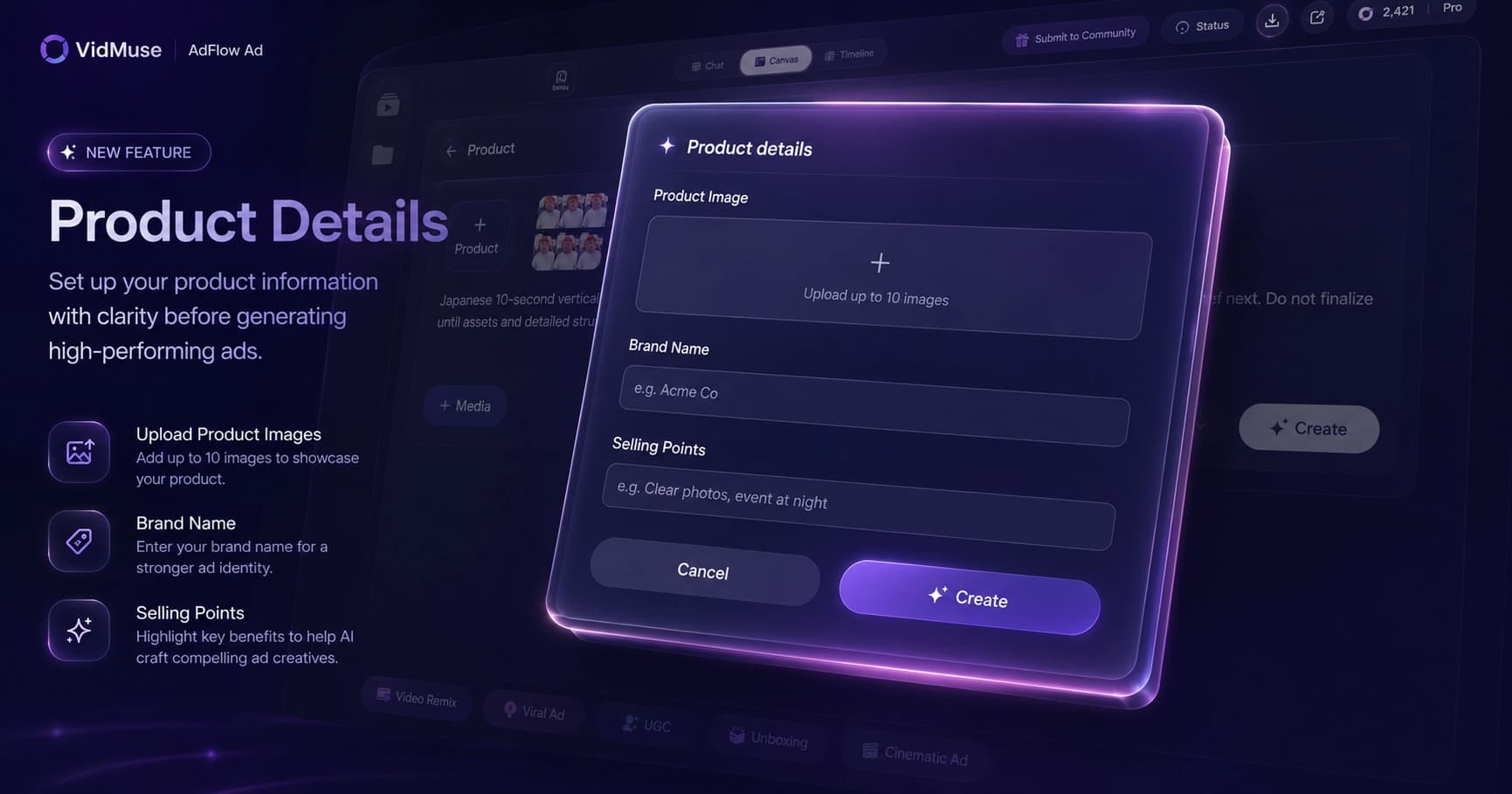
- Paste a product URL — Amazon, Shopify, eBay, or any ecommerce listing. VidMuse auto-extracts the product title, description, images, price, and customer reviews.
- Upload product photos — drag and drop high-resolution images. Multiple angles help the AI generate more accurate visuals.
- Type a text description — describe the product, its key benefits, target audience, and selling points.
- Add a reference video — upload or paste a link to a video whose style, pacing, or shot structure you want to reference.
You can also upload brand assets (logo, color palette, tagline) for brand consistency across all generated clips.
VidMuse's Product Understanding engine processes all inputs and extracts: product category, target audience, tone, style cues, selling points, and USP. This analysis drives every subsequent step — the more precise your inputs, the more targeted your output.
Tip: If your product listing includes customer reviews, the AI uses those too — pulling common benefit phrases and pain points into the script. Listings with 10+ reviews tend to produce more specific, persuasive ad copy.
Step 2: Review the AI Creative Brief and Script
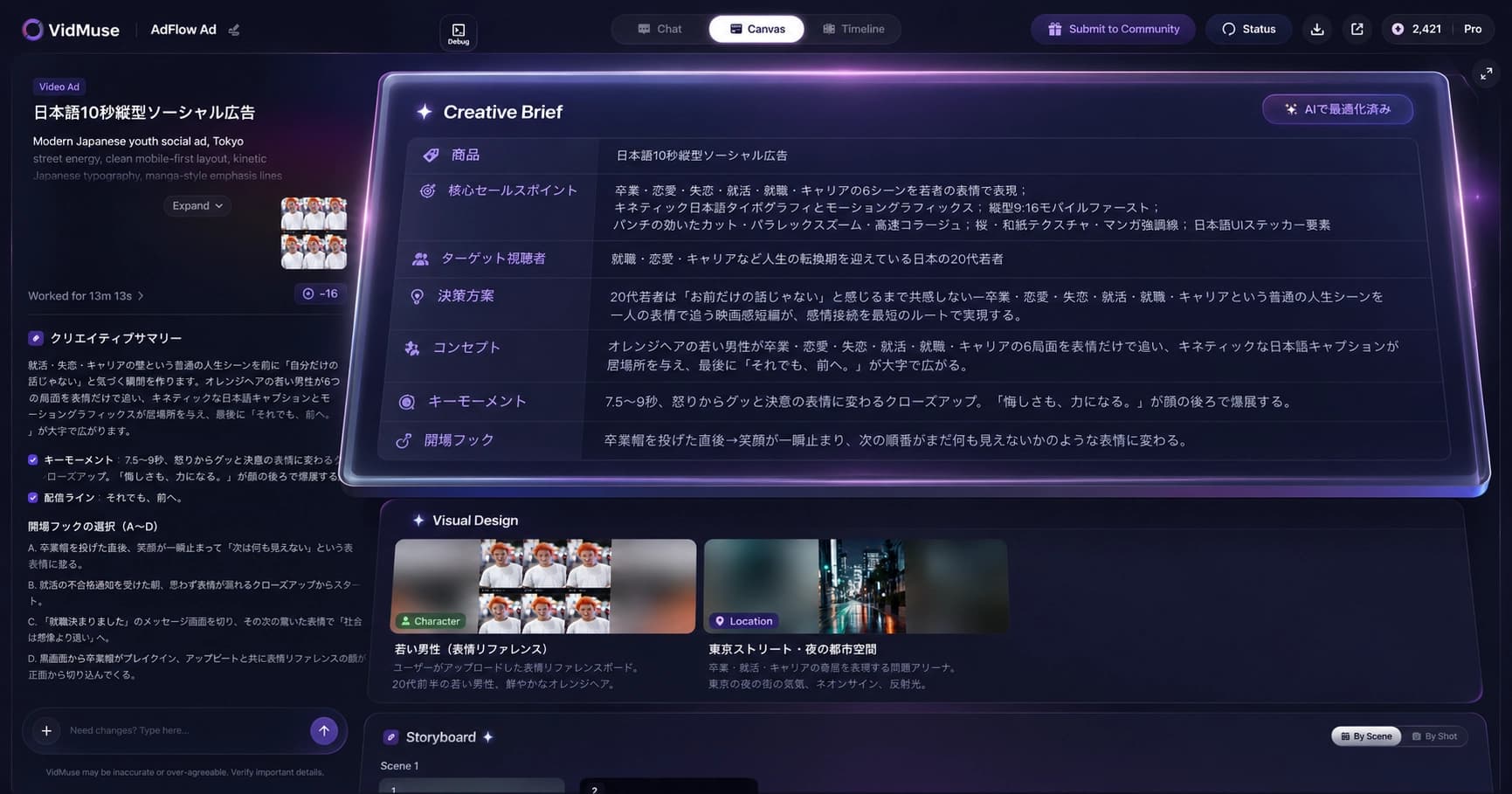
VidMuse generates a full creative brief before any video is produced. This includes:
- Ad angle — the central message framing (benefit-led, problem-solution, social proof, etc.)
- Hook — the opening 3 seconds designed to stop the scroll
- Full script — voiceover text and on-screen copy, scene by scene
- Shot list — visual description and timing for each shot
- Template recommendation — the ad format best suited to your product and goal
You choose or confirm the ad template from 9 options:
| Template | Format | Best For |
|---|---|---|
| Viral Short | Fast cuts, bold text, trending energy | TikTok, Reels |
| UGC-Style | Authentic, first-person, casual | Social proof ads |
| Unboxing | Reveal sequence, anticipation build | Product launches |
| Explainer | Feature walkthrough with clear narration | Considered purchases |
| Product Review | Third-person evaluation style | Trust-building |
| Tutorial | Step-by-step product usage | Education + conversion |
| Hero Showcase | Premium product shots, cinematic motion | Brand campaigns |
| Digital TV Spot | Broadcast-style structure | YouTube, LinkedIn |
| Storytelling | Narrative arc with emotional hook | Brand awareness |
This is where you have the most creative control. Review the script, adjust the hook, change the CTA, reorder the shot list — all before any video generation begins. Changes here take seconds. Changes after generation take minutes.
Tip: The hook (first 3 seconds) determines whether anyone watches the rest. For social ads, make sure it names the product or addresses a pain point immediately. Avoid generic openings like "Have you ever wondered…" — name the product or benefit in frame one.
For more on VidMuse's template system and ad formats, see our product ad video generator overview.
Step 3: Generate Visual Assets and Audio
With the creative brief locked, VidMuse generates all visual and audio assets:
Visual assets:
- Keyframes for each shot in the shot list, maintaining visual consistency across scenes
- Product shots match your uploaded images or URL-extracted visuals
- Scene environments, lighting, and composition follow the template style
Audio assets:
- AI voiceover in your chosen language and voice style
- Background music matched to the ad's energy and pacing (generated via integrated Suno AI music creation)
- Audio timing plan that syncs voiceover beats to scene transitions
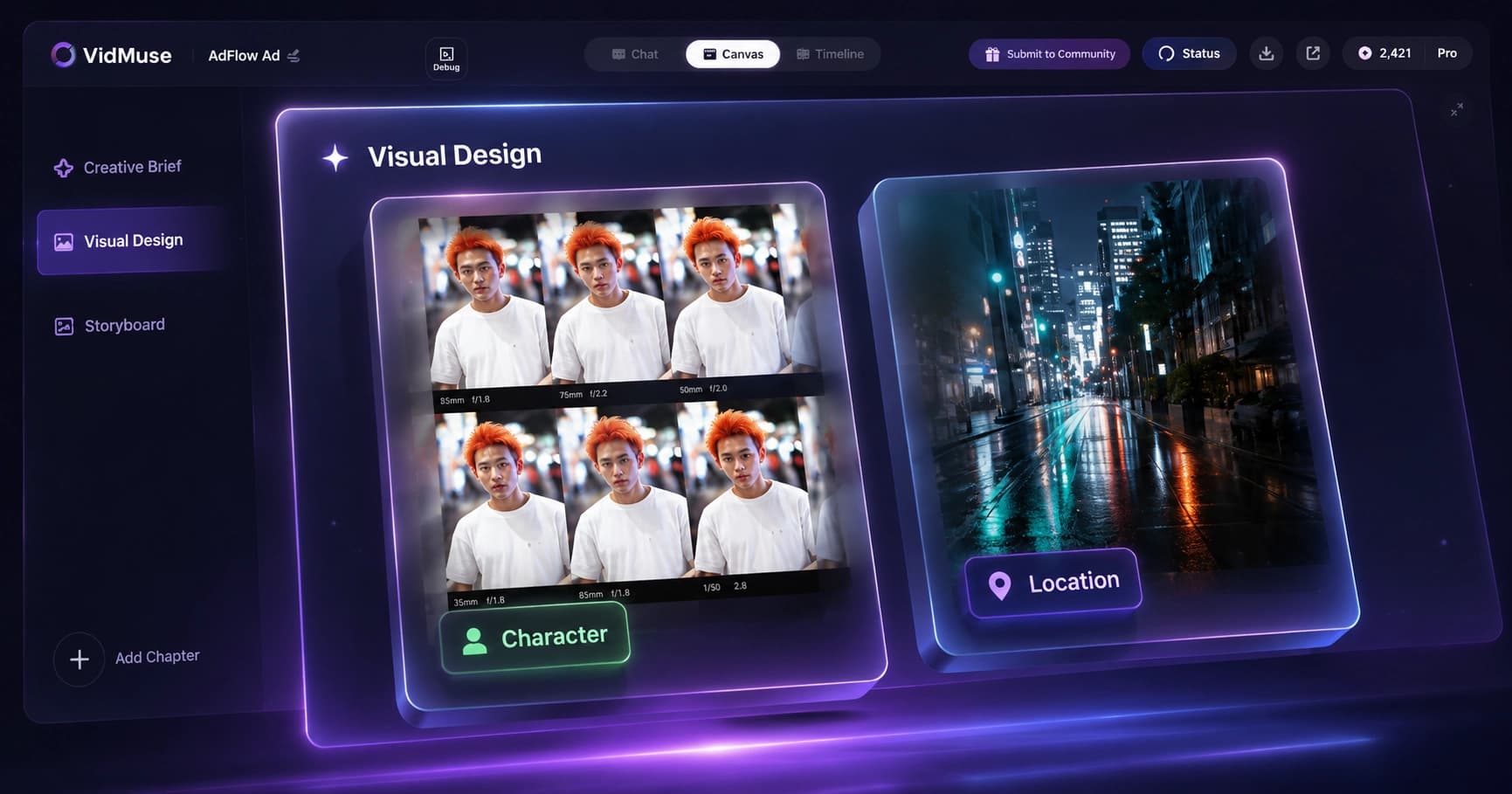
VidMuse draws from 20+ integrated AI image models — including Flux.2-Pro, Seedream 5.0, Midjourney V7, and GPT Images 2.0 — to generate keyframes that match the creative brief's visual direction.
Tip: If a keyframe doesn't match your product accurately, you can replace the source image before clip generation. This is faster than regenerating after video clips are made.
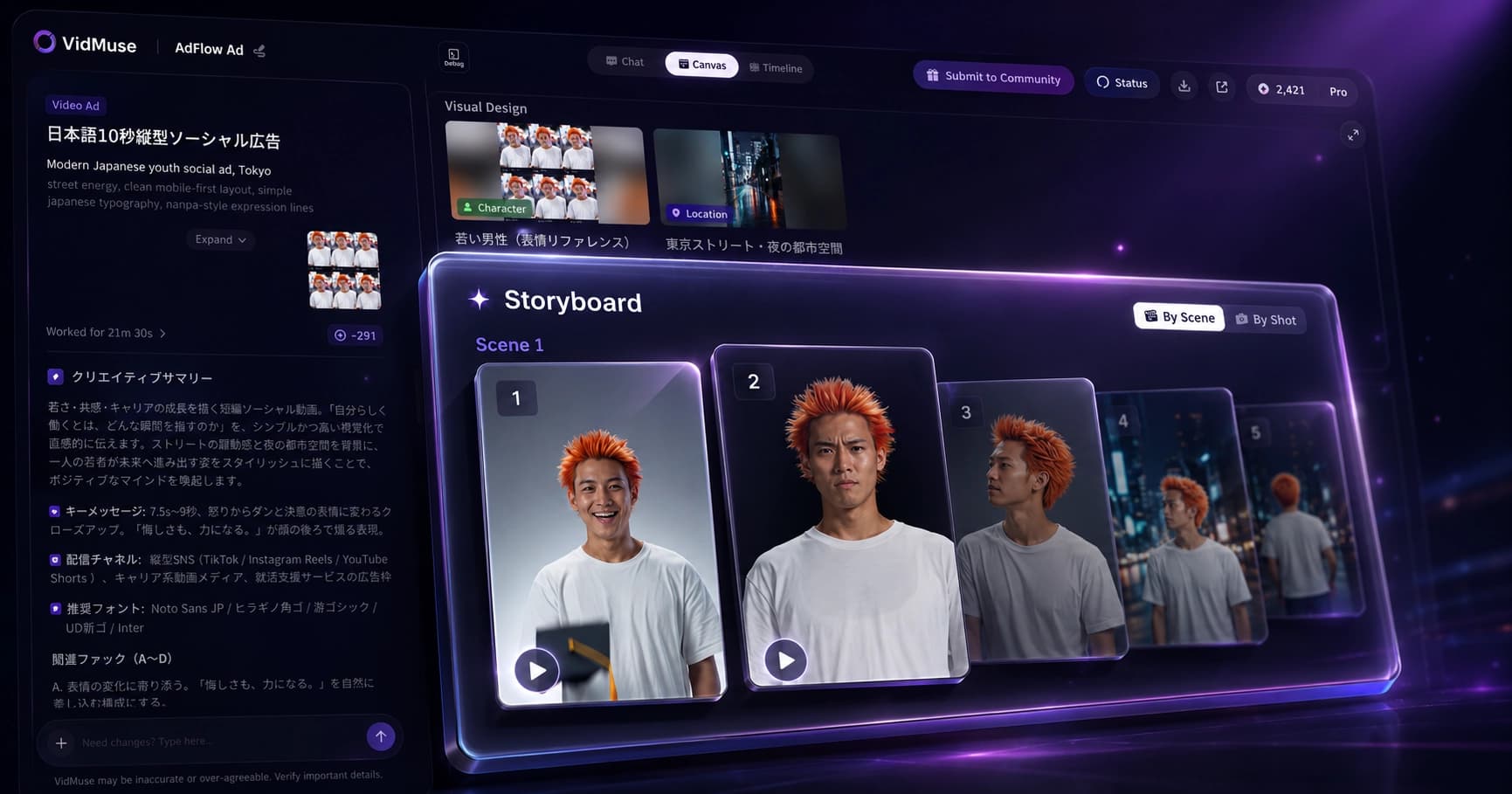
Step 4: Generate Video Clips
Keyframes become video clips. VidMuse converts each keyframe into a motion video with:
- Camera motion — pans, zooms, and tracking shots matched to the shot description
- Transitions — cuts and transitions between clips matched to the script pacing
- Beat-aware timing — audio rhythm connects to visual energy. Hooks get fast cuts, benefit sections get steady holds, and CTAs get emphasis frames.
Style stays consistent across all clips because they're generated from the same creative brief and product context. This is where VidMuse's integrated approach matters — separate tools produce separate-looking clips.
The platform uses 20+ video generation models, including Seedance 2.0 Pro, Kling V3.0 Pro, Veo 3.1, and Hailuo 2.3 Pro. Model selection is handled automatically based on each shot's requirements, though you can override for specific clips.
Step 5: Assemble and Refine on the Timeline
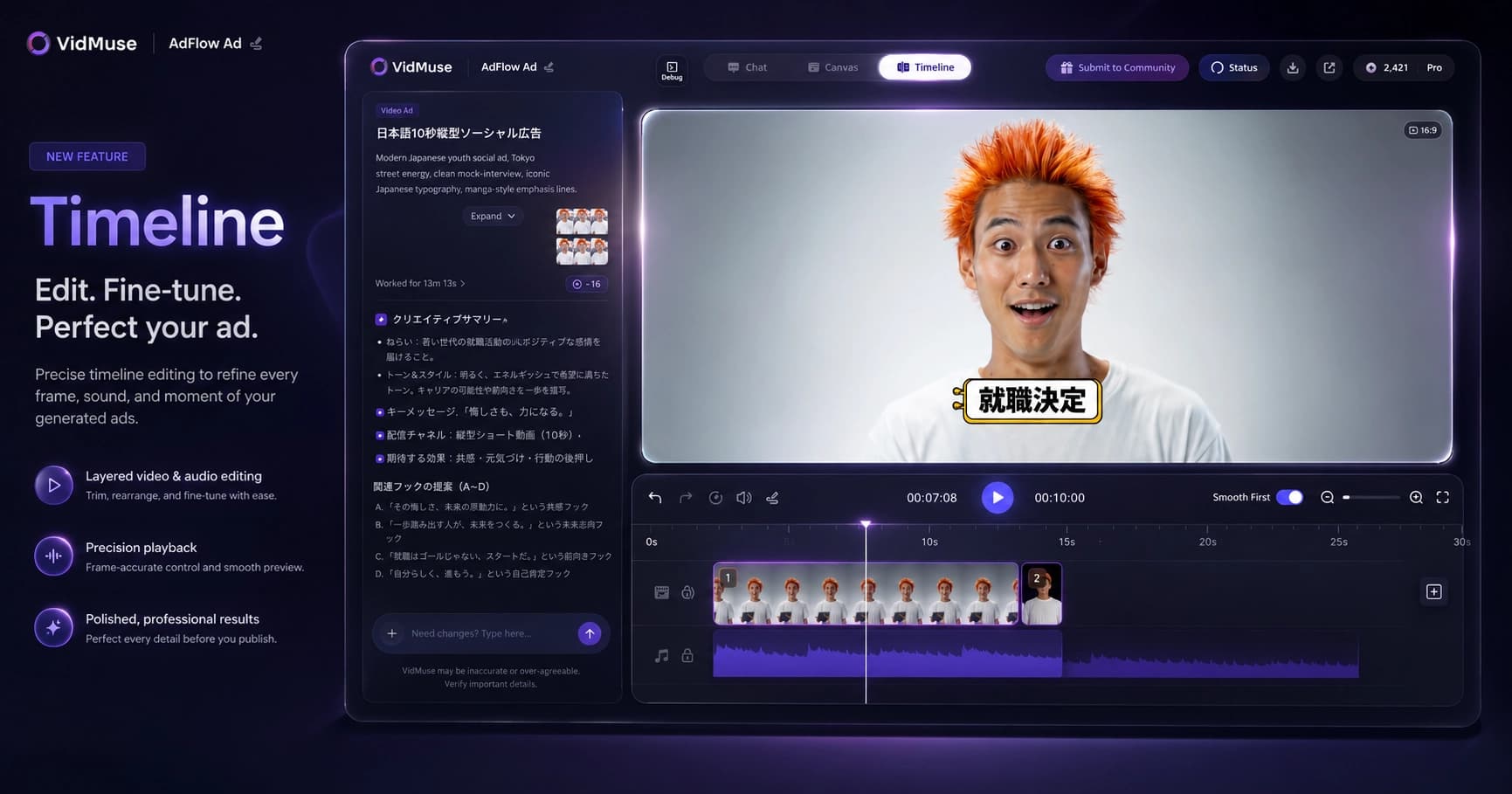
VidMuse assembles all generated elements on a unified timeline:
- Video track — all clips arranged in shot-list order
- Voiceover track — AI narration synced to scene timing
- Music track — background music with beat-synced pacing
- Subtitle track — auto-generated captions for accessibility and sound-off viewing
- CTA/callout overlays — product name, price, benefit text, and call-to-action positioned per the script
Preview the full ad and check total duration against your target (15s, 30s, 60s).
AI Refine on Timeline is the key differentiator at this stage. Instead of regenerating the entire video when something doesn't work:
- Select any clip on the timeline.
- Describe the revision via chat — for example, "make the background darker," "zoom in more on the product label," or "change the CTA text to 'Shop Now'."
- VidMuse regenerates that specific clip in place. The rest of the timeline stays unchanged.
This makes iteration fast and targeted. Stakeholders can request specific changes without restarting the entire workflow — useful for brand review cycles, A/B testing hooks, or adjusting individual scenes. For the full timeline editor capabilities, see the VidMuse 2.0 release notes.
Step 6: Render and Publish
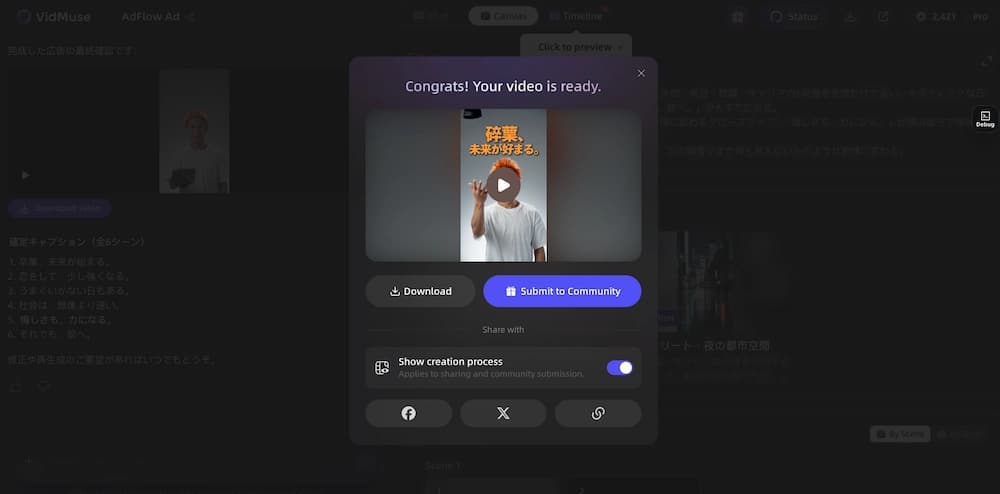
Choose your output settings and render the final ad:
- Aspect ratio: 9:16 (vertical) or 16:9 (horizontal)
- Duration: 15s, 30s, 60s, or custom
- Format: MP4 with burned-in subtitles and normalized audio
VidMuse merges all tracks — video, voiceover, music, subtitles, CTA overlays — into a single publish-ready file.
Platform output guide:
| Platform | Recommended Format | Duration | Aspect Ratio |
|---|---|---|---|
| TikTok | Vertical | 15–30s | 9:16 |
| Instagram Reels | Vertical | 15–30s | 9:16 |
| YouTube Shorts | Vertical | ≤60s | 9:16 |
| Facebook Feed | Vertical or square | 15–30s | 9:16 or 1:1 |
| Instagram Feed | Square or vertical | 15–30s | 1:1 or 4:5 |
| YouTube Pre-roll | Horizontal | 15–30s | 16:9 |
| Horizontal | 30–60s | 16:9 | |
| Amazon Sponsored Brands | Horizontal | 15–45s | 16:9 |
Tip: Export two versions — 9:16 and 16:9 — from the same project. This covers both vertical social platforms and horizontal placements without building a second ad from scratch.
Make Your First AI Product Video Ad
You've seen the full workflow. Now try it with your own product — paste a URL, upload photos, or type a description.
Which Ad Type Should You Choose?
The right ad template depends on your goal, platform, and product type — choose before you generate, not after. Selecting the template during Step 2 (creative brief) ensures the AI plans the entire ad around the right format from the start.
| If Your Goal Is… | Choose This Template | Why | Best Platform |
|---|---|---|---|
| Quick social proof / trust | UGC-Style | Feels authentic, drives impulse engagement | TikTok, IG Reels |
| Product reveal / excitement | Unboxing | Visual anticipation builds purchase intent | TikTok, YouTube |
| Feature demonstration | Explainer | Clear benefit communication for considered purchases | YouTube, LinkedIn |
| Brand storytelling | Storytelling | Emotional connection for brand-building | Instagram, YouTube |
| Premium product shots | Hero Showcase | High-end look for hero pages and retargeting | Website, Facebook |
| Limited-time offer / urgency | Hype/Dynamic | Fast cuts, bold text, urgency-driven | TikTok, IG Stories |
| Professional presenter | Digital Human | Credibility + scale without filming actors | LinkedIn, YouTube |
| Customer education | Tutorial | Shows how to use the product step by step | YouTube, website |
Most ecommerce sellers start with UGC-Style or Unboxing — they're the fastest to produce and perform well on TikTok and Instagram. Switch to Explainer or Hero Showcase as you scale to YouTube and LinkedIn.
Quick rule: If your product costs under $50 and sells on impulse, start with UGC-Style. If your product costs over $100 and requires consideration, start with Explainer or Product Review.
Alternative Approaches to Making Product Video Ads with AI
VidMuse isn't the only way to make product video ads with AI — here's how the main approaches compare so you can choose the right method for your situation.
| Approach | Example Tools | Pros | Cons | Best For |
|---|---|---|---|---|
| URL-to-clip generators | Creatify, InVideo AI | Fast, low effort, paste-and-go | Limited creative control, no timeline assembly | Quick first drafts |
| Avatar-based generators | HeyGen, Arcads | Realistic talking-head clips, multilingual | Script-to-avatar only, no product visuals pipeline | UGC spokesperson clips |
| Manual multi-tool workflow | ChatGPT + Midjourney + Runway + CapCut | Maximum flexibility and creative control | Time-consuming, requires editing skills, inconsistent style across tools | Advanced creators with time |
| Platform-native tools | Amazon Video Generator | Free, optimized for platform specs | Locked to one platform (Amazon Sponsored Brands only) | Amazon sellers only |
| Full-workflow AI Director | VidMuse | End-to-end: input → plan → generate → assemble → render in one platform | Learning curve for advanced features | Teams and sellers needing complete, publish-ready ads |
URL-to-clip tools are fastest when you need a single clip quickly. Avatar tools are best for talking-head spokesperson format. If you need a complete product ad with script, visuals, music, subtitles, CTA, and timeline — VidMuse is the only single-platform option that handles the full pipeline.
For detailed tool-by-tool reviews with pricing and feature breakdowns, see our best AI ad generator 2026 comparison.
Common Mistakes When Making AI Product Video Ads
Most AI product video ads fail because of input quality or skipped steps — not because of the AI itself. Avoid these seven mistakes:
1. Using low-quality product photos. Blurry, poorly lit, or cluttered images produce blurry keyframes and inaccurate product visuals. Use white-background, high-resolution shots (≥1000px) with clear product detail.
2. Skipping the creative brief review. The AI generates a script and shot list for a reason. Review and adjust before generation starts. Changing a hook or CTA in the brief takes seconds — changing it after video generation requires regenerating clips.
3. Ignoring the hook. The first 3 seconds determine whether anyone watches the rest on social platforms. If the hook doesn't name the product or address a pain point immediately, viewers scroll past before seeing your message.
4. Not matching ad format to platform. A 60-second horizontal ad won't perform on TikTok. A 15-second vertical clip looks wrong on LinkedIn. Match aspect ratio (9:16 vs 16:9) and duration (15s vs 60s) to each platform's native format.
5. Publishing without human review. AI can occasionally hallucinate product features, generate off-brand visuals, or produce subtitle errors. Always watch the final video end-to-end before publishing — especially for pricing claims and product specs.
6. Using the same ad everywhere. TikTok, LinkedIn, and Amazon audiences respond to different tones, formats, and hooks. Generate per-platform variants rather than uploading one video to all channels.
7. Overloading the script. One benefit per ad. A 15-second clip trying to cover five selling points dilutes every message. Focus each ad on a single benefit and create separate ads for other angles.
Tips for Better AI Product Video Ads
Small input and workflow improvements produce noticeably better AI video ad output. These tips apply to any AI video ad tool, with specific notes for VidMuse where relevant.
-
Upload multiple product angles. Three to five photos from different angles give the AI more visual data to work with. Front, back, side, detail, and in-use shots produce the most complete keyframes.
-
Include a reference video. Even a rough competitor ad gives the AI a style target for pacing and shot structure. You're not copying — you're directing the AI toward a proven format.
-
Write your product description for the AI. Don't paste generic marketing copy. Include target audience, USP, key benefits, and the problem your product solves — explicitly. The AI can't infer what you don't tell it.
-
Start with 30-second ads. Long enough to tell a story with hook, benefit, and CTA. Short enough for TikTok, Reels, and Shorts. Extend to 60 seconds only for YouTube pre-roll or LinkedIn, where longer formats perform better.
-
Use AI Refine for the hook. Generate the full video first, then use AI Refine specifically on the opening clip to test 2–3 hook variants. The hook is the highest-leverage element in any social ad.
-
A/B test ad templates. Generate the same product as UGC-style and as Hero Showcase. Test which format your audience responds to — format often matters more than script.
-
Review subtitles for accuracy. AI-generated subtitles occasionally misalign, truncate, or misread brand names. A quick manual check takes 30 seconds and prevents embarrassing errors on published ads.
-
Export both aspect ratios. Render 9:16 + 16:9 from the same project for cross-platform publishing. This takes minutes and doubles your ad's distribution reach.
FAQ: How to Make Product Video Ads with AI
How do I make product video ads with AI step by step?
Supply your product information (URL, photos, or text description) to an AI video ad generator like VidMuse. The tool generates a creative brief, script, visual keyframes, video clips, voiceover, music, and subtitles, then assembles everything on a timeline. Review and refine any clips using AI chat, then render the final MP4. The full process takes minutes, not days.
Can I make AI product video ads for free?
Several tools offer free tiers. HeyGen provides 3 free avatar videos per month. Creatify gives limited credits with watermark. InVideo AI offers basic access. Amazon Video Generator is free for Amazon sellers. Free plans typically add watermarks, limit resolution, or cap monthly usage. Check VidMuse's site for current plans and free trial availability.
How long does it take to make an AI product video ad?
Most AI video ad generators produce a finished ad in 5–15 minutes, depending on ad length and complexity. VidMuse's full 6-phase workflow — from product input to rendered MP4 — typically completes in under 10 minutes for a 30-second ad. Revision with AI Refine adds 1–2 minutes per clip change.
What inputs do I need to create an AI product video ad?
At minimum: a product URL or product photos plus a text description. Optional but recommended: a reference video (for style direction), brand assets (logo, colors), and a clear summary of your product's selling points. More inputs give the AI more context, which produces more targeted, on-brand ads.
Do I need video editing skills to make AI product video ads?
No. VidMuse handles scripting, visual generation, audio creation, timeline assembly, and rendering without manual video editing. AI Refine lets you revise individual clips by describing changes in plain language — for example, "zoom in more on the product" or "make the background brighter." The process is closer to creative direction than video editing.
Which AI tool is best for making product video ads?
For full-workflow ad production (script + visuals + audio + timeline assembly): VidMuse. For quick URL-to-clip drafts: Creatify or InVideo AI. For avatar-style talking-head ads: HeyGen or Arcads. For Amazon-only ads: Amazon Video Generator (free). See our best AI ad generator 2026 comparison for detailed tool reviews.
Can AI make product video ads for TikTok, Instagram, and Amazon?
Yes. Most AI video ad generators support multiple output formats. VidMuse exports 9:16 (TikTok, Instagram Reels, YouTube Shorts), 16:9 (YouTube, LinkedIn, Amazon Sponsored Brands), and custom durations (15s, 30s, 60s). Match aspect ratio and duration to each platform's specs for the best viewer experience.
Conclusion
Making product video ads with AI follows a clear process: prepare your inputs, let AI handle creative planning and generation, review and refine on the timeline, then render and publish. The 6-step VidMuse workflow — Input → Creative Planning → Asset Generation → Video Generation → Timeline Assembly → Render — handles the full pipeline in one platform, from product URL to publish-ready MP4.
The biggest advantage isn't just speed. It's the ability to test multiple ad formats, templates, and hooks without rebuilding from scratch. Generate a UGC-style ad and an Explainer from the same product inputs. Test three different hooks using AI Refine. Export 9:16 and 16:9 from one project. This kind of iteration was impossible with traditional video production — with AI, it takes minutes.
For the broader AI advertising landscape, see our AI video ad generator tool comparison.
Start Making Product Video Ads with AI
Skip the production team. VidMuse turns your product info into publish-ready video ads in minutes — script, visuals, voiceover, music, and CTA included.

Written By
VidMuse Team
Continue Reading
Latest blog posts related to AI video creation.
Free Music Visualizer: 10 Best Free Tools in 2026
Compare 10 best free music visualizers in 2026. Waveform tools, AI music video makers, watermark policies, export limits, and which tool fits your workflow.
Best AI Clone Video Generator 2026: 7 Tools Compared
Compare the 7 best AI clone video generators in 2026. Avatar clones, viral ad clones, pricing, features, and how to pick the right tool for your workflow.
Product Launch Video: Create Launch Videos with AI
Learn how to create a product launch video with AI. Structure framework, 6 video types, VidMuse tutorial, and best practices for your next product launch.