

The VidMuse 2.0 release isn't just a feature update — it's a dual upgrade of both the creator-facing experience and the AI engine underneath. We rebuilt the Agent framework from the ground up, redesigned how you interact with the AI, and added the editing and asset tools that creators have been asking for since day one.
Whether you're turning a Suno track into a music video, producing product ads for your brand, or experimenting with AI-generated visual content, VidMuse 2.0 changes the experience at every stage.
Here's what's new:
- A rebuilt Agent framework ("Video as Code") that makes the AI more flexible, more accurate, and faster to evolve
- Smart card interactions that replace typing with clicking — the AI predicts your next step and lets you tap to continue
- A redesigned visual canvas that strips away prompt clutter and shows only what matters: your visuals
- A built-in Timeline Editor so you can trim, reorder, and adjust without leaving the platform
- An Asset Library with character and product sub-libraries for multi-angle consistency across projects
- User Memory that learns your creative preferences and applies them automatically in future sessions
- AI Video Ads — a new Product Ads workflow that turns product links into publish-ready video ad campaigns
Under the Hood: The Video as Code Agent Framework
Before we get to the features you see, let's talk about the change you don't.
VidMuse 2.0 completely rebuilds the AI Agent's technical foundation. The previous architecture relied on rigid, step-by-step pipelines that were slow to adapt and costly to extend. Version 2.0 replaces that with a flexible, code-like approach to video creation — internally called Video as Code.
Instead of following a fixed sequence of specialized tools, the Agent now works with a lightweight set of general-purpose operations and a structured intermediate language for describing shots, assets, and sequences. It loads capabilities progressively as a project evolves, rather than front-loading everything at once.
The result is an AI that thinks about video more like a creative professional — adapting its approach to each project instead of running the same script every time.
Why Creators Should Care
This is mostly invisible during normal use, but produces three practical effects:
- Longer projects stay coherent. Multi-scene music videos with less drift between what you asked for and what gets generated.
- New creative methods arrive faster. See a trending technique on social media? VidMuse can now learn and recreate community workflows in days, not months — we call this "Infinite Firepower."
- Smarter interactions become possible. The card-based system (below) depends on the Agent reliably predicting what you need next. The new framework makes that work.
Experience the New VidMuse
A smarter AI engine. A smoother creative workflow. See it for yourself.
Smart Card Interactions: Click, Don't Type
One of the biggest barriers for new creators on any AI platform is knowing what to say next. VidMuse 2.0 solves this by having the AI proactively suggest your next action as clickable cards rather than waiting for you to type instructions.
How It Works
At key decision points in your workflow, the Agent surfaces visual, actionable cards:
- Style selection — see actual reference images as cards, tap the one you like
- Revision suggestions — after storyboard review, the AI presents 3 specific edit options to choose from
- Navigation prompts — after a stage completes, a card scrolls you to the exact canvas section that needs attention
- Workflow actions — download, export, regenerate, and more — clickable without writing a single prompt
The result: less typing, less guessing, and fewer moments where you don't know what to do next. This is especially powerful for creators who aren't prompt engineers — which is most people.
You can still type detailed instructions anytime. The cards are additive, not restrictive. They reduce the floor without lowering the ceiling.
Visual Canvas: Less Clutter, More Clarity
The canvas in VidMuse 1.0 was functional but noisy. It showed intermediate outputs — raw prompts, data tables, technical metadata — alongside your actual visual assets. Most creators found it hard to quickly identify what needed attention.
What's Different in 2.0
- Removed most complex text, prompt fragments, and tables from the canvas
- Simplified to visual, modular information blocks
- Focused the canvas on images and visual assets — the things you actually need to review and approve
- Connected the flow from storyboard → images → video more visually, so you always know where you are in the process
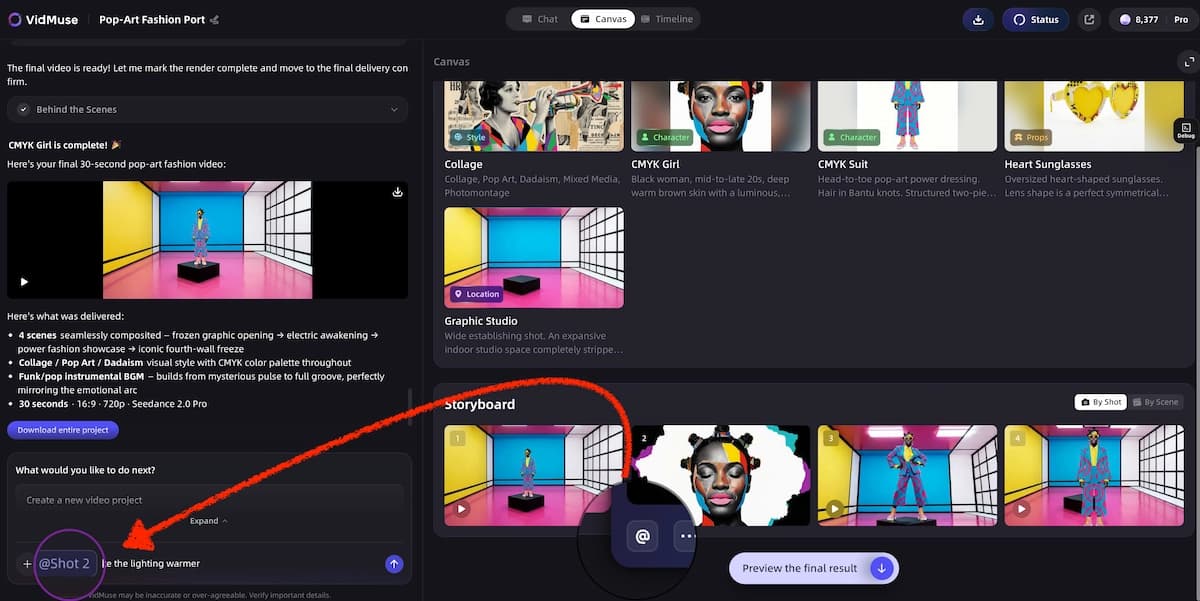
Think of it as going from a developer console to a director's dashboard. You see your shots, not the system internals. And when a specific shot needs revision, you can select it directly on the canvas and tell the AI exactly what to change — without regenerating the entire video.
Built-In Timeline Editor: No More App Switching
This was the most requested feature from VidMuse 1.0 users. After generating video, creators had to export to CapCut, Premiere, or another editor for even the most basic adjustments — trimming a clip, reordering shots, fixing subtitle placement.
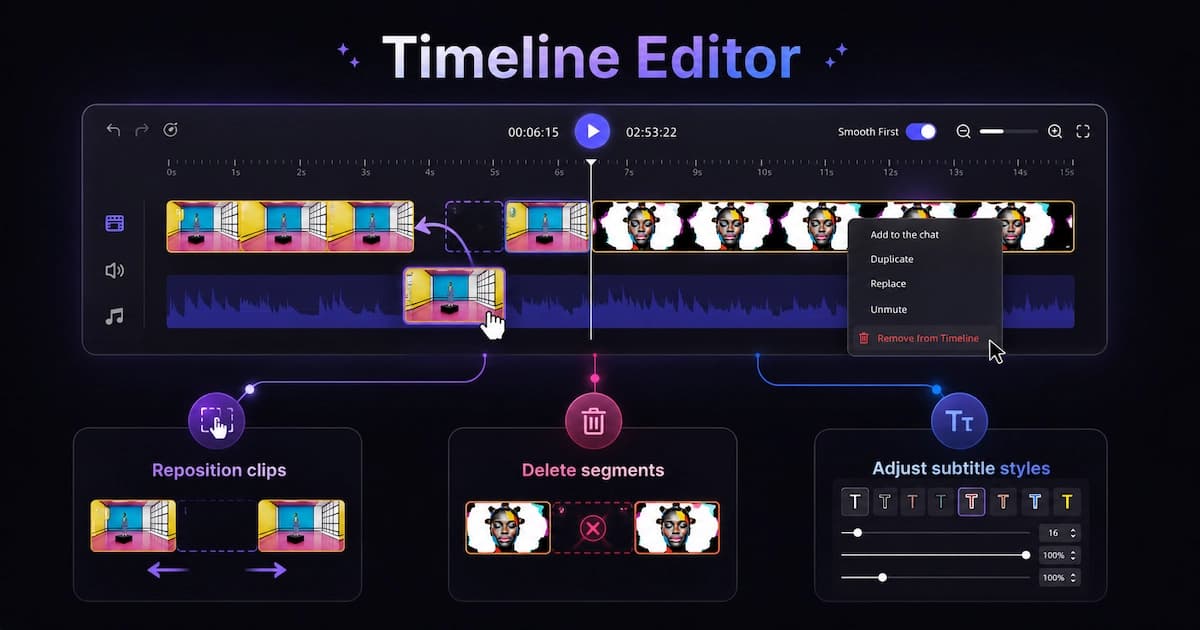
VidMuse 2.0 brings the high-frequency basics directly into the platform:
| Editing Action | Description |
|---|---|
| ✂️ Trim | Cut clips to the exact start and end points you need |
| 🗑️ Delete | Remove segments that don't work |
| ↔️ Reorder | Drag and drop to rearrange your shot sequence |
| 🔤 Subtitles | Adjust subtitle font, style, and positioning |
| 🔊 Audio | Control audio volume levels per segment |
This isn't a full NLE and doesn't try to be. It handles the edits that 80% of projects need before publishing — the ones that used to force you out of the platform and break the creative flow.
Generate → Review → Edit → Export. All in one place.
Asset Library & Character Consistency
Every image, video, and audio file you generate or upload in VidMuse is now stored in a persistent Asset Library, organized for cross-project reuse.
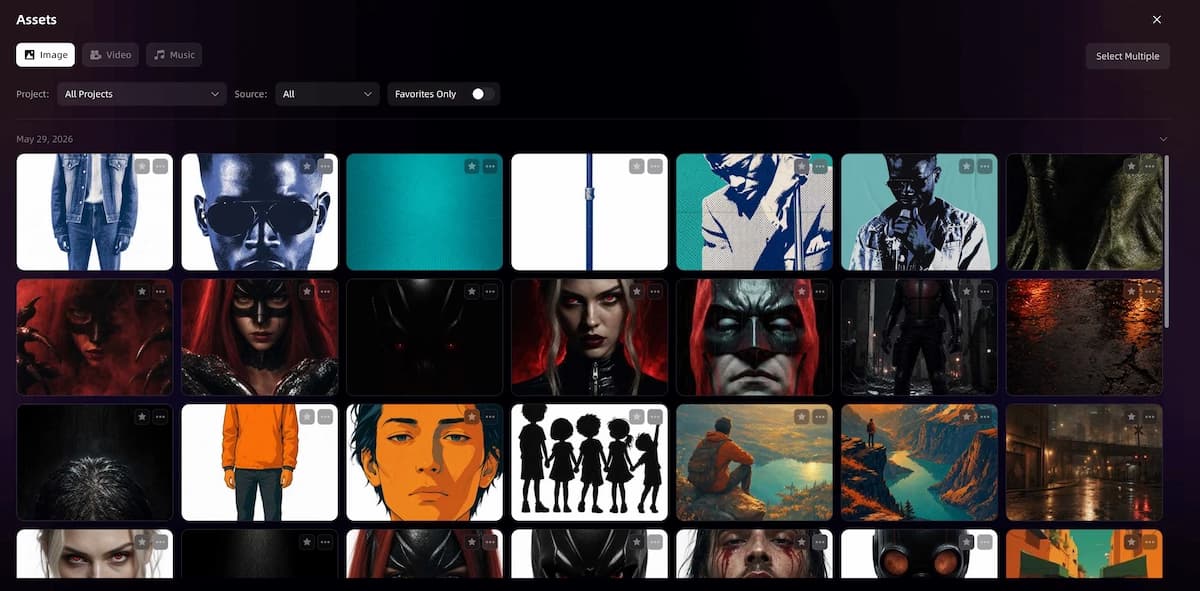
What Gets Stored
| Asset Type | Sources |
|---|---|
| Images | AI-generated + user uploads |
| Videos | AI-generated + user uploads |
| Music / Audio | AI-generated + user uploads |
| Characters | Created personas, appearances, wardrobe, scenes |
| Products | Multi-angle product photos (front, side, back) |
Multi-Angle Consistency
The character and product sub-library accepts multi-angle uploads — front, side, and back views of a character or product. This dramatically improves visual consistency when the same subject appears across multiple generated shots.
This is particularly valuable for:
- Music artists maintaining a consistent visual identity across an MV
- SMB creators running product video ads where the product needs to look identical in every frame
- Series creators who need recurring characters or settings across episodes
Upload once. Reuse forever. Consistent every time.
AI Video Ads: From Product Link to Ad Creative
VidMuse 2.0 isn't just for music videos anymore. With the new Product Ads workflow, VidMuse becomes a full-stack AI ad generator for brands and growth teams.
From Product to Video Ad in Minutes
Give VidMuse a product link, product images, or a brief description of your product and target audience. The AI analyzes your product — extracting key selling points, identifying audience hooks, and understanding the visual identity — then generates a set of video ad variations ready for publishing.
What Makes It Different
| Capability | Description |
|---|---|
| Product understanding | Automatically extracts selling points, audience targeting, and use-case scenarios from a product link or images |
| Multi-variant generation | Creates multiple ad versions with different hooks, angles, and selling points from a single input |
| Multi-platform output | One-click format switching: 9:16 (TikTok / Reels), 1:1 (Feed), 16:9 (YouTube) |
| Product consistency | Multi-angle uploads from the Asset Library keep your product looking identical across every generated frame |
| Commercial license | All paid plan outputs include a worldwide commercial use license |
This is particularly powerful when combined with the Asset Library's multi-angle product uploads — your product looks exactly right in every frame, every variation, every platform format.
Who It's For
- DTC brands launching new products and needing fast creative variations
- Ecommerce sellers on Amazon who need product listing videos
- Growth teams running A/B tests across TikTok, Facebook, and Instagram
- SMBs with limited creative resources who need professional-quality video ads fast
→ Full deep dive: VidMuse Launches AI Ad Generator for Product Videos
Create Product Video Ads with AI
From product link to ad campaign — in minutes, not weeks.
User Memory: An AI That Learns Your Style
VidMuse 2.0 introduces a User Memory system that passively records your creative preferences as you work:
| What It Remembers | Example |
|---|---|
| Color preferences | Warm tones, dark aesthetic, pastel palette |
| Visual styles | Cinematic, cyberpunk, Japanese minimalism |
| Creative background | Your artistic identity and story |
| Recurring tendencies | Slow-paced narrative, vertical video preference |
These preferences are stored at the account level and applied as smart defaults in future projects. You don't configure it — it learns by observing your decisions across sessions.
The effect: each new project starts smarter. The AI doesn't ask you to re-explain your taste. It already knows.
This is the early version of a deeper memory system we're building. In future releases, memory will expand to include project-level recall, brand assets, and cross-session creative continuity. For now, it's the foundation — and it already makes the second project feel noticeably different from the first.
Who Benefits Most from VidMuse 2.0
Indie Musicians & AI Music Creators
The combination of the Asset Library (consistent character identity), the Timeline Editor (polishing cuts without leaving the platform), and User Memory (your visual style carried forward) makes it significantly faster to produce a polished, coherent MV from a Suno or Udio track. Fix one shot without disrupting the rest. Keep your artist's visual identity locked in across scenes.
SMBs & Growth Teams Producing Video Ads
The new Product Ads workflow combined with multi-angle product uploads and the built-in Timeline Editor means you can go from product link to finished ad without leaving the platform. Card interactions lower the learning curve — your marketing team can create professional video ads without becoming prompt experts.
Series & Episodic Content Creators
User Memory and the Asset Library together reduce setup time for recurring projects. The system remembers your aesthetic preferences and stored assets, so episode two doesn't start from zero. This applies whether you're creating AI music video series, branded shorts, or ongoing content campaigns.
See VidMuse 2.0 in Action
Every feature mentioned above is live now. Start your first project.
How the Workflow Has Changed
The core VidMuse workflow remains structured — Creative Brief → Reference → Storyboard → Generation → Editing — but 2.0 makes every stage faster and more controllable.
| Stage | What Changed in 2.0 |
|---|---|
| Creative Brief | User Memory pre-fills your style defaults. Less setup, faster starts. |
| Reference Generation | Card interactions let you approve, swap, or iterate on visual direction by tapping — no typing required. |
| Storyboard Review | Cleaned-up visual canvas shows shots clearly. Navigation cards jump you to frames that need attention. |
| Video Generation | The Video as Code framework keeps longer projects coherent. Full model matrix remains available — Seedance 2.0, Kling 3.0, Veo 3.1, and more. |
| Post-Production | Timeline Editor handles trim, reorder, subtitles, and audio in-platform. Export when the cut is final. |
For a detailed walkthrough of each stage, see the VidMuse Ultimate Guide.
What's Not Changing
VidMuse 2.0 does not change the platform's model matrix or generation modes.
All video generation models — Seedance 2.0 Pro/Fast, Kling 3.0, Veo 3.1, Hailuo 2.3 Pro, and others — remain available. Image models including GPT Image 2.0, Midjourney V7, Nano Banana Pro, and Flux.2-Pro are unchanged. The Suno AI integration for generating original tracks within VidMuse is also unchanged.
What VidMuse 2.0 does not do: provide a one-click, fully automated video generator. The platform is built around collaborative, iterative creation — the AI plans and proposes, you approve and refine. The value is in the creative loop, not single-shot output. For more on this philosophy, see the VidMuse video templates and how they support different creative approaches.
What's Coming Next
All VidMuse 2.0 features are now live — the Agent framework rebuild, smart card interactions, visual canvas redesign, Timeline Editor, Asset Library with multi-angle character and product consistency, User Memory, and Product Ads are all available to every user today.
Looking ahead, we're building toward VidMuse 3.0 — a release focused on deeper memory systems (project-level, brand-level, and asset-level recall), AI scene generation workflows, a Free Canvas mode for node-based visual creation, community-driven skill sharing, and tools that make VidMuse not just a creative partner, but a creative buddy that grows with you over time.
Common Questions About VidMuse 2.0
What are the main new features in VidMuse 2.0?
VidMuse 2.0 includes seven major updates: a rebuilt Agent framework (Video as Code), smart card interactions for guided creation, a redesigned visual canvas, a built-in Timeline Editor, an Asset Library with character/product consistency, a User Memory system that learns your creative preferences, and a new Product Ads workflow for AI-powered video ad creation.
Do I need to use a separate video editor after generating with VidMuse 2.0?
For most projects, no. The Timeline Editor handles trimming, clip reordering, subtitle styling, and audio volume adjustment directly inside the platform. If you need complex color grading, VFX, or multi-track audio mixing, you would still export to a dedicated editor.
How does User Memory learn my preferences?
User Memory builds a preference profile passively as you work. It records choices like color tendencies, visual styles, and creative directions, and applies them as defaults in future projects. No manual configuration needed — it updates automatically based on your decisions.
Does VidMuse 2.0 support Suno AI music creation?
Yes. Suno AI integration for generating original tracks is unchanged in 2.0. You can generate a track and move directly into the music-to-video workflow without leaving the platform.
What AI models are available?
All models from before, including Seedance 2.0 Pro and Fast, Kling 3.0, Veo 3.1, Hailuo 2.3 Pro, Midjourney V7, GPT Image 2.0, Nano Banana Pro, and more. Udio and Suno music generation are also available across platforms.
Is VidMuse 2.0 better for beginners or experienced creators?
Both. The card interaction system and simplified canvas specifically lower the barrier for new users — less typing, clearer visual feedback, guided next steps. Experienced users gain precise control through the canvas quote system, Asset Library, and the Timeline Editor. Everyone benefits from the faster, more coherent Agent framework.
Can I use VidMuse for product ads, not just music videos?
Absolutely. VidMuse 2.0 supports product ad creation as a core use case. Upload your product images, describe your target audience and message, and the AI generates video ads optimized for platforms like TikTok, Facebook, and Amazon. The multi-angle product library ensures your product looks consistent across every generated frame.
Conclusion
VidMuse 2.0 is an upgrade across every layer — from the AI engine that powers creation to the interface where you make decisions. The Agent is smarter and more adaptive. The workflow has fewer friction points. And the tools you need to finish and publish are now built in.
If you're already using VidMuse, your next project will feel noticeably smoother. If you're new, there's never been a better time to start.
Ready to Create?
Turn your music, products, and ideas into publish-ready videos.

Written By
VidMuse Team
Continue Reading
Latest blog posts related to AI video creation.
Free Music Visualizer: 10 Best Free Tools in 2026
Compare 10 best free music visualizers in 2026. Waveform tools, AI music video makers, watermark policies, export limits, and which tool fits your workflow.
How to Make Product Video Ads with AI (Step-by-Step)
Learn how to make product video ads with AI step by step. Full 6-phase VidMuse tutorial, input tips, ad type guide, and alternative approaches compared.
Best AI Clone Video Generator 2026: 7 Tools Compared
Compare the 7 best AI clone video generators in 2026. Avatar clones, viral ad clones, pricing, features, and how to pick the right tool for your workflow.