

Udio AI Music Generator + VidMuse: Audio to Video
Direct Answer: Udio is an AI music generator that lets anyone create original 30-second to 2-minute songs from a text prompt — no instruments or music production knowledge required. Once you have your Udio track, you can bring it to life visually using VidMuse, an AI video platform that turns your audio into a complete, scene-by-scene music video. This guide covers how to use Udio from prompt to finished track, then walks through the full Udio-to-video workflow inside VidMuse.
Key Takeaways
- Udio AI generates original songs from text prompts in 30-second clips that can be extended up to 2+ minutes using its built-in Extension and Remix tools.
- The Udio free plan gives 100 credits/month; paid plans start at $10/month (Standard, 2,400 credits) and $30/month (Pro, 6,000 credits).
- Udio to video is a two-step workflow: generate your track in Udio, then build a music video in VidMuse using its agent-based storyboard and multi-model video generation pipeline.
- VidMuse supports direct integration of Suno AI for on-platform music creation if you don't already have an Udio track.
- The biggest mistake creators make is skipping the visual brief — treating the video as an afterthought instead of planning scenes around the song's emotional arc.
What Is Udio AI Music Generator?
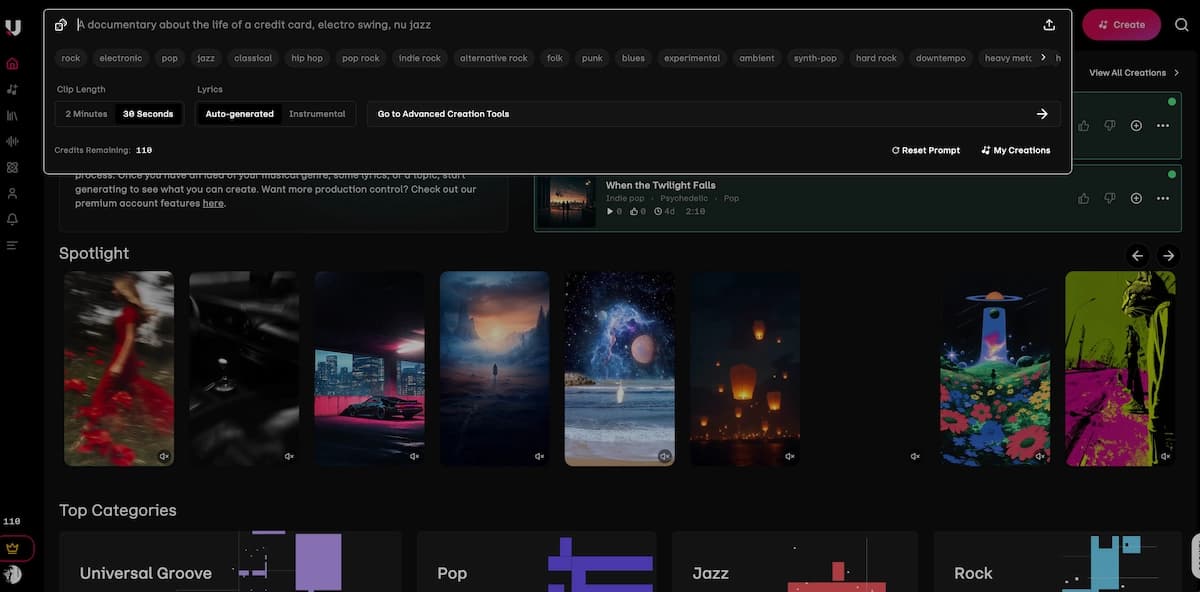
Udio is a browser-based AI music generator that creates original audio tracks from natural language prompts. Unlike traditional DAWs or loop libraries, Udio uses a generative model trained on a wide range of genres and instrumentation. You describe the music you want — style, mood, instruments, even a lyrical topic — and Udio renders a 30-second audio clip in seconds.
The platform launched in 2024 and quickly gained traction among indie musicians, content creators, and hobbyists looking to produce original music without studio costs or music theory expertise. The key distinction from other AI music tools is Udio's emphasis on editability: rather than committing to one long generation, you build songs section by section using its Extension, Remix, and Inpainting features.
A typical Udio prompt contains two components: free-form description text and structured tags. For example: "a song about summer rain, jazz, mellow, warm, in the style of Billie Holiday." The free-form part sets the lyrical and emotional context; the tags guide genre, instrumentation, and feel. Udio's autocomplete system helps surface compatible tags as you type, making it accessible even for users with no music production background.
It's worth noting what Udio is not: it doesn't clone or reproduce artists' voices. When you reference an artist's style, Udio translates that into a set of descriptive tags, not a voice or recording reproduction.
How to Make Music with Udio: Step-by-Step
Creating a track in Udio follows a structured loop: prompt → generate → refine → extend. Here is the full workflow from first login to a complete song.
Write your prompt
Combine a lyrical or emotional subject with genre and mood tags.
Choose a lyrics mode
Use Auto, Custom, or Instrumental depending on how much lyric control you need.
Generate and select
Create two clips, listen, resample, and iterate with small prompt tweaks.
Extend your track
Add intro, outro, or next sections before or after the original clip.
Remix and inpaint
Use Remix for variations and Inpainting for isolated paid-plan fixes.
Adjust advanced settings
Tune random seed, prompt strength, lyrics strength, clip start time, and quality.
Use Manual Mode
Bypass prompt rewriting with structured tags when you need advanced control.
Step 1 — Write Your Prompt
Navigate to the Udio creation interface. Type a description into the prompt box. Good prompts combine a lyrical/emotional subject with genre and mood tags, separated by commas. Example: "midnight drive through empty streets, synthwave, melancholic, pulsing bass."
If you're stuck, click the dice icon to generate a random example prompt. This is useful for exploring Udio's range before you commit to a creative direction.

Step 2 — Choose a Lyrics Mode
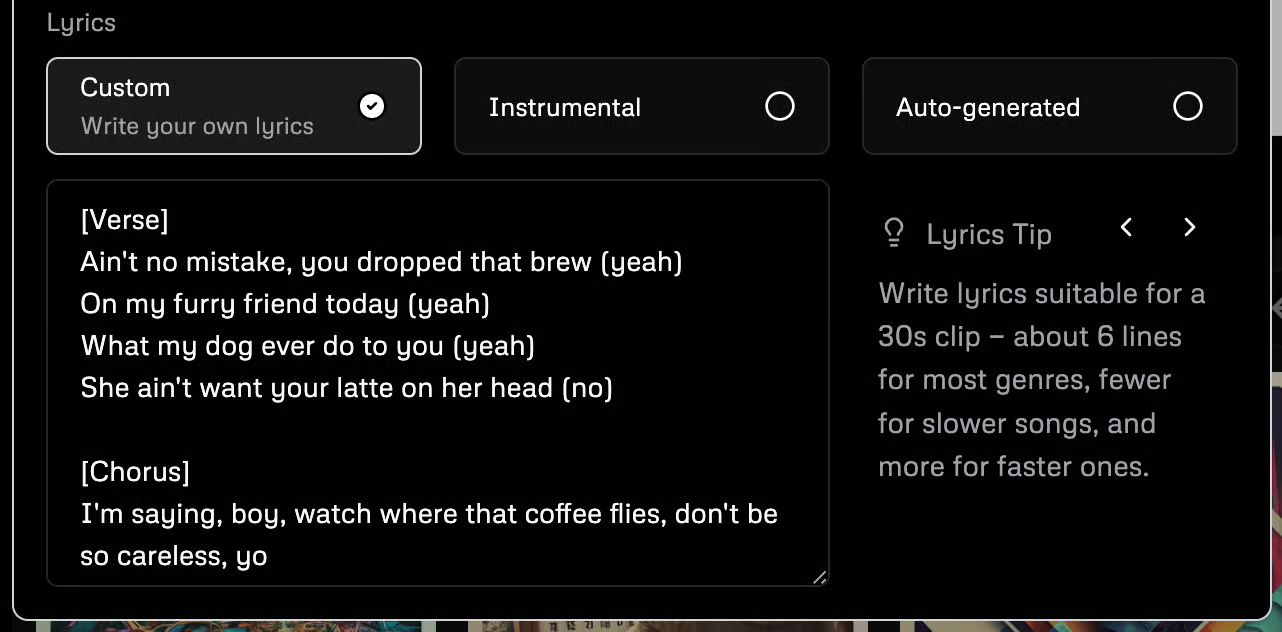
Udio gives you three lyrics options:
- Auto: Udio writes lyrics based on your prompt. Good for quick exploration.
- Custom: You write the lyrics. Paste your text into the lyrics input box. Add structural descriptors like [Verse], [Chorus], or [Guitar Solo] to guide arrangement. Keep lyrics to about 6 lines per 30-second section for most genres.
- Instrumental: Forces a no-vocals output. Note this isn't 100% reliable — you may occasionally hear voice-like sounds.
Step 3 — Generate and Select
Click Create. Udio produces two clips per prompt by default. Listen to both. Don't be discouraged if neither is perfect — resampling is part of the process. Click Create again with the same prompt to generate additional variations. The prompt box does not reset automatically, making it easy to queue more generations with small tweaks.
Step 4 — Extend Your Track
Udio generates music in 32-second sections. Once you have a clip you like, click Extend on the track page. You'll see an Extension Placement control that lets you add a section before (intro) or after (outro or next verse) the original clip. You can chain up to 10 sections to build a full song.
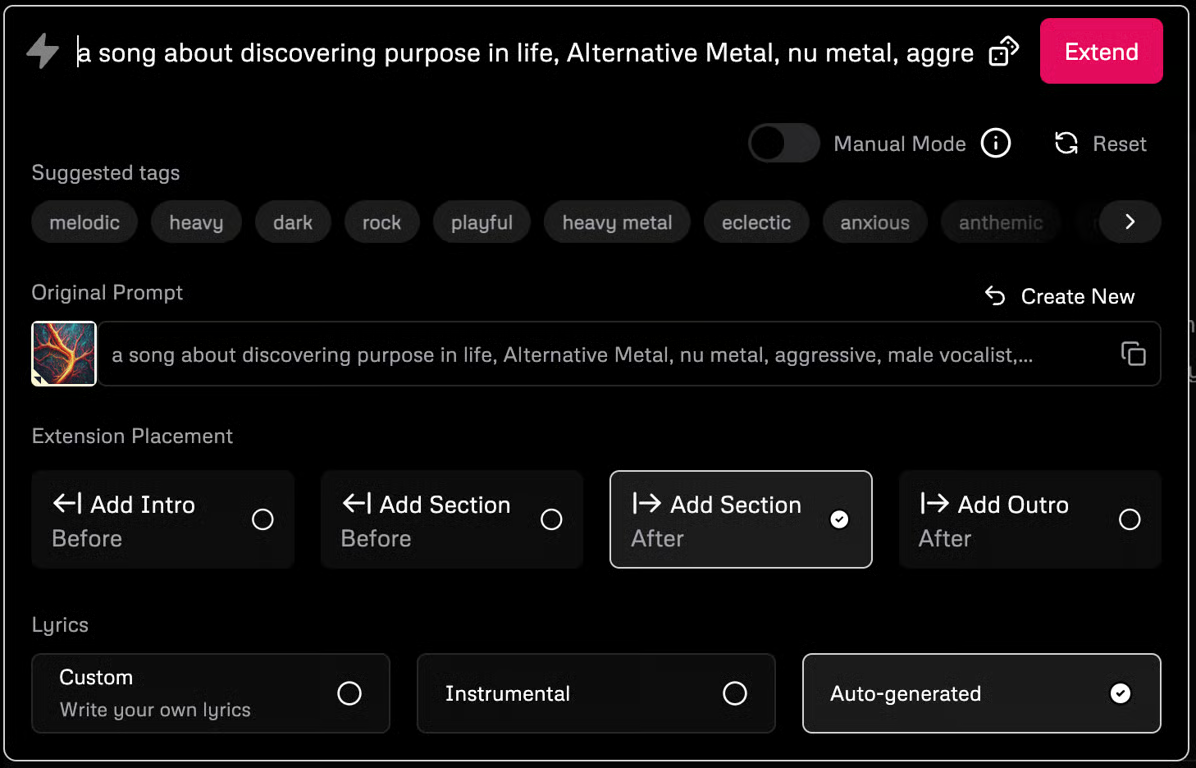
A practical workflow for a 1.5-minute track:
- Generate the main section (chorus or drop) first — the most energetic part.
- Enter Extension mode → Add Intro. This creates a build-up. You now have ~1 minute.
- Enter Extension mode again → Add Outro. Total track is now ~1.5 minutes with a proper arc.
Step 5 — Remix and Inpaint for Refinement
Remix creates a variation of an existing 30-second clip. The Variance slider controls how far the remix drifts from the original — low values tweak timbre and percussion details; high values can produce an entirely different genre crossover. Remixing is especially useful for fixing slight mispronunciations or trying a genre blend you couldn't prompt directly.
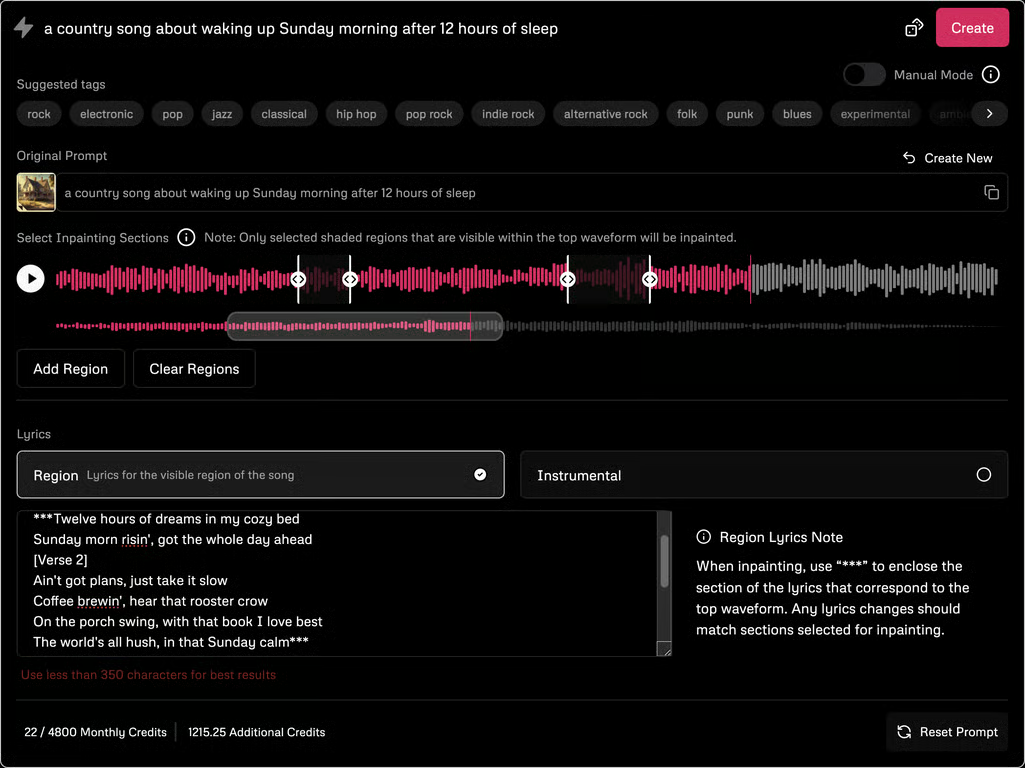
Inpainting (available to paid subscribers only) lets you select specific sections of a waveform and regenerate them while keeping everything else intact. This is the closest Udio gets to traditional audio editing, and it's powerful for correcting isolated vocal errors or swapping out an instrument tone.
Step 6 — Advanced Settings
Toggle the Advanced Features dropdown for additional controls:
- Random Seed: Makes generations reproducible. Useful when you want to vary the prompt while locking certain musical characteristics.
- Prompt / Lyrics Strength: Higher prompt strength improves adherence but can reduce naturalness. Lower lyrics strength lets vocals flow more freely but may cause lyrics to drift.
- Clip Start Time: Tells the model where in a hypothetical full song this clip should sit — 0% for intros, 50% for mid-song sections, 90% for endings. Combine with Extension mode for surgical arrangement control.
- Generation Quality Slider: Trade speed for quality. Useful during early exploration; switch to full quality for your final version.
Step 7 — Manual Mode (For Advanced Users)
Toggle Manual Mode to bypass Udio's automatic prompt rewriting. In Manual Mode, only structured tags are accepted — no free-form text. This gives experienced users more precise control over the underlying model, but requires familiarity with Udio's tag vocabulary. When using Manual Mode, always pair it with Custom Lyrics, since the model has no free-form text to infer a lyrical topic from.
Udio Pricing and Plans: Which Tier Is Right for You?
Udio offers three tiers — Free, Standard ($10/month), and Pro ($30/month) — differentiated by monthly credits and feature access.
The Free plan gives 100 credits per month with a 10-credit daily cap and limits full-length (2:10) song generations to 3 per day. It's genuinely usable for casual exploration but constraining if you plan to iterate heavily.
The Standard plan at $10/month (or less with annual billing) provides 2,400 monthly credits, removes the daily limit, and unlocks a meaningful set of creation tools: Voice Control, audio upload for style reference, custom cover art upload, lyrics editing, and the ability to generate from uploaded audio files. Credits do not roll over between billing periods.
The Pro plan at $30/month targets high-volume creators with 6,000 monthly credits, simultaneous generation of up to 10 songs, and all Standard features. This tier is appropriate for musicians releasing content regularly or teams producing music at scale.
Additional credits can be purchased à la carte: 100 credits for $3, or 1,000 credits for $25. Note that inpainting is gated behind paid plans.

For most indie musicians and content creators starting out, Standard is the practical entry point — it removes the constraints that make Free feel limiting while keeping monthly cost low.
Udio vs Suno: Key Differences
Udio and Suno are both leading AI music generators, but they take different approaches to creation and editing.
Suno AI is known for its accessible, high-quality full-song output — it tends to produce polished, radio-ready tracks quickly with less iterative input required. Udio's strength is its editing depth: the combination of Extension, Remix, Inpainting, Manual Mode, and fine-grained controls makes it a better fit for creators who want to direct the music rather than accept a finished output.
Udio
Best for
- Section-by-section extension
- Remix and inpainting
- Manual Mode for advanced users
Watch out
- More iterative workflow
- Inpainting requires a paid plan
Suno AI
Best for
- Fast full-song output
- Streamlined creation flow
- Good for quick drafts
Watch out
- Less granular editing control
- Different credit and licensing constraints
Key practical differences:
- Editing flexibility: Udio's inpainting and section-by-section extension give more granular control. Suno's editing is more limited.
- Prompt behavior: Udio separates free-form text from structured tags and lets you toggle between auto and manual processing. Suno is more unified in its prompt interpretation.
- Voice / style reference: Udio Standard and Pro allow uploading audio files as style references. Suno has its own equivalent toolset.
- Credit economics: Both platforms use credit systems with comparable pricing at entry tiers. Specific credit costs per generation vary and change with model updates.
Neither platform is objectively superior — the choice depends on your workflow. If you want to generate quickly and iterate visually, Udio works. If you need a platform with deep editorial control over the music itself, Udio's toolset is more complete.
From Udio to Video: Why Your Track Needs Visuals
Audio alone captures attention for seconds; a music to video AI holds it for the full run time and makes the track shareable. For independent musicians, the barrier to professional music video production has historically been cost — studio shoots, directors, post-production. That gap is exactly what platforms like VidMuse are designed to close.
When you have an Udio track — whether it's a 90-second ambient piece or a full 2-minute pop song — the next logical step is building visuals that match its emotional arc. This is where most creators stall. They have great audio but no visual direction, no budget for video production, and no technical skills in After Effects or Premiere.
VidMuse AI approaches this problem differently from generic AI video generators. Instead of asking you to write a single prompt and render a clip, VidMuse acts as an AI Director: it takes a creative brief, plans the full music video scene by scene, generates a storyboard, and then produces each shot using the appropriate video generation model from its multi-model pipeline.
Create Your Music Video in Minutes
Turn your music into a video with VidMuse.
How to Turn an Udio Track into a Music Video with VidMuse
The Udio-to-video workflow in VidMuse has five stages: Creative Brief, Reference Generation, Scene & Shots List, Storyboard, and Video Generation.
Creative Brief
Upload your Udio track or paste the audio URL, then describe mood, visual style, narrative, color palette, and intended platform.
Reference Generation
Generate visual reference frames and adjust the brief or regenerate references until the aesthetic matches your intent.
Scene & Shots List
Break the track into scenes, assign shot types, and refine the scene-level prompts.
Storyboard
Review static storyboard panels and use Shot Refine by Quoting to improve individual shots.
Video Generation
Generate clips, assemble them in the Timeline Editor, and store assets in Asset Library & Memory.
Stage 1 — Creative Brief
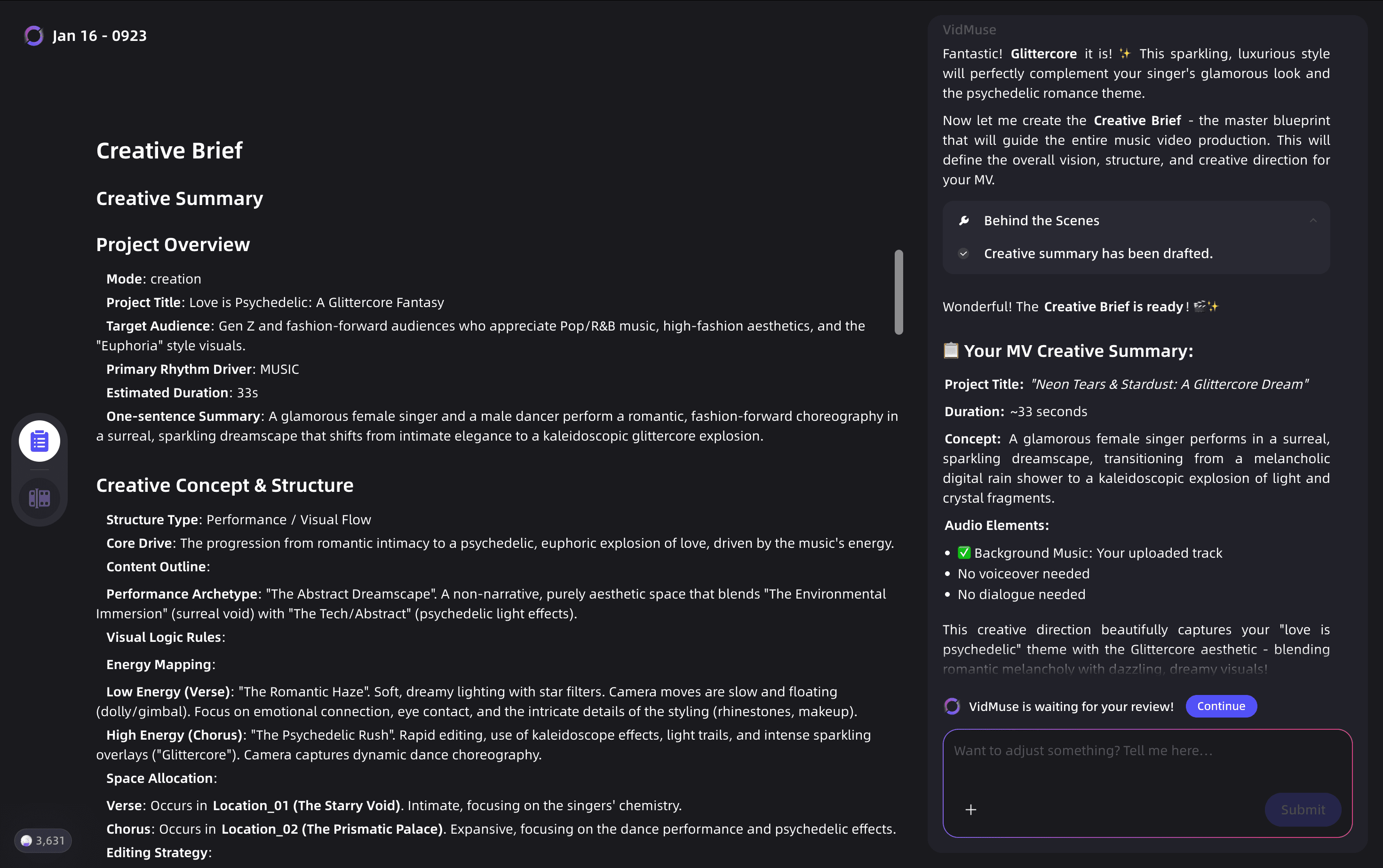
Upload your Udio track or paste the audio URL. Then fill out the Creative Brief: describe the mood, visual style, narrative (if any), color palette, and intended platform (YouTube, TikTok, Instagram). The more specific your brief, the more intentional the resulting storyboard.
Example brief: "90-second synthwave track, melancholic but cinematic. Visual style: neon-lit urban streets at night, rain-slicked asphalt, slow-motion performance shots of a solitary figure. Color palette: deep blues and amber. Target: YouTube."
Stage 2 — Reference Generation
VidMuse generates visual reference frames based on your brief. These are image outputs — think of them as mood board panels — that let you confirm the visual direction before any video is generated. Adjust the brief or regenerate references until the aesthetic matches your intent.
Stage 3 — Scene & Shots List
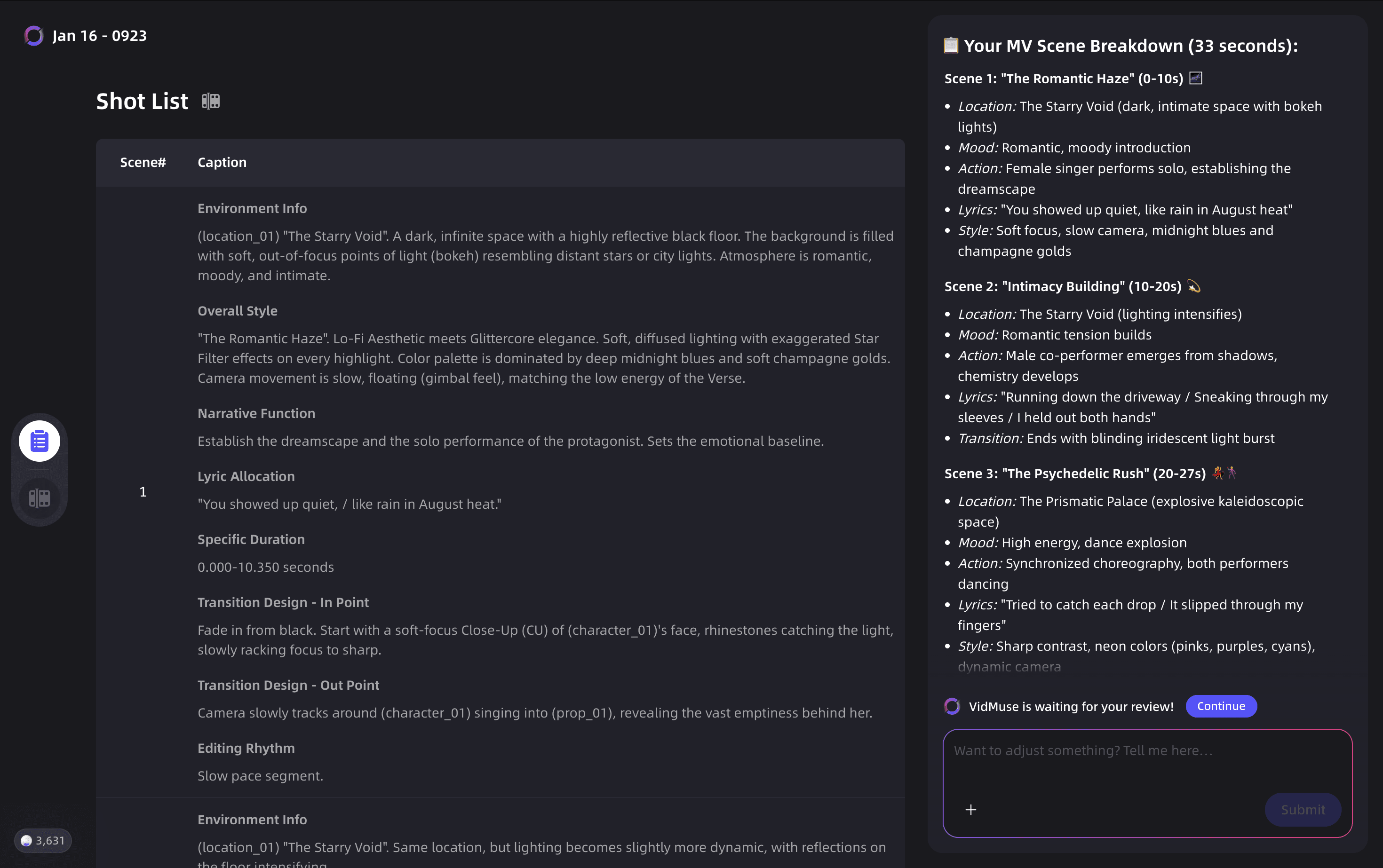
VidMuse's agent logic breaks your track's duration into scenes and assigns shot types to each. For a 90-second track this might look like: 4-6 scenes, each with 2-4 shots. You can edit the shot list — add, remove, or reorder shots, change camera angle descriptors, and refine scene-level prompts.
This stage is the core of what separates VidMuse from one-shot video generators: you're directing, not just prompting.
Stage 4 — Storyboard
VidMuse renders a static storyboard — a visual panel for each shot. Review for consistency: do the visual elements match across scenes? Does the progression feel right emotionally? Use Shot Refine by Quoting (a VidMuse 2.0 feature) to select any storyboard panel and refine it by quoting the original and adding modifications — preserving what works while improving what doesn't.
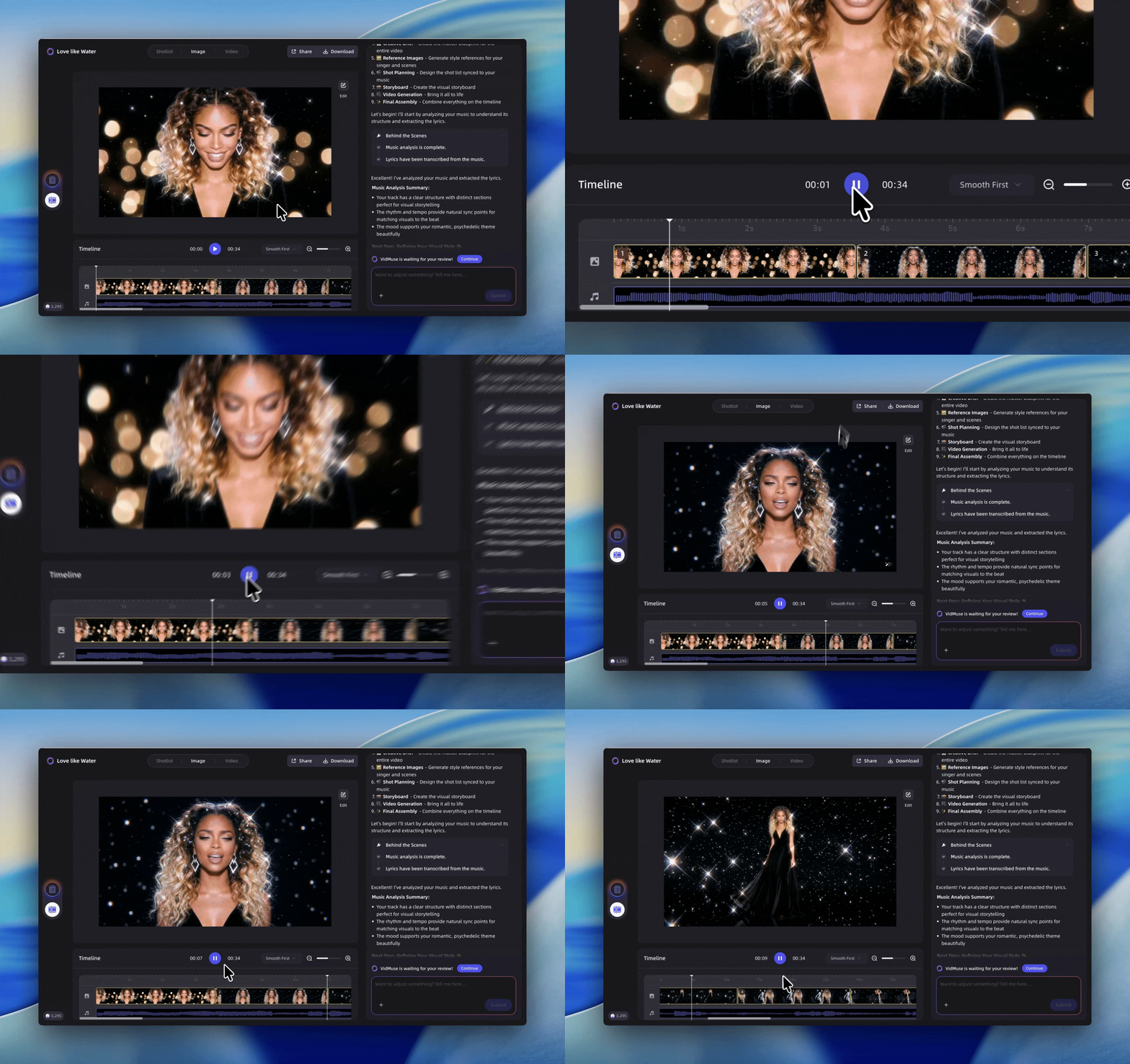
Stage 5 — Video Generation
With storyboard approved, VidMuse generates each shot as a video clip. Choose your generation mode:
- Studio mode for highest quality output — best for final delivery.
- Lite mode (Seed series models) for fast, cost-efficient drafting — ideal for reviewing shot timing and pacing before committing to full-quality renders.
Finished clips are assembled in the Timeline Editor, where you can trim, reorder, and adjust timing to sync with the audio track. All generated assets are stored in the Asset Library & Memory, making it easy to reuse visual elements or maintain consistency across a series of videos.
Create Your Music Video in Minutes
Turn your music into a video with VidMuse.
VidMuse Templates for Music Videos
If you prefer a faster path, VidMuse offers pre-structured templates:
- Story MV: Narrative-driven video with a clear beginning, middle, and end.
- Abstract MV: Mood-based, non-narrative visuals synchronized to audio energy.
- Performance MV: AI Avatar-driven performance using Omnihuman V1.5 or Kling AI Avatar V2 Pro.
- Viral Short: Optimized for 30-60 second social clips.
For Udio tracks, Abstract MV and Performance MV templates are typically the fastest to execute — they require less narrative scaffolding and let the audio carry the emotional weight.
VidMuse Model Matrix: Choosing the Right Video Engine
VidMuse routes your shots to different video generation models based on quality requirements, shot type, and generation speed. You don't need to manage this manually — the platform's agent logic handles routing — but understanding the options helps you make informed mode selections.
For music video production, the models most relevant to visual quality and stylistic control include:
- Kling V3.0 Pro / V2.6 Pro: Strong for cinematic, realistic motion. Good for performance shots and urban environments.
- Veo 3.1 / Veo 3 Fast: High-fidelity outputs with strong temporal consistency. Suitable for abstract or stylized visuals.
- Hailuo 2.3 Pro: Known for smooth motion and lighting quality.
- Seedance 2.0 Pro: VidMuse's Seed-series flagship — used in Studio mode for top-quality generations.
For image generation (storyboard references and style frames), VidMuse supports Midjourney V7, GPT Images 2.0, Flux.2-Pro, and others — giving you control over the visual aesthetic at the storyboard stage.
Common Mistakes When Going from Audio to Video
Most creators who struggle with the Udio-to-video pipeline make the same avoidable errors. Here are the most common:
- Skipping the creative brief. Jumping straight to video generation without defining visual style leads to incoherent shots. Spend 10 minutes on the brief — it shapes every downstream decision.
- Mismatching visual pace to audio energy. A high-tempo Udio track needs faster cuts and higher-energy visual transitions. A 4 BPM ambient piece needs slow, breathing shots with long holds. Match the edit rhythm to the audio rhythm.
- Over-generating in Studio mode. Studio mode produces the best quality but costs more credits and takes longer. Use Lite mode for drafts, switch to Studio only for final approved shots.
- Ignoring the Asset Library. If you're creating multiple videos for the same artist or track series, storing and reusing visual assets from the Asset Library maintains consistency and saves generation time.
- Treating the storyboard as final. The storyboard is a plan, not a commitment. Use Shot Refine by Quoting to iterate on individual panels without regenerating the whole storyboard.
- Forgetting music credit. If you're publishing a video built on an Udio track, check your Udio plan's licensing terms for commercial use rights before distribution.
FAQ
What is the Udio AI music generator?
Udio is a browser-based AI music generator that creates original songs from text prompts. Users describe a genre, mood, and lyrical topic, and Udio renders 30-second audio clips that can be extended into full tracks using built-in Extension and Remix tools. It supports custom lyrics, instrumental generation, and advanced editing via Inpainting on paid plans.
How does Udio pricing work — is there a free plan?
Yes. Udio's free plan provides 100 credits per month with a 10-credit daily cap and limits full-length song generations to 3 per day. Paid plans start at $10/month (Standard, 2,400 credits) and $30/month (Pro, 6,000 credits). Credits do not roll over between billing cycles. Additional credits can be purchased separately.
What is the difference between Udio and Suno?
Udio and Suno are both AI music generators, but they differ in editing depth. Udio emphasizes iterative control — section-by-section extension, inpainting, Manual Mode, and fine-grained generation parameters. Suno is known for fast, polished full-song outputs with a more streamlined creation flow. Choose Udio if editorial control matters; Suno if speed to a finished track is the priority.
Can I use an Udio track in a VidMuse music video?
Yes. You can upload your Udio audio file as the foundation of a VidMuse project. VidMuse's Creative Brief workflow accepts audio input and builds a scene-by-scene visual plan around it. Before publishing commercially, verify your Udio plan's licensing terms — commercial use rights vary by subscription tier.
What is the best VidMuse template for an Udio music video?
For most Udio tracks, the Abstract MV template is the fastest and most flexible starting point — it generates mood-driven visuals without requiring a narrative structure. For tracks with vocal performances or artist identity elements, the Performance MV template using VidMuse's AI Avatar models (Omnihuman V1.5 or Kling AI Avatar V2 Pro) creates a convincing on-screen presence.
How do I extend a short Udio clip into a full song?
Use Udio's Extension mode. Click Extend on any 30-second clip, choose whether to add a section before or after the original, and adjust the prompt and lyrics for that section. Repeat to build a chain of up to 10 sections. A practical approach: generate your main section first, then add an intro (Add Intro) and an outro (Add Outro) to create a self-contained song with a proper arc.
What is Udio inpainting?
Inpainting is a paid-only Udio feature that lets you select specific regions of a waveform and regenerate just those sections while keeping everything else unchanged. It's useful for correcting vocal mispronunciations, swapping instrument tones, or refining a specific moment in a track without disrupting the surrounding audio.
Final Words
Udio is one of the most capable AI music generators available today — its combination of prompt-based creation, section-by-section extension, remixing, and inpainting gives independent musicians real editorial control over AI-generated music. The platform's free tier is usable for exploration, and its Standard plan unlocks enough features and credits to produce complete, release-ready tracks.
But a great track without visuals is a missed opportunity. The path from Udio audio to a published music video no longer requires a production budget or a video team. With VidMuse, you bring an Udio track into a structured five-stage creative workflow — brief, reference, shot list, storyboard, generation — and come out with a scene-by-scene music video powered by a multi-model pipeline spanning Kling, Veo, Hailuo, and more.
If you're an indie musician, content creator, or small business using Udio to generate original audio, VidMuse is the natural next step. Start with the Abstract MV template for your first project, use Lite mode to draft quickly, and switch to Studio mode for final delivery. Your track deserves visuals as good as the audio.
Ready to turn your Udio track into a full music video? Try VidMuse →
Create Your Music Video in Minutes
Turn your music into a video with VidMuse.

Written By
VidMuse Team
Continue Reading
Latest blog posts related to AI video creation.
Free Music Visualizer: 10 Best Free Tools in 2026
Compare 10 best free music visualizers in 2026. Waveform tools, AI music video makers, watermark policies, export limits, and which tool fits your workflow.

How to Make Product Video Ads with AI (Step-by-Step)
Learn how to make product video ads with AI step by step. Full 6-phase VidMuse tutorial, input tips, ad type guide, and alternative approaches compared.

Best AI Clone Video Generator 2026: 7 Tools Compared
Compare the 7 best AI clone video generators in 2026. Avatar clones, viral ad clones, pricing, features, and how to pick the right tool for your workflow.