

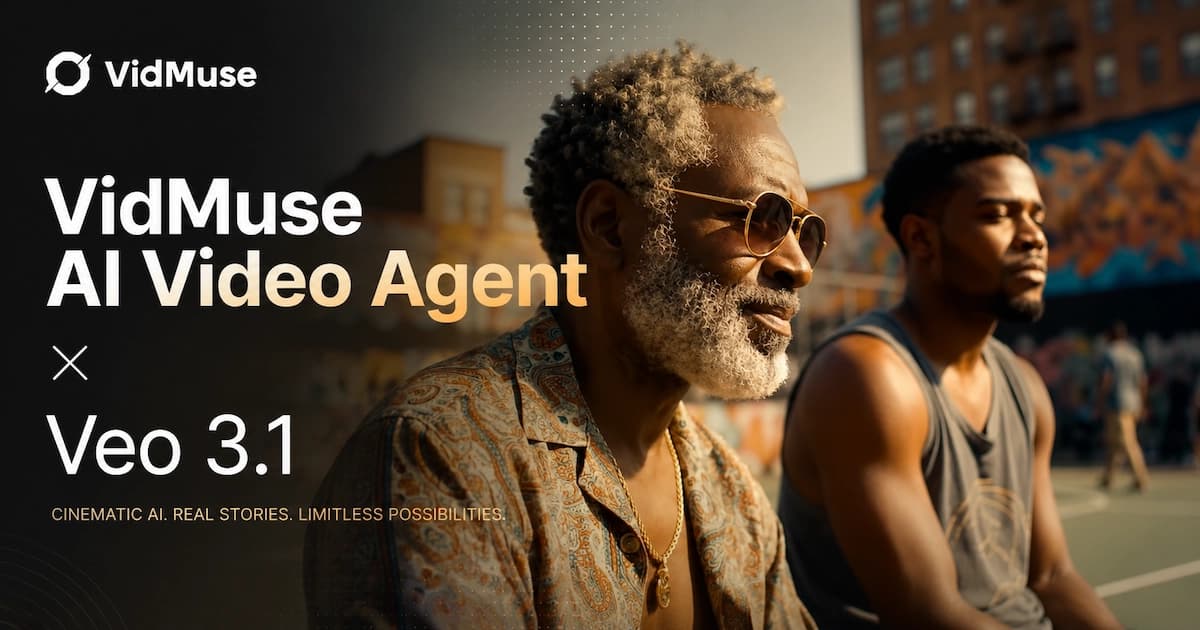
Google Veo 3.1 + VidMuse: Complete AI Video Guide 2026
Veo 3.1 is Google DeepMind's most capable video generation model to date — and it's now available inside VidMuse.
Whether you're an indie musician looking to turn a Suno track into a cinematic music video, a brand producer testing ad concepts, or a developer building on the Gemini API, this guide covers everything: what Veo 3.1 is, how Lite and Fast variants differ, what the free and paid options look like, and exactly how to use it inside VidMuse's AI Director workflow alongside models like Seedance 2.0 and GPT Images 2.0. If you want the broader platform walkthrough, start with the VidMuse guide, then use this article for Veo-specific decisions.
Key Takeaways
- Veo 3.1 generates video up to 4K with always-on native audio — including dialogue, sound effects, and ambient sound — directly from text or image prompts.
- Three model variants exist: Veo 3.1 (flagship), Veo 3.1 Fast (speed-optimized for production pipelines), and Veo 3.1 Lite (lightweight, 720p only, no video extension).
- Access is available through Google AI Studio and Vertex AI on paid tiers; limited free experimentation is possible via AI Studio with a free API key.
- VidMuse integrates Veo 3.1 alongside Seedance 2.0, Kling V3.0, GPT Image 2.0, and more — letting you plan and produce full music videos through an agent-based workflow rather than one-shot prompts.
- Video extension (chaining clips up to ~148 seconds), first-and-last-frame interpolation, and reference-image-guided generation are exclusive to Veo 3.1 and Veo 3.1 Fast — not available in Lite.
What Is Veo 3.1?
Veo 3.1 is Google DeepMind's state-of-the-art video generation model, released in October 2025. It is the direct successor to Veo 3 and is designed to empower filmmakers, developers, and creative professionals with cinematic-quality video output, natively synchronized audio, and advanced multi-shot creative controls.
Unlike earlier models that generated silent video, Veo 3.1 produces audio as a native output — not a post-processing add-on. Every generation, whether text-to-video or image-to-video, includes a full soundtrack generated in parallel with the visuals. This covers ambient noise, precise sound effects, and even multi-person dialogue delivered in sync with lip movement.
Veo 3.1 is accessible via the Gemini API, Google AI Studio, Vertex AI, the Gemini app, and Google Flow (Google's filmmaking tool). Third-party platforms like VidMuse also integrate Veo 3.1 directly into their model matrix, making it available as part of a broader creative production workflow. For a related look at Google's multimodal direction, see google omni.
What Veo 3.1 Can Do: Core Capabilities
Veo 3.1 represents a meaningful upgrade across every creative control dimension compared to its predecessor.
Native Audio Generation
Veo 3.1 generates audio natively alongside video — not as a separate process. You can prompt for specific dialogue (using quotation marks), sound effects, and ambient soundscapes within the same text prompt.
For example, specifying SFX: thunder cracks in the distance or including spoken lines like "We have to leave now." results in synchronized audio that matches the visual.
This is particularly powerful for music video production, where on-screen performer vocals, crowd noise, and environmental audio need to feel embedded in the scene rather than layered on top.
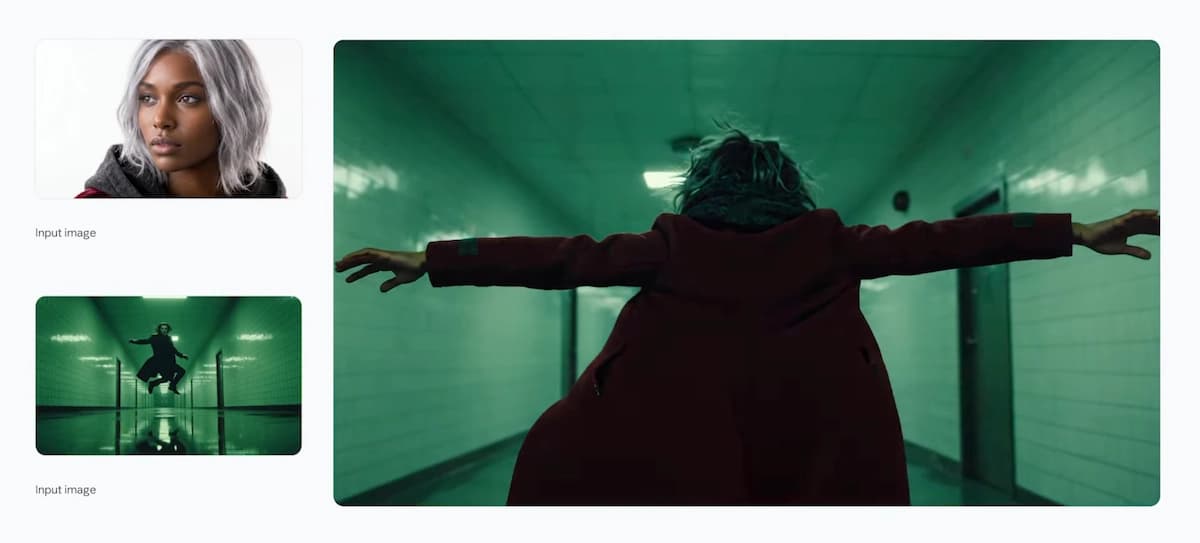
Reference Image-Guided Generation ("Ingredients to Video")
Provide up to three reference images — of a character, object, or visual style — and Veo 3.1 will maintain that visual identity across generated shots. This solves one of the most persistent problems in AI video production: character consistency. A musician's face, outfit, or performance space can remain visually coherent across multiple scenes in the same video.
Video Extension
Extend a previously generated Veo clip by up to 7 seconds, repeatable up to 20 times, producing videos up to ~148 seconds. Each extension reads the final second of the preceding clip to maintain visual and audio continuity. Note: video extension is capped at 720p resolution.
First and Last Frame Interpolation
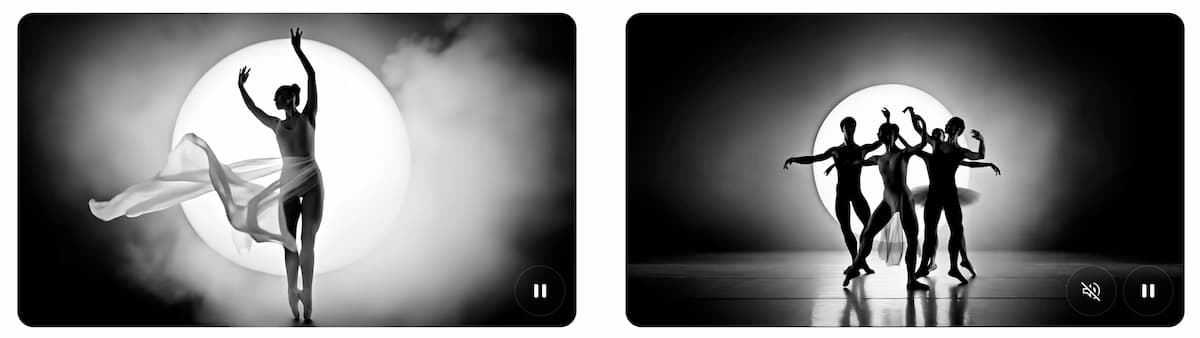
Provide a starting image and an ending image, and Veo 3.1 generates the transition between them — complete with audio. This is ideal for scene transitions, cinematic reveals, or connecting a performance shot to an abstract visual sequence.
Resolution Up to 4K
Veo 3.1 Standard and Fast support 720p, 1080p, and 4K output. 1080p and 4K are limited to 8-second clips. 4K generation carries higher latency and cost; 720p is the default and fastest option.
Portrait and Landscape Aspect Ratios
Both 16:9 (landscape) and 9:16 (portrait/vertical) are supported, making Veo 3.1 suitable for standard film/TV formats as well as social-first content like Reels or TikTok.
How to Use Veo 3.1 Step by Step
The most effective Veo 3.1 prompts follow a five-part structure: [Cinematography] + [Subject] + [Action] + [Context] + [Style & Ambiance].
Define your shot type
Start with camera language: medium shot, close-up, tracking shot, crane shot, POV shot, dolly in.
Describe your subject clearly
Include specific visual details — wardrobe, physical characteristics, props.
Specify the action
Describe what the subject is doing with precise performance language.
Set the context and environment
Add time of day, setting, location, and background elements.
Define style and audio
Specify the visual aesthetic and any audio cues, including dialogue in quotation marks.
Step 1: Define your shot type
Start with camera language: medium shot, close-up, tracking shot, crane shot, POV shot, dolly in. This is your single most powerful control for tone.
Example: Crane shot starting low on a solo performer and ascending to reveal a rooftop venue at dusk.
Step 2: Describe your subject clearly
Who or what is in the frame? Include specific visual details — wardrobe, physical characteristics, props.
Step 3: Specify the action
What are they doing? Be precise. Singing into a vintage microphone with eyes closed communicates more than performing.
Step 4: Set the context and environment
Where is this happening? Time of day, setting, background elements.
Step 5: Define style and audio
Specify the visual aesthetic and any audio cues. Use quotation marks for dialogue. Describe ambient sound or SFX explicitly.
Full example prompt: Medium shot, a female artist in a sequined jacket, singing passionately into a vintage microphone on a rain-slicked city rooftop at night. The skyline glows behind her. Slow push-in. Audio: distant city sounds, light rain on concrete, then her voice cutting in: "You were always the ghost in this city."
For multi-shot sequences, use timestamp prompting:
[00:00-00:02]Establishing wide shot of the venue[00:02-00:05]Medium close-up of the performer[00:05-00:08]Aerial pull-back to reveal the crowd
This technique efficiently creates full scenes with controlled cinematic pacing in a single generation.
Using Veo 3.1 Inside VidMuse
VidMuse integrates Veo 3.1 as one model within a full AI Director workflow — which means you're not just running one-shot prompts. You're using an agent-based system that plans an entire music video and executes it scene by scene.
Create Your AI Video with Veo 3.1 in Minutes
Turn your idea into a video with Veo 3.1 inside VidMuse AI video agent.
Why This Matters for Music Video Production
When you generate a music video with VidMuse, the platform takes your creative brief and builds a structured Scene & Shots List, then a Storyboard, before any video generation begins. This means Veo 3.1 is applied shot-by-shot with consistent context — not as a single 8-second clip in isolation.
Model Selection Strategy in VidMuse
VidMuse's model matrix includes Veo 3.1, Seedance 2.0 Pro/Fast, Kling V3.0 Pro, GPT Image 2.0, Hailuo 2.3, Nano Banana, and others. Here's a practical framework for deciding when to reach for Veo 3.1:
- Use Veo 3.1 when the shot requires native audio (dialogue, ambient sound, SFX), high-realism human performance, or precise visual-audio sync.
- Use Seedance 2.0 (via VidMuse's Lite mode) for fast, cost-efficient generation during ideation or for shots that don't demand audio.
- Use Kling V3.0 Pro for expressive motion and stylized aesthetics.
The Full VidMuse Workflow with Veo 3.1
- Creative Brief — describe the track mood, visual concept, artist reference, and target duration (30s-2min)
- Reference Generation — generate style and character reference images using GPT Images 2.0, Midjourney V7, or Seedream 5.0 inside VidMuse
- Scene & Shots List — VidMuse's agent structures the video into beats and shots
- Storyboard — visual boards per scene; here you assign Veo 3.1 to audio-critical shots
- Video Generation — VidMuse executes each shot; use Veo 3.1's reference image feature (with character stills from step 2) to maintain performer consistency
- Timeline Editor (VidMuse 2.0) — arrange, trim, and refine clips
- Shot Refine by Quoting — re-generate specific shots without rebuilding the full project
For indie musicians who create tracks with Suno AI (available natively inside VidMuse), this workflow goes from audio to finished music video without leaving the platform. It also fits Song to Video AI and AI music video generator workflows when you want a complete MV rather than a one-shot clip.
Copied VidMuse Guide Workflow Details
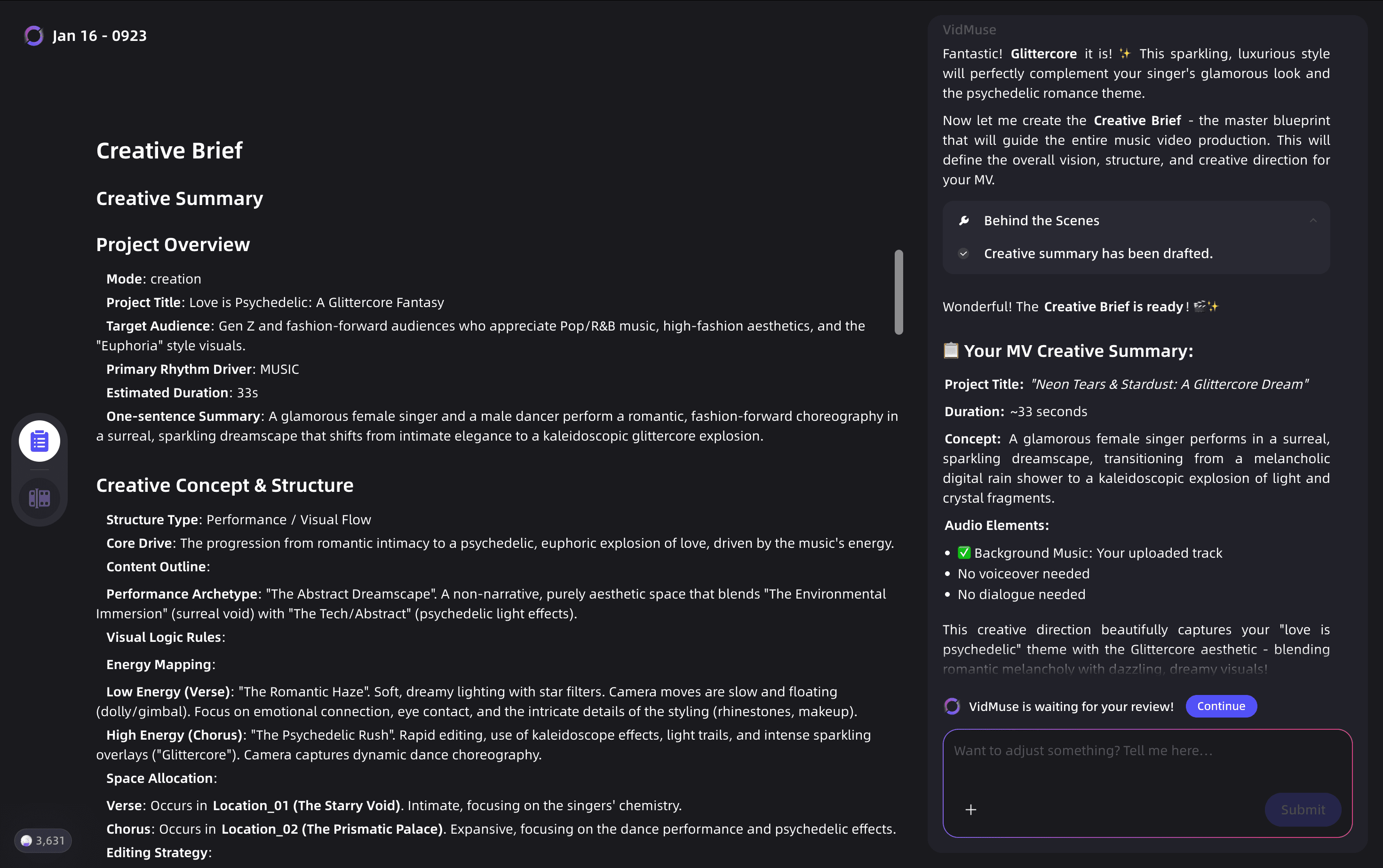
Once you enter the project, pay attention to the Canvas (left) to preview results and the Chat (right) to communicate with VidMuse.
Creative Brief — VidMuse will generate a Creative Brief — think of this as the "Director's Script." It defines the plot, visual style, and overall pacing of your project.
We know it's a lot of text, but please review it line by line before hitting "Continue." Spending 3 minutes here can save you 30 minutes of rework and a significant amount of credits! The more precise you are now, the smoother the process will be.
References — Once the brief is approved, VidMuse generates reference images for:
- Characters
- Styling/Costumes
- Scenes/Locations
- Props
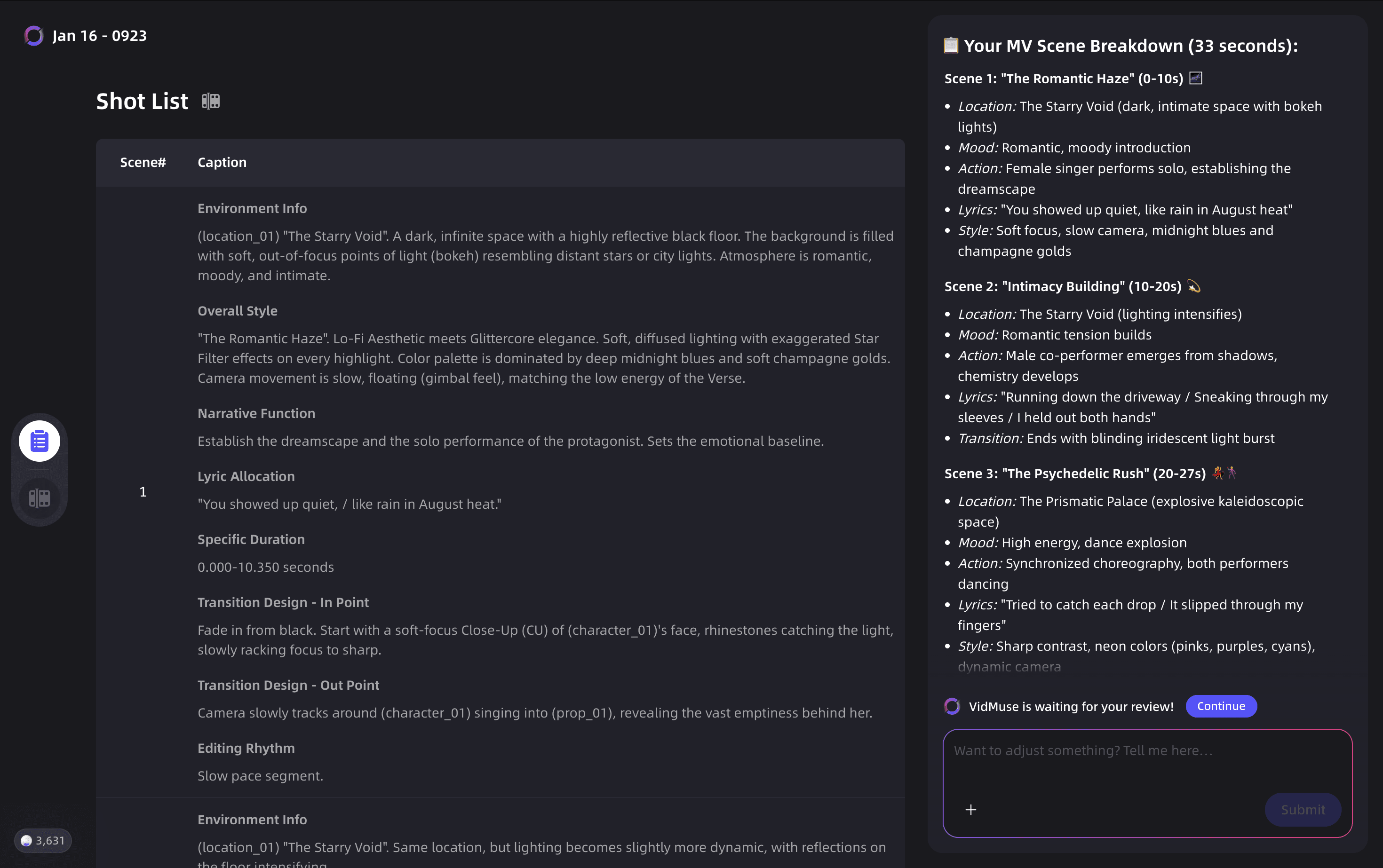
Scene and Shot List — This is the most important part. The Shot List is the blueprint of your video.
Storyboard — VidMuse now uses image generation models to visualize every shot.
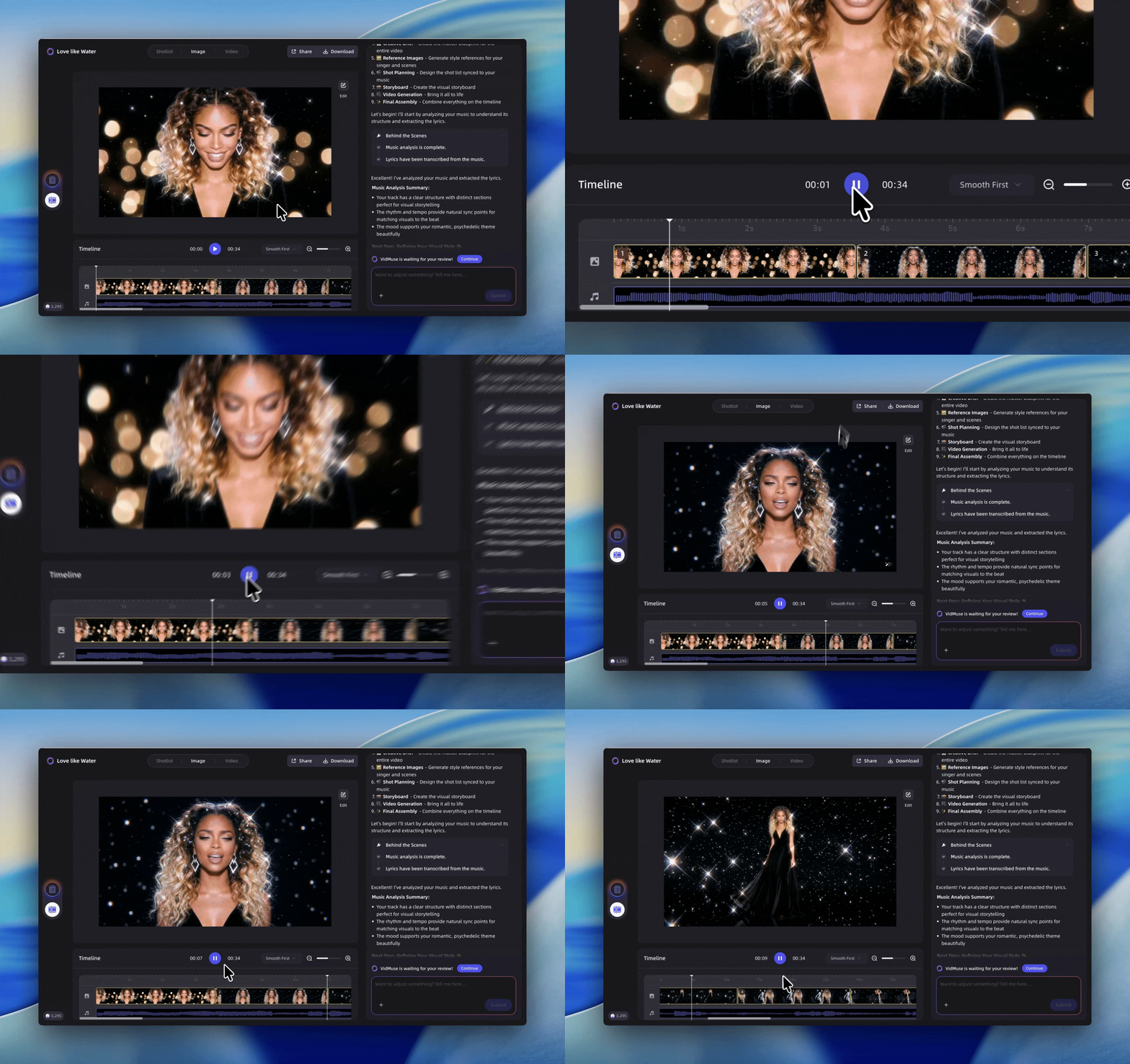
Generate Videos — Once the Storyboard looks perfect, it's time to animate.
Final Preview & Export — You've made it! Preview the full sequence in Edit Mode. Once satisfied, VidMuse generates the final masterpiece.
Veo 3.1 Model Variants: Lite vs Fast vs Standard
Choosing the right Veo 3.1 variant matters — the three versions differ in speed, resolution ceiling, and available features.
Veo 3.1 (Standard)
The flagship version. Supports 720p, 1080p, and 4K output (1080p and 4K are 8-second clips only). Supports all input modes: text-to-video, image-to-video, and video-to-video (extension). Reference images, first-and-last-frame interpolation, and scene extension are all available here.
Veo 3.1 Fast
Optimized for speed and throughput without a major quality drop. Shares the same feature set as Veo 3.1 Standard — including video extension and reference images — but prioritizes generation speed. Best for backend services, programmatic ad generation, rapid A/B creative testing, and high-volume social content workflows.
Veo 3.1 Lite
The lightweight entry point. Capped at 720p resolution only. Does not support video extension or reference images. Text-to-video and image-to-video are supported. Audio is always on. Designed for lower-cost experimentation and workflows that don't require the advanced creative controls.
Quick comparison:
- Resolution: Lite = 720p only · Fast/Standard = 720p, 1080p, 4K
- Video extension: Lite = ✗ · Fast/Standard = ✓
- Reference images: Lite = ✗ · Fast/Standard = ✓
- First & last frame: Lite = ✓ · Fast/Standard = ✓
- Audio: All variants = always on
- Input modes: Lite = text + image · Fast/Standard = text + image + video
Veo 3.1 Lite
Best for
- 720p experimentation
- Lower-cost concept validation
- Text-to-video and image-to-video
Watch out
- No video extension
- No reference images
- 720p only
Veo 3.1 Fast / Standard
Best for
- 720p, 1080p, and 4K
- Video extension
- Reference image workflows
Watch out
- Higher cost or latency
- 1080p and 4K stay limited to 8-second clips
For music video production — where character consistency across scenes, seamless scene extension, and cinematic resolution matter — Veo 3.1 Standard or Fast is the right choice. Lite works well for quick concept validation or budget-conscious early-stage generation.
Veo 3.1 Free vs Paid: Access Options
Veo 3.1 is a paid-tier model, but limited free access exists depending on which platform you use.
Google AI Studio (ai.google.dev): Developers with a free Gemini API key can access Veo 3.1 in preview, though rate limits apply and sustained free use is constrained. Paid API keys unlock higher rate limits and full production access.
Vertex AI: Fully production-grade, enterprise-grade access. Veo 3.1 is generally available and priced per second of video generated. This is where companies like Pocket FM, WPP, and QuickFrame are running Veo 3.1 in production workflows.
Google Flow: Google's own filmmaking interface offers access to Veo 3.1. Free experimentation may be available during preview periods, though broader access aligns with Gemini subscription tiers.
VidMuse: Veo 3.1 is available inside VidMuse as part of the platform's model matrix. VidMuse's credit-based system means you can use Veo 3.1 alongside other models — including Seedance 2.0, Kling V3.0, and GPT Image 2.0 — within a single production workflow without managing separate API keys.
Create Your AI Video with Veo 3.1 in Minutes
Turn your idea into a video with Veo 3.1 inside VidMuse AI video agent.
For users who want free Veo 3.1 access for personal experimentation, Google AI Studio with a free API key is currently the most accessible starting point, though quota limits apply.
Veo 3.1 vs Veo 3: What Changed?
Veo 3.1 builds on Veo 3 with targeted upgrades rather than a ground-up rebuild.
- Richer audio: More natural conversations, better multi-person dialogue sync, improved ambient sound generation
- Stronger prompt adherence: Complex scene descriptions are interpreted more accurately
- Better image-to-video quality: When animating a reference image, Veo 3.1 maintains visual fidelity better and generates superior audio in that mode
- New capabilities: Reference images (ingredients to video), video extension, and first-and-last-frame are new to the 3.1 generation
- Same pricing as Veo 3 on Vertex AI at launch
What did not change: frame rate remains 24fps across all variants; the 8-second hard cap on 1080p/4K remains; Veo 3.1 is still in Preview status on the API (Veo 3 is Stable).
For users already on Veo 3, the upgrade path is straightforward — the model code changes from veo-3-generate-preview to veo-3.1-generate-preview with no parameter changes required.
Common Mistakes and Limitations
Even experienced users run into predictable issues with Veo 3.1. Here's what to watch for.
Mistake 1: Vague audio prompts
Writing music plays produces generic results. Instead, specify: A melancholic piano melody plays softly, reverbing in a large empty space. No percussion.
Mistake 2: Using 1080p or 4K and expecting flexibility
Higher resolutions lock you into 8-second clips only. If you need a 6-second shot, generate at 720p.
Mistake 3: Trying to extend in Veo 3.1 Lite
Video extension is not available in Veo 3.1 Lite. Switch to Veo 3.1 or Veo 3.1 Fast for extension workflows.
Mistake 4: Overloading a single prompt with too many subjects
Veo handles focal subjects better than ensemble casts. If you need multiple characters, use ingredients-to-video with reference images rather than describing everyone in text.
Mistake 5: Expecting voice extension to work
If spoken dialogue is present in your clip, the extension will only continue it effectively if that dialogue falls within the final second of the video. Plan your extension cuts accordingly.
Known limitations from Google:
- Consistent spoken audio, especially for shorter speech segments, remains an active development area
- Generated videos are stored server-side for 2 days only — download your assets promptly
- All Veo 3.1 outputs are watermarked with SynthID
- In EU, UK, Switzerland, and MENA regions,
personGenerationis limited toallow_adultonly
FAQ
How to use Veo 3.1 for free?
Limited free access to Veo 3.1 is available through Google AI Studio using a free Gemini API key. Rate limits apply. For sustained production use, a paid Gemini API plan or Vertex AI account is required. VidMuse provides access to Veo 3.1 within its platform credit system, which may be more practical for creators who want to use multiple models without separate API management.
What is the Veo 3.1 video length limit?
Individual Veo 3.1 generations produce clips of 4, 6, or 8 seconds. At 1080p or 4K resolution, only 8-second clips are supported. However, using the video extension feature (Veo 3.1 and Fast only, not Lite), you can chain clips up to approximately 148 seconds total by extending a previous generation up to 20 times.
What's the difference between Veo 3.1 Lite and Veo 3.1 Fast?
Veo 3.1 Lite is the stripped-down tier: 720p only, no video extension, no reference images, text-to-video and image-to-video only. Veo 3.1 Fast is a full-featured variant matching the standard model's capabilities (including extension and reference images) but optimized for generation speed. Fast is the right choice for production pipelines; Lite is for lower-cost experimentation.
Is Veo 3.1 available via the Gemini API?
Yes. The model codes are `veo-3.1-generate-preview` (standard), `veo-3.1-fast-generate-preview` (Fast), and `veo-3.1-lite-generate-preview` (Lite). These are accessible through Google AI Studio and Vertex AI. Veo 3.1 is also available in the Gemini app and Google Flow. Third-party platforms like VidMuse integrate the API directly.
Can Veo 3.1 generate a full music video?
Not in a single generation. Individual clips max out at 8 seconds. For a complete music video (30 seconds to 2 minutes), you need a structured multi-shot workflow — planning scenes, generating clips for each beat, and assembling them in an editor. This is exactly what VidMuse's AI Director workflow is built for: structured creative brief → storyboard → shot-by-shot generation → Timeline Editor assembly.
What is Gemini Flow and how does it relate to Veo 3.1?
Google Flow is Google's dedicated AI filmmaking tool, powered by Veo models including Veo 3.1. It is designed for creators who want a visual, clip-based interface for cinematic generation. It supports features like Ingredients to Video, Extend, and Frames to Video. Unlike VidMuse, Flow does not include integrated AI music creation (Suno AI), multi-model selection, or agent-based music video planning — it is Google's own standalone creative tool.
Conclusion
Veo 3.1 marks a genuine step forward in AI video generation — particularly for creators who need audio-visual sync, character consistency across scenes, and the flexibility to build longer narratives through extension. It is not a single-prompt solution for a full music video, but as one component inside a structured production workflow, it is currently among the most capable models available for cinematic and performance-driven content.
For creators building music videos, brand content, or short films, the most effective path is a workflow that matches the right model to the right shot — and manages the full production arc from brief to final cut. That's what VidMuse's AI Director is designed to do: not just give you access to Veo 3.1, but give you the structure to use it well.
Ready to try Veo 3.1 inside VidMuse? Start your first AI music video at vidmuse.ai.
Create Your AI Video with Veo 3.1 in Minutes
Turn your idea into a video with Veo 3.1 inside VidMuse AI video agent.

Written By
VidMuse Team
Continue Reading
Latest blog posts related to AI video creation.
Free Music Visualizer: 10 Best Free Tools in 2026
Compare 10 best free music visualizers in 2026. Waveform tools, AI music video makers, watermark policies, export limits, and which tool fits your workflow.
How to Make Product Video Ads with AI (Step-by-Step)
Learn how to make product video ads with AI step by step. Full 6-phase VidMuse tutorial, input tips, ad type guide, and alternative approaches compared.
Best AI Clone Video Generator 2026: 7 Tools Compared
Compare the 7 best AI clone video generators in 2026. Avatar clones, viral ad clones, pricing, features, and how to pick the right tool for your workflow.