

Gemini Omni Direct Answer
Gemini Omni is Google's any-to-any multimodal AI model family for creating and editing video from combinations of text, images, audio, and video. Announced at Google I/O on May 19, 2026, the first public model, Gemini Omni Flash, starts with video generation and conversational editing inside the Gemini ecosystem.
For creators, the important shift is not only that Gemini Omni can generate short clips. It can also take follow-up instructions, preserve scene context, and edit a video through natural language. For music video creators using VidMuse AI, Gemini Omni is useful to understand because it points toward the future of interactive video editing, while VidMuse remains built for longer, structured AI music video production.
Create Your AI Video in Minutes
Turn your track, references, and creative direction into a complete AI music video workflow with VidMuse.
Key Takeaways
- Gemini Omni is Google's multimodal model family for creating from many input types, starting with video.
- Gemini Omni Flash is the first released model and is designed for short-form video generation and conversational video editing.
- Any-to-any input means users can combine text, images, audio, and video references in one prompt.
- Conversational editing is the standout feature: follow-up prompts can revise a clip while preserving characters, physics, and scene continuity.
- SynthID and content credentials support verification of AI-generated video.
- VidMuse is better suited when creators need a full music video workflow with scenes, shots, storyboards, timelines, asset memory, and multiple video models.
What Is Gemini Omni?
Gemini Omni is where Google's Gemini reasoning system meets generative creation. Earlier AI video tools often work like one-shot generators: prompt once, get a clip, then regenerate if something is wrong. Gemini Omni is designed to behave more like a creative collaborator. It can accept a starting prompt, generate or edit video, and then keep responding to follow-up instructions.
The model builds on the same direction Google explored with Nano Banana for images: conversational creation, iterative editing, and real-world knowledge. Gemini Omni extends that idea into video, where the model has to reason about motion, physics, time, audio, and visual continuity.
Google describes the first public step, Gemini Omni Flash, as a model that can create from any input, starting with video. That framing matters: video is the first output focus, but the long-term direction is a broader any-to-any creative system.
Gemini Omni Flash: The First Model in the Family
Gemini Omni Flash is the first available Omni model. It focuses on speed and access rather than being the final high-end version of the family.
Who Can Access Gemini Omni Flash?
Gemini Omni Flash is rolling out through Google products including the Gemini app and Google Flow, with access depending on region, subscription tier, and product surface. Reports around the launch indicate availability for Google AI Plus, Pro, and Ultra subscribers, with YouTube surfaces also receiving access for short-form creation.
Current Constraints
Gemini Omni Flash is built for short clips. The practical launch constraint is a short-video workflow, commonly described around 10-second clip generation. This makes it useful for drafts, Shorts, visual experiments, and iterative edits, but not a full replacement for a structured music video production system.
Where Gemini Omni Appears
- Gemini app
- Google Flow
- YouTube Shorts and creator surfaces
- Developer and enterprise surfaces as rollout expands
Core Capabilities: What Gemini Omni Can Do
Conversational Video Editing
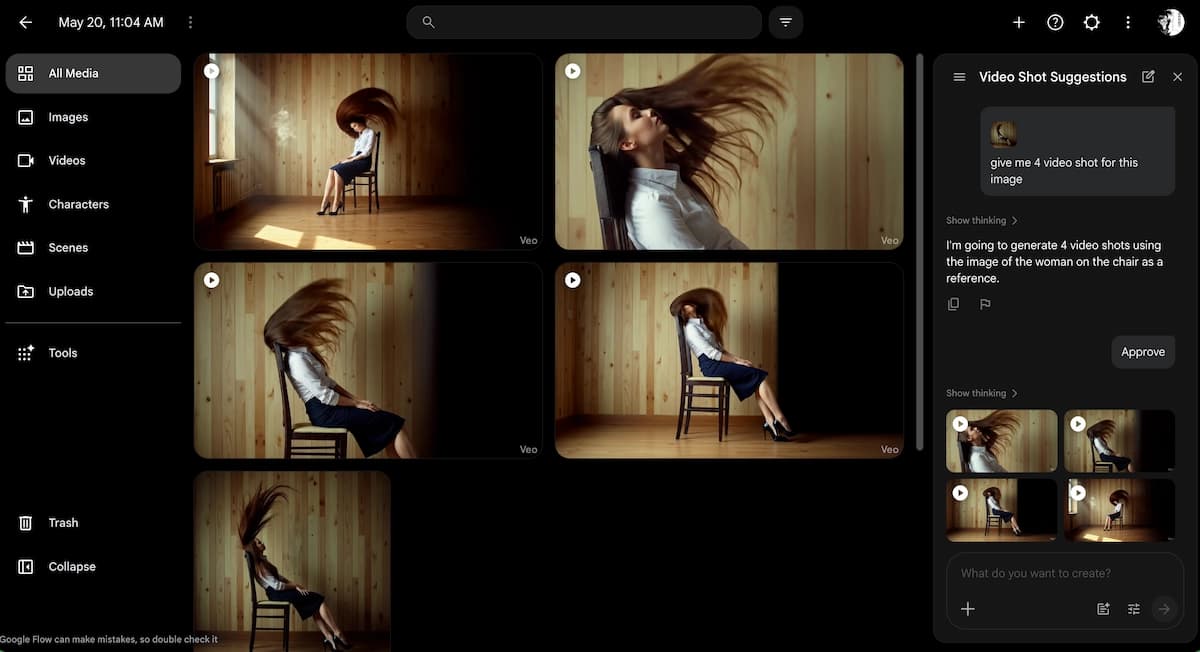
Gemini Omni's most important difference is iterative editing. Instead of restarting from scratch each time, a creator can ask for targeted changes such as a new background, a different camera angle, changed lighting, or a transformed subject. The model is designed to preserve what should stay the same while updating the requested element.
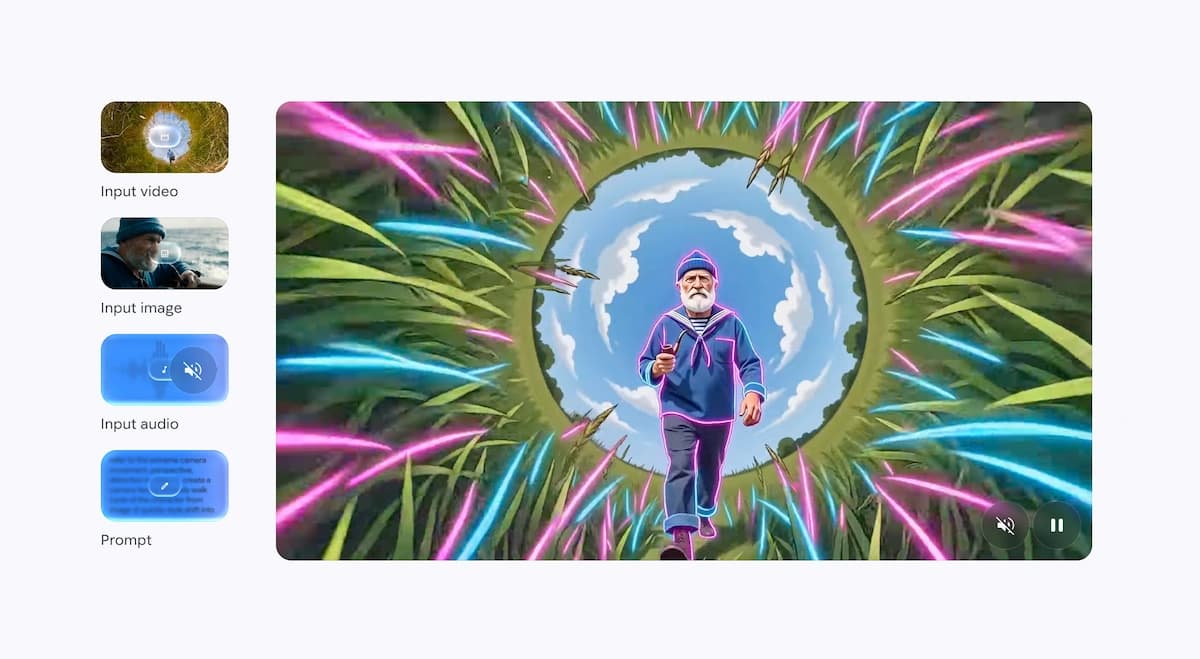
Any-to-Any Multimodal Input
Gemini Omni can combine multiple input types in one creative instruction. A creator might provide a character image, an existing video clip, a music or voice reference, and a text prompt together. The model then reasons across those inputs to produce one coherent output.
Real-World Knowledge Grounding
Because Gemini Omni is built into the Gemini model family, it can use world knowledge when interpreting prompts. That helps with physics, narrative logic, educational scenes, scientific visuals, and culturally grounded references.
Digital Avatar Creation
Google has also shown consent-oriented avatar workflows where users authorize use of their voice and likeness. This points toward personal video avatars, but it also raises important review and disclosure requirements for creators.
How to Use Gemini Omni Step by Step
Choose your access point
Open Gemini, Google Flow, YouTube Shorts, or another supported surface and confirm that Gemini Omni Flash is available on your account.
Gather your references
Prepare character images, style videos, audio references, footage to edit, and a short text brief.
Write the initial prompt
Specify shot framing, camera movement, style, action, mood, and which reference should control each part of the output.
Review the first clip
Check identity, motion, physics, camera behavior, lighting, and whether the video follows your creative direction.
Edit conversationally
Make one targeted change per turn, such as changing the background, adjusting the angle, or syncing lights to the music.
Verify and export
Check watermark or content credential signals where available, then download or move the clip into your production workflow.
Gemini Omni Video: Generation and Editing in Practice
Gemini Omni supports two practical modes: generating from scratch and editing an existing video.
Generating From Scratch
Start with a text prompt, a storyboard image, an audio reference, a character image, or a combination of all of them. The more specific your references are, the more control you retain over subject identity, camera style, motion, and visual tone.
Useful generation prompts include physics tests, product clips, music-reactive scenes, educational explainers, and short social videos. Gemini Omni is especially interesting when a prompt requires the model to combine different kinds of context rather than simply render a visual style.
Editing Existing Videos
Upload a video and ask Gemini Omni to transform it. You can change the aesthetic, modify objects, add animated effects, replace a location, or sync visual elements to audio. The strength is not only the first edit, but the ability to keep steering the same clip over multiple turns.
Prompting Best Practices for Gemini Omni
Specify framing and camera motion early. Use terms like wide shot, medium close-up, dolly zoom, push in, locked off, handheld, or natural smartphone zoom.
Use references instead of long descriptions. If you have a character image, style video, or music clip, attach it. Multimodal references are usually stronger than pure text.
Edit incrementally. One focused change per turn is more reliable than asking for background, lighting, character, camera, and motion changes all at once.
Use world-knowledge shortcuts. You can rely on Gemini Omni to understand concepts like gravity, protein folding, stop motion, stage lighting, or product photography without describing every frame.
Name the role of each input. For example: "Use image A for the character, video B for camera motion, and audio C for rhythm."
Gemini Omni vs Dedicated AI Video Platforms
Gemini Omni is a meaningful advance for conversational editing, but it is not the same thing as a full production pipeline.
Gemini Omni
Best for
- Conversational video editing
- Text, image, audio, and video inputs in one prompt
- Strong Google ecosystem distribution
- Good fit for short clips and YouTube-style experiments
Watch out
- Short clip constraints at launch
- Single-model workflow
- No full storyboard-to-timeline music video pipeline
VidMuse
Best for
- Built for full AI music video production
- Creative Brief, Storyboard, Timeline Editor, and Asset Library
- Multiple video models for different aesthetics
- Shot-level refinement across a longer project
Watch out
- More structured than a quick one-prompt experiment
When Gemini Omni Is the Right Choice
- Quick iterative edits on existing footage
- Multimodal prompts that combine several references
- YouTube Shorts or fast social video experiments
- Exploring a video idea conversationally before production
When VidMuse Is the Better Choice
- Music videos that run 30 seconds to 2 minutes
- Scene and shot planning before generation
- Choosing between multiple models such as Seedance, Kling, Wan, Vidu, Hailuo, Veo, or Sora
- Managing references, assets, storyboards, and final clips across a project
Where VidMuse Fits: Going Beyond Gemini Omni
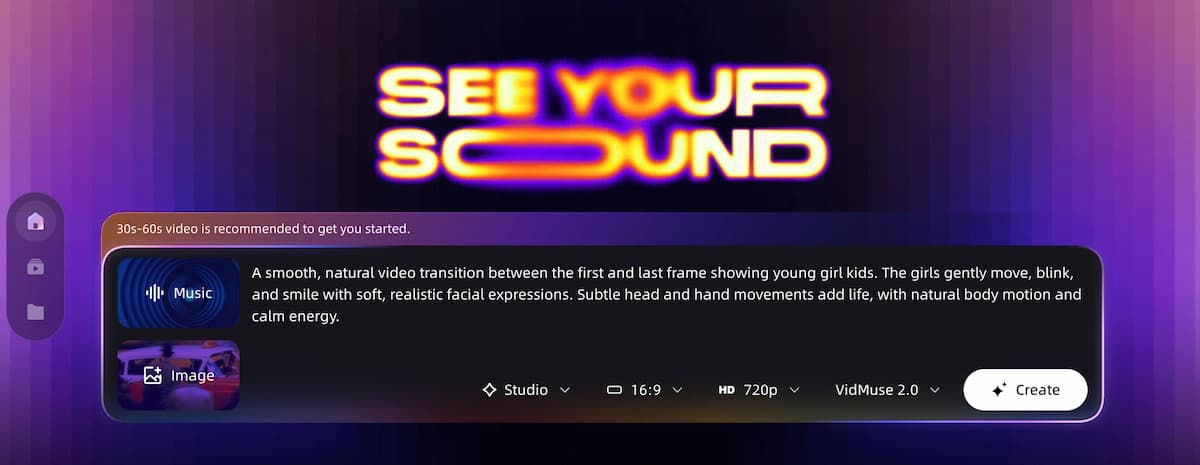
For indie musicians, creators, and small teams, VidMuse operates as an AI Director rather than a single short-clip generator. It lets you create AI music videos with full director-level control, turning a song and creative brief into a structured video workflow:
Creative Brief -> Reference Generation -> Scene and Shot List -> Storyboard -> Video Generation
That matters because a 90-second track needs pacing, shot variety, consistent style, and a timeline, not just one strong 10-second clip.
Create a Full AI Music Video with VidMuse
Plan scenes, generate storyboards, refine shots, and assemble your video with a structured AI Director workflow.
Model Flexibility Gemini Omni Cannot Match
VidMuse supports a matrix of AI video models so creators can choose the best engine for each shot:
- Seedance 2.0 or Kling 3.0 for cinematic realism.
- Wan 2.7 or Happy Horse 1.0 for stylized or experimental scenes.
- Veo 3.1, Sora 2 Pro, Hailuo 2.3 Pro, Vidu Q2, or Kling V2.6 Pro for specialized aesthetics.
- Lite mode for fast, cost-efficient iteration.
VidMuse 2.0 Production Features
- Shot Refine by Quoting: Select a specific moment and refine that segment.
- Timeline Editor: Assemble generated clips into a full video.
- Asset Library and Memory: Store references, characters, visual identities, and scenes for reuse.
Common Mistakes When Using Gemini Omni
Over-prompting in a single turn. Asking for too many changes at once can make the output less coherent.
Ignoring reference inputs. If you have a reference image or video, use it. Text-only descriptions are weaker for visual consistency.
Expecting full music video length. Gemini Omni Flash is better treated as a short-form generator and editor at launch.
Skipping AI-content verification. Check SynthID or content credential signals where available before publishing.
Assuming Flash is the final Pro-level model. Gemini Omni Flash is the first release, not necessarily the final quality ceiling of the Omni family.
Related Reading
- Seedance 2.0 AI video model
- Wan 2.7 release guide
- Happy Horse 1.0 on VidMuse
- AI music video generator
- Free AI Music Video Generator: Best Tools in 2026
- Best AI Music Video Generator 2026
FAQ
What is Gemini Omni and how is it different from Veo?
Gemini Omni is Google's multimodal model family for creating and editing video from text, images, audio, and video. Veo is a dedicated video generation model, while Omni is positioned as a broader any-to-any Gemini system with conversational editing.
What is Gemini Omni Flash?
Gemini Omni Flash is the first public model in the Gemini Omni family. It focuses on short-form video creation and iterative editing, with access rolling out through Google surfaces such as Gemini, Flow, and YouTube.
Can I use Gemini Omni to make a full music video?
Not by itself in its current short-clip form. You can generate or edit clips, but a full music video still needs scene planning, shot structure, asset management, and timeline assembly. VidMuse is built for that complete workflow.
How do I edit videos conversationally with Gemini Omni?
Generate or upload a video, then issue one natural-language change at a time, such as changing the background, adjusting the camera angle, or syncing visual elements to audio.
Is Gemini Omni video output watermarked?
Google applies SynthID and related AI-content verification systems across supported generated media workflows. Creators should check verification signals before publishing AI-generated video.
What inputs can Gemini Omni accept?
Gemini Omni is designed for multimodal input, including text, images, audio, and video references in the same creative workflow.
How does Gemini Omni compare with Seedance 2.0 and Kling 3.0?
Gemini Omni's advantage is conversational editing and Google ecosystem integration. Seedance 2.0 and Kling-style models remain important for cinematic generation quality, especially when used inside a structured platform like VidMuse.
Final Words
Gemini Omni marks a real shift in AI video creation: from one-shot prompting toward conversational, multimodal video direction. For quick edits, YouTube Shorts experiments, and early concept development, Gemini Omni Flash is an important tool to watch.
The limitations are just as important. Short clips, a single-model workflow, and limited production structure mean Gemini Omni is not yet a complete music video production platform. For creators whose vision is bigger than one clip, VidMuse provides the planning, model choice, storyboard workflow, and timeline tools needed to turn a track into a finished AI music video.
Create Your AI Video in Minutes
Turn your idea, song, and visual references into a structured AI music video workflow.

Written By
VidMuse Team
Continue Reading
Latest blog posts related to AI video creation.
Free Music Visualizer: 10 Best Free Tools in 2026
Compare 10 best free music visualizers in 2026. Waveform tools, AI music video makers, watermark policies, export limits, and which tool fits your workflow.

How to Make Product Video Ads with AI (Step-by-Step)
Learn how to make product video ads with AI step by step. Full 6-phase VidMuse tutorial, input tips, ad type guide, and alternative approaches compared.
Best AI Clone Video Generator 2026: 7 Tools Compared
Compare the 7 best AI clone video generators in 2026. Avatar clones, viral ad clones, pricing, features, and how to pick the right tool for your workflow.