

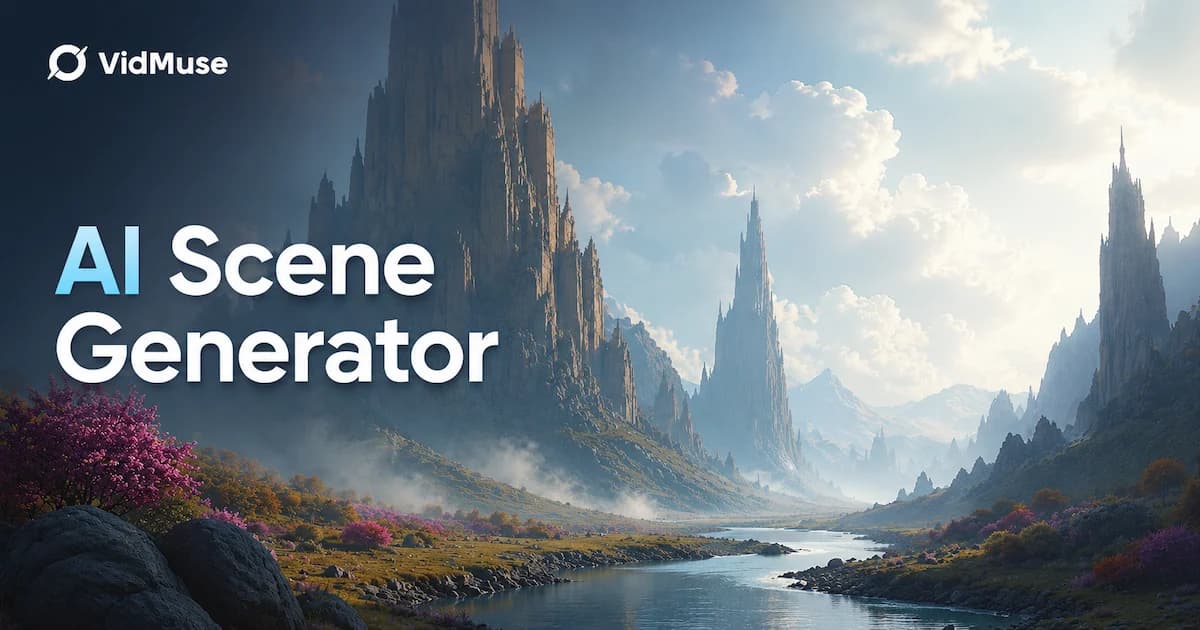
An AI scene generator is a tool that turns a text prompt, photo, or short script into a video or image scene, handling the setting, camera movement, lighting, and motion automatically. The fastest way to get a usable result is to start with a specific, detailed prompt (location, time of day, mood, camera move) and treat the first output as a draft to refine, not a finished shot. This guide breaks down how these tools work, compares the most common options people search for, and shows where single-scene generation breaks down once you need more than one connected shot.
Key Takeaways
- An AI scene generator creates one environment or shot from a prompt, photo, or short script; it is not the same as a full AI video generator that plans an entire sequence.
- Most consumer tools (CapCut, Kapwing, Zebracat) offer a free tier with watermarks, resolution caps, or short clip limits, with paid plans removing those restrictions.
- Specific prompts that name setting, lighting, camera movement, and mood produce noticeably better results than short, generic prompts.
- Single-scene tools struggle with consistency once a video needs more than one shot of the same character, location, or product.
- A workflow that plans scenes and shots before generation, rather than generating one clip at a time, produces more usable multi-shot videos.
What Is an AI Scene Generator?
An AI scene generator is a model trained to produce a complete environment or shot from a prompt rather than an isolated subject. Some tools describe this as building the world: sky, terrain, structures, lighting, and atmosphere handled together as one coherent image or short clip.
These tools generally fall into two categories. Image-based scene generators output a single still frame, useful for concept art, backgrounds, or storyboard panels. Video-based scene generators output a short animated clip, typically a few seconds to around 12 seconds, with camera movement, motion, and sometimes multiple camera angles cut together in one generation.
Inputs vary by tool. Some accept only a text prompt. Others accept a reference photo as a start frame, an end frame to control where the motion lands, or a reference video to guide camera movement and pacing.
How AI Scene Generators Actually Work
Most consumer scene generators follow the same basic sequence: a prompt or image goes in, the model interprets setting and mood, and a diffusion or video generation model renders the output.
- Describe the scene: location, time of day, weather, and overall mood.
- Choose an input type: text-only, a start-frame photo, or a reference video for motion control.
- Select a style or underlying model, where the tool offers a choice.
- Generate, then review the draft for composition, lighting, and motion accuracy.
- Refine by adjusting the prompt or regenerating specific elements, rather than restarting from scratch.
The output quality depends heavily on prompt specificity. A prompt like "a misty pine forest at dawn, soft golden light filtering through tall trees, slow dolly forward" gives the model far more to work with than "forest." Naming camera movement (pan, dolly, zoom, tracking shot) and lighting mood (golden hour, noir shadows, overcast) consistently improves results across the tools that support those controls.
Comparing Common AI Scene Generator Options
This section covers tools people commonly search for alongside "AI scene generator." Treat the details below as general positioning rather than fixed pricing, since free-tier limits and plan pricing change and sometimes differ between a provider's own pricing page and third-party reviews; confirm current terms directly on each provider's site.
Free, General-Purpose Options
CapCut: Offers AI scene and image generation as part of a broader free video editor, including text-to-image and image-to-video tools built on third-party models. It is positioned for fast, template-driven content rather than fine-grained creative control, and some features are gated behind a credit system once usage grows.
Kapwing: Generates short animated scenes, generally up to around 12 seconds, from text prompts or a start-frame photo, with start/end frame and reference-video controls for motion. It supports multi-shot generation within a single short clip and lets you refine the result afterward in its browser editor. Free-tier exports typically include a watermark, removed on paid plans.
Zebracat: Built around turning scripts, blog posts, or audio into a fully edited video with AI-generated scenes, voiceover, and captions in one pass. It is closer to an end-to-end video generator than a standalone scene tool. Free plans are limited in video length and export quality, with paid tiers unlocking longer videos, premium visuals, and commercial usage rights.
Where Single-Scene Tools Hit a Ceiling
Single-scene generators are well suited to one-off shots: a backdrop, a product close-up, a concept frame. They tend to struggle once a project needs more than one connected shot of the same subject, because each generation is typically independent. The character's face, the room's layout, or the product's exact appearance can shift noticeably from one generated clip to the next.
This is the gap between scene generation and video production. A scene generator answers "what does this one shot look like?" A full video needs an answer to "how do these shots fit together, in what order, with what continuity?" That second question is a planning problem, not just a generation problem.
Planning Scenes Before You Generate: The VidMuse Approach
VidMuse is built around the idea that a good video comes from planning before generation, not from re-rolling individual prompts until something works. It positions itself as an AI Director: instead of producing isolated scenes, it works through a structured workflow: Assets Upload, Creative Brief, Reference Generation, Scene & Shots List, Storyboard, then Video Generation.
Create Your AI Video in Minutes
Turn your idea into a video with VidMuse.
That structure matters most for the consistency problem described above. By generating reference assets first and building a shot list before any final video generation happens, the workflow is designed to carry a character's look, a location's layout, or a product's details across multiple shots rather than treating each one as a fresh, disconnected generation.
Core Feature Set
Music-to-video (AI music video generation): Upload an MP3/WAV file, or paste a Suno, Udio, or Spotify link, and VidMuse analyzes the track's tempo, structure, and lyrics to plan a matching scene-by-scene video. It supports several visual modes, including Story MV for narrative-driven videos, Abstract MV for mood-led visuals, and Performance mode for singing or live-performance shots. A character reference system is designed to keep a lead performer's appearance consistent across a full-length video rather than just a single clip.
Image-to-video: Reference images (for characters, costumes, props, or locations) are uploaded during the Reference Generation step and carried through the Scene & Shots List and Storyboard, so the same character or setting can reappear across multiple shots instead of drifting between generations. This reference-driven approach is the mechanism VidMuse uses to address the cross-shot consistency problem described above.
Text-to-video: A written brief, a short concept, or a conversational back-and-forth with VidMuse's AI agent is enough to start a project; the agent expands it into a Creative Brief and a shot-by-shot plan before any video is generated. This text-driven path is also used for non-music projects such as narrative shorts, TVCs, and voiceover- or dialogue-led videos.
AI Avatar / performance generation: For singing or speaking shots without a physical shoot, VidMuse integrates AI avatar models (reported integrations include Omnihuman and Kling AI Avatar) to synchronize mouth movement, expression, and head timing to a vocal or dialogue track from a single reference photo.
Video and image model matrix: Rather than relying on a single generation engine, VidMuse routes shots through a matrix of third-party video and image models and lets users choose between a higher-fidelity mode and a faster, more credit-efficient mode depending on the shot. Reported model integrations include video models such as Kling and Seedance, and image models used for reference and keyframe generation. Exact model availability and naming can change as providers release new versions, so confirm the current model list inside the platform before planning a project around a specific model.
Integrated music creation: For artists without a finished track, VidMuse includes an AI music generation tool so a song and its video can be produced in the same workflow rather than requiring a separate platform.
VidMuse 2.0 adds three features aimed at iteration and production control once a project is underway: Shot Refine by Quoting, which lets you point at a specific part of a generated shot and request a targeted change; a Timeline Editor for arranging and adjusting shots in sequence; and an Asset Library & Memory system for reusing references, characters, and styles across a project instead of re-uploading them each time.
This approach is most useful once a project moves past a single hero shot, for example a multi-scene product video, a short narrative piece, or a lifestyle video with several locations. For a single standalone scene or background image, a dedicated scene generator like the ones above may still be the faster choice.
Plan Scenes Before You Generate
Use VidMuse to turn a brief into references, shot lists, storyboard, and final video generation.
Limitations and Tradeoffs to Expect
- Free tiers across most tools cap resolution, clip length, or add a watermark; budget for a paid plan if the output needs to be publish-ready.
- Consistency across multiple generated shots of the same character or location is still an active limitation industry-wide, not something any single tool fully solves.
- Video-based scene generation takes longer than image generation and can require several attempts to get camera movement and timing right.
- A planning-first workflow takes more upfront setup than a single prompt-and-generate tool, which is a worthwhile tradeoff for multi-shot projects but unnecessary overhead for a single quick scene.
VidMuse Recommendation
If the goal is a single quick scene, image, or short clip, a dedicated scene generator is often the faster path. If the goal is a complete video with more than one shot that needs to hold together, plan the scenes and shots before generating. Plan your AI video with VidMuse instead of relying on one-shot prompts, using the Assets Upload, Creative Brief, Reference Generation, Scene & Shots List, Storyboard, and Video Generation workflow to keep characters, locations, and style consistent from the first shot to the last.
Frequently Asked Questions
What is the difference between an AI scene generator and a full AI video generator?
An AI scene generator typically produces one image or short clip from a prompt. A full AI video generator, or AI video agent, plans and produces a complete video made of multiple connected scenes, often handling continuity, pacing, and editing across the whole project rather than one isolated shot.
Is there a free AI scene generator that works well?
Yes. Tools like CapCut and Kapwing offer free scene generation, usually with limits such as a watermark, shorter clip lengths, or capped resolution on the free tier. These are reasonable starting points for testing prompts before committing to a paid plan.
Can I generate an AI scene from a photo instead of a text prompt?
Several tools accept a photo as a start frame and use it to guide the generated scene's composition, subject, or motion. This is useful for keeping a specific product, person, or setting recognizable in the output rather than relying entirely on a text description.
Why do my AI-generated scenes look inconsistent across a video?
Most scene generators treat each generation independently, so small details in a character's face, a room's layout, or a product's appearance can shift between clips. Workflows that generate reference assets first and reuse them across a shot list, rather than prompting each scene from scratch, tend to hold consistency better.
What makes an AI scene generator prompt effective?
Specific prompts outperform vague ones. Naming the location, time of day, lighting mood, and camera movement (such as a slow dolly or a static wide shot) gives the model concrete details to work with instead of forcing it to guess at composition and tone.
Do AI scene generators support video, or just still images?
Both exist. Image-based scene generators output a single still frame for concept art or backgrounds. Video-based scene generators output a short animated clip, generally a few seconds up to around 12 seconds depending on the tool, with camera movement and motion included.
Create Your AI Video in Minutes
Turn your scene idea into a planned multi-shot video with VidMuse.

Written By
VidMuse Team
Continue Reading
Latest blog posts related to AI video creation.
Free Music Visualizer: 10 Best Free Tools in 2026
Compare 10 best free music visualizers in 2026. Waveform tools, AI music video makers, watermark policies, export limits, and which tool fits your workflow.
How to Make Product Video Ads with AI (Step-by-Step)
Learn how to make product video ads with AI step by step. Full 6-phase VidMuse tutorial, input tips, ad type guide, and alternative approaches compared.
Best AI Clone Video Generator 2026: 7 Tools Compared
Compare the 7 best AI clone video generators in 2026. Avatar clones, viral ad clones, pricing, features, and how to pick the right tool for your workflow.