

Midjourney V7 is Midjourney's current default image generation model, released on April 3, 2025, and set as default on June 17, 2025. It delivers sharper prompt interpretation, richer textures, and two new features—Draft Mode and Omni Reference—that give creators more control than any previous version. If you want to take those images further and produce a full music video or visual content piece, VidMuse AI lets you bring Midjourney V7 visuals to life with an agent-based video production workflow.
Create Your AI Video from Midjourney Images in Minutes
Turn your idea from Midjourney images to a video with VidMuse AI.
Key Takeaways
- Midjourney V7 was released April 3, 2025, and became the default model on June 17, 2025, replacing V6.1.
- V7 introduced Draft Mode (10× faster generation at half GPU cost) and Omni Reference (use a person's likeness or object form as a reference), both exclusive to this version.
- A Personalization Profile is required before using V7; it takes roughly 5 minutes to rate ~200 images and helps the model match your visual preferences.
- Plans start at $10/month (Basic) up to $120/month (Mega); Relax Mode for unlimited image generation requires Standard or above.
- VidMuse AI integrates Midjourney V7 images into a full music video pipeline—Creative Brief → Storyboard → Video Generation—turning static visuals into publish-ready MVs.
What Is Midjourney V7?
Midjourney V7 is the seventh-generation AI image model from Midjourney, and as of June 17, 2025, it is the platform's default. Think of model versions like software updates: each release brings improvements to how the model reads prompts, renders details, and interprets artistic direction.
V7's headline improvements over V6.1 are precision and coherence. Text in images is placed more accurately, hands and bodies render with fewer anatomical errors, and the model holds onto small details described in complex prompts. Two entirely new capabilities—Draft Mode for fast ideation and Omni Reference for likeness or object-based generation—debut in V7 and are not available in earlier versions.
Midjourney V7 Key Features
Midjourney V7 features a set of upgrades that make it the most capable version for creators who need both speed and quality.
Draft Mode

Draft Mode generates images approximately 10 times faster than standard generation while using only half the GPU time. The tradeoff is lower resolution—Draft Mode images are not production-ready on their own—but they are ideal for rapid idea testing, mood exploration, and storyboarding before committing GPU hours to a final render.
To activate it, simply add --draft to your prompt.
Omni Reference
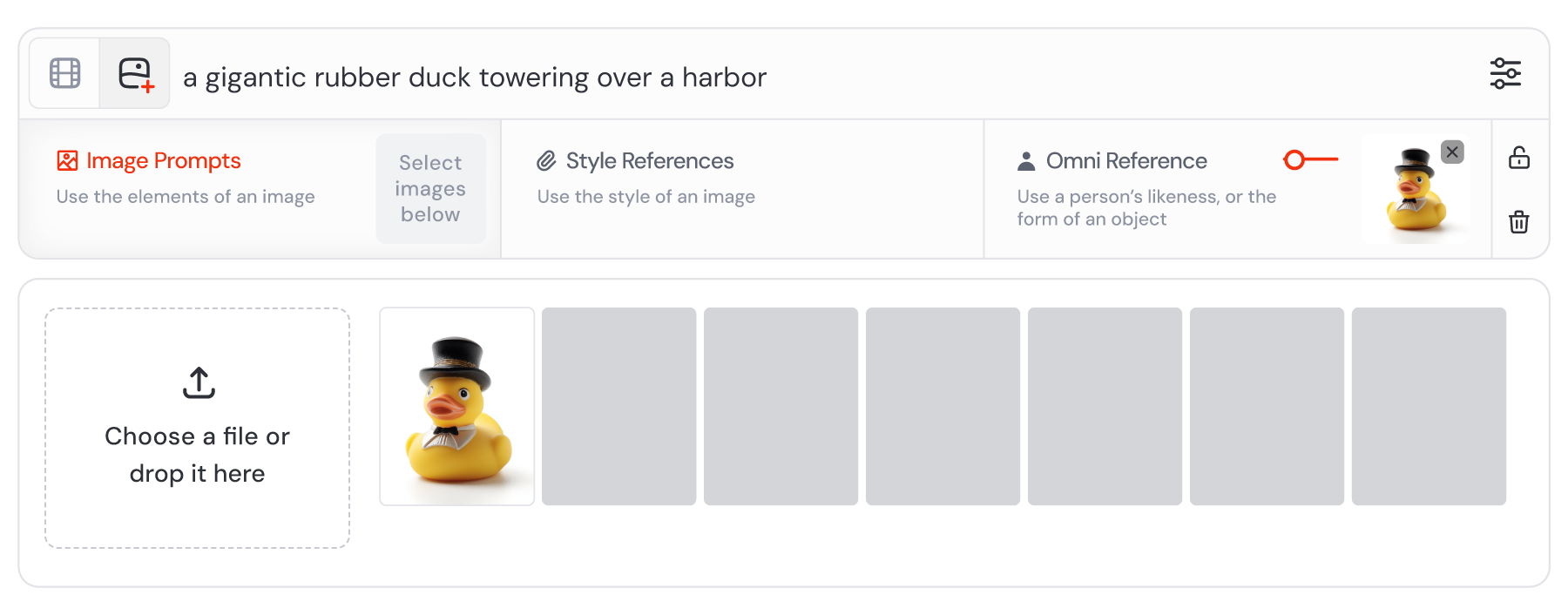
Omni Reference (--oref) replaces the older Character Reference system from V6. Where Character Reference was limited to human faces, Omni Reference accepts a person's likeness or the form of an object. Upload a reference image alongside your prompt, and V7 will anchor key visual traits—face, body type, product shape—to your described scene.
This is particularly powerful for brand work, character-consistent storytelling, and product visualization.
Personalization
Personalization in V7 teaches the model your aesthetic preferences. Rate approximately 200 image comparisons (takes around 5 minutes) to build your profile. Once active, every generation is subtly tuned toward your taste—whether you prefer clean minimalism, cinematic drama, or illustrated warmth.
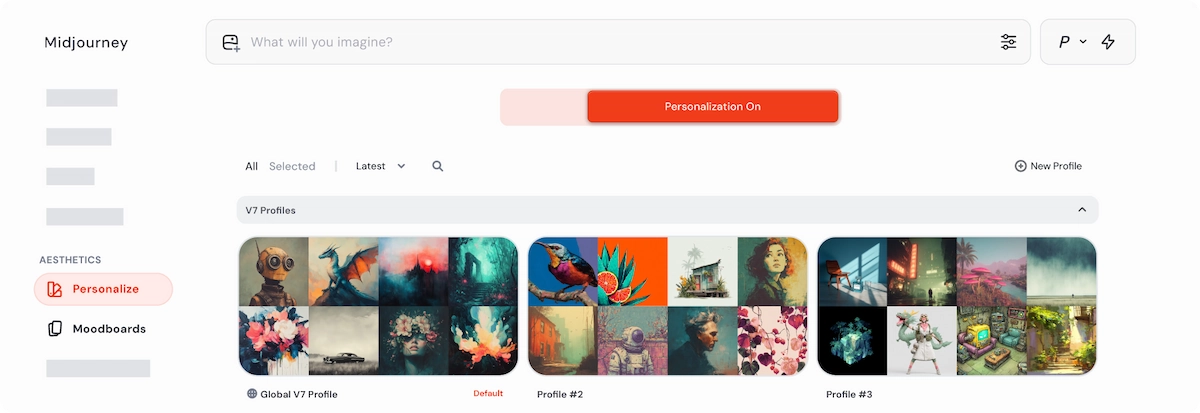
You can toggle Personalization on or off at any time. It is also required to unlock V8.1 if you want to access that newer model alongside V7.
Improved Prompt Precision
V7 handles both text prompts and image prompts with noticeably higher accuracy than V6.1. Longer, more descriptive prompts produce coherent results instead of drifting. Text rendered within images—event posters, product labels, social banners—is placed more reliably than in earlier versions, though it is still not pixel-perfect on every generation.
Conversational Mode
V7 supports Conversational Mode, letting you refine a generation with natural follow-up instructions rather than rewriting a full prompt. Start with "a mountain cabin in autumn," then simply say "make it winter" for an updated version that preserves the composition. This mode is especially useful during live brainstorming or client presentations.

How to Access Midjourney V7
Midjourney V7 is accessible via two channels: the Midjourney website and the Midjourney Discord server.
Via the Website (Recommended)
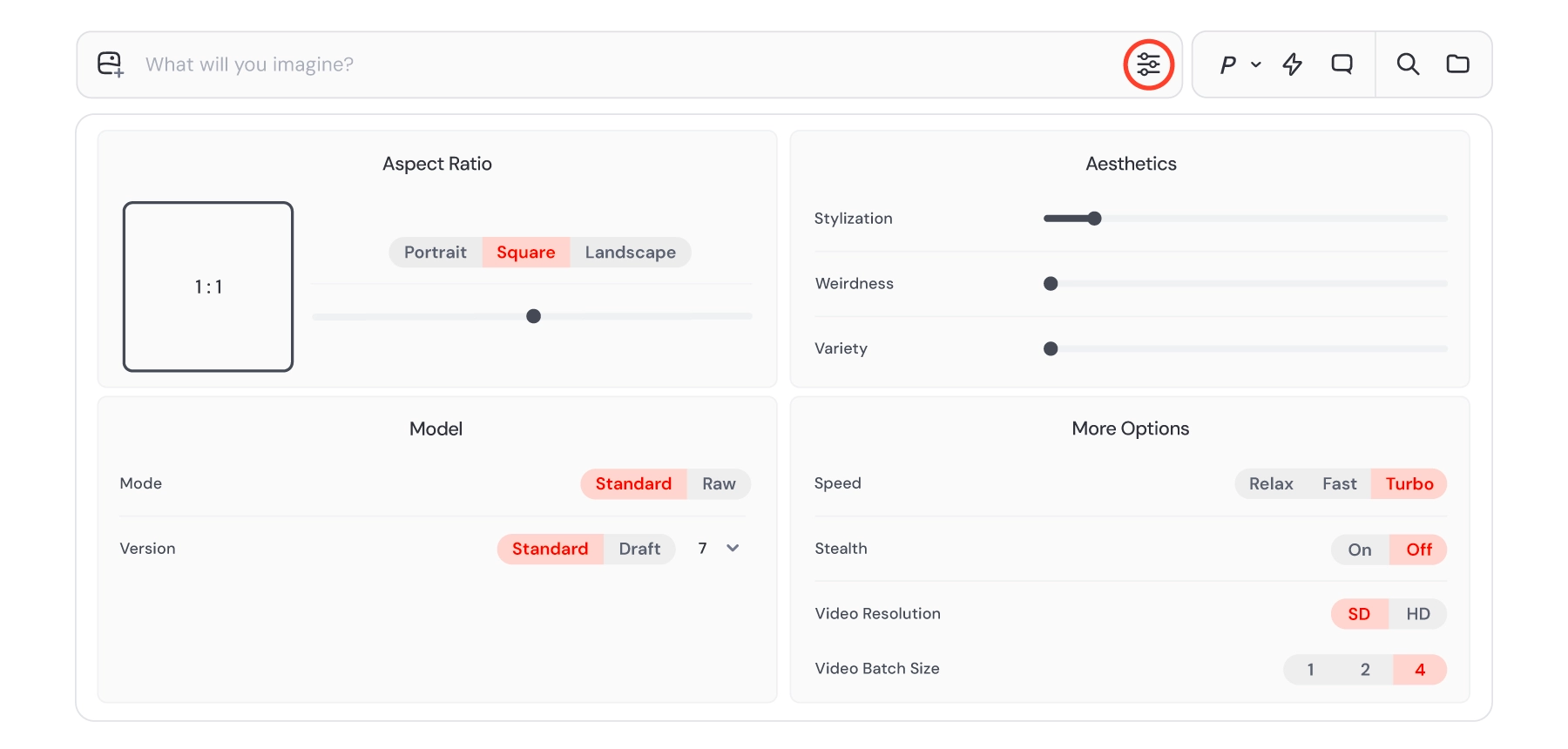
The web interface at midjourney.com offers the most visual experience. After subscribing and completing your Personalization profile, type your prompt into the Imagine bar. Click the settings icon to choose V7 as your default model, aspect ratio, and generation mode (Standard, Raw, Draft). Results appear in a gallery you can filter, upscale, edit, and download.
Via Discord
Join the Midjourney Discord and navigate to any #newbies channel. Use the /imagine command followed by your prompt. Append --v 7 to force V7 if your default is set to a different version. The bot returns a 2×2 grid of images with U (Upscale) and V (Variation) buttons beneath them.
Note: To use V7, you must first complete your Personalization profile. You'll be prompted to do this automatically the first time you attempt a V7 generation.
How to Use Midjourney V7: Step-by-Step
Using Midjourney V7 effectively comes down to writing focused prompts, choosing the right parameters, and knowing when to use Draft Mode versus full-quality generation.
Subscribe and Set Up Your Profile
Visit midjourney.com and choose a plan. Complete the ~200-image rating session to create your Personalization Profile. This is required before generating with V7.
Write a Focused Prompt
Keep prompts concise and specific. Describe your subject, medium, environment, lighting, color palette, and mood.
Choose Your Mode
Use Draft Mode (--draft) to explore compositions and styles quickly, then switch to standard generation for refinement.
Apply Parameters
Add parameters like --ar, --stylize, --raw, --oref, or --q at the end of your prompt.
Iterate with Variations and the Editor
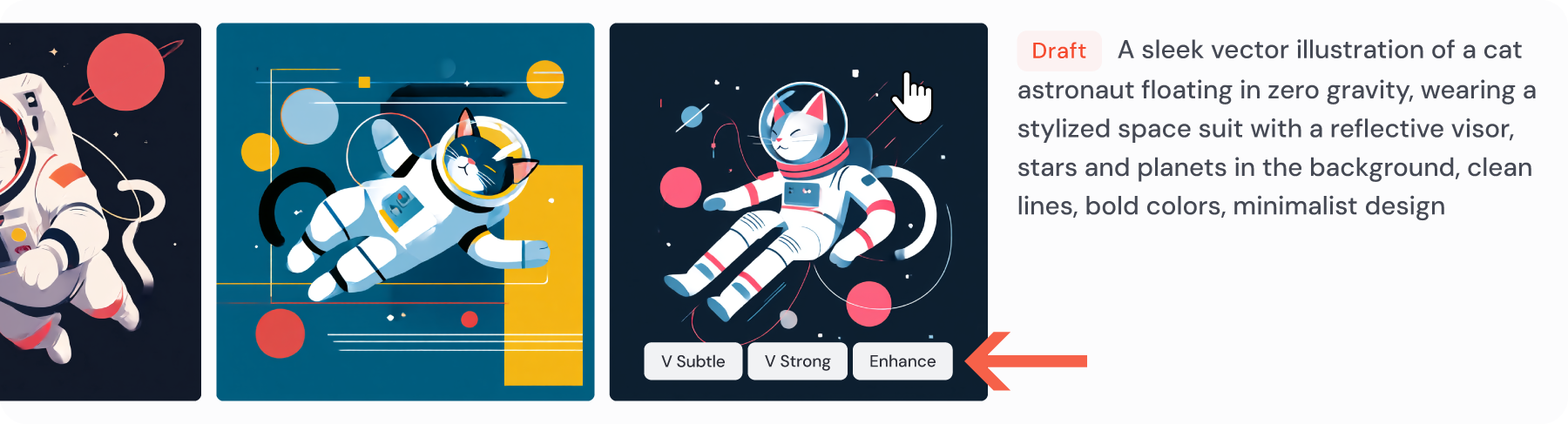
Use Vary (Subtle), Vary (Strong), the Editor, and Enhance to refine your favorite result.
Export and Use Your Images
Download the finalized image. For music videos, brand content, or social posts, VidMuse AI can continue the workflow.
Step 1 — Subscribe and Set Up Your Profile
Visit midjourney.com and choose a plan. Complete the ~200-image rating session to create your Personalization Profile. This is required before generating with V7.
Step 2 — Write a Focused Prompt
Keep prompts concise and specific. Describe your subject, medium, environment, lighting, color palette, and mood. Avoid long instruction lists—V7 interprets precise phrasing better than exhaustive instruction.
Good example: Neon-lit rooftop concert, rain-slicked streets below, cinematic wide shot, moody blue and amber tones
Weak example: Please make me an image of a concert with lighting and rain and a rooftop and make sure it's cinematic and blue
Step 3 — Choose Your Mode
Use Draft Mode (--draft) to explore compositions and styles quickly. Switch to standard generation once you've found a direction worth refining.
Step 4 — Apply Parameters
Add parameters at the end of your prompt, after a space:
--ar 16:9for widescreen output--stylize 750to push artistic interpretation--rawfor more photo-realistic, less stylized results--oref [image URL]to apply Omni Reference--q 2or--q 4for higher quality (uses more GPU time)
Step 5 — Iterate with Variations and the Editor
Select your favorite from the 2×2 grid. Use Vary (Subtle) for small refinements, Vary (Strong) for larger compositional shifts, or open the Editor to repaint specific regions. Use the Enhance button for quality improvements on a chosen image.
Step 6 — Export and Use Your Images
Download your finalized image. For music videos, brand content, or social posts, this is where a tool like VidMuse AI picks up the workflow.
Midjourney V7 Parameters You Should Know
Parameters are instructions appended to your prompt that customize the generation. They always go at the end of the prompt text, with a space before the double dashes.
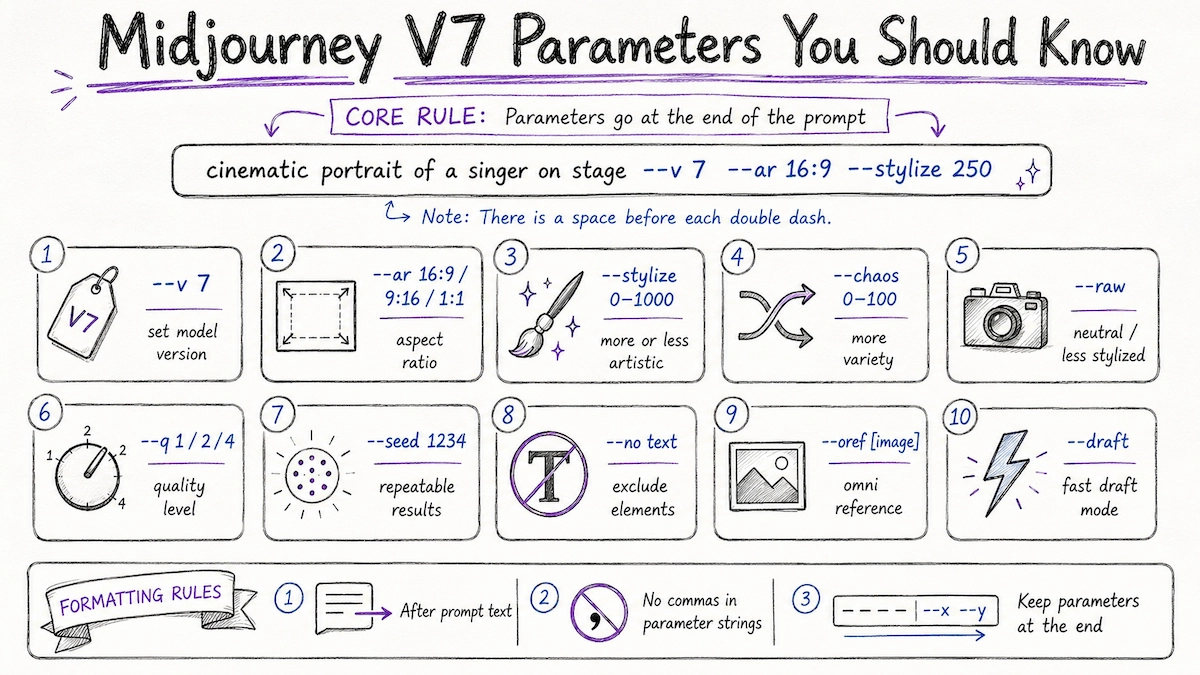
--v 7— Explicitly set V7 as the model--ar [ratio]— Set aspect ratio (e.g.,--ar 16:9,--ar 9:16,--ar 1:1). Maximum ratio is 14:1.--stylize [0–1000]— Controls how much Midjourney's default aesthetic is applied. Lower values produce literal results; higher values produce more artistic interpretations.--chaos [0–100]— Increases variety across the 4-image grid. Higher values produce more unexpected compositions.--raw— Reduces Midjourney's default aesthetic processing, producing more photo-realistic or neutral outputs.--q [1, 2, or 4]— Quality level; higher values cost more GPU time but render more detail.--seed [number]— Locks a starting point for reproducible results across multiple prompts.--no [element]— Excludes specific elements from the image (e.g.,--no textremoves rendered text).--oref [URL]— Applies Omni Reference using an uploaded image.--draft— Activates Draft Mode for fast, lower-resolution generation.
Parameter formatting is strict: no commas or periods within parameter strings, and parameters must come after all prompt text.
Midjourney V7 Plans and Pricing
Midjourney V7 is available on all four subscription tiers. Access is not limited to higher plans, but higher plans unlock more GPU time, concurrent jobs, and Relax Mode.
- Basic — $10/month (~200 minutes Fast GPU time/month): Good for occasional use. No Relax Mode. Limited to SD video resolution.
- Standard — $30/month (15 Fast GPU hours/month): Adds unlimited Relax Mode for images. Suited for regular creators.
- Pro — $60/month (30 Fast GPU hours/month): 12 concurrent Fast jobs, Stealth Mode (private images), unlimited Relax video in SD and HD.
- Mega — $120/month (60 Fast GPU hours/month): Designed for heavy or professional workloads.
A 20% discount applies to annual plans paid upfront. Extra Fast GPU time can be purchased at $4/hour on any plan.
Is there a Midjourney V7 free tier? Midjourney discontinued its free trial. All access requires a paid subscription starting at $10/month.
From Still Image to Music Video: VidMuse AI + Midjourney V7
Midjourney V7 produces images—but musicians, content creators, and marketers often need more than a still frame. That's where VidMuse AI fills the gap.
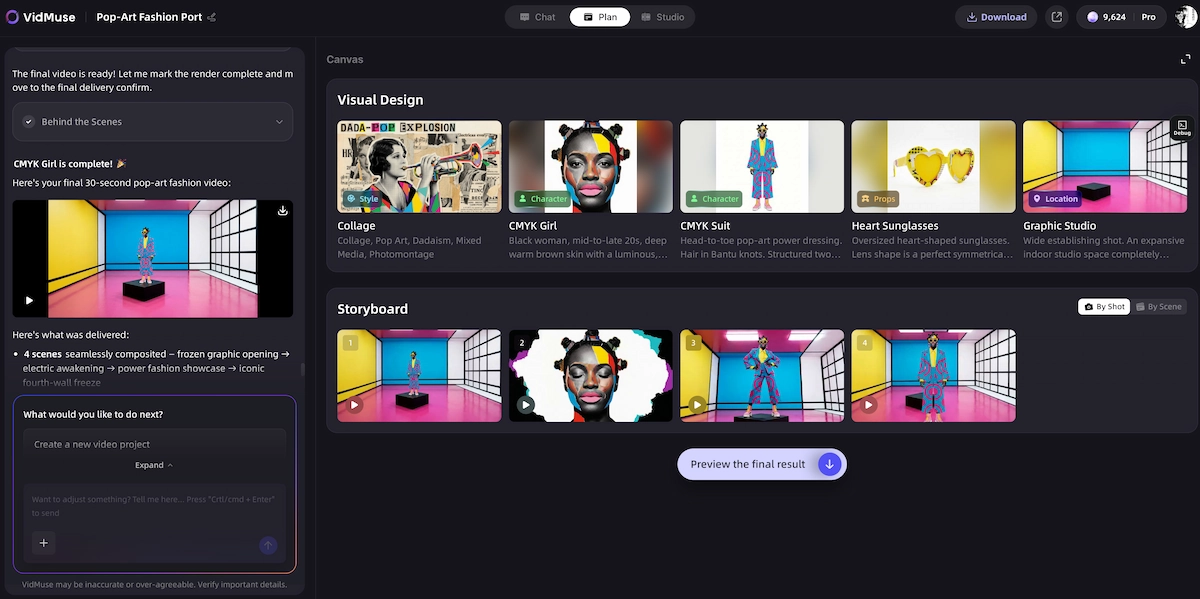
VidMuse is an AI-first music video creation platform that treats image generation as one stage in a full production pipeline. Rather than executing a single prompt, VidMuse uses agent-based logic to plan an entire music video: from Creative Brief through Scene & Shot List, Storyboard, and final Video Generation. Midjourney V7 is one of VidMuse's available image generation models, sitting alongside GPT Images 2.0, Flux.2-Pro, Seedream 4.5, Nano Banana Pro, and others.
For broader workflow context, compare the AI music video generator, music to video AI, best AI music video generator, free AI music video generator, and lyric video making guides. If your audio starts in Suno AI, the same VidMuse workflow can support a Suno to video path.
Create Your AI Video from Midjourney Images in Minutes
Turn your idea from Midjourney images to a video with VidMuse AI.
The Workflow: Midjourney V7 to VidMuse MV
Here's how an indie musician or content creator can move from a V7 image concept to a finished music video using VidMuse:
- Define your visual style in Midjourney V7.
Use Draft Mode to explore aesthetics quickly—neon-lit cityscape, grainy film noir, abstract geometry. Lock in your palette and composition style before committing to a full generation.
- Use your V7 images as a style reference in VidMuse.
Upload your finalized Midjourney frames into VidMuse's Asset Library. These become visual anchors for the AI Director to maintain consistency across scenes.
- Run the Creative Brief.
VidMuse generates a full shot list and storyboard based on your track, mood description, and uploaded visuals. Template types include Story MV, Abstract MV, Performance MV, Viral Short, and TVC.
- Generate video in Studio or Lite mode.
Studio mode prioritizes quality; Lite mode (Seed series models) is faster and more cost-efficient for drafts. Video generation models available include Kling V3.0 Pro, Veo 3.1, Hailuo 2.3 Pro, Seedance 2.0, and others.
- Refine with Shot Refine by Quoting and the Timeline Editor.
VidMuse 2.0 lets you quote specific shots for targeted refinement without regenerating the entire sequence, then arrange them in the Timeline Editor.
This pipeline is especially practical for indie musicians who have generated a track with Suno AI and need compelling visuals without hiring a video production crew.
Common Mistakes When Using Midjourney V7
Avoiding these errors will save you GPU time and produce stronger results from the start.
- Skipping the Personalization setup.
V7 requires a completed Personalization Profile. Attempting to generate without it will prompt you to complete ratings first. Block five minutes before your first session.
- Writing prompt instructions instead of descriptions.
Phrases like "please create a moody portrait" produce weaker results than "moody portrait, dramatic side lighting, dark background, high contrast." V7 responds to descriptive language, not instructional language.
- Adding parameters mid-prompt.
Parameters must follow all prompt text. Placing --ar 16:9 in the middle of a sentence will produce errors or be ignored.
- Expecting perfect text rendering.
V7 significantly improves text placement in images, but it is not a graphic design tool. Short phrases in clean fonts work well; long paragraphs or stylized typography often require post-processing.
- Using Turbo Mode for everything.
Turbo Mode spends twice the Fast GPU hours. Use Draft Mode first to validate your concept, then switch to Fast or Turbo only for your final preferred frame.
- Not using
--rawfor realism.
If you need photographic or cinematic output, toggle Raw Mode. Without it, V7 applies Midjourney's default artistic stylization, which skews results toward illustrated aesthetics.
FAQ
What is the Midjourney V7 release date?
Midjourney V7 was released on April 3, 2025. It became the platform's default model on June 17, 2025, replacing V6.1. As of mid-2026, V7 remains the default, though V8.1 is now available for users who have unlocked their Global Personalization Profile.
Is Midjourney V7 free?
Midjourney V7 is not available for free. Midjourney ended its free trial program, and access to V7 requires a paid subscription. Plans start at $10/month for the Basic tier, which includes approximately 200 minutes of Fast GPU time.
What are the most important Midjourney V7 features?
The two features exclusive to V7 are Draft Mode—which generates images 10× faster at half the GPU cost for rapid prototyping—and Omni Reference (`--oref`), which replaces the older Character Reference system and allows a person's likeness or an object's form to be used as a visual anchor. V7 also delivers improved prompt precision, better text rendering, and a required Personalization Profile that tailors outputs to your aesthetic preferences.
How do I use Midjourney V7 step by step?
Subscribe at midjourney.com, complete your Personalization Profile by rating approximately 200 image comparisons, and then enter a prompt in the Imagine bar. Append `--v 7` if V7 is not already your default. Add parameters like `--ar`, `--stylize`, or `--draft` at the end of your prompt. Review the 2×2 grid of results, then upscale, vary, or edit your preferred image.
How does Midjourney V7 compare to V6.1?
V7 improves on V6.1 with more precise prompt interpretation, better coherence in complex scenes (especially hands, bodies, and small objects), improved in-image text placement, and two new features—Draft Mode and Omni Reference—that were absent in V6.1. V6.1 used V6.1 Upscalers for high-res output; V7 uses the same upscalers rather than introducing new ones. V7 also requires Personalization setup that V6.1 did not mandate.
Can I use Midjourney V7 images in a music video?
Yes. Midjourney V7 images can be used as style references or scene anchors inside VidMuse AI, which converts static visuals into a full music video using an agent-based pipeline. VidMuse supports Midjourney V7 alongside other image models and connects directly to video generation models like Kling V3.0 Pro, Veo 3.1, and Seedance 2.0, making it a practical tool for musicians and content creators who want to animate their Midjourney aesthetics.
What is Midjourney V7 Omni Reference?
Omni Reference is a V7-exclusive parameter (`--oref`) that lets you supply a reference image to anchor a specific person's likeness or an object's form in your generation. It replaces the Character Reference system from V6, expanding beyond faces to include objects and full body forms. This makes it particularly useful for product mockups, character-consistent storytelling, and brand visual work.
Conclusion
Midjourney V7 represents a meaningful step forward for AI image generation: more precise, more flexible, and equipped with genuinely new tools like Draft Mode and Omni Reference that change how creators approach visual ideation. Whether you're building moodboards, testing product concepts, or developing a music video visual language, V7 gives you the control to move from rough idea to polished frame faster than any previous version.
For creators who need to go beyond the still image—musicians turning a Suno track into a visual story, SMBs building branded video content, indie directors prototyping a full MV—VidMuse AI picks up where Midjourney leaves off. Use your V7 visuals as the foundation, feed them into VidMuse's Creative Brief and Storyboard workflow, and produce a complete music video without a production crew.
Start generating with Midjourney V7, then bring your visuals to life with VidMuse AI.
Create Your AI Video from Midjourney Images in Minutes
Turn your idea from Midjourney images to a video with VidMuse AI.
Written By
VidMuse Team
Continue Reading
Latest blog posts related to AI video creation.
PixVerse V6 x VidMuse AI: Model Guide and Video Workflow
PixVerse V6 review and VidMuse integration guide. Capabilities, 15s 1080p video, prompt tips, model comparison, pricing, and how to use V6 in VidMuse workflows.
FLUX 3: What It Is, Capabilities, and How to Access It
FLUX 3 is Black Forest Labs' multimodal AI model for image, video, audio, and action. Full guide: capabilities, FLUX 3 vs FLUX 2, availability, and pricing.
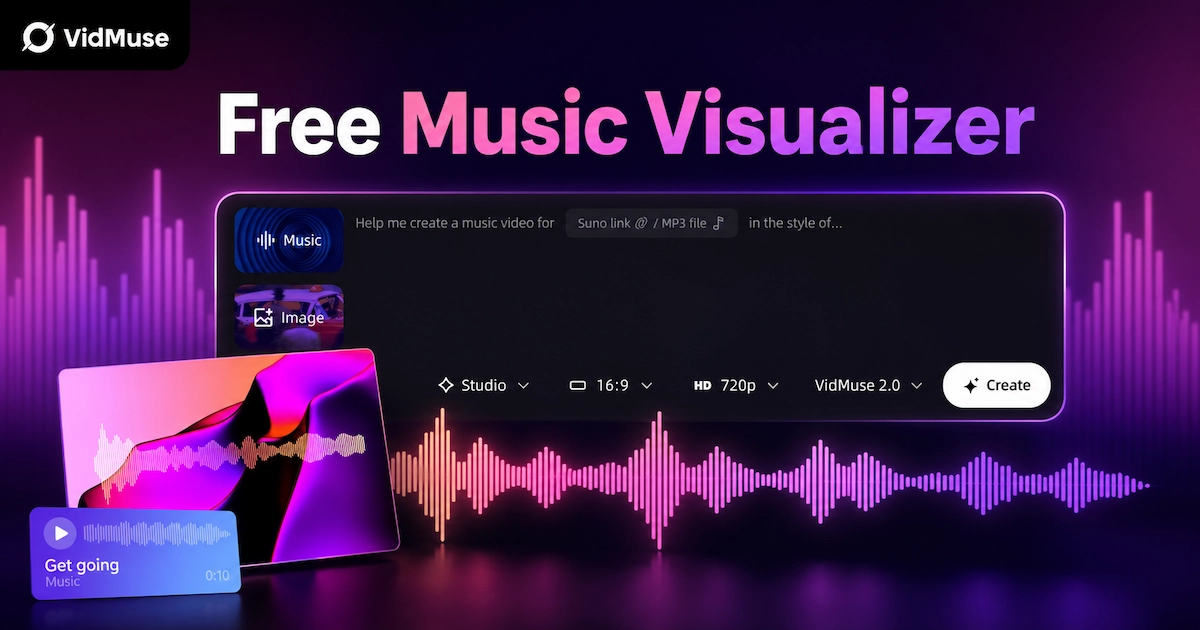
Free Music Visualizer: 10 Best Free Tools in 2026
Compare 10 best free music visualizers in 2026. Waveform tools, AI music video makers, watermark policies, export limits, and which tool fits your workflow.