

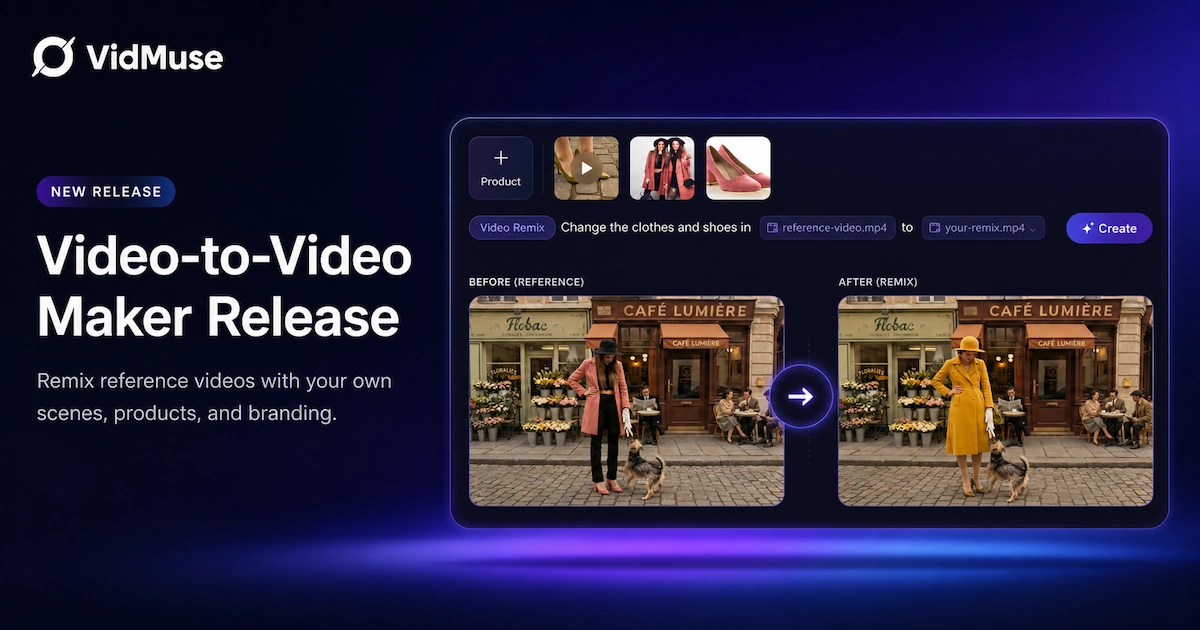
A video to video maker lets you take an existing video as a reference and transform it into something new — a different style, new visuals, or a completely rebuilt scene — without filming a single frame. VidMuse now supports this workflow natively, bringing together three distinct video-to-video modes (Shot Breakdown & Recreate, Reference to Video, and Storyboard) inside one agent-based platform. Whether you're remixing a competitor ad, recreating a music video concept, or restyling footage into a new aesthetic, VidMuse handles the full production pipeline from creative brief to final render.
See Your First Video to Video in Action
Upload a reference video or image and get a storyboarded video in minutes — no editing skills or software needed.
Key Takeaways
- VidMuse is a video to video AI platform that recreates or remixes videos using reference footage, images, or a written concept — not one-shot prompts.
- Three modes cover different use cases: Shot Breakdown & Recreate for scene adaptation, Reference to Video for style and wardrobe swapping, and Storyboard for scripted shorts and TVCs.
- The newly launched Product Ad Video workflow extends video remix to e-commerce and brand creative, turning a single product image into a storyboarded short-form ad.
- VidMuse supports 20+ AI video and image models (including Kling V3.0 Pro, Veo 3.1, Seedance 2.0, and Hailuo 2.3 Pro) and routes each generation task to the right model automatically.
- Unlike frame-by-frame editors, VidMuse re-generates content from scratch using your reference — preserving structure, pacing, and intent while producing entirely new visuals.
What Is a Video to Video Maker?
A video to video maker is a tool that uses an existing video — or frames from one — as the starting point for generating new video content. Rather than editing the original footage, the AI analyzes its style, structure, pacing, and motion, then regenerates the visuals in a new form. The result may share the same camera language, narrative arc, or aesthetic as the source while containing entirely new imagery.
This is distinct from traditional video editing, which manipulates existing pixels. Video to video AI re-creates the scene. That distinction matters because it unlocks things a regular editor cannot do: changing the visual style of a shot, rebuilding a scene around a different product, or transplanting a competitor ad's structure into your own brand creative.
The category has grown rapidly with tools like Luma AI's Dream Machine and Runway's Gen-3 Alpha and Turbo offering style transfer and camera motion simulation. VidMuse adds an agent-based layer on top of raw generation — planning the full production rather than processing one clip at a time.
How Video to Video AI Works in VidMuse
VidMuse approaches video to video AI differently from single-model tools. Instead of feeding your reference directly into a generation model, VidMuse's agent logic breaks the process into stages:
- Input analysis — VidMuse reads the style, mood, tempo, and structure of your reference material (music, video, screenshots, product link, or concept description).
- Creative direction — The agent generates a new storyboard and shot list aligned to your goal (MV, TVC, product ad, etc.).
- Keyframe generation — Images are generated for each scene using the appropriate image model (Flux.2-Pro, Seedream 5.0 Lite, Midjourney V7, GPT Images 2.0, and others).
- Video generation — Each keyframe is animated using the best-fit video model from VidMuse's matrix: Seedance 2.0 Pro, Kling V3.0 Pro, Veo 3.1, Hailuo 2.3 Pro, and more.
- Audio sync — If a music track or voiceover is provided, scene pacing aligns to the audio rhythm.
- Final render — The assembled MP4 is delivered, fully ready for social or ad platforms.
This multi-stage pipeline is what separates VidMuse from tools that accept a video and output a restyled version in one pass. The full production logic — storyboard, shot selection, model routing — is handled by the agent, not the user.
For audio-first projects, this connects naturally with VidMuse's Music to video AI workflow, where the song becomes the creative reference instead of a source clip.
The Three VidMuse Video to Video Modes
VidMuse offers three distinct AI video to video workflows, each optimized for a different creative goal.
Shot Breakdown & Recreate
Best for: Scene adaptation, style switching, and campaign refreshes.
Upload a reference video or link. VidMuse breaks it into individual shots, analyzes the structure of each, and regenerates all of them in a new visual style or with new content. This is the closest analog to a "video remix" — same bones, entirely new look. Use it when you want to recreate a scene from scratch in a different aesthetic, or when you're adapting a reference concept for your own brand.
Reference to Video
Best for: Wardrobe swaps, product placements, and visual consistency.
This mode uses your original video as a base and makes targeted changes — swapping clothing, shoes, or a featured product while preserving the motion and framing. It stays closest to the source material. Use it when you want to update or brand-match an existing asset without rebuilding the full scene.
Storyboard Mode
Best for: AI shorts, TVCs, and any project where narrative precision matters.
You confirm a storyboard first — scene order, shot descriptions, pacing — and VidMuse generates each segment to match. This gives the most creative control and the most consistent output across a multi-scene project. Recommended for longer-form work (30s–2min) where scene-to-scene coherence is critical.
Step-by-Step: How to Use VidMuse as a Video to Video AI Generator
This walkthrough covers the most common use case: remixing a reference video into new creative for a music video or product ad.
See Your First Video to Video in Action
Upload a reference video or image and get a storyboarded video in minutes — no editing skills or software needed.
Step 1 — Choose your input
Provide one of the following: a reference video, a set of screenshots or frames, product images, or a written concept. VidMuse accepts all four.
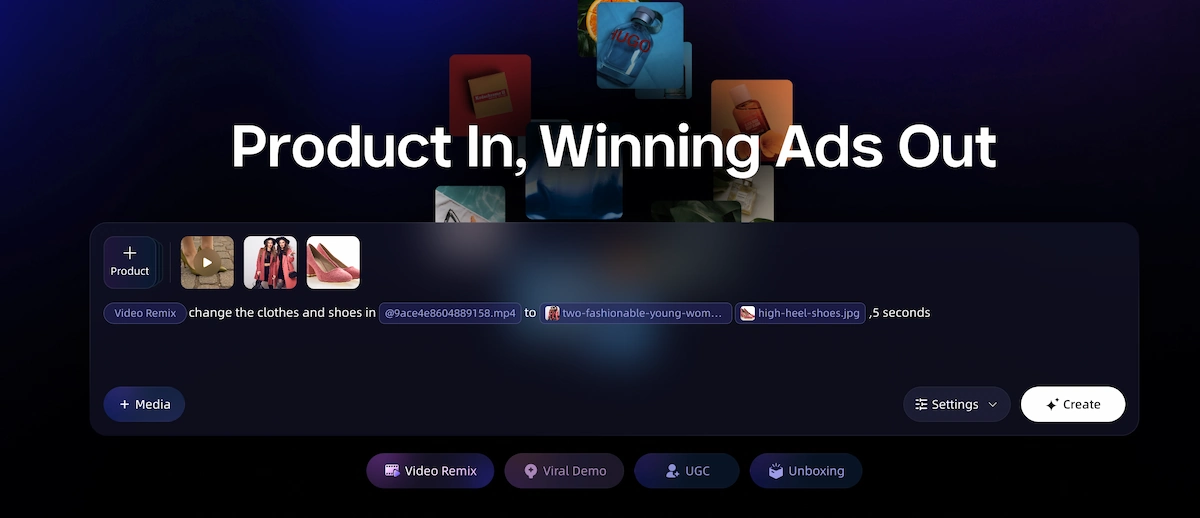
Step 2 — Add your brief
Describe the new style, aesthetic, product, or narrative. Be specific about mood, color palette, pacing feel, and any must-have visual elements. The more detail you add, the more precisely the agent plans the output.
Step 3 — Upload audio/music (optional)
Add a music track or voiceover. VidMuse aligns scene cuts and transitions to your audio — this is especially impactful for music videos and social ads where pacing drives engagement.
Step 4 — Generate
VidMuse routes each scene to the best model in its generation matrix.
Step 5 — Select your mode
Choose Shot Breakdown & Recreate (full restyle), Reference to Video (targeted swap), or Storyboard (scene-by-scene control).
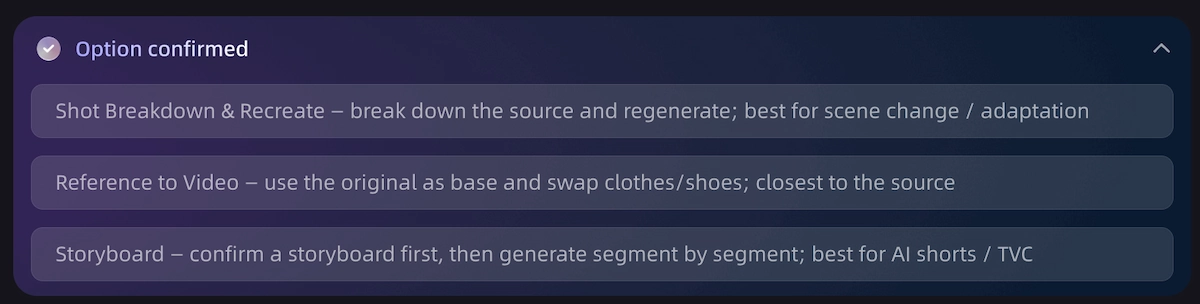
Step 6 — Review the storyboard
Before generation begins, VidMuse presents a shot list and storyboard plan. Adjust any scene at this stage — this is far cheaper than regenerating completed clips.
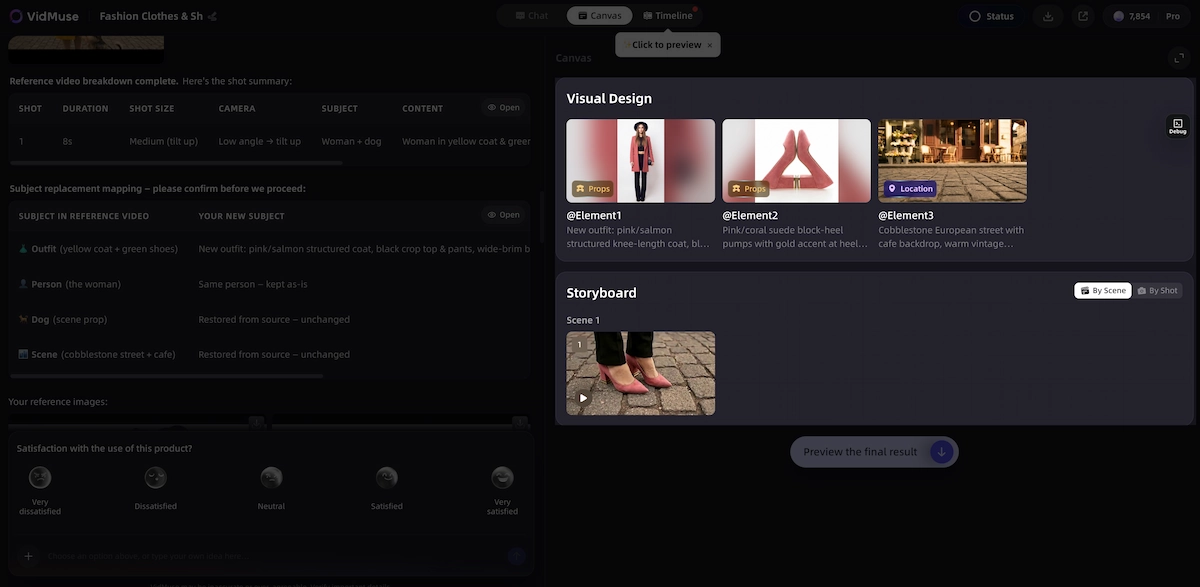
Step 7 — Export
Download the final MP4. VidMuse outputs in formats ready for TikTok, Instagram Reels, YouTube Shorts, and standard social ad placements.
Video Remix for Product Ads: What's New
VidMuse's newly launched Product Ad Video mode brings the video remix workflow directly into e-commerce and brand advertising. The core insight is simple: most high-performing social ads follow recognizable structures — hook, product reveal, benefit proof, CTA. If you can remix that structure with your own product, you can replicate what works without starting from scratch.
Generate Your First Product Ad Free
Turn one product image into a storyboarded short-form ad for TikTok, Reels, and Shorts — hook, scenes, music, and CTA included.
What the Product Ad Video mode supports:
- AI Storyboard Planning — Generates a shot sequence based on proven ad frameworks, including UGC-style, unboxing, viral demo, and TV Spot formats.
- Hyper Motion Camera Control — Static product images become footage with push-ins, whip pans, and dynamic transitions, simulating gimbal-shot production.
- Music-Aware Scene Pacing — Upload a track and scene cuts align to the audio rhythm automatically.
- Video Remix — Reference any ad or video, and VidMuse rebuilds the structure with your product and branding substituted in.
- Remix Templates — Pre-built templates for UGC, unboxing, viral demo, brand story, TV Spot, and virtual try-on formats. Any template can be remixed at the hook, scene, or structure level.
Supported input methods for product ads:
For indie brands, DTC products, and SMBs, this eliminates the production cycle that typically requires an agency: brief → concept → storyboard → shoot → edit. VidMuse compresses those stages into a single workflow accessible from a browser.
VidMuse vs. Luma AI vs. Runway Video to Video
Understanding where each tool fits helps you choose the right one for your project.
Luma AI (Dream Machine) offers video to video through style transfer and camera motion simulation. It excels at scene transformation — restyling footage, adding cinematic camera movement from static input, and applying aesthetic looks like vintage film. It processes video at the model level and is optimized for single-clip transformation. Output resolution and duration are tied to the model's specs.
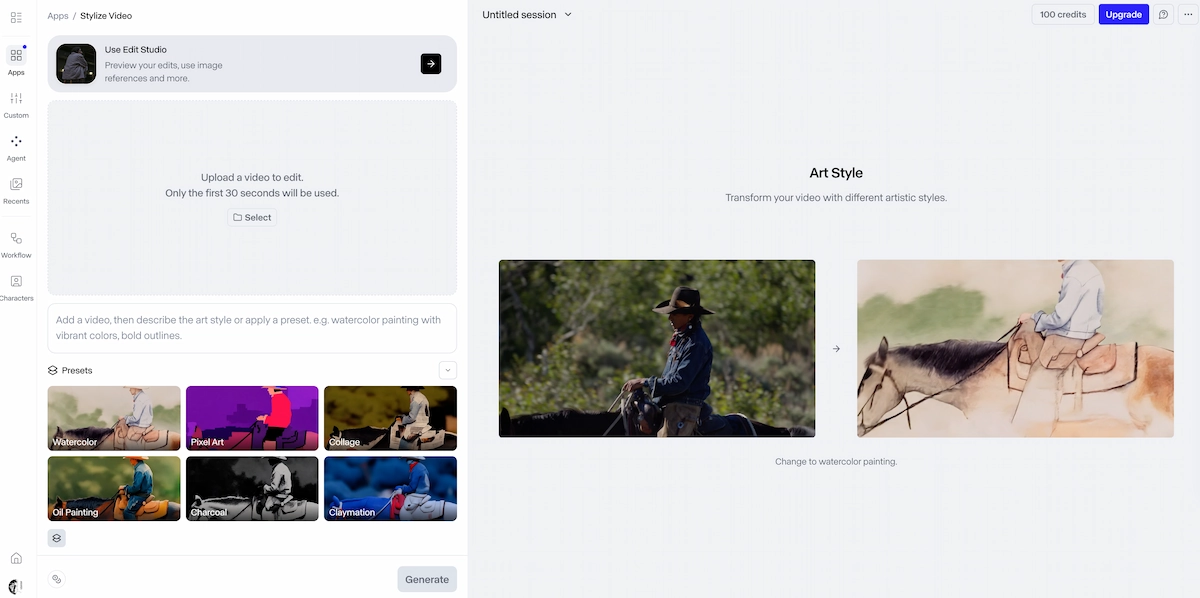
Runway (Gen-3 Alpha / Turbo) offers video to video on its Gen-3 models, with text prompt or image-driven style changes. It supports up to 20 seconds of input video, outputs at 1280×768, and is available to Standard plan users and above. Runway has since moved toward newer model generations (Gen-4.5, Edit Studio Aleph 2.0) for its primary workflow, with Gen-3 video to video now positioned as a legacy feature.
VidMuse operates at the production pipeline level, not just the model level. Instead of processing one clip through one model, VidMuse plans a multi-scene project, routes each shot to the most appropriate model in its generation matrix, and assembles the output as a cohesive video. It is built specifically for music videos, short-form ads, and creative projects where narrative continuity across scenes matters — not just the look of a single clip.
The right choice depends on scope. For single-clip style experiments, Luma AI or Runway handles the job cleanly. For a full music video, a structured product ad, or any project with more than two scenes, VidMuse's agent-based approach reduces the coordination overhead that otherwise falls on the creator.
Skip the Tool Juggling
One platform. 20+ AI models. Full music video and product ad production — from reference to final MP4 — without switching apps.
When Video to Video Is (and Isn't) the Right Approach
Use video to video AI when:
- You have a reference whose structure or style you want to adapt for your own content
- You want to update existing creative with new branding, product, or aesthetic
- You're creating content for platforms (TikTok, Reels, Shorts) where format and pacing conventions are well-established and worth replicating
- You need to produce multiple variants of similar content quickly
Video to video AI is not the right approach when:
- Your project has no reference point — you need fully original concept development from scratch (text to video or image to video may serve better)
- You need to edit specific frames or apply effects to footage you plan to keep intact (a traditional video editor like CapCut, Premiere, or DaVinci Resolve is more appropriate)
- The original video contains elements you want to preserve literally — licensed footage, real faces, or existing brand assets you own — rather than recreate in AI form
Understanding this boundary matters. Video to video AI regenerates content; it does not edit existing pixels. If your goal is to keep the original footage and add a filter or effect, that is an editing task, not a generation task.
Common Mistakes to Avoid
Providing a reference without a brief.
The AI can analyze style and structure from a reference, but it needs direction on what to change. A clear brief — new product, new aesthetic, target platform, desired mood — dramatically improves output quality.
Skipping the storyboard review.
VidMuse presents a shot plan before generating. Adjusting at this stage is far faster and cheaper than regenerating clips after the fact. Most quality issues in final output trace back to an unreviewed storyboard.
Using low-resolution or low-quality reference frames.
The quality of your reference material affects generation quality. Blurry screenshots or compressed video clips give the model less to work with. Use the clearest frames available from your source.
Expecting frame-accurate replication.
Video to video AI generates new content inspired by a reference — it does not clone the original shot. If you need a precise recreation of a specific scene, use the Reference to Video mode in VidMuse, which stays closest to the source material.
Treating every project the same.
A music video has different requirements than a product ad. Use the correct template type — Story MV, Performance MV, TVC, Viral Short — so the agent's planning logic starts from the right structural framework.
FAQ
What is a video to video AI generator?
A video to video AI generator takes an existing video, image frames, or a reference concept as input and produces a new video — regenerating the visuals in a different style, with different content, or according to a new creative direction. It does not edit the original footage; it creates new content informed by the reference. VidMuse extends this with multi-scene planning, model routing, and audio sync across the full generation pipeline.
How does VidMuse video to video differ from tools like Runway video to video?
Runway's video to video (on Gen-3 Alpha/Turbo) processes a single clip — up to 20 seconds — through a style or prompt change at the model level. VidMuse operates across a full production pipeline: it plans a storyboard, routes each scene to the appropriate model from a matrix of 20+ options, syncs to audio, and assembles a cohesive multi-scene video. VidMuse is built for projects where scene-to-scene narrative or aesthetic continuity matters, not just single-clip style transfer.
Can I use VidMuse as a video remix tool for product ads?
Yes. VidMuse's Product Ad Video mode is built specifically for this. You can reference a competitor ad or existing high-performing video, and VidMuse rebuilds the same pacing, structure, and camera language with your own product and brand creative. It supports UGC, unboxing, viral demo, TV Spot, and virtual try-on formats as remix templates.
What is the difference between video to video and video recreate in VidMuse?
VidMuse offers three modes. Shot Breakdown & Recreate rebuilds a video shot-by-shot in a new style — a full recreation. Reference to Video uses the original as a base and makes specific targeted changes (style, wardrobe, product). Storyboard mode gives you full creative control, confirming the shot plan before any generation begins. The right mode depends on how closely you want the output to follow the source.
Can I make an AI video to video online without installing software?
Yes. VidMuse runs entirely in the browser — no download or install required. You provide your reference material (video, images, link, or concept) and receive a finished MP4 output directly. Studio mode uses higher-quality models for polished output; Lite mode offers faster, cost-efficient generation using the Seed series models.
Does VidMuse support video to video for music videos specifically?
Yes — music video production is VidMuse's primary use case. The platform supports Story MV, Abstract MV, and Performance MV template types, and integrates Suno AI for original music generation inside the same workflow. For creators making videos for Suno or Udio tracks, VidMuse can take the audio as the reference and build a fully storyboarded visual production matched to the song's tempo and mood.
What video to video AI models does VidMuse use?
VidMuse routes generation tasks across a matrix that includes Seedance 2.0 Pro, Seedance 2.0 Fast, Kling V3.0 Pro, Kling V2.6 Pro, Veo 3.1, Veo 3 Fast, Hailuo 2.3 Pro, Wan 2.7, Pixverse v6, and others. The agent selects the best model for each scene based on the creative brief and the chosen generation mode (Studio or Lite). Users do not need to manage model selection manually.
Final Words
The video to video maker category has matured from a novelty into a genuine production workflow — and VidMuse's implementation pushes it beyond single-clip transformation into full, agent-planned creative production. With three video-to-video modes, 20+ generation models, music sync, and a dedicated product ad workflow, VidMuse gives indie musicians, content creators, and SMB brands the tools to produce studio-quality video without a studio budget.
If you're ready to remix your first video or build a product ad from a single image, start with VidMuse's free tier and see the storyboard before committing to full generation.
Start With a Reference. End With a Video.
Choose a mode, drop in your reference, and let VidMuse plan and generate the rest. Free to start, no install required.

Written By
VidMuse Team
Continue Reading
Latest blog posts related to AI video creation.
AI Product Video Generator: VidMuse Guide for 2026
Create product videos from images, URLs, and descriptions with VidMuse AI. Plan scenes, generate clips, refine CTAs, and export product videos for ecommerce.
AI Marketing Video Generator: VidMuse Campaign Guide
VidMuse is the AI marketing video generator built to turn product inputs into campaign-ready promo videos, product demos, UGC-style ads, and social ads.
AI Ad Generator Free: Best Tools and Video Workflow
Compare AI ad generator free tools, check free-plan limits, and learn how VidMuse helps create product video ads with scripts, clips, subtitles, and CTAs.