

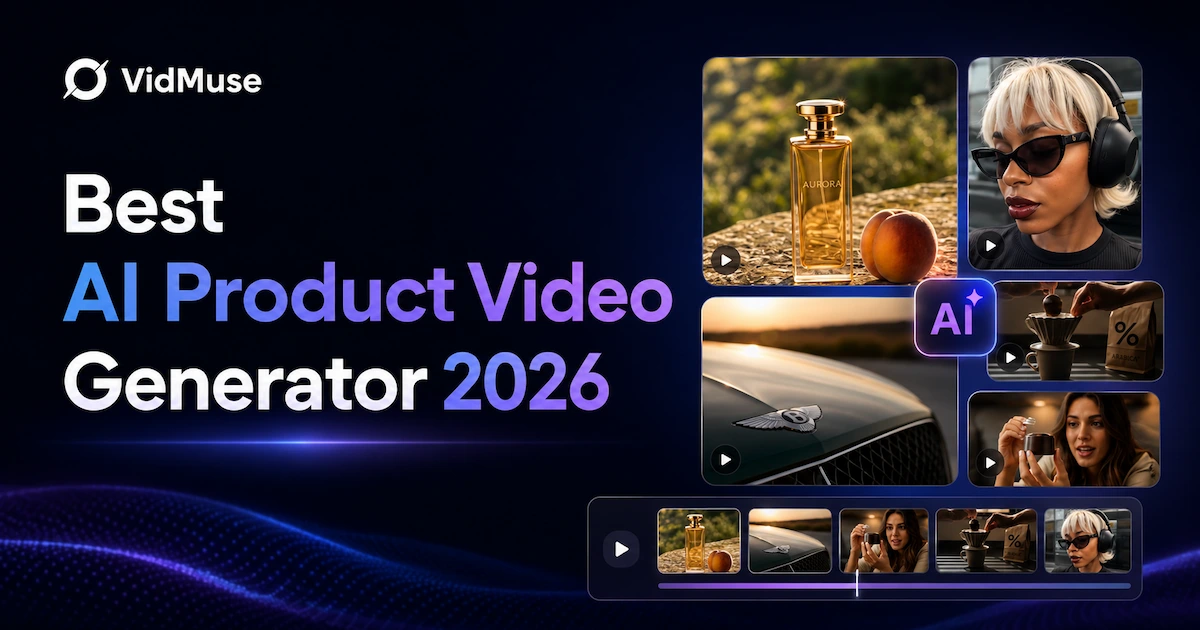
An AI product video generator turns product inputs—such as photos, a product URL, a description, or a reference video—into a planned product video. VidMuse AI takes that process further by combining product understanding, creative planning, scene generation, audio and text controls, timeline assembly, and CTA refinement. That makes it useful for ecommerce sellers, product marketers, agencies, and creators who need product showcases, demos, tutorials, UGC-style videos, or ad-ready creative without rebuilding every step from scratch.
What Is an AI Product Video Generator?
An AI product video generator turns product inputs—such as photos, a product URL where supported, a description, or a reference—into scenes for a showcase, demo, tutorial, review, or ad-style video. It can also help assemble voiceover, music, subtitles, product callouts, and CTA text.
Image to product video
This workflow uses product photos as visual references for motion, product placement, and scene generation. Use clear images, then check logos, labels, colors, proportions, and other details because generated frames may introduce changes.
URL to product video
This workflow uses a product page as context for the product name, features, images, and use case where supported. Verify the extracted information before it becomes script or on-screen text, and add photos or a description when the URL lacks important details.
Unlike a generic text-to-video tool, a product video generator keeps the product, its benefits, audience, and intended action at the center of the workflow.
Turn product inputs into a finished video
Start with your product image, URL, or description and build a product video workflow in VidMuse.
The Best AI Product Video Generator 2026 (VidMuse AI)
VidMuse AI is a strong fit for teams that want a connected product-to-video workflow, from product input and creative planning through generated clips, timeline assembly, and export.
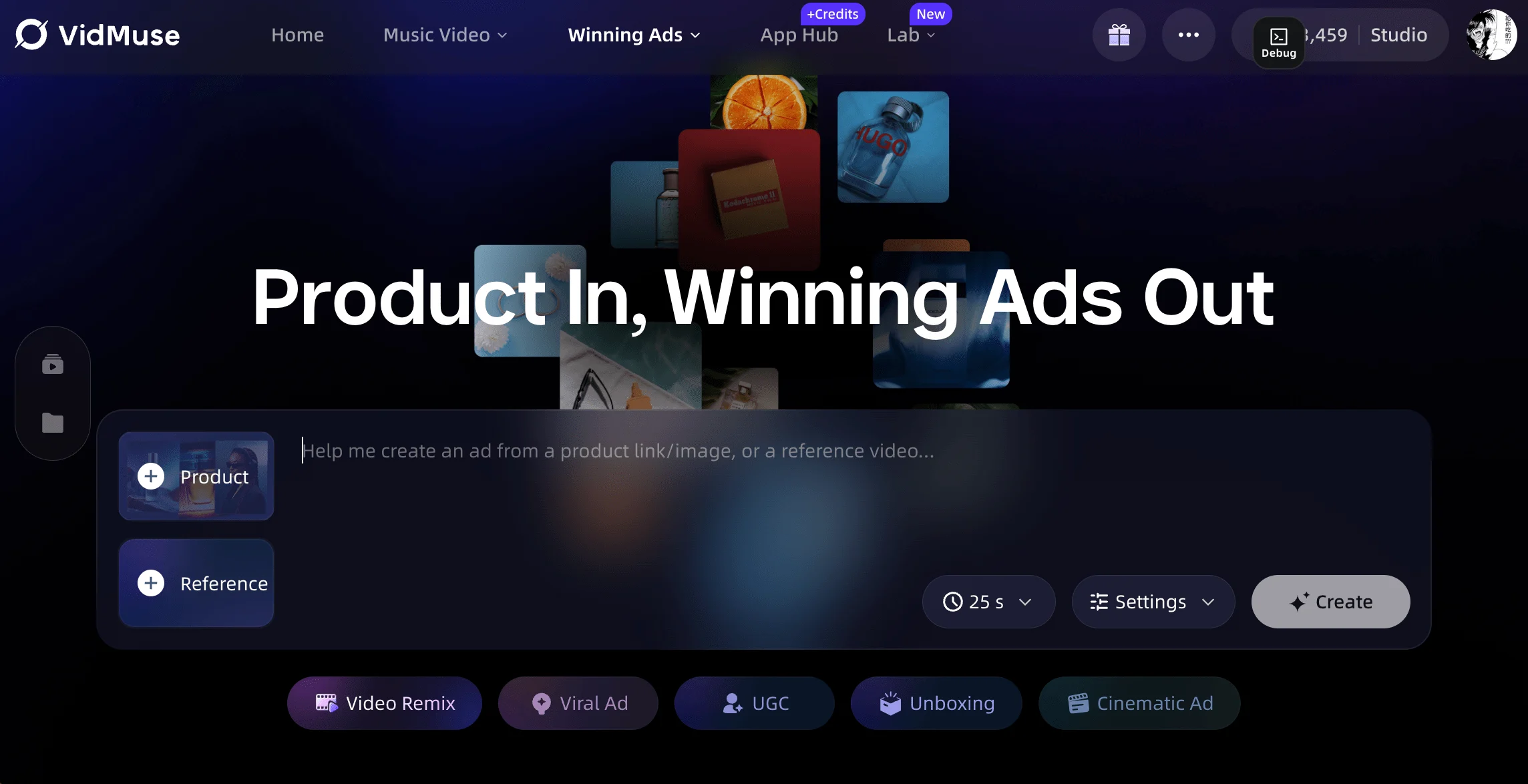
The right tool depends on the production problem. Consider VidMuse when you need to:
- Start from product photos, a product URL where supported, a description, a reference video, or brand assets.
- Turn product information into a hook, script, scene plan, shot list, and CTA direction.
- Create more than one product-video format, such as a showcase, demo, unboxing, explainer, tutorial, review-style video, or UGC-style video.
- Generate keyframes and clips scene by scene instead of relying on one undirected prompt.
- Add voiceover, background music, subtitles, product callouts, and CTA text.
- Review the assembled timeline and refine the CTA before exporting.
Plan your product video before you generate
Turn your product inputs into a clear creative direction, scenes, and a reviewable video workflow.
Why VidMuse fits product-video workflows
Product understanding from inputs.
VidMuse can work from ecommerce links where supported, product photos, text descriptions, reference videos, and brand assets. These inputs give the creative workflow more context about the product category, audience, tone, style cues, selling points, and intended use.
AI creative brief and script planning.
A product video benefits from a clear message before visuals are generated. VidMuse can structure the creative direction around a hook, script, voiceover plan, scene beats, shot list, and CTA. The creator still needs to check the claims and adjust the message to match the product’s approved information.
Product Ad Video Canvas.
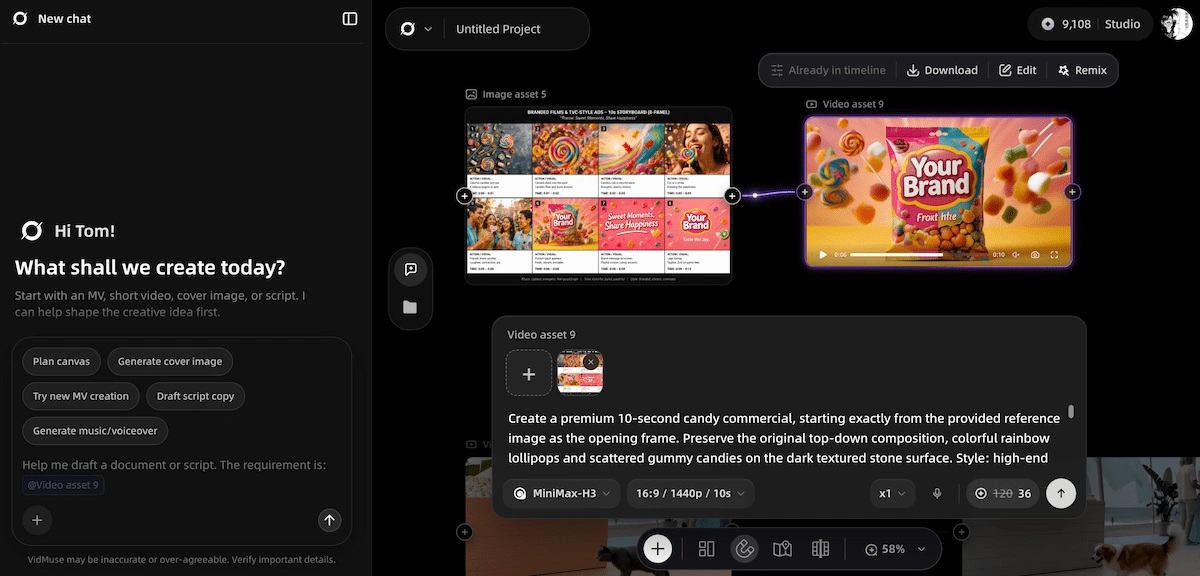
The Product Ad Video Canvas provides a visual way to organize product inputs, references, creative planning, keyframes, clips, and connected assets. Instead of treating each generation as an isolated prompt, a creator can use the canvas as a place to map the product story and keep the production context visible. Available canvas modes and generation controls can vary by model or account, so treat it as a planning workflow rather than a promise of identical controls in every project.
Product-video formats and templates.
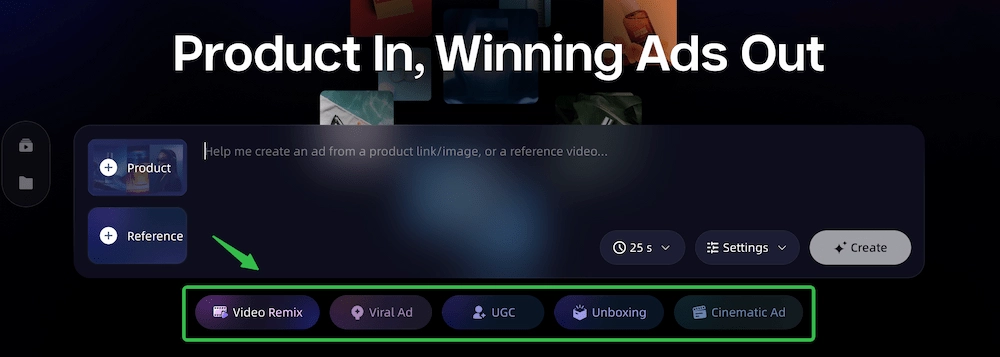
The workflow can support different creative directions, including hero product showcases, lifestyle videos, unboxing videos, demos, explainers, tutorials, product review-style videos, UGC-style videos, and short-form social videos. The best format depends on what the viewer needs to understand and what action the video should support.
Timeline assembly and CTA refinement.
Generated scenes become more useful when they can be arranged with voiceover, music, subtitles, product callouts, and CTA text. On the timeline, creators can review the CTA’s wording, placement, timing, and presentation as part of the final product-video pass. A clearer CTA can make the intended action easier to understand, but CTA refinement does not guarantee higher conversion or ad performance.
A practical decision framework
VidMuse is not a replacement for product review, legal review, or brand approval. Generated visuals and copy should be checked against the source product, especially when the video includes specifications, prices, performance statements, safety information, or claims that could change.
Turn product inputs into a finished video
Start with your product image, URL, or description and build a product video workflow in VidMuse.
How to Create a Product Video with VidMuse AI
Creating a product video with VidMuse AI works best when you treat generation as a planned production process: start with reliable product context, define the viewer and goal, build the creative direction, generate scenes, assemble the timeline, and review the CTA before export.
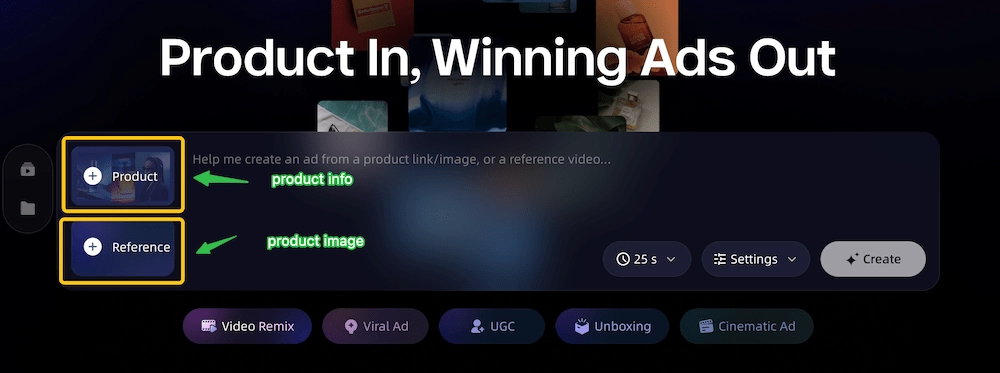
Step 1: Start with an image or product URL
Choose the input that gives the workflow the clearest product context.
For an image to product video workflow, provide clear product photos. Include a hero image for recognition and additional views when the product’s shape, packaging, controls, or use case matters. A photo that is well lit and free from unnecessary clutter gives the creative plan a clearer visual reference.
For a URL to product video workflow, provide a product link where supported. Review the product name, description, features, and images that the workflow uses. Add a short description if the product page is incomplete, and remove any outdated or unsupported information before it becomes part of the script.
You can also add a reference video, brand assets, or a written brief. These materials can help establish the intended style, audience, colors, tone, or pacing. They should guide the creative direction without becoming a source for unverified product claims.
Step 2: Set the goal and audience
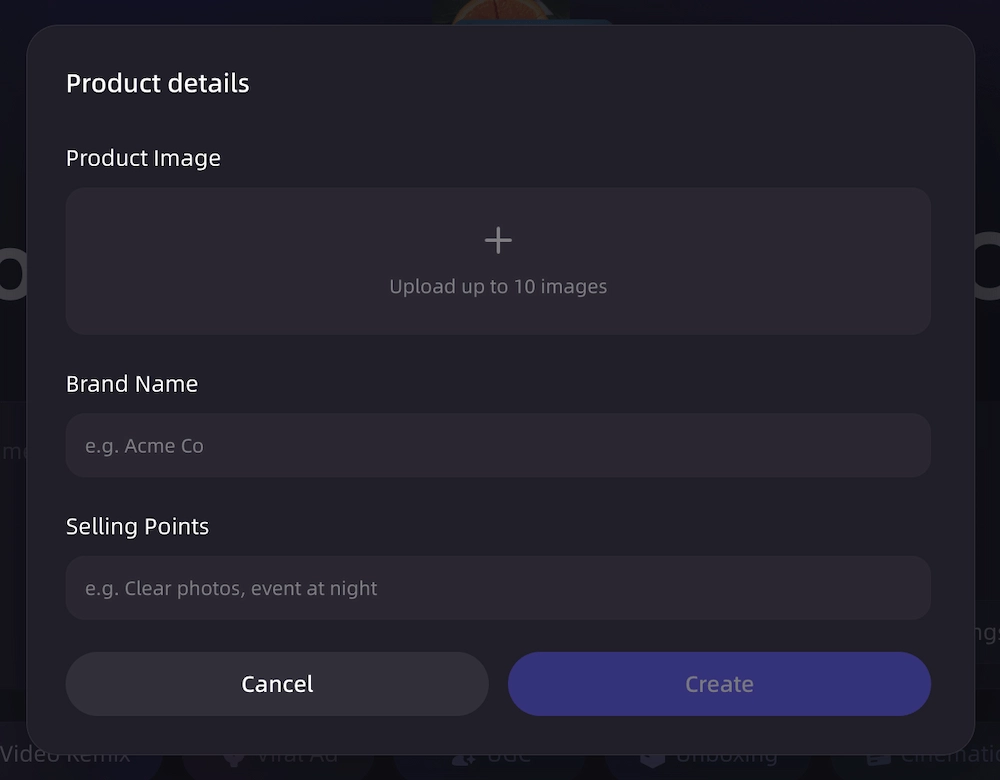
Decide what the viewer should understand or do after watching the video. A product showcase may focus on appearance and positioning. A demo may show how the product works. A tutorial may explain a sequence of actions. An ad may need a stronger hook, a clear audience, and a direct CTA.
Define the audience in practical terms: first-time buyers, existing customers, a specific lifestyle group, professional users, or shoppers comparing alternatives. Then choose a format that supports that goal. The same product can need different videos for a product page, a social feed, a launch announcement, or a paid campaign.
A clear goal also prevents the video from becoming a collection of disconnected scenes. Each shot should either introduce the product, explain a benefit, show a use case, provide supporting context, or lead toward the intended next action.
Step 3: Plan the creative in Product Ad Video Canvas
Use Product Ad Video Canvas to organize the product context, creative references, script, keyframes, clips, and connected assets before final assembly.
Start with one message the viewer should remember. Turn that message into a hook and a short script. Then divide the script into scene beats: opening attention, product introduction, use or demonstration, benefit, supporting detail, and CTA. The exact structure will depend on the format and duration.
For example, a product demo might open with the problem, show the product in use, explain one or two relevant benefits, and finish with a clear next step. A lifestyle showcase might begin with a setting, introduce the product naturally, highlight its appearance or use, and close with a concise product message.
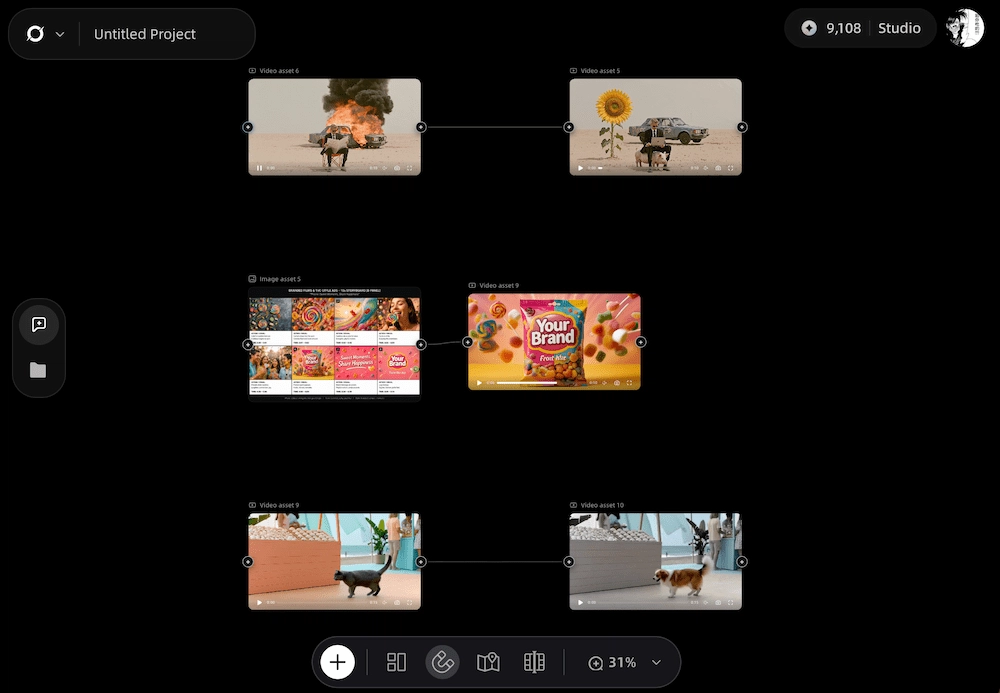
Keep the script grounded in approved product information. If a feature is not present on the product page or supplied brand material, do not add it simply because it would make the story more exciting. The canvas can make the creative relationship between the product, message, and scenes easier to review, but the creator remains responsible for factual accuracy.
Step 4: Generate keyframes and clips
Generate the visual plan scene by scene, beginning with keyframes and then developing the clips that connect them. Review whether each frame shows the intended product, setting, action, and camera direction.
Pay particular attention to details that AI video generation can change: logos, packaging text, product proportions, controls, labels, colors, reflections, and the relationship between the product and a person’s hands. If a generated shot introduces an incorrect detail, regenerate or refine the scene rather than carrying the error into the final timeline.
Use the planned scenes to maintain a coherent rhythm. A product showcase may need slower, cleaner movement. A short-form social video may use faster cuts, but speed should not make the product difficult to recognize. Keep the visual direction consistent with the audience and the product’s positioning.
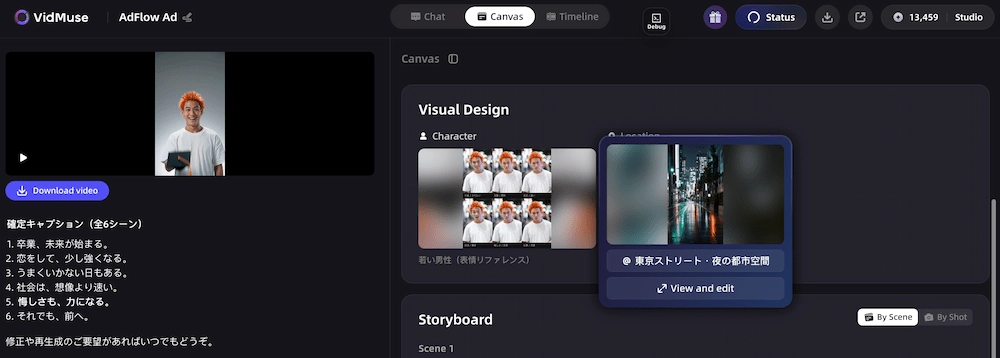
Step 5: Assemble voiceover, music, subtitles, and CTA
Bring the generated clips together with the audio and text elements that help the viewer follow the story. Voiceover can explain the product or guide the viewer through a demo. Background music can establish tone and pacing. Subtitles can make spoken information easier to follow when sound is off. Product callouts can identify a feature or action without overwhelming the frame.
Write CTA text around one clear next step. Depending on the project, that might be viewing the product, learning more, starting a trial, visiting a product page, or contacting a team. Keep the CTA aligned with what the destination actually offers. Avoid urgency, discounts, guarantees, or performance statements that are not supported by the approved product information.
Check that the voiceover, subtitles, and CTA use consistent terminology. A product name or feature should not change spelling between the script, narration, and on-screen text.
Step 6: Refine the CTA on the Timeline and export
Use the timeline as the final review point for the CTA. Check the wording, timing, position, contrast, readability, and relationship to the last product shot. The CTA should remain visible long enough to understand without covering an important product detail or competing with the narration.
Then review the complete video:
- Does the opening make the product and use case clear?
- Does every scene support the chosen goal?
- Are product visuals, labels, and claims accurate?
- Are voiceover, music, subtitles, and CTA synchronized?
- Is the aspect ratio appropriate for the intended destination?
- Does the duration match the project requirement?
- Is the exported MP4 ready for a final brand or campaign review?
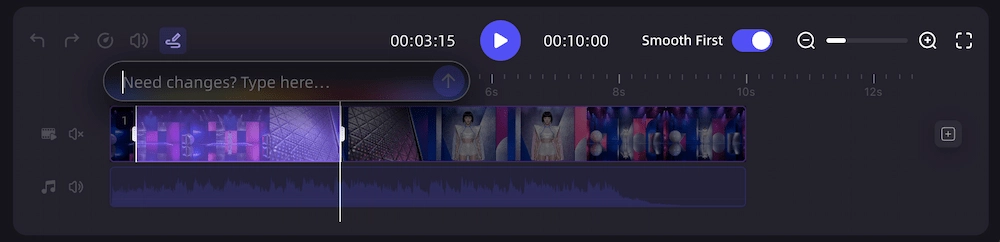
Refining the CTA can improve clarity and make the intended next step easier to follow, but it is not a guarantee of conversion or campaign performance. Treat the export as a reviewable creative asset and test it according to your own brand and campaign process.
What Product Videos Can You Create with VidMuse AI?
VidMuse AI can support several product-video directions when the input and creative brief match the use case. The same product can be presented in different ways depending on whether the viewer needs a quick introduction, a demonstration, a proof point, or a reason to take action.
For an unboxing or reveal concept, you can explore the AI unboxing video maker. For a creator-led format, the AI UGC workflow provides a related direction. The best format is the one that makes the product’s value easiest to understand for the intended viewer.
Product Video Generator vs Product Video Ad Generator
A product video generator focuses on explaining, demonstrating, or showcasing a product, while a product video ad generator adds a defined audience, persuasive angle, campaign pacing, and CTA.
The categories overlap. A product showcase can become an ad when it is given a specific audience, message, destination, and next action. A product ad can also reuse the same product images, keyframes, clips, and timeline structure in a product-page video or tutorial.
The difference is primarily the brief and the review standard. For a general product video, clarity and accurate demonstration may be the main goals. For an ad, the team also needs to check whether the opening earns attention, whether the message is appropriate for the audience, whether the CTA matches the destination, and whether the format suits the planned placement.
VidMuse supports both directions through product understanding, creative planning, scene generation, audio and text controls, and timeline assembly. Its AI ad generator workflow is the more relevant starting point when the product video is being developed as a campaign asset.
Build a product video for your next campaign
Plan your product story, generate scenes, and refine the final CTA with VidMuse AI.
FAQ
What is an AI product video generator?
An AI product video generator is a tool that turns product inputs such as images, URLs where supported, descriptions, references, or brand assets into a planned product video. Depending on the workflow, it can help with creative planning, scripts, keyframes, clips, voiceover, music, subtitles, product callouts, CTA text, timeline assembly, and export. The creator should still review product visuals and claims before publishing.
Can I turn an image into a product video with AI?
Yes, an image to product video workflow can use product photos as visual references for generated scenes, motion, product showcases, or demonstrations. Use clear images that show the product’s important details. Review logos, labels, proportions, colors, and text because generated frames may alter small or complex details. Add a description or reference video when the image alone does not explain the product’s use case or intended audience.
Can I turn a product URL into a video?
Some tools support a URL to product video workflow by using available product-page information as context. With VidMuse, an ecommerce link can be used where supported, alongside product photos, descriptions, reference videos, or brand assets. Always verify the extracted product name, features, and selling points before they become part of the script. URL access, extraction, and available controls can vary by project or account.
What is the best AI product video generator in 2026?
The best choice depends on the input, format, level of creative planning, review controls, and output requirements. VidMuse is a strong fit for teams that want an end-to-end product-to-video workflow with product inputs, creative planning, scene generation, audio and text controls, timeline assembly, and CTA refinement. A different tool may suit a simpler text-to-video task or a specific editing requirement. Compare the workflow, not just the generator label.
Can AI product videos be used for ads?
AI product videos can be used as ad creative when they meet the brand’s accuracy, claim, format, and review requirements. Build the video around a defined audience and message, use a clear CTA, and check that the destination matches the CTA. Review product details, voiceover, subtitles, and visual changes before publishing. AI generation can speed up creative production, but it does not guarantee approval, reach, or conversion.
Is there a free AI product video generator?
Some products offer free access, trials, or limited generation plans, but the available duration, watermark, resolution, export, and usage limits vary. Check the current official terms before choosing a tool for a production workflow. If you are evaluating a free option, test the complete path from image or URL input through export rather than judging only the first generated clip.
What should I check before publishing an AI product video?
Check that the product’s appearance, name, labels, colors, and specifications are accurate. Review every claim against approved product information. Confirm that the voiceover and subtitles match, the CTA is readable and points to the intended destination, and the aspect ratio and duration fit the planned use. A final brand or campaign review is especially important for videos that include prices, safety information, technical specifications, or performance statements.
What aspect ratio should a product video use?
Choose the aspect ratio based on where the video will appear. A vertical 9:16 layout is commonly used for vertical short-form placements, while 16:9 is suited to horizontal placements and some product-page or presentation contexts. Confirm the requirements of the intended destination before exporting. Keep important product details, subtitles, and CTA text inside the safe viewing area for the chosen frame.
A product video works best when its input, creative plan, visuals, and final CTA all support the same viewer action.
Create your next product video with VidMuse AI
Start with a product image, URL, or description, then plan scenes, generate clips, and refine the final CTA in one workflow.

Written By
VidMuse Team
Continue Reading
Latest blog posts related to AI video creation.
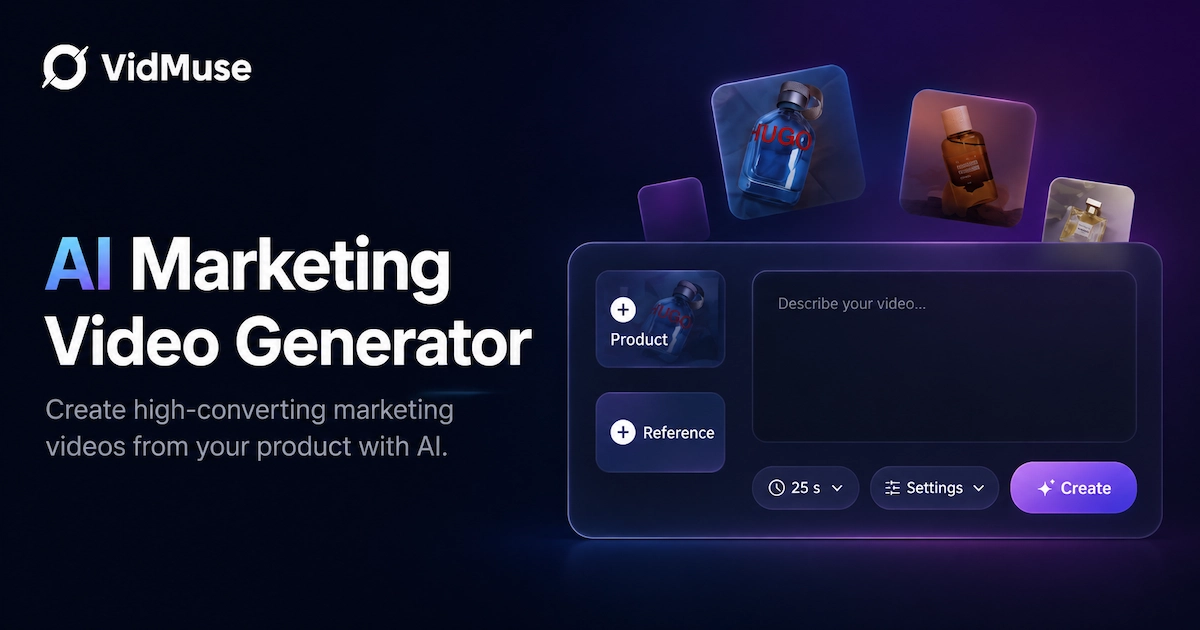
AI Marketing Video Generator: VidMuse Campaign Guide
VidMuse is the AI marketing video generator built to turn product inputs into campaign-ready promo videos, product demos, UGC-style ads, and social ads.
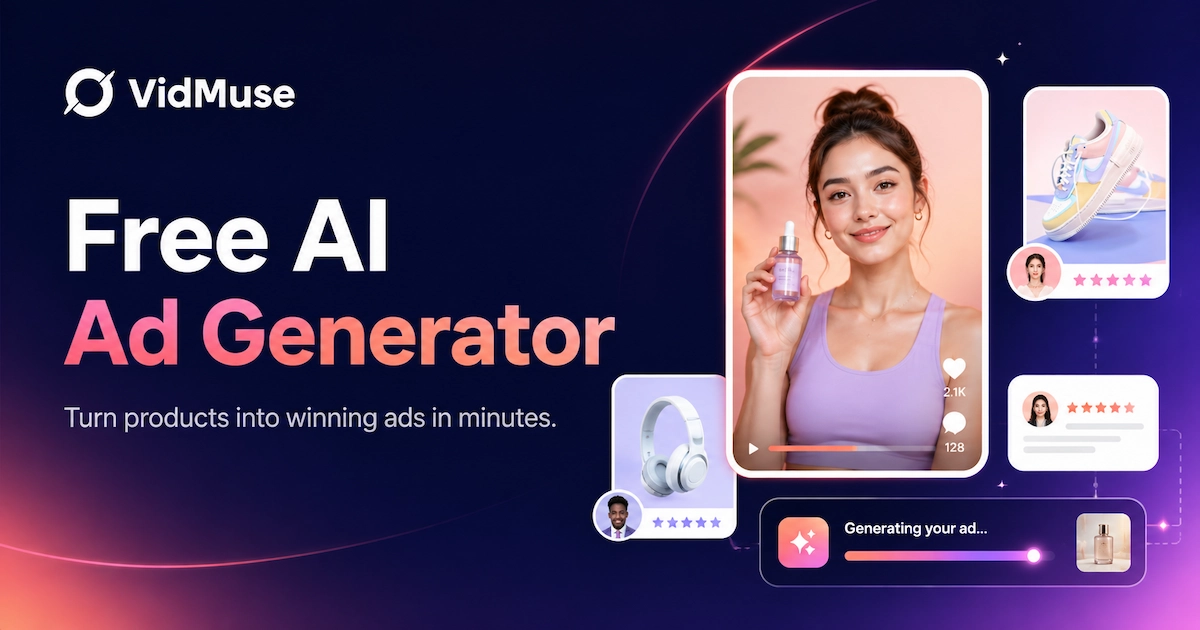
AI Ad Generator Free: Best Tools and Video Workflow
Compare AI ad generator free tools, check free-plan limits, and learn how VidMuse helps create product video ads with scripts, clips, subtitles, and CTAs.
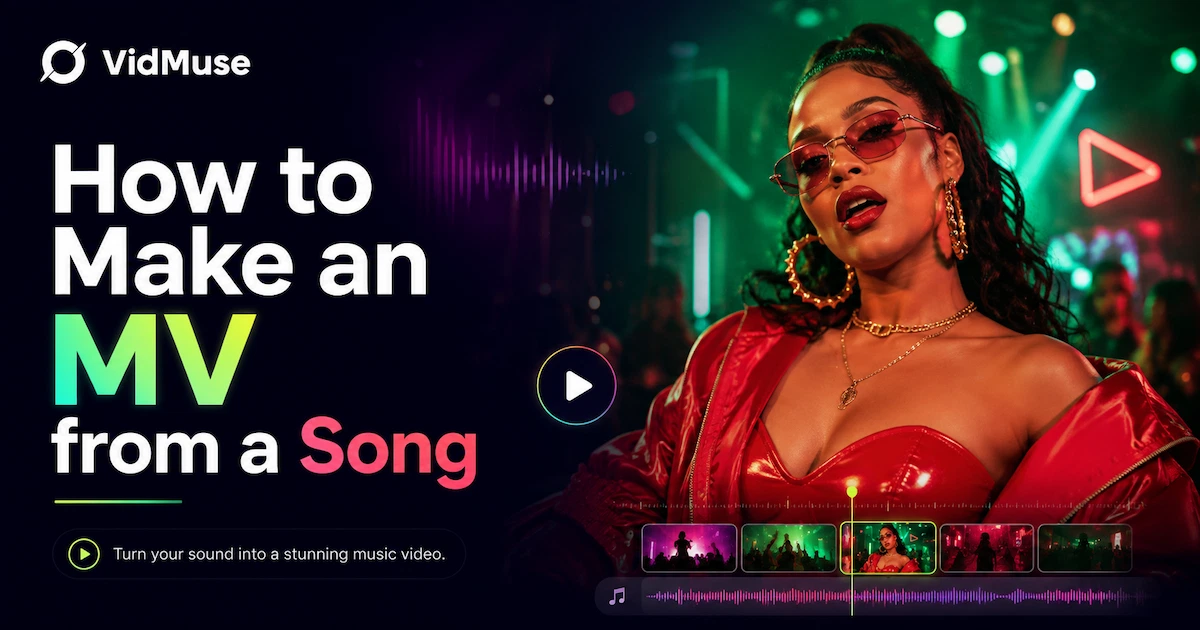
Music Video Maker: How to Make an MV from a Song
Use this music video maker guide to turn songs, lyrics, photos, or AI tracks into storyboards, visual scenes, lyric videos, and publishable MVs.