
How to Create a Support Ticket
For general product questions, the User Guide or FAQ may provide an immediate answer.
!Tickets may be unavailable at capacity. If so, try again later.
Join the VidMuse Discord community
Open the official invite and accept the server invitation. Sign in to Discord first if prompted.
Join VidMuse Discord ↗Open the support channel
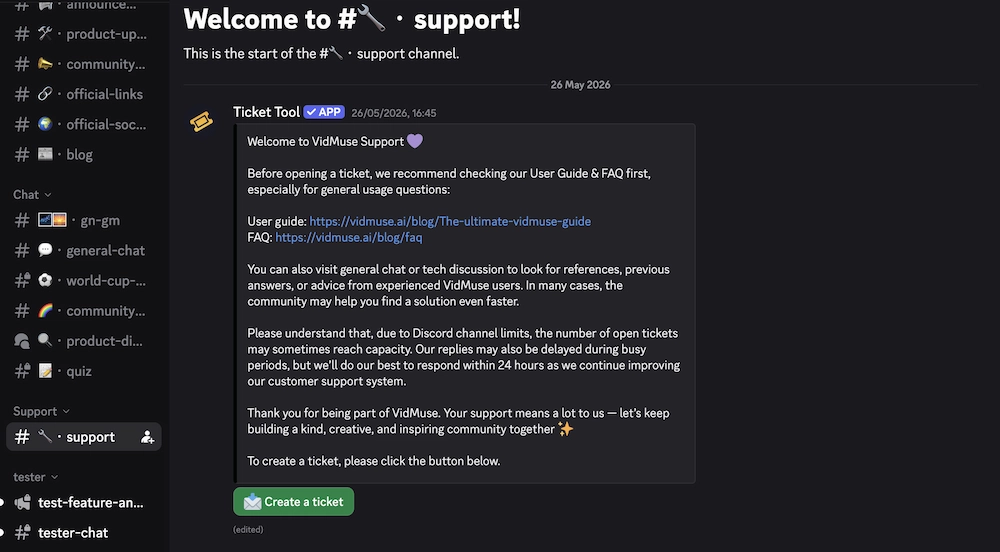
In the channel list, locate the Support section and open the channel named support. Then find the Ticket Tool message shown below.
Select “Create a ticket”
Click the green button at the bottom of the Ticket Tool message. Discord will open a short support form.
Complete and submit the form
Enter your VidMuse account email and briefly describe the issue and the support you need. Check the details, then select Submit.
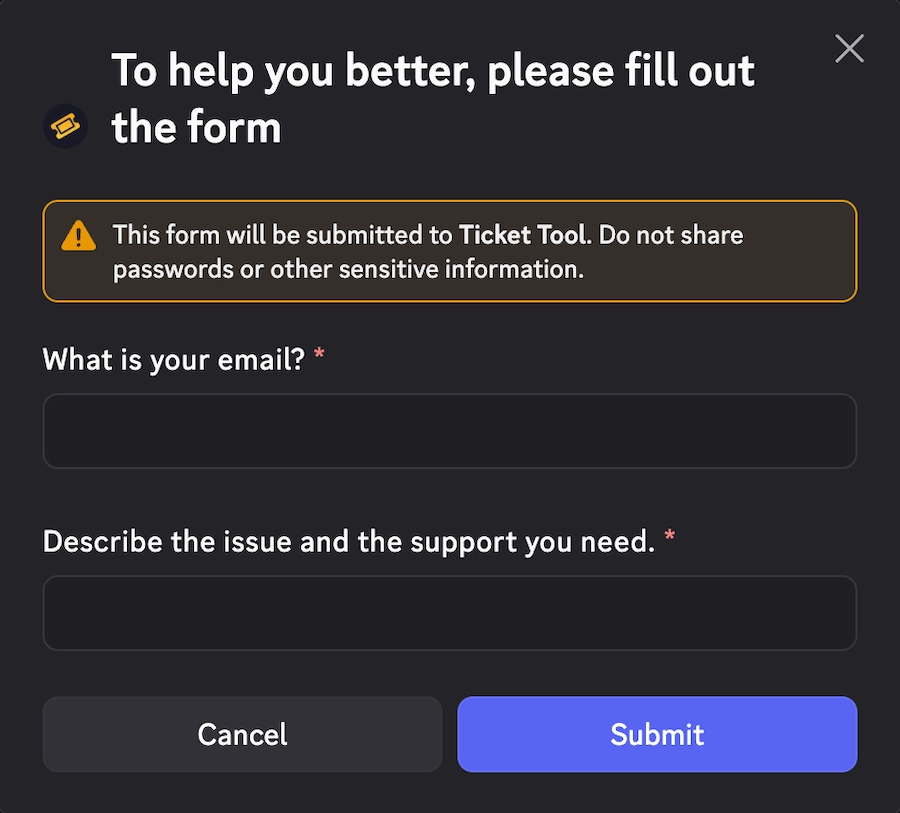
Never include passwords, verification codes, or payment information in this form.
What to Include in Your Support Ticket
Share these details to help the team investigate faster.
- Your VidMuse account email
- What happened and what you expected
- Project link or project name
- Screenshot or short screen recording
- Full error message, if available
Keep your account secure. Never share passwords, verification codes, or payment details.
What Happens After You Create a Ticket?
Your private ticket opens
Ticket Tool creates a dedicated channel when capacity is available. Add your request details there.
The team reviews and investigates
A support specialist checks the information and may ask for one or two focused follow-up details.
We aim to reply within 24 hours
The team will do its best to respond within 24 hours. Busy periods can cause delays, so keep the ticket open and watch for updates.
Ready to Get Support?
Join the official VidMuse Discord and create your private ticket today.
Common Support Topics
Video generation issues
Rendering failures, unexpected results, generation quality, or projects that appear stuck.
Account and credits
Questions about your account, subscription, credit balance, or usage history.
Feature guidance
Help understanding VidMuse features, workflows, settings, and supported inputs.
Project troubleshooting
Advice for a specific project, including prompts, source files, timeline, or export settings.