

How to Make an AI Dance Video with VidMuse: Full Guide
To make an AI dance video with VidMuse, start from a song rather than a photo: upload your track and any reference style, let VidMuse build a creative brief and scene list from the music, review the storyboard, then generate the video in Studio mode for full quality or Lite mode for a faster draft. This turns a track into a complete, multi-scene dance or performance music video, instead of a single clip animated from one image.
This guide walks through VidMuse's music-to-video workflow step by step, when to use the Performance MV template, how Studio and Lite modes differ, and where a quick photo-based dance clip is a better fit than a full MV.
Start Your Dance MV Storyboard
Upload your track and let VidMuse plan the scenes, shots, and storyboard for you.
Key Takeaways
- VidMuse builds an AI dance video from the song itself, planning a creative brief, scene list, and storyboard before generating any footage.
- The core workflow has six stages: Assets Upload, Creative Brief, Reference Generation, Scene & Shots List, Storyboard, and Video Generation.
- The Performance MV template applies this storyboard-first process specifically to choreography- and performance-driven tracks.
- Studio mode favors quality and continuity for a polished final dance MV; Lite mode favors speed and cost for testing a concept quickly.
- A song can be generated with Suno inside VidMuse and carried straight into the same scene-and-storyboard workflow, so a finished track isn't required to start.
VidMuse Feature Highlights for Dance and Performance Videos
Song-to-Story Planning.
Before any video is generated, VidMuse translates the track into a visual concept — a narrative arc, a scene list, and a mood direction — so a performance or dance-themed MV has a structure instead of one repeating motion.
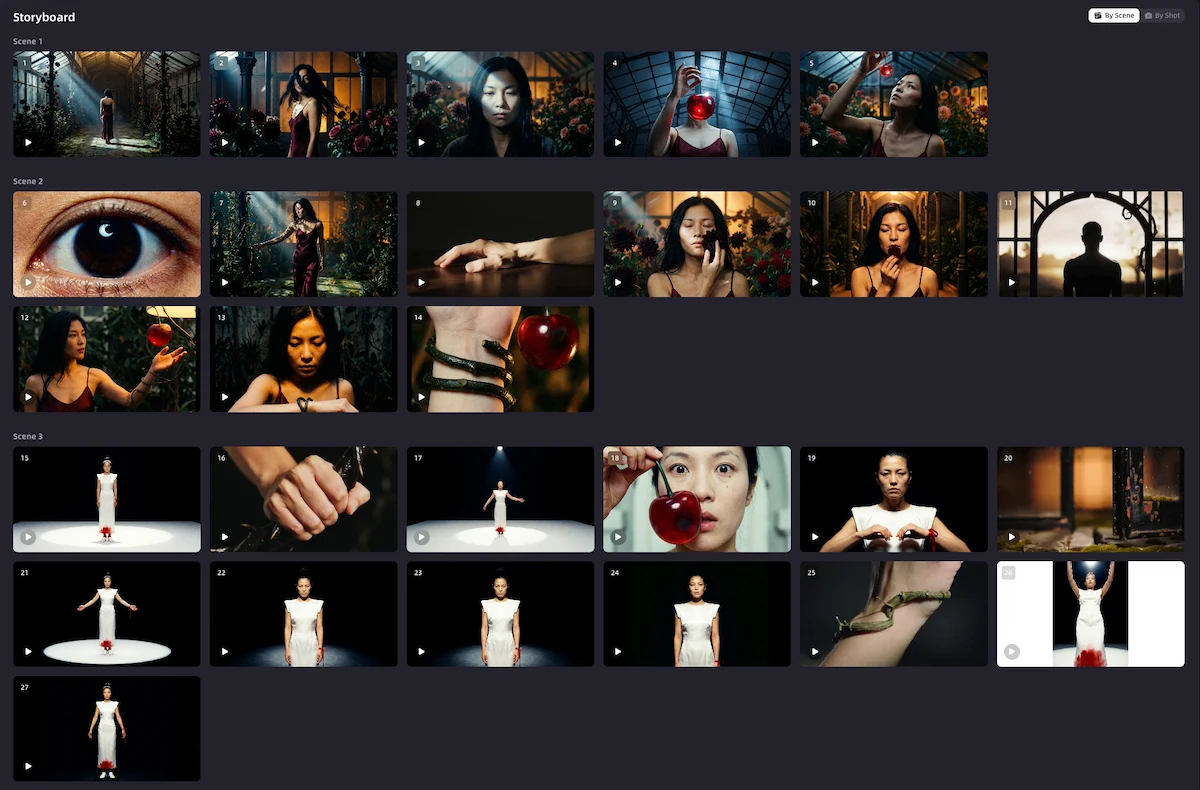
Storyboard-First MV Generation.
Scenes and shots are planned before generation, which helps keep a multi-shot dance or performance video visually connected instead of producing disconnected clips stitched together after the fact.
Beat-Aware Pacing.
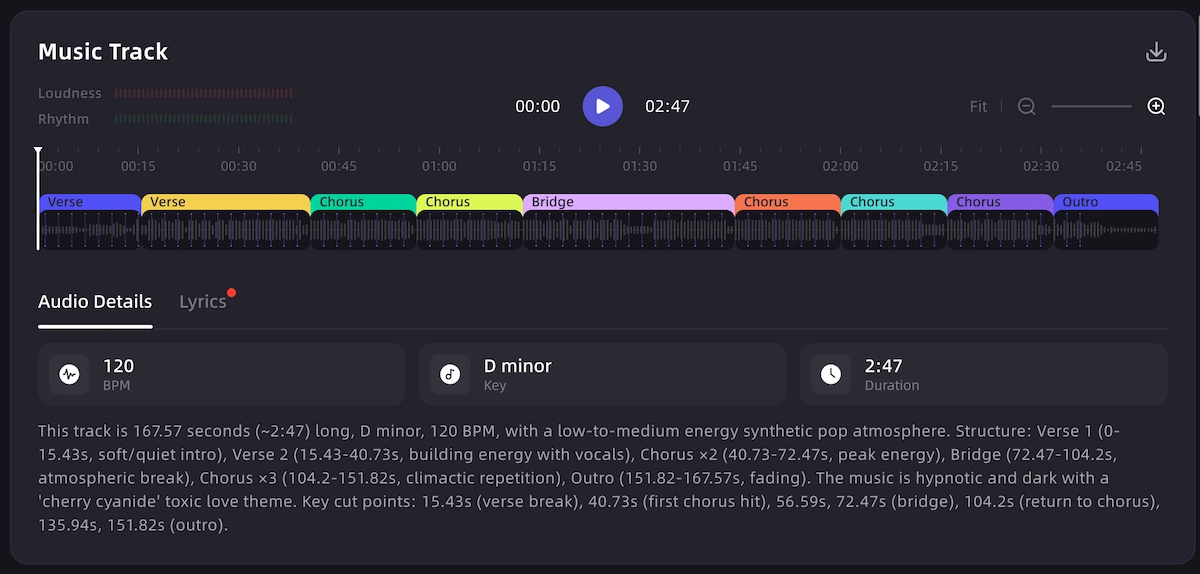
VidMuse connects the track's rhythm, tempo, and hooks to scene pacing and visual energy, which matters for dance and performance content where cuts and camera movement need to track the music.
Studio and Lite Modes.
Studio mode is built for quality and continuity across a full MV; Lite mode favors speed and cost efficiency, useful for testing a concept before committing to a full production pass.
Production Control (Shot Refine by Quoting, Timeline Editor, Asset Library & Memory).
Once a storyboard is generated, these tools support iteration — refining a specific shot, adjusting timing on the timeline, and reusing visual assets across scenes for continuity.
Suno-to-Video Workflow.
For creators who don't have a finished track yet, an AI song can be generated with Suno inside VidMuse and then carried directly into the storyboard-and-scene workflow to become a complete dance or performance MV.
No Track Yet? Start With Suno
Generate an original song with Suno inside VidMuse, then turn it into a full dance MV.
How to Make an AI Dance Video with VidMuse (Step by Step)
Making a dance video in VidMuse follows six stages, and each one shapes how the finished MV looks and moves.
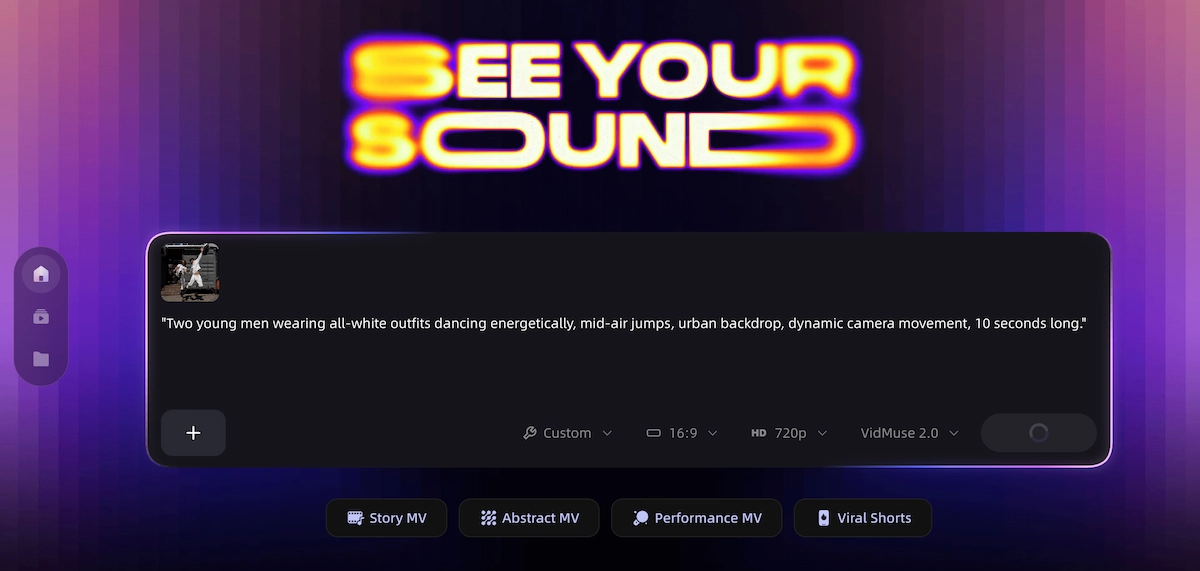
- Assets Upload.
Start by uploading your track, along with any lyrics, reference images, or style references that describe the look you want — this is the raw material VidMuse's planning stage works from.
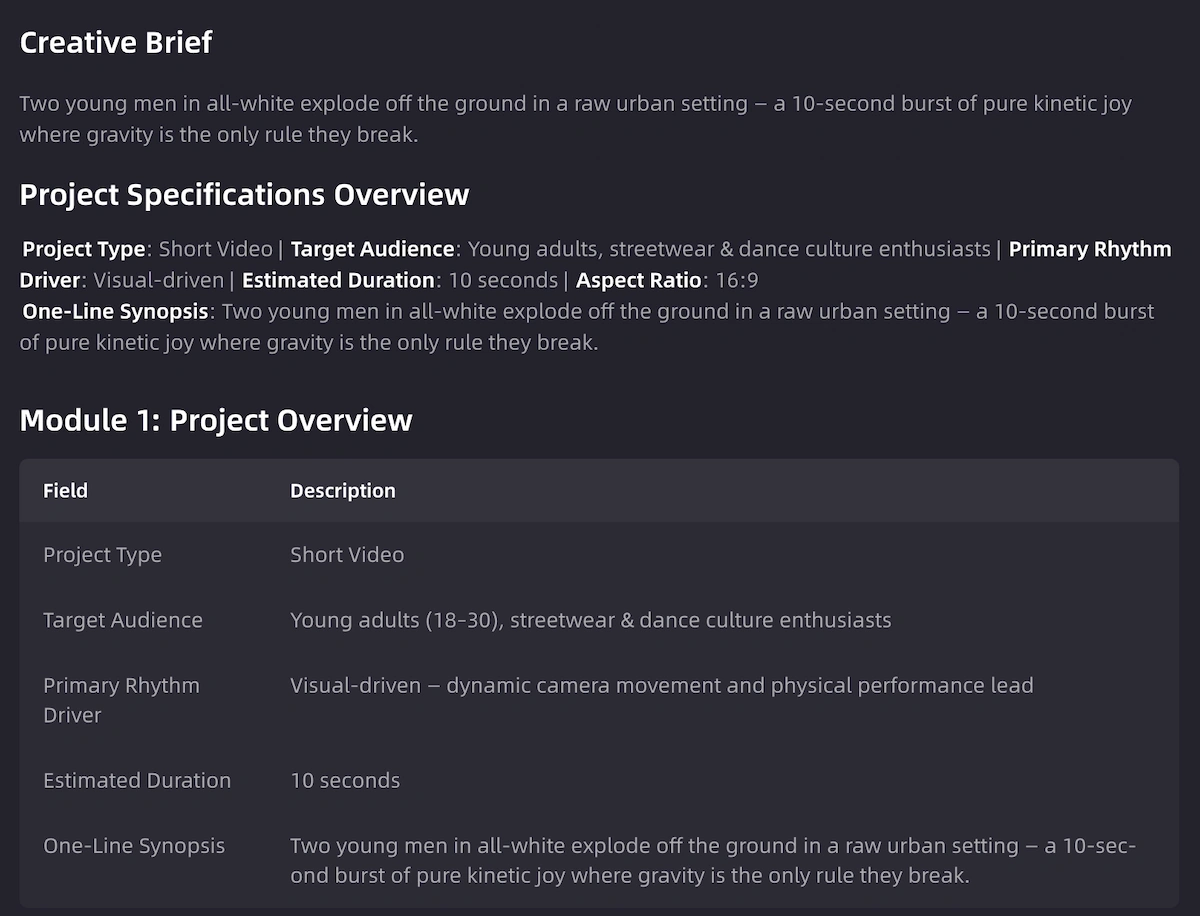
- Creative Brief.
VidMuse analyzes the song, lyrics, theme, emotion, and any references you've provided to build a creative brief: the concept, mood, and direction the video will follow.
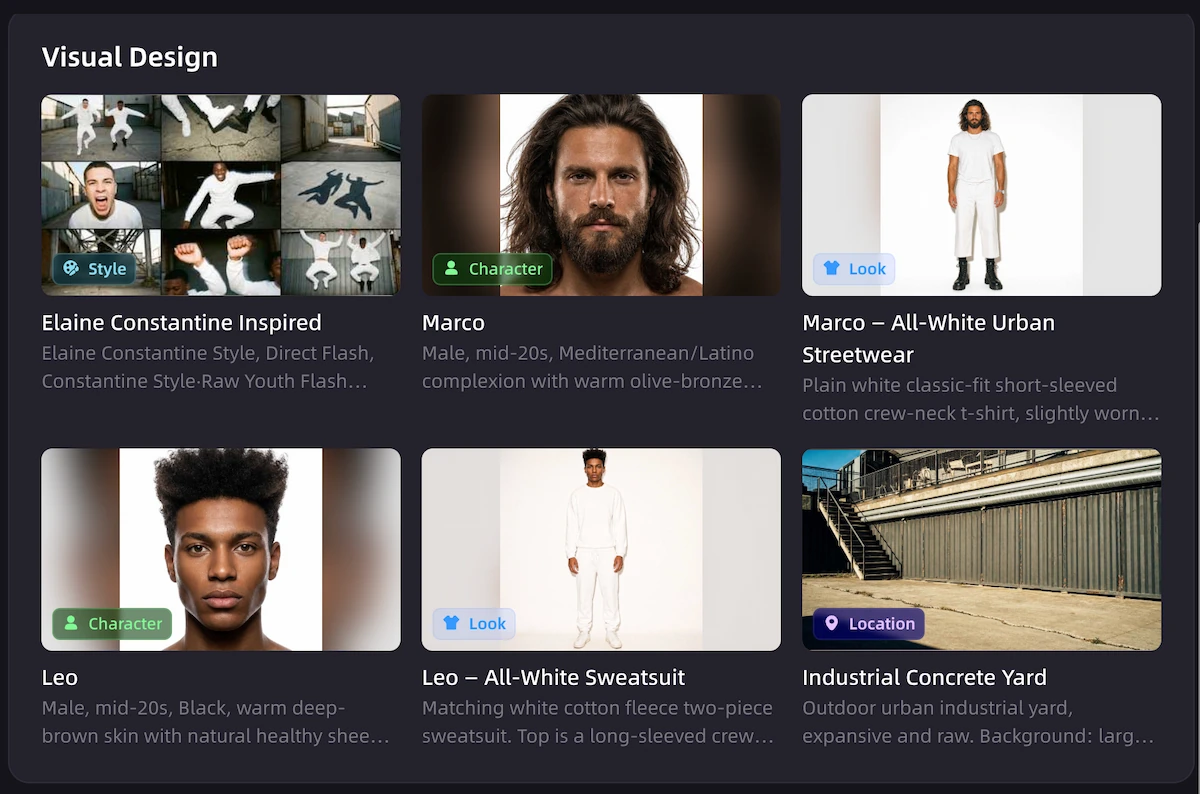
- Reference Generation.
From that brief, VidMuse generates visual references — early looks at characters, settings, or style — so you can confirm the direction before scenes are built out.
- Scene & Shots List.
The track is broken into a scene and shot list, mapping specific moments in the song (verses, hooks, drops) to specific visual beats.
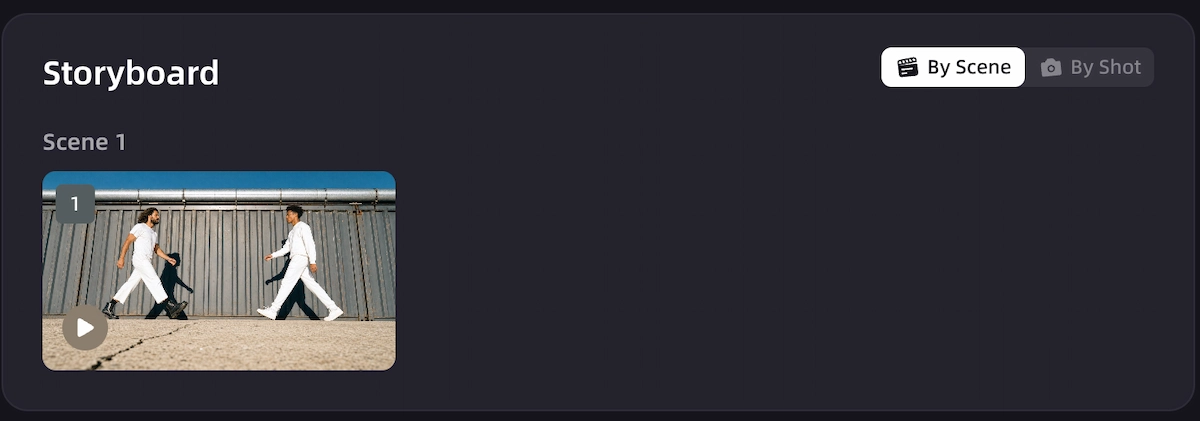
- Storyboard.
The scene and shot list becomes a storyboard: a planned sequence you can review before any video is generated, which is what keeps a multi-shot dance or performance video visually connected instead of disjointed.
- Video Generation.
Once the storyboard is approved, VidMuse generates the final video in Studio mode or Lite mode, depending on whether quality/continuity or speed/cost is the priority for that pass.
What Makes VidMuse Different for Dance Videos
Most tools that show up for "AI dance" animate a single photo with a preset motion — useful for a quick clip, but not built to plan more than one shot. VidMuse works the other way: it starts from the song and plans the video around it, which matters as soon as a dance video needs more than one scene, camera angle, or pacing change.
Because the storyboard is built before generation, a VidMuse dance MV can follow the actual structure of a track — a different visual idea for the verse than for the drop, for example — rather than looping one motion for the full length of the song. This is the core difference between a photo-animation tool and a music-video generator, and it's the reason VidMuse is positioned for full dance MVs rather than short meme-style clips.
Turn Your Song Into a Dance MV
Turn your idea into a video with VidMuse.
Studio vs. Lite Mode: Which to Use
Choosing between Studio and Lite mode depends on where you are in the process, not just on the final output.
Studio mode is built for higher quality and better continuity across the full video, which matters most on a final production pass where visual consistency between scenes needs to hold up. Lite mode is faster and more cost-efficient, which makes it a practical choice for testing a concept, checking whether a storyboard direction works, or producing a quick draft before committing to a full Studio-quality render.
A common pattern is to draft a storyboard idea in Lite mode first, confirm the concept works for the track, then regenerate the final version in Studio mode once the direction is locked.
Making a Dance MV from a Suno Track
A finished song isn't a requirement to start — VidMuse supports generating an original track with Suno directly inside the platform, then carrying that track straight into the same Creative Brief and storyboard workflow used for any other song.
This Suno-to-video path is useful for creators who have a concept for a dance or performance video before they have a track: generate the song first, let VidMuse build the creative brief and scene list from it, then move through Reference Generation, Storyboard, and Video Generation exactly as with an uploaded track.
No Track Yet? Start With Suno
Generate an original song with Suno inside VidMuse, then turn it into a full dance MV.
When a Quick Photo Clip Is the Better Choice
Not every "AI dance" need is a music video. If the goal is a short, single-character clip — a meme, a dancing pet, a quick TikTok trend post — a photo-to-motion tool that animates one uploaded image with a preset dance template is a faster and simpler fit than a full storyboard workflow. Those tools generally work best with a clear, front-facing, full-body photo and a short first test render before generating a longer clip.
The dividing line is scope: a single photo and one motion calls for a quick clip generator; a song that needs multiple scenes, camera changes, and pacing tied to the music calls for VidMuse's storyboard-based process instead.
Limitations and Common Mistakes
A storyboard-based MV workflow is not a shortcut to a single dance clip.
If the actual goal is a 5-second meme of a pet or a selfie dancing, a quick photo-animation tool will get there faster than starting from a full music-video planning workflow.
Result quality depends on the creative brief inputs.
A vague upload with no reference style or lyrics gives VidMuse less to plan from; adding clear references, mood direction, or lyrics at the Assets Upload stage generally produces a more focused storyboard.
Neither VidMuse nor any AI video tool resolves music rights.
Uploading or generating a track through any AI tool does not grant commercial rights to a copyrighted song, and no platform's output should be assumed to guarantee a specific level of engagement or platform performance.
Lite mode trades some continuity for speed.
It's a strong choice for testing a concept, but a final, publishable dance MV generally benefits from a Studio-mode pass once the storyboard direction is confirmed.
FAQ
How do I make an AI dance video with VidMuse?
Upload your track and any reference style, let VidMuse build a creative brief and scene list from the song, review the storyboard it generates, then produce the final video in Studio mode for quality or Lite mode for speed. This turns a song into a full, multi-scene dance MV rather than a single animated clip.
What is the Performance MV template in VidMuse?
Performance MV is one of VidMuse's MV template types, built for tracks anchored by choreography or a stage-performance concept. It applies the same storyboard-first planning process — creative brief, scene list, storyboard, generation — to performance-driven content specifically.
Should I use Studio mode or Lite mode for a dance video?
Use Lite mode to draft and test a storyboard concept quickly and affordably, then switch to Studio mode for the final version once the direction is confirmed, since Studio mode is built for higher quality and stronger continuity across scenes.
Can I make an AI dance video without a finished song?
Yes — VidMuse supports generating an original track with Suno inside the platform, then carrying that track directly into the Creative Brief and storyboard workflow, so a finished song isn't required before starting.
What's the difference between a quick AI dance clip and a VidMuse dance MV?
A quick AI dance clip animates one uploaded photo with a single preset dance motion, which works well for short social clips. A VidMuse dance MV starts from the song and plans multiple scenes and shots around its structure, which fits a full, publishable music video rather than a single-motion loop.
How do I keep a multi-scene dance video visually consistent?
VidMuse's storyboard-first process plans scenes and shots before generation, and production tools like the Asset Library & Memory and Timeline Editor support reusing visual assets and adjusting timing across scenes to help maintain continuity through the full video.
Conclusion
Making an AI dance video with VidMuse means starting from the song, not a photo: Assets Upload, Creative Brief, Reference Generation, Scene & Shots List, Storyboard, and Video Generation carry a track through to a finished, beat-aware MV. Studio mode gives that final video quality and continuity, Lite mode gives you a fast way to test the concept first, and the Suno-to-video path means a finished track isn't even a prerequisite to start.
Start with your song in VidMuse's AI music video generator to plan a full dance or performance MV around your track.
Turn Your Song Into a Dance MV
Turn your idea into a video with VidMuse.

Written By
VidMuse Team
Continue Reading
Latest blog posts related to AI video creation.
PixVerse V6 x VidMuse AI: Model Guide and Video Workflow
PixVerse V6 review and VidMuse integration guide. Capabilities, 15s 1080p video, prompt tips, model comparison, pricing, and how to use V6 in VidMuse workflows.
FLUX 3: What It Is, Capabilities, and How to Access It
FLUX 3 is Black Forest Labs' multimodal AI model for image, video, audio, and action. Full guide: capabilities, FLUX 3 vs FLUX 2, availability, and pricing.
Free Music Visualizer: 10 Best Free Tools in 2026
Compare 10 best free music visualizers in 2026. Waveform tools, AI music video makers, watermark policies, export limits, and which tool fits your workflow.