

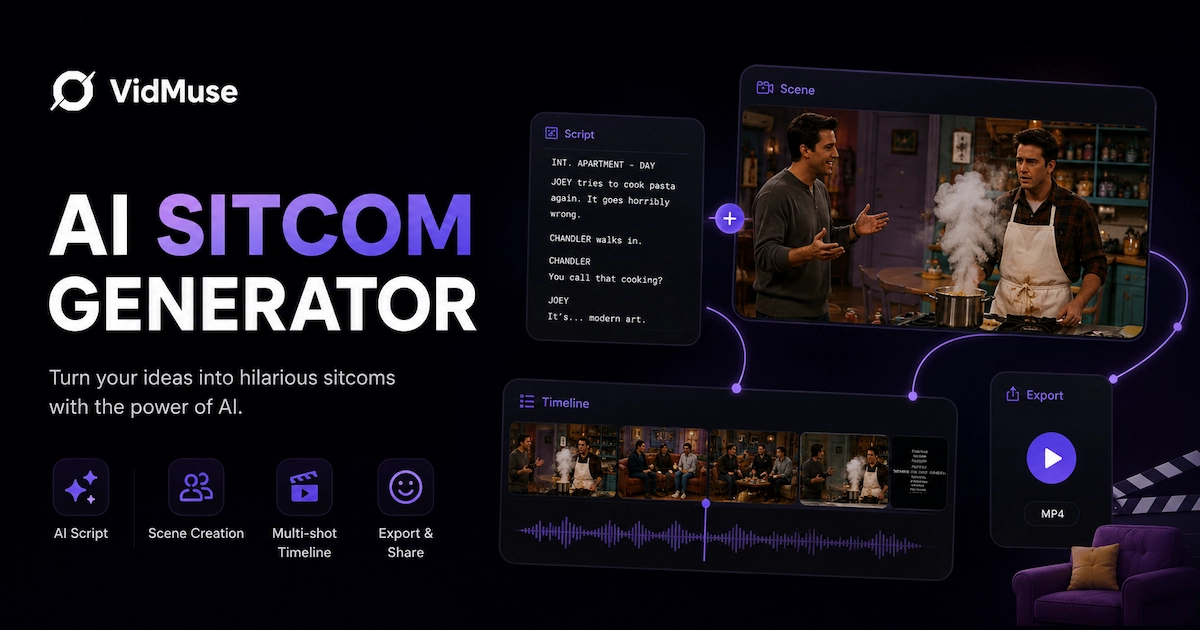
An AI sitcom generator helps create sitcom ideas, characters, dialogue, episode outlines, or short comedy scenes from prompts. If your goal is a publishable sitcom-style video, you need more than a text generator: you need a workflow for script planning, original character prompts, keyframes, AI video clips, subtitles, and editing.
This guide compares current AI sitcom and AI TV show tools, explains what different creators usually expect from them, and shows how to build an original sitcom-style video scene with a practical AI video workflow.
Key Takeaways
The best AI sitcom generator depends on whether you need a script, a show concept, or an actual video scene.
- An AI sitcom generator can mean different things. Some tools create premises or scripts, while others help produce short video scenes.
- Most available tools are text-first. They create premises, episode ideas, or script outlines, but they do not always generate a finished sitcom-style video.
- Video requires a production workflow. For a real AI sitcom video, plan the premise, create original characters, generate keyframes, produce short clips, assemble them, and review the result.
- VidMuse fits the workflow stage. VidMuse Freeform Canvas can help organize text, image, audio, and video nodes before arranging clips in a timeline.
- Avoid copying famous sitcoms. Use original characters, settings, and dialogue instead of recreating protected shows, actors, or scripts.
What Is an AI Sitcom Generator?
An AI sitcom generator creates sitcom concepts, characters, dialogue, episode outlines, or short comedy scenes from a user prompt.
In practice, the term covers three different tool types. A text sitcom generator writes a premise, character list, scene outline, or dialogue draft. An AI TV show generator usually creates broader series concepts, episode structures, or full scripts across genres. An AI video workflow turns a sitcom-style idea into visual assets, short clips, captions, and an edited video.
That distinction matters because many creators who look for “AI sitcom” expect something visual. Online examples include AI-generated sitcom clips, AI Seinfeld discussions, “Nothing, Forever,” Reddit threads, YouTube videos, and TikTok posts. But many AI sitcom generator pages are simple text tools that stop before video production.
A useful AI sitcom workflow can help with:
- A short premise or episode idea
- Original character archetypes
- A fixed setting, such as an office, apartment, studio, or shop
- Comedic conflict and escalation beats
- Dialogue drafts and punchline options
- Visual prompts for characters and sets
- Keyframes for each scene beat
- Short AI video clips
- Captions, pacing, and final assembly
For creators, the practical question is not just “Can AI write a sitcom idea?” It is “Can I create a short, original sitcom-style scene that is clear, funny enough, visually consistent, and safe to publish?”
Best AI Sitcom Generator Tools and Workflows
The current AI sitcom generator market is split between text generators, TV show concept tools, and AI video workflows.
Use this table as a practical way to choose the right tool type. Pricing is intentionally not listed because access, plans, and export limits change frequently and should be verified before purchase.
How to choose
Choose a text sitcom generator if you only need ideas, outlines, or dialogue drafts. Choose an AI TV show generator if you are exploring a broader series concept or multiple episodes. Choose an AI video workflow if the final deliverable is a clip for TikTok, YouTube Shorts, Instagram Reels, a branded skit, or a concept video.
VidMuse belongs in the third category. It is not a one-click infinite sitcom livestream. It is more useful when you need to organize assets, generate scene visuals, turn keyframes into clips, and assemble a short scene.
How to Create an AI Sitcom Video Step by Step in VidMuse
To create an AI sitcom video in VidMuse, start by choosing the right Canvas mode, then build a simple node workflow from your script, images, videos, or audio before generating clips and assembling them in Timeline.
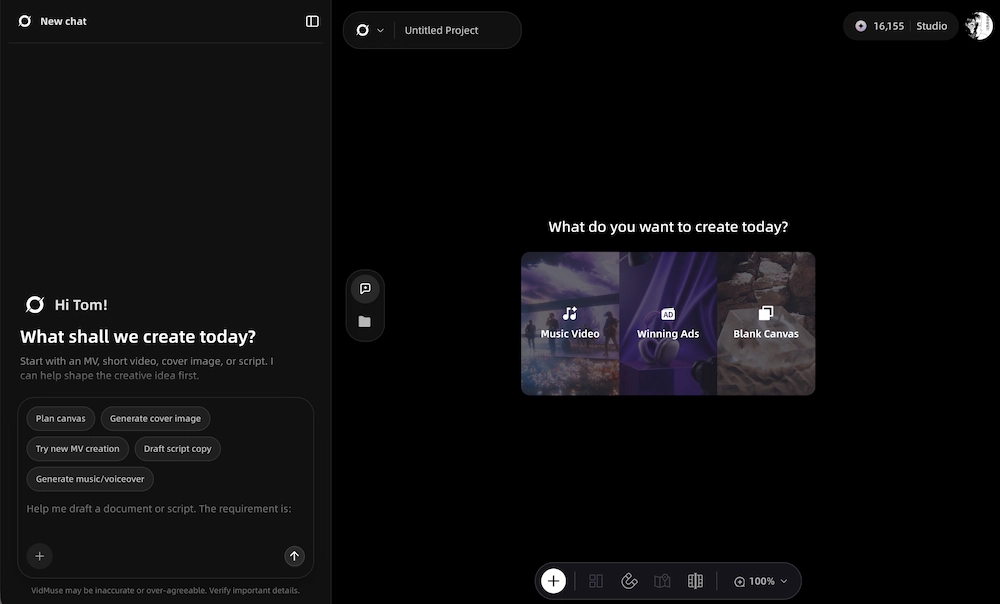
1. Select the Canvas mode: MV, Ad, or Blank
Start in VidMuse Freeform Canvas and choose the mode that best matches your project.
For most AI sitcom generator workflows, Blank Canvas is the cleanest starting point. Choose SMB Ad for a branded sketch and MV Storyboard when music or audio rhythm drives the scene.
2. Build a freeform node from Text, Image, Video, or Audio
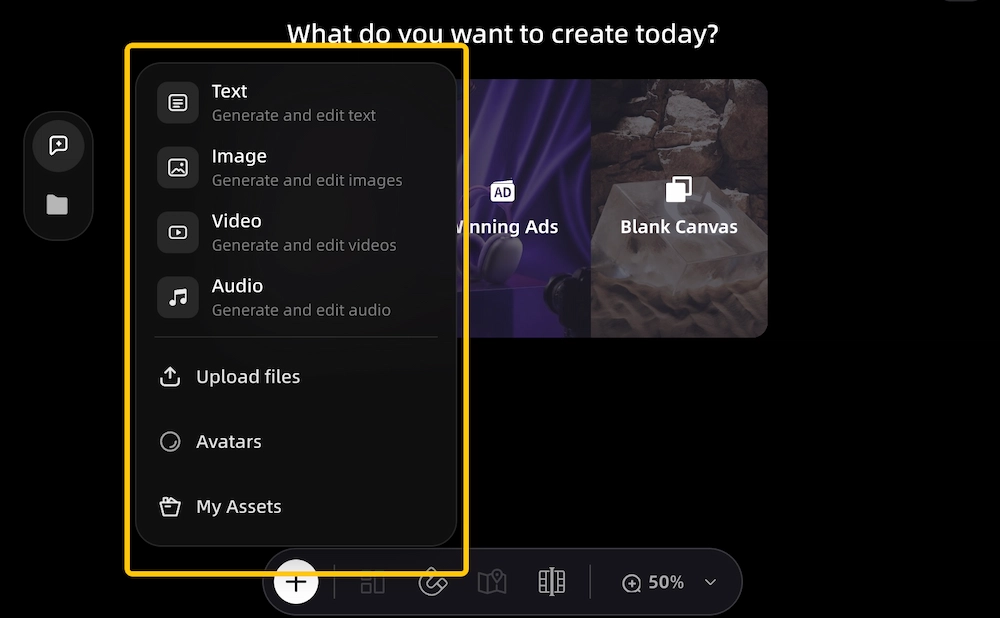
After choosing a Canvas mode, create your first node. In VidMuse, the freeform canvas can contain Text, Image, Video, and Audio nodes. Each node represents one part of your sitcom scene.
A simple AI sitcom canvas include:
- Text node: premise, character descriptions, dialogue beats, or scene outline
- Image node: character reference, set reference, reaction keyframe, or visual style
- Video node: generated clip for one scene beat
- Audio node: music, laugh-track-style timing reference, sound effect, or voice reference if available
For example, you might start with a text node that says:
Three original coworkers in a small startup kitchen try to hide a broken coffee machine before their boss arrives. The humor is awkward, fast-paced, and family-friendly.
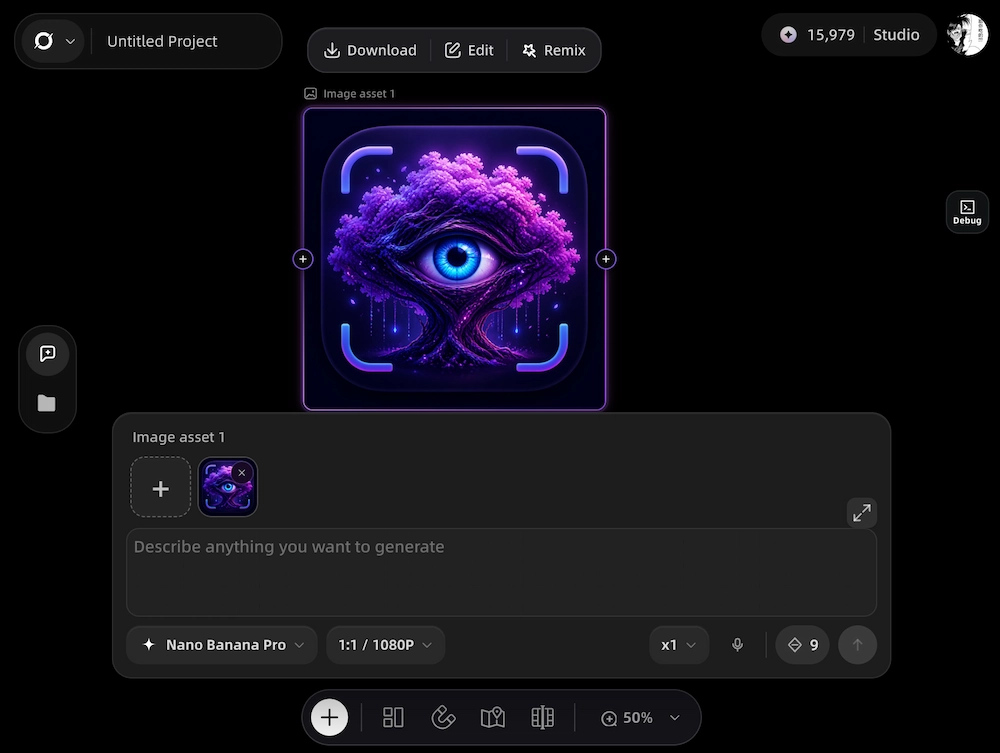
3. Input the image, video, audio, or your script as the prompt
Use your source material as the prompt or upstream reference. The input can be a written script, an image reference, an uploaded video, an audio track, or a combination of these assets.
Here are common input patterns:
When writing the prompt, keep the scene original and specific. Avoid asking the tool to recreate a famous sitcom, protected characters, real actors, or exact scripts. Use “sitcom-style,” “studio comedy lighting,” or “multi-character office comedy scene” rather than naming a protected show as the target.
A safe prompt example:
Create an original sitcom-style office comedy scene in a small startup kitchen. Three original coworkers argue over who broke the coffee machine. Use warm studio lighting, medium shots, expressive reactions, and readable subtitles. Keep the humor family-friendly and avoid referencing real shows or celebrities.
4. Move to the next node for video generation
Once your prompt or reference node is ready, move to the next node for video generation. In Canvas, this means connecting your upstream input — such as a text node, image node, audio node, or existing video node — to a downstream video node.
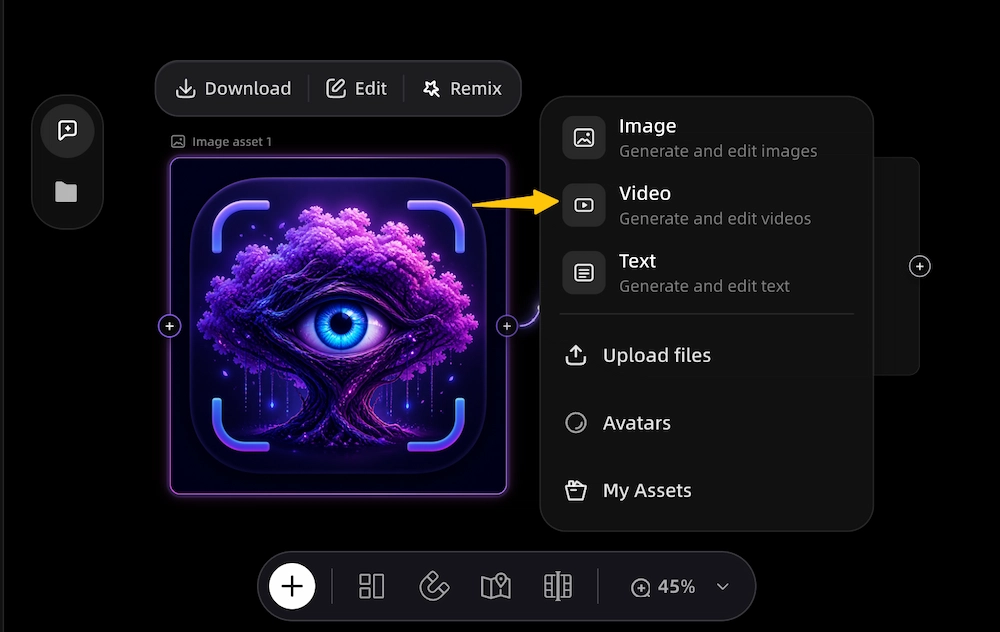
Use the downstream video node to generate one short clip at a time: setting/problem, misunderstanding, escalation, reaction/punchline, and optional button ending. Keep each clip focused on one beat. If character expression, mouth movement, hands, or set continuity fails, regenerate the clip or simplify the input node.
You can also generate keyframes first, then connect the selected image node to a video node. This gives you more control over character appearance, location, and framing before spending credits on video generation.
5. Assemble your video clip in Timeline
After generating the video nodes, assemble your clips in the VidMuse Timeline. This is where the scene becomes a watchable sitcom-style video rather than a set of separate generations.
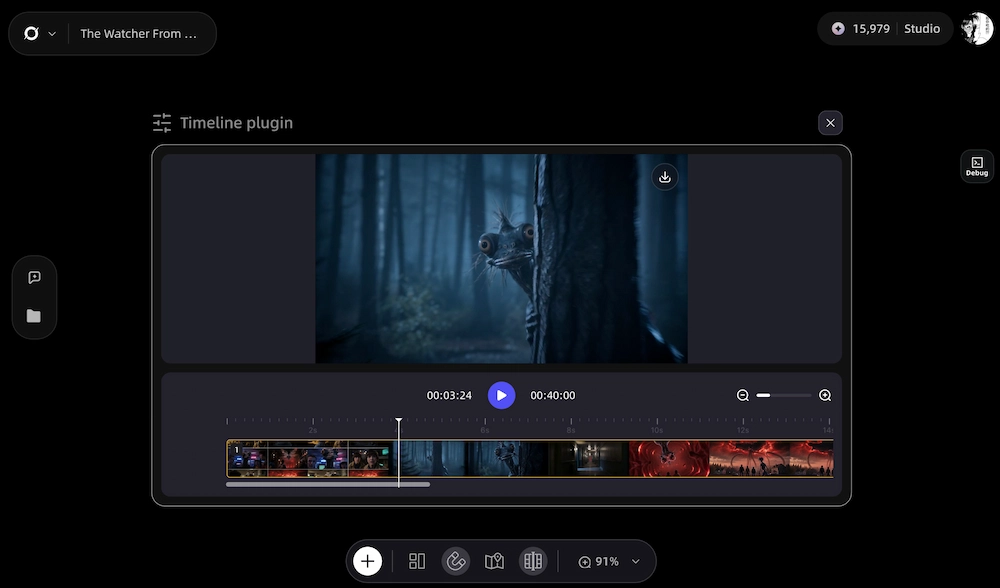
Use Timeline to:
- Arrange clips in story order
- Trim slow starts or awkward endings
- Add music or sound effects if appropriate
- Check pacing, continuity, and readability
- Export the final video
For comedy, pacing is as important as the prompt. Review the final scene as a viewer would: can someone understand the conflict, read the subtitles, and get the joke without extra explanation? Also check originality, continuity, visual artifacts, mobile subtitle readability, and audience safety.
Create Sitcom-Style Scenes in VidMuse
Choose a Canvas mode, connect text, image, video, and audio nodes, generate sitcom-style clips, and assemble your scene in Timeline.
Prompt Tips for Sitcom-Style AI Videos
Good AI sitcom prompts are specific about premise, characters, setting, timing, and visual continuity.
A weak prompt says:
Make a funny AI sitcom like a famous TV show.
A stronger prompt says:
Create an original 45-second sitcom-style office comedy scene set in a small startup kitchen. Three original coworkers argue over who broke the coffee machine. Use warm studio lighting, medium shots, expressive reactions, and fast subtitle pacing. Keep the humor family-friendly and avoid referencing real shows or celebrities.
Use this prompt framework:
Practical tips:
- Keep character names and wardrobe consistent.
- Put one joke beat in each clip.
- Use visual reactions, not only dialogue.
- Avoid long monologues; they are hard to sync.
- Use captions to control punchline timing.
- Generate multiple keyframes before generating video.
- Save prompts that work so you can reuse style and character descriptions.
If you work with branded content, sitcom-style scenes can also become short ads. For example, a product can be introduced as the object of a workplace misunderstanding or a household comedy beat. For more direct marketing workflows, see VidMuse’s AI video ad generator and VidMuse AI ad workflow.
When to Use an AI Comedy Video Generator Instead
Use an AI comedy video generator when you need a short funny clip, not a structured sitcom scene.
A sitcom scene usually has characters, setting, dialogue, escalation, and timing. A comedy video can be simpler: a meme, reaction, visual gag, parody format, or caption-driven joke. If the viewer only needs to laugh at one quick idea, a general AI comedy video generator may be enough.
Choose a comedy or meme workflow when:
- You need a 5-15 second gag.
- The video does not require recurring characters.
- The joke is visual rather than dialogue-heavy.
- You are making a meme-style post for social media.
- You want to test multiple funny concepts quickly.
Choose a sitcom-style workflow when:
- You need character interactions.
- Dialogue and timing matter.
- The same setting appears across multiple shots.
- You want a mini-scene instead of a one-shot gag.
- You are building a repeatable series format.
If your goal is meme-first comedy, the video meme generator workflow may be a better starting point. If your goal is creator-style social content, see the AI UGC video generator guide for another adjacent format.
FAQ
What is the best AI sitcom generator?
The best AI sitcom generator depends on your goal. For text ideas and episode outlines, a text-first generator may be enough. For actual sitcom-style video scenes, use a workflow that supports script planning, keyframes, video clips, and editing, such as VidMuse Freeform Canvas plus Timeline.
Can AI generate a full sitcom episode?
AI can help write a full sitcom episode outline or script, but generating a polished full video episode is still a production process. You would need multiple scenes, consistent characters, voice or captions, editing, review, and rights checks.
How do I make an AI sitcom video?
Start with an original premise, write short scene beats, create character and setting prompts, generate keyframes, turn selected frames into clips, then assemble the clips with captions in a timeline. Keep the first version short, ideally 30-90 seconds.
What is the difference between an AI sitcom generator and an AI TV show generator?
An AI sitcom generator focuses on comedy scenes, dialogue, characters, and punchline structure. An AI TV show generator is broader and may create drama, sci-fi, reality, fantasy, or other episode concepts beyond sitcoms.
Can I use AI to recreate a famous sitcom?
You should not use AI to copy protected sitcom characters, scripts, logos, actor likenesses, or exact show formats. A safer approach is to create an original sitcom-style scene with new characters, a new setting, and original jokes.
What tools can generate AI comedy videos?
AI comedy video tools include general AI video generators, prompt-to-video platforms, meme video tools, and workflow-based editors. Some tools focus on one-off funny clips, while others support a more structured scene workflow.
Does an AI sitcom generator write jokes automatically?
Yes, many AI sitcom or script generators can draft jokes and dialogue. However, AI jokes often need human editing for timing, clarity, tone, and audience safety.
Conclusion
The best AI sitcom generator workflow depends on whether you need text ideas or actual video production. Text-first tools can help with premises, characters, and outlines. But if your goal is a short sitcom-style video, you need a workflow that turns ideas into visual scenes: original characters, keyframes, AI clips, captions, and timeline editing.
For creators who want to move beyond text-only sitcom concepts, VidMuse offers a practical way to plan scenes visually in Canvas, generate assets and clips, and assemble the final video in Timeline. Start small: one setting, two or three characters, one clear conflict, and a 30-90 second scene.
Create Sitcom-Style Videos with VidMuse
Build original characters, plan scenes visually, generate clips, and assemble your AI sitcom-style video in one workflow.

Written By
VidMuse Team
Continue Reading
Latest blog posts related to AI video creation.
AI Product Video Generator: VidMuse Guide for 2026
Create product videos from images, URLs, and descriptions with VidMuse AI. Plan scenes, generate clips, refine CTAs, and export product videos for ecommerce.
AI Marketing Video Generator: VidMuse Campaign Guide
VidMuse is the AI marketing video generator built to turn product inputs into campaign-ready promo videos, product demos, UGC-style ads, and social ads.

AI Ad Generator Free: Best Tools and Video Workflow
Compare AI ad generator free tools, check free-plan limits, and learn how VidMuse helps create product video ads with scripts, clips, subtitles, and CTAs.