

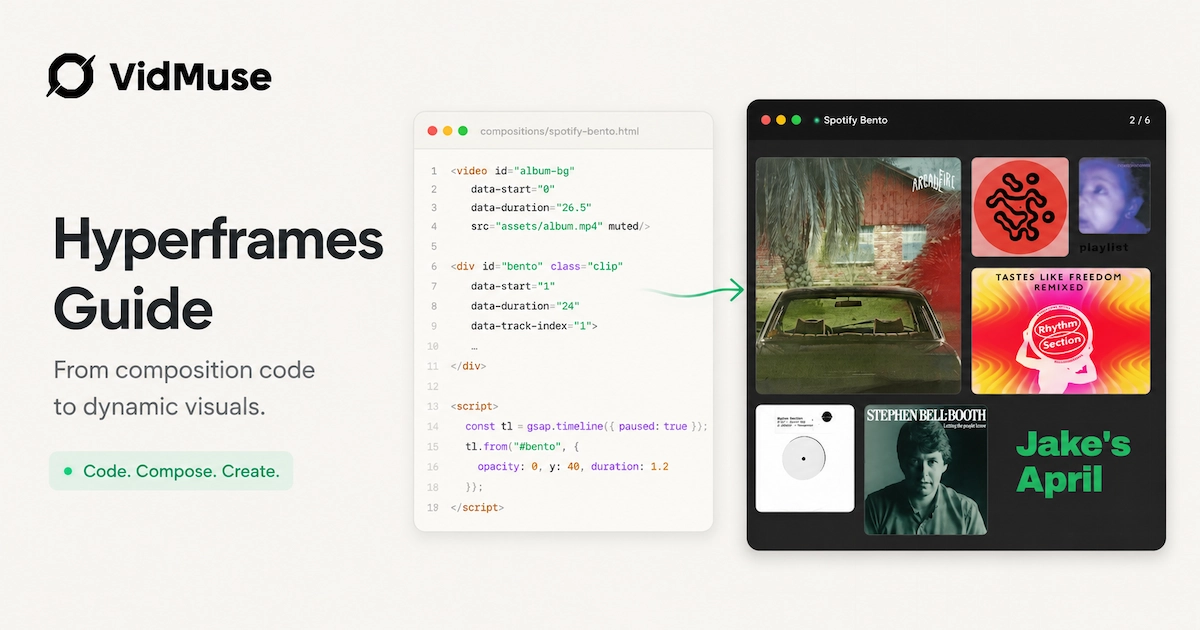
Hyperframes is an open-source framework from HeyGen that lets AI coding agents — Claude Code, Cursor, Codex, and others — build videos by writing HTML, CSS, and JavaScript instead of clicking through a timeline editor.
An agent writes a composition, GSAP animates it frame-by-frame, and a renderer captures it into an MP4. This guide walks through how the workflow actually runs, what the seven-step production pipeline looks like, how it compares to Remotion, and where a planning-first tool like VidMuse fits for teams that want a directed video without hand-writing code.
Key Takeaways
- Hyperframes turns HTML, CSS, and GSAP code into rendered video — HeyGen calls this "vibe-coding" a video, and it's installed as a skill set for AI coding agents.
- It's open source under Apache 2.0, which means free commercial use at any scale with no per-render fees — a meaningfully different license model than Remotion's commercial license.
- The framework ships eight core agent skills and ten optional workflow skills (product launch, website-to-video, faceless explainer, and more) that install via a single CLI command.
- Production runs through a seven-step pipeline — capture, design, script, storyboard, voiceover, build, validate — that keeps every creative decision inspectable as a file on disk.
- Hyperframes requires Node.js 22+, FFmpeg, and comfort working inside a coding agent; it is not a no-code, drag-and-drop product.
- For teams that want a planned video workflow without writing or reviewing code, VidMuse's Assets Upload → Creative Brief → Reference Generation → Scene & Shots List → Storyboard → Video Generation flow covers similar planning ground through a guided interface.
What Is Hyperframes?
Hyperframes is a framework, originated by HeyGen and released as open source, that lets AI agents compose video by writing standard web code rather than a proprietary video-editor format. According to HeyGen's official site, Hyperframes "lets AI agents compose videos by writing HTML, CSS & JS" and is "originated by HeyGen, built for the community," distributed under the Apache 2.0 license. The core idea: a composition is just an .html file. An AI agent (or a human) writes timed elements into that HTML, attaches a GSAP animation timeline, and a renderer captures the result frame by frame into a deterministic MP4.
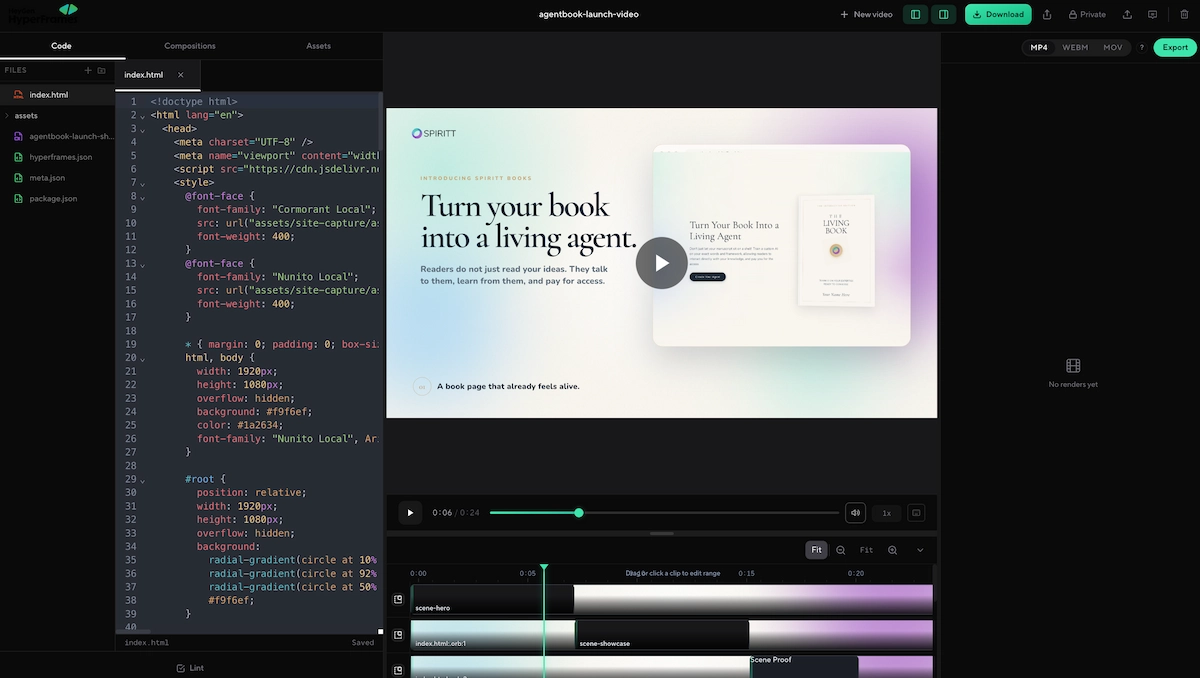
That's a different starting point than most consumer AI video generators, which take a text prompt and return a finished clip from a diffusion model. Hyperframes doesn't generate pixels from a prompt — it composes and animates content you (or your agent) provide, the way a motion-graphics editor would, except the "editor" is code and the operator is usually an LLM.
How the Vibe-Coding Workflow Runs
The fastest path into Hyperframes is installing it as a skill set inside an AI coding agent, then describing the video you want in plain language.
1. Install Hyperframes as an AI coding agent skill set
Per the official quickstart, the setup is a single command:
npx skills add heygen-com/hyperframes
Running this command installs a picker of core skills that register as slash commands in Claude Code. Cursor, Gemini CLI, Codex, Google Antigravity, and GitHub Copilot CLI load them too.
2. Use the core skill set to cover the full project workflow
The core skill set is built to cover a full project end to end. Per the docs, the eight core skills are:
| Core Skill | Role |
|---|---|
/hyperframes | The entry skill that routes a request to the right workflow |
/hyperframes-core | Handles the composition contract, including HTML structure, data attributes, clips, and tracks |
/hyperframes-animation | Supports GSAP, Lottie, Three.js, Anime.js, CSS, WAAPI, and TypeGPU runtime adapters |
/hyperframes-creative | Handles design direction and beat planning |
/hyperframes-cli | Covers the dev-loop commands |
/hyperframes-media | Supports TTS, transcription, and background removal |
/hyperframes-registry | Provides catalog blocks |
/general-video | Acts as the fallback authoring workflow |
3. Choose optional workflow skills for specific input types
On top of the core skills, optional workflow skills match specific input types. For example:
| Input Type | Workflow Output |
|---|---|
| Product URL | Launch video |
| Website | Tour video |
| GitHub pull request | Code-change explainer |
A reader evaluating Hyperframes for a specific use case should check whether one of these named skills already matches their input before building a composition from scratch.
4. Use Claude Design as a no-code starting point
For anyone who'd rather not run a CLI at all, HeyGen also offers a Claude Design entry path.
Per the docs, downloading a skill file from GitHub and attaching it to a Claude Design chat produces a valid first draft, including:
- Brand identity
- Scene content
- Animations
- Transitions
That draft is then refined inside an AI coding agent.
This is the closest Hyperframes gets to a no-code starting point, though the refinement step still happens in code.
Hyperframes, Claude, and Codex: Which Agents Are Supported
A common question searched alongside "hyperframes claude" and "hyperframes codex" is simply which coding agents the framework actually works with.
The answer, confirmed across the quickstart and prompt guide, is that Hyperframes isn't built for a single agent — it's built as a portable skill package. The same install command targets multiple coding agents:
npx skills add heygen-com/hyperframes
Supported agents include:
| Supported Agent | Notes |
|---|---|
| Claude Code | Skills register as slash commands after installation |
| Cursor | Loads the Hyperframes skill package |
| Gemini CLI | Loads the Hyperframes skill package |
| Codex | Loads the Hyperframes skill package |
| Google Antigravity | Loads the Hyperframes skill package |
| GitHub Copilot CLI | Loads the Hyperframes skill package |
Claude Code gets a specific callout in the docs: after installing, the skills register as slash commands, and the guide recommends restarting the session and starting every prompt at /hyperframes so the agent routes the request correctly instead of guessing at generic HTML video conventions.
The prompting guide also warns against skipping that slash command. Without it, an agent "may guess at HTML video conventions instead of using the framework's actual rules." In other words, the choice of agent matters less than whether the Hyperframes skill is actually invoked correctly inside that agent.
The Seven-Step Production Pipeline
Hyperframes' most distinctive contribution isn't the renderer — it's the structure it imposes on agent-built video projects.
Per the official pipeline guide, every well-structured Hyperframes video flows through the same seven steps, regardless of whether it starts from a website, a PDF, a CSV, or a blank page.
The seven steps
| Step | Purpose |
|---|---|
| 1. Capture | Collect screenshots, extracted assets, or source materials |
| 2. Design | Define brand direction and visual reference |
| 3. Script | Create the narration or content backbone |
| 4. Storyboard | Plan beat-by-beat creative direction |
| 5. Voiceover and timing | Generate narration audio and word-level timestamps |
| 6. Build | Create the HTML composition files |
| 7. Validate | Check snapshots, linting, and final render validity |
Each step produces a named artifact the next step depends on.
What the project folder contains
In practice, that means a project folder accumulates real files instead of an opaque generation:
| Artifact | Role |
|---|---|
capture/ folder | Screenshots and extracted assets |
DESIGN.md | Brand cheat sheet |
SCRIPT.md | Narration backbone |
STORYBOARD.md | Beat-by-beat creative direction |
| Narration audio | Spoken voiceover |
| Word-level timestamps | Timing data for captions and beats |
| One HTML composition file per beat | The actual video composition structure |
| Final validation output | Snapshot images and a passing lint/validate check |
The guide notes that the order matters because scene durations are derived from the narration timestamps, and animation choices are derived from the storyboard. Skip a step and you lose the artifact the next one needs.
This pipeline structure is the part of Hyperframes most worth borrowing as a mental model even for teams that won't touch the code: separating capture, brand reference, script, and shot-by-shot direction into distinct, reviewable stages is exactly the kind of planning-before-generation approach that prevents AI video from collapsing into a single lucky, or unlucky, prompt.
Voiceover and TTS in Hyperframes
For narrated video, Hyperframes includes built-in text-to-speech as part of its media skill.
Per the prompt guide, TTS runs locally through Kokoro with no API key required. The agent can pick a voice automatically based on content type, or be told directly which one to use.
Examples include:
| Content Type | Example Voice Direction |
|---|---|
| Product demo | Defaults toward af_heart or af_nova |
| Tutorial | Defaults toward am_adam or bf_emma |
The pipeline guide adds that Hyperframes also ships ElevenLabs and HeyGen TTS adapters alongside Kokoro, so the local, no-key option isn't the only path if a project needs a different voice engine.
Generated narration doesn't just produce audio. Per the pipeline docs, the transcription step outputs a transcript.json with word-level timestamps that every later step reads for timing. This is how Hyperframes keeps caption sync and beat duration grounded in the actual spoken audio rather than estimated guesses.
Hyperframes vs. Remotion: Two Different Bets
"Hyperframes vs Remotion" is one of the more pointed comparisons in this space, partly because HeyGen used Remotion internally before building Hyperframes and has written its own detailed comparison.
The framing HeyGen gives is direct:
| Tool | Core Bet |
|---|---|
| Remotion | Video compositions are React components |
| Hyperframes | Video compositions are HTML pages |
That single decision drives most of the differences downstream.
The most concrete difference: animation timing
The most concrete difference shows up in animation timing.
HeyGen ran the same four-second GSAP timeline through both renderers and reported different results:
| Renderer | Result |
|---|---|
| Hyperframes | All four seconds of animation play out correctly because GSAP is paused and seeked frame-by-frame to match the renderer |
| Remotion | The same GSAP timeline plays through at wall-clock speed in roughly the first second of render time, leaving most captured frames showing an empty stage |
That happens because, per the guide, GSAP drives its own timeline via performance.now(). Hyperframes pauses and seeks that timeline to frame / fps before capturing each frame, while Remotion has no equivalent primitive.
Other differences worth knowing
| Area | Hyperframes | Remotion |
|---|---|---|
| Build step | No build step — an index.html plays as-is | Requires a bundler |
| Arbitrary HTML/CSS | Lets you paste in existing HTML and animate it directly | Requires rewriting that HTML as JSX first |
| Distributed rendering | Renderer runs on a single machine today | Remotion Lambda splits long renders across hundreds of AWS Lambda functions and is mature and production-tested |
| HDR output | Supports HDR output through a two-pass compositing pipeline | Documents HDR as unsupported |
| Licensing | Apache 2.0, an OSI-approved open-source license with free commercial use at any scale and no per-render fees | Uses a custom commercial license that requires a paid company license above small-team thresholds |
Neither tool is strictly better — they're optimized for different authors.
Teams with an existing React design system, or that need Lambda-scale distributed rendering today, have real reasons to stay on Remotion. Teams building agent-first pipelines, or that want a renderer whose source doubles as a directly editable, build-step-free DOM, are the audience Hyperframes is written for.
Prompting Hyperframes: A Quick Reference
Getting good output from Hyperframes is less about technical HTML knowledge and more about prompt vocabulary, since the installed skills translate plain-language adjectives into specific framework settings.
The prompt guide documents two reliable prompt shapes:
| Prompt Type | Description |
|---|---|
| Cold start | Describe a video from scratch, including duration, aspect ratio, mood, and key elements |
| Warm start | Hand the agent a URL, PDF, CSV, or transcript and ask it to synthesize that into a video |
Warm-start prompts tend to produce richer, more grounded videos because the agent is writing about something specific instead of inventing copy.
Vocabulary mapping
The vocabulary mapping is worth knowing even at a glance:
| Prompt Vocabulary | Framework Behavior |
|---|---|
| "smooth," "snappy," "bouncy," "dramatic" | Maps to specific GSAP eases |
| Caption tones like Hype, Corporate, or Tutorial | Map to specific typography and animation choices |
| Transition energy: calm, medium, high | Maps to specific CSS or shader transitions |
Anti-patterns to avoid
The guide's anti-patterns list is just as useful:
| Anti-pattern | Why to avoid it |
|---|---|
| Asking Hyperframes for React or Vue components | Hyperframes is designed around HTML pages, not React or Vue components |
| Requesting 4K or 60fps unless actually needed | Defaults render faster |
Skipping the /hyperframes slash command | Causes the agent to guess instead of following the framework's actual composition rules |
Where Hyperframes Fits — and Where It Doesn't
Hyperframes is a strong fit for teams that:
| Strong Fit | Why |
|---|---|
| Already work inside an AI coding agent | Hyperframes is designed as a portable skill package for coding agents |
| Want full code-level control over a video's structure | The source is a directly editable HTML composition |
| Are comfortable maintaining a Node.js and FFmpeg environment | The workflow still depends on a technical local setup |
| Need an open-source renderer with no licensing ceiling | Hyperframes uses Apache 2.0 licensing |
It's a weaker fit for anyone who wants to skip code entirely. Even the Claude Design entry path produces a first draft that still gets refined inside a coding agent afterward. Distributed rendering for very long or high-volume projects is, by HeyGen's own account, still on the roadmap rather than shipped.
Where VidMuse Fits in the Workflow
That gap is exactly where a planning-first, no-code AI video tool earns its place.
Stop Guessing, Start Directing
VidMuse plans your scenes, shots, and storyboard before generating — no more one-shot prompting.
VidMuse is positioned as an AI Director for video generation rather than a code framework. Instead of writing HTML and registering a GSAP timeline, the workflow runs through:
| VidMuse Workflow Step |
|---|
| Assets Upload |
| Creative Brief |
| Reference Generation |
| Scene & Shots List |
| Storyboard |
| Video Generation |
Where Hyperframes' seven-step pipeline — capture, design, script, storyboard, voiceover, build, validate — is something an engineer or agent assembles file by file, VidMuse aims to guide a similar planning sequence through an interface that doesn't require installing a CLI or reviewing HTML.
That planning sequence includes:
| VidMuse Planning Layer |
|---|
| Brief |
| References |
| Scenes |
| Shots |
| Storyboard |
The two tools also sit at different points in a production chain rather than competing head-on for the same job.
| Tool | Best Understood As |
|---|---|
| Hyperframes | A composition-and-render layer for content you already have, such as captured assets, scripts, and footage |
| VidMuse | A model-agent workflow for planning, directing, and iterating from an idea or creative brief |
Hyperframes explicitly says it composes rather than generates from a blank prompt. VidMuse's model-agent workflow, by contrast, helps users plan, direct, and iterate using leading text-to-video and image-to-video generation models, then carries that output through scene and shot planning, storyboard, and VidMuse 2.0's Timeline Editor and Shot Refine by Quoting for targeted iteration.
That makes VidMuse useful for teams whose starting point is an idea or a creative brief rather than an existing asset library to capture from.
For verified specifics on Hyperframes' rendering limits, licensing terms, or skill availability, check the official Hyperframes documentation directly, since CLI commands and skill packages update independently of this guide.
FAQ
What is Hyperframes by HeyGen?
Hyperframes is an open-source framework, released by HeyGen under the Apache 2.0 license, that lets AI coding agents write HTML, CSS, and JavaScript to compose and render video. Instead of prompting a model for finished footage, an agent writes a timed composition that a headless-Chrome renderer captures into an MP4.
Do I need to know how to code to use Hyperframes?
You don't need to write the HTML yourself, since the framework is designed for AI agents to author compositions, but you do need to operate inside a coding environment like Claude Code, Cursor, or Codex, plus a working Node.js and FFmpeg setup. There's no drag-and-drop interface in the core workflow.
Is Hyperframes free to use?
Yes — it's released under the Apache 2.0 open-source license, which permits commercial use at any scale with no per-render fees, unlike Remotion's custom commercial license that applies fees above certain thresholds. Always check the current license file on GitHub before relying on this for a commercial decision.
Which AI agents work with Hyperframes?
The official skill installer targets Claude Code, Cursor, Gemini CLI, Codex, Google Antigravity, and GitHub Copilot CLI. Claude Design has a separate, file-attachment-based entry path that produces a first draft refined later in a coding agent.
How is Hyperframes different from Remotion?
Hyperframes compositions are plain HTML with no build step, while Remotion compositions are React components requiring a bundler. HeyGen's own comparison shows Hyperframes seeks GSAP timelines frame-by-frame for accurate capture, while Remotion plays library-clock animations at wall-clock speed during render. Remotion currently leads on distributed cloud rendering; Hyperframes leads on open licensing and HDR output.
Can Hyperframes generate voiceovers automatically?
Yes. Its media skill includes local text-to-speech through Kokoro with no API key required, plus ElevenLabs and HeyGen TTS adapters, and it transcribes the resulting audio into word-level timestamps used to time the rest of the video.
What's the difference between Hyperframes and an AI Director tool like VidMuse?
Hyperframes is a code-first composition and rendering layer operated through an AI coding agent — you or your agent write the HTML and animation logic directly. VidMuse is positioned as a no-code AI Director: it guides users through asset upload, creative brief, reference generation, scene and shot planning, storyboard, and generation without requiring HTML, a CLI, or a coding agent.
Can Hyperframes render in 4K or HDR?
HDR output is supported through a two-pass compositing pipeline, which HeyGen notes Remotion does not currently support. The prompt guide recommends sticking to the 1920×1080, 30fps defaults unless a project specifically needs 4K or 60fps, since higher specs slow rendering meaningfully.
Plan Your Next Video Without Writing Code
If Hyperframes' code-first workflow isn't the right fit for your team, VidMuse can structure scenes, shots, storyboards, and final video generation in one guided workflow — no HTML, CLI, or coding agent required.
Conclusion
Hyperframes proves that "code as the video format" is a genuinely useful bet for AI agents: HTML has no build step, GSAP timelines seek frame-accurately instead of racing at wall-clock speed, and the whole project — capture, design, script, storyboard, voiceover, build, validate — leaves an inspectable trail of files instead of a black-box render. For teams already living inside Claude Code, Cursor, or Codex, that's a fast, free, and unusually transparent way to turn assets and ideas into finished video.
The tradeoff is that Hyperframes asks you to operate inside a coding environment — Node.js, FFmpeg, slash commands, and an agent that knows the framework's rules. That's the right cost for engineering-led teams who want full control over every frame. It's the wrong cost for a marketer, founder, or creator who wants the same planning discipline — brief, references, scenes, shots, storyboard — without installing a CLI or reviewing HTML. That's the gap VidMuse is built to close: the same structured, plan-before-you-generate philosophy Hyperframes champions, delivered through a guided AI Director workflow instead of a code editor.
If Hyperframes' code-first workflow isn't the right fit for your team, VidMuse can structure scenes, shots, storyboards, and final video generation in one guided workflow — no HTML, CLI, or coding agent required.
Skip the Code, Keep the Control
VidMuse gives you a planned AI video workflow — assets, scenes, shots, storyboard — without writing a line of HTML.

Written By
VidMuse Team
Continue Reading
Latest blog posts related to AI video creation.
PixVerse V6 x VidMuse AI: Model Guide and Video Workflow
PixVerse V6 review and VidMuse integration guide. Capabilities, 15s 1080p video, prompt tips, model comparison, pricing, and how to use V6 in VidMuse workflows.
FLUX 3: What It Is, Capabilities, and How to Access It
FLUX 3 is Black Forest Labs' multimodal AI model for image, video, audio, and action. Full guide: capabilities, FLUX 3 vs FLUX 2, availability, and pricing.
Free Music Visualizer: 10 Best Free Tools in 2026
Compare 10 best free music visualizers in 2026. Waveform tools, AI music video makers, watermark policies, export limits, and which tool fits your workflow.