

Kling 3.0 Omni: Full Guide, Features & Prompt Tips
Kling 3.0 Omni is the flagship model in Kuaishou's February 2026 Kling 3.0 series — and the direct answer to the most common question creators ask: what makes Omni different from standard Kling 3.0? In short, Omni is the "everything" version. Where Kling 3.0 focuses on video quality and motion, Kling 3.0 Omni adds native audio generation, character voice binding, video-source character reference, and a multi-shot storyboard system — all inside a single unified model. If you need consistent characters that look and sound the same across every shot, 3.0 Omni is the model you want. This guide covers what it does, how it works, how it compares to Kling 3.0, and where VidMuse fits in for music video creators.
Key Takeaways
- Kling 3.0 Omni is the upgraded successor to Kling VIDEO O1, built on a unified multimodal framework that treats text, images, video, and audio as equal inputs.
- Its defining capability is Elements 3.0 — you can upload a short reference video of a character and the model extracts both their appearance and voice, replicating both consistently across new scenes.
- Native audio is built in, not bolted on: Kling 3.0 Omni generates synchronized dialogue, sound effects, and ambient audio directly from the prompt, with support for multiple languages and dialects.
- Multi-shot storyboard control lets you specify duration, framing, angle, and camera movement per shot, generating up to 15 seconds of structured narrative in a single pass.
- Standard Kling 3.0 and Kling 3.0 Omni perform similarly in basic text-to-video; the Omni model's advantage becomes clear when you introduce character reference, voice, and complex multi-shot logic.
What Is Kling 3.0 Omni?
Kling 3.0 Omni is a unified multimodal AI video generation model launched by Kuaishou on February 5, 2026, as the direct evolution of Kling VIDEO O1. The "Omni" designation signals its core philosophy: every input type — text, still images, multi-angle photos, reference video, and audio — feeds into the same deeply integrated architecture rather than separate modality pipelines.
Powered by an integrated unified training framework, the Kling 3.0 model series supports full multimodal input and output spanning text, images, audio, and video, bringing understanding, generation, and editing together in one streamlined AI workflow.
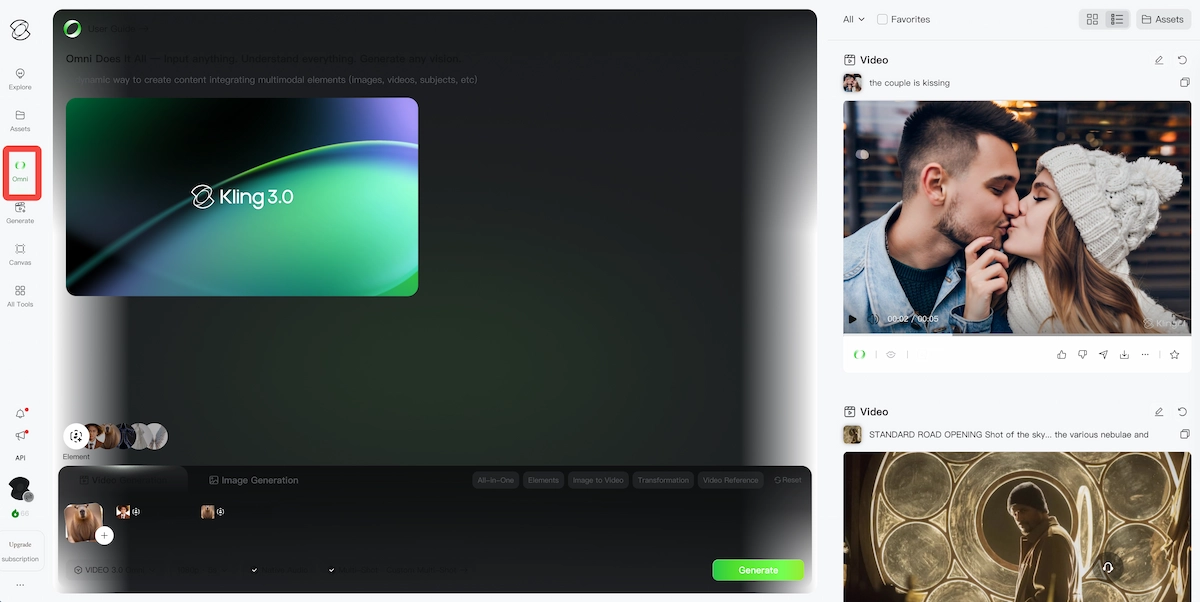
The practical implication for creators is significant. You are not managing a text-to-video tool plus a separate lip-sync tool plus an audio renderer. You are working with one model that understands narrative intent across all those dimensions simultaneously.
VidMuse and the Kling Model Suite
VidMuse integrates multiple Kling models — including Kling V3.0 Pro, Kling O1, and Kling O3 — within a structured music video production workflow.
Create Your AI Video in Minutes
Turn your idea into a video with VidMuse.
For indie musicians and content creators using VidMuse, the relevant distinction is this: Kling 3.0 Omni as a standalone model is powerful but requires you to manage all the creative orchestration yourself — elements, storyboards, shot sequencing, audio planning. VidMuse's AI music video generator handles that orchestration layer through its agent-based Creative Brief → Scene List → Storyboard → Generation workflow, so you are directing rather than prompt-engineering.
VidMuse's Studio mode accesses the highest-tier Kling models for production-quality output. Its Timeline Editor and Shot Refine by Quoting features (part of VidMuse 2.0) align directly with the multi-shot logic that Kling 3.0 Omni enables — you can refine individual shots without regenerating the full sequence, keeping credit usage efficient across a full MV build.
If you are working from a Suno AI track and want to turn it into a structured music video with consistent characters across 6–8 scenes, VidMuse's workflow gives you the storyboard scaffolding that Kling 3.0 Omni's raw interface does not. The VidMuse guide covers the full workflow from brief to final export.
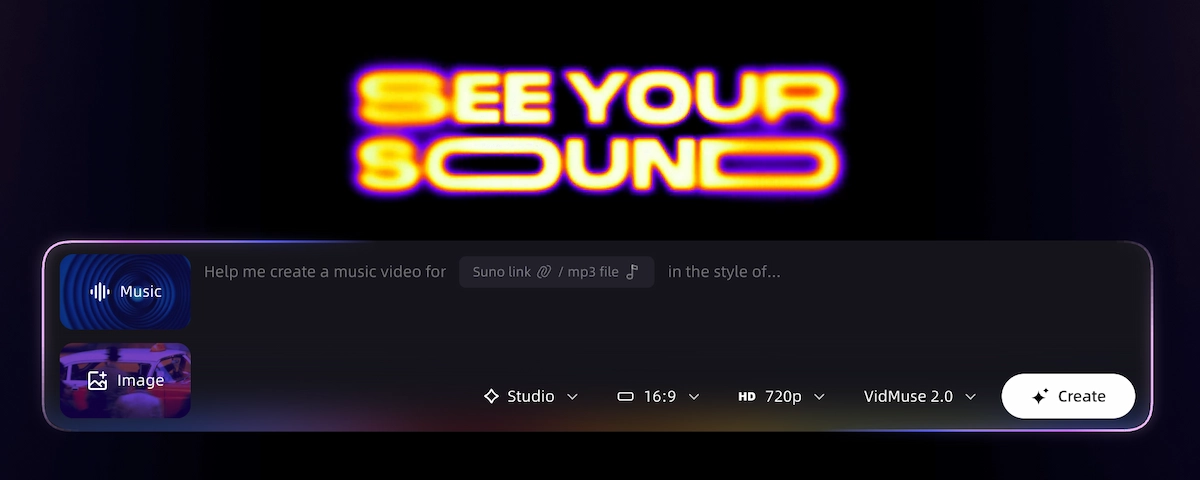
VidMuse does not currently integrate Kling 3.0 Omni specifically — the platform integrates Kling V3.0 Pro, Kling O1, and Kling O3. If your primary requirement is the video-character reference with voice binding that defines 3.0 Omni, using Kling AI directly is currently the right approach for that specific capability. For full music video production with structured narrative logic, VidMuse's multi-model workflow covers the creative pipeline.
Kling 3.0 Omni vs Kling 3.0: What's the Real Difference?
The standard Kling 3.0 and Kling 3.0 Omni are surprisingly close for basic generation — but diverge sharply when reference inputs and audio enter the picture.
Across controlled tests, Kling 3.0 and Kling 3.0 Omni showed largely comparable performance in standard text-to-video generation. In both single-shot and multi-shot scenarios, the models delivered strong realism, high resolution, and minimal artifacts. The clearest difference appeared in image-to-video evaluation: Kling 3.0 Omni preserved reference consistency and environmental integration effectively, while Kling 3.0 struggled to meaningfully incorporate provided reference images.
Here is a direct feature comparison:
Kling 3.0 (Standard)
Best for
- Text-to-video and image-to-video
- Native audio output
- Strong motion control and cinematic quality
Watch out
- No video-source character reference
- Less useful for appearance and voice binding
Kling 3.0 Omni
Best for
- Video character reference
- Elements 3.0 with voice binding
- Multi-image element support with voice upload
Watch out
- Higher credit cost when video reference input is used
- More setup effort for Elements workflows
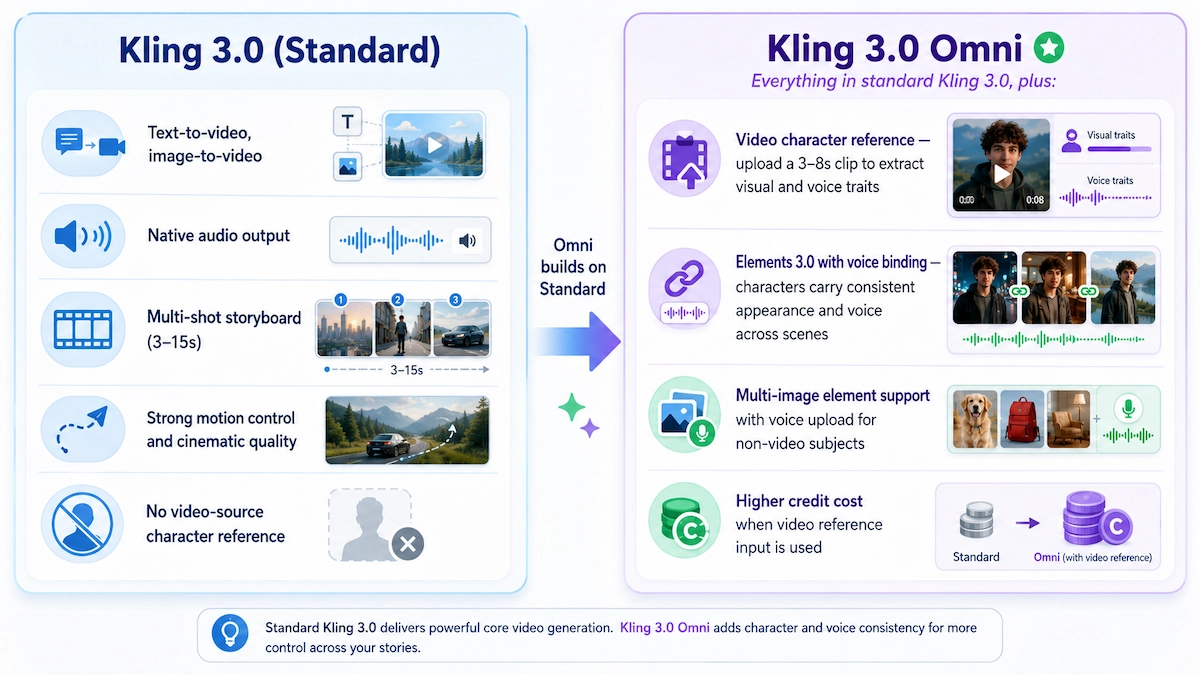
Kling 3.0 (Standard)
- Text-to-video, image-to-video
- Native audio output
- Multi-shot storyboard (3–15s)
- Strong motion control and cinematic quality
- No video-source character reference
Kling 3.0 Omni
- Everything in standard Kling 3.0, plus:
- Video character reference — upload a 3–8s clip to extract visual and voice traits
- Elements 3.0 with voice binding — characters carry consistent appearance and voice across scenes
- Multi-image element support with voice upload for non-video subjects
- Higher credit cost when video reference input is used
The rule of thumb: use standard Kling 3.0 when you are working from text or still images and audio sync is your main goal. Use Kling 3.0 Omni when you need a specific person, character, or product to maintain identity across multiple shots or scenes — especially when that character needs to speak in their own voice.
Core Features Explained
All-in-One Reference 3.0: Enhanced Consistency
Reference 3.0 is the foundation of what makes Kling 3.0 Omni different from one-shot generators. Every input you provide — images, elements, reference video, and text — is treated as a prompt by the model simultaneously.
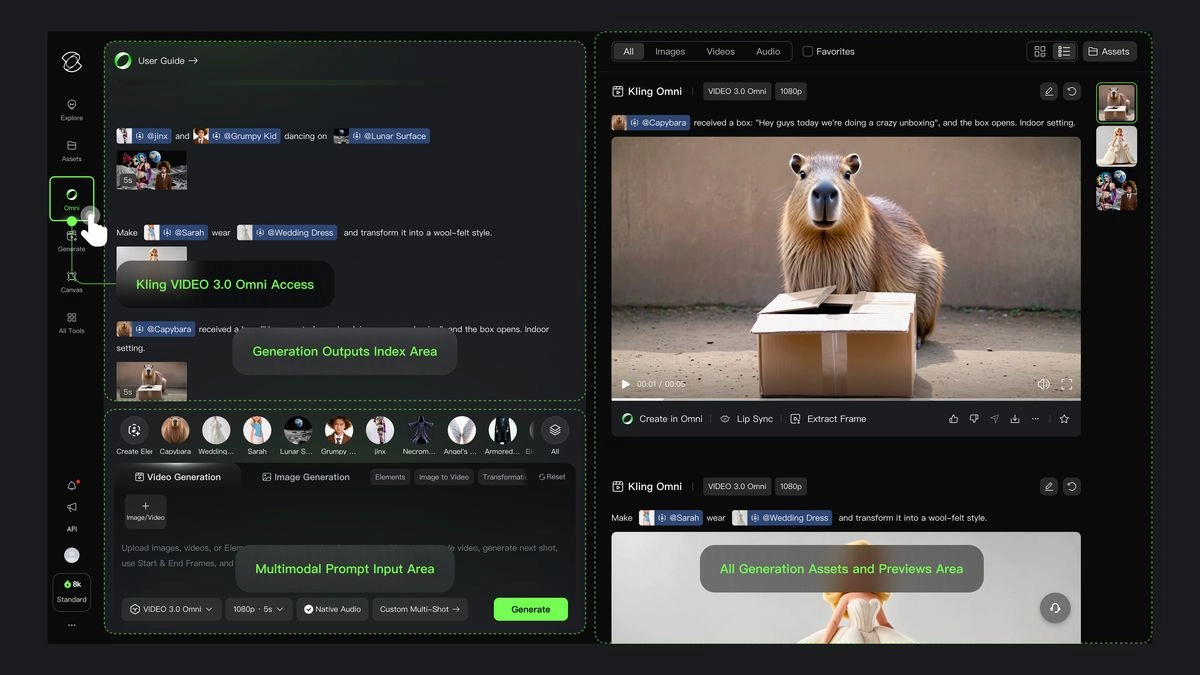
For enterprise and high-end creative workflows, the Kling Video 3.0 Omni model introduces "Elements 3.0" and superior control mechanisms. Users can upload or record a 3-to-8-second reference video, and the model extracts the core character traits and voice, perfectly preserving the likeness. You can literally perform a scene, and the AI will re-render it with your character in a new setting while maintaining visual and audio consistency.
In complex group scenes, Omni independently locks the features of each character or product item. One prompt can reference two human characters plus a product, and the model maintains each element's distinct identity simultaneously — without blending or hallucination drift between them.
Elements 3.0: Video-Character Reference with Voice
Elements 3.0 is the feature most discussed on Reddit and creator forums — and for good reason. It turns a short video clip of a real person into a reusable "character asset" that carries both their visual appearance and their voice across any new scene you generate.
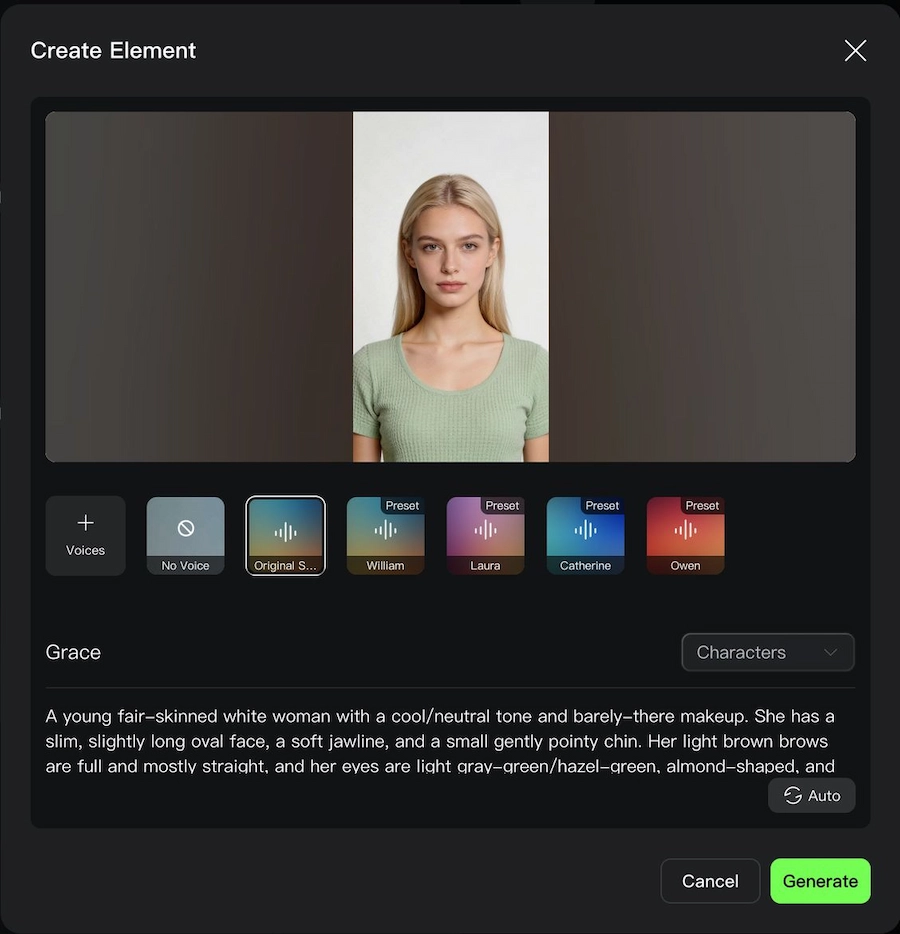
How it works in practice:
- Upload a 3–8 second video of a character (a person talking, walking, or performing)
- The model extracts visual traits and voice characteristics automatically
- Assign the element a name (e.g.,
@Grace) and a description - Reference
@Gracein any subsequent prompt and the character appears, moves, and speaks consistently
You can also build character elements from multiple still images without a video. In that case, upload a 5–30 second voice recording (clean background, consistent pace) and the model binds that voice to the image-based character.
This is why creators describe it as moving from "rolling the dice" to "directing the scene." The stochastic variance that makes most AI video frustrating for brand work or music video production collapses when you use Elements correctly.
Storyboard Narration 3.0: Multi-Shot Control Up to 15 Seconds
Storyboard Narration 3.0 gives you shot-level precision in a single generation pass, eliminating the frame-by-frame splicing that defined earlier AI video workflows.
The Video 3.0 Omni version has a storyboard tool that gives an unexpectedly high level of control. The duration, size, angle, pacing of the narrative, and camera movement per shot can be set by the user, and the model weaves these into a complete sequence.
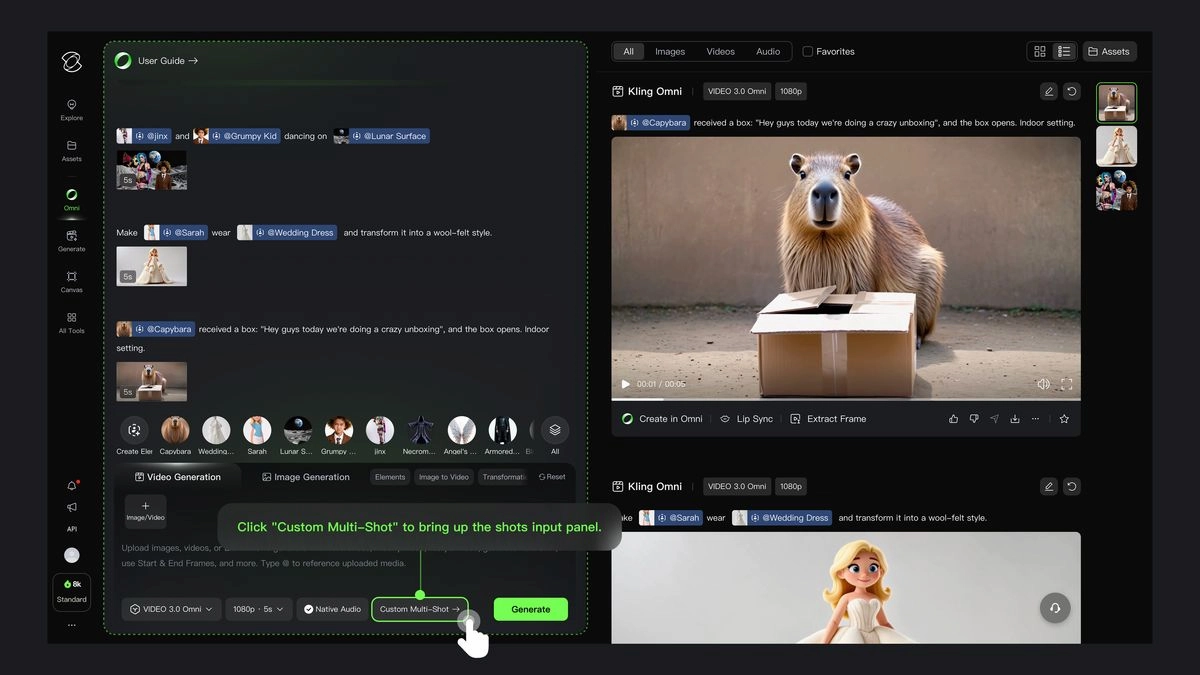
You write each shot as a bracketed instruction: shot number, duration in seconds, framing (wide, mid, close-up), camera movement, and what happens narratively. The model respects shot durations, transitions between setups, and character continuity from shot to shot.
A practical example structure for a 15-second multi-shot prompt:
- Shot 1 (2s): Wide shot — establish the location and character positions
- Shot 2 (3s): Mid-shot — character A speaks with camera slowly pushing in
- Shot 3 (4s): Close-up — reaction from character B, shallow depth of field
- Shot 4 (3s): Cut back to wide — both characters, camera begins pulling out
- Shot 5 (3s): Overhead wide — characters fade as scene closes
Total: 15 seconds, five shots, one generation.
Native Audio: Built-In Multilingual Dialogue
Native audio in Kling 3.0 Omni means the model generates synchronized speech, ambient sound, and sound effects as part of the video output — not as a post-processing step.
Kling 3.0 can generate audio that is lip-synced and language-specific directly from text prompts. No separate audio files are needed, and Kling 3.0 will create sync audio in five different languages and many dialects.
When native audio is enabled, credits cost more per second (12 credits/s at 1080p vs 8 credits/s without audio). If you are generating a draft pass or testing a scene's motion before committing to final audio, turning native audio off is the most practical way to control costs during iteration.
Create Your AI Video in Minutes
Turn your idea into a video with VidMuse.
How to Use Kling 3.0 Omni: Step-by-Step Prompt Guide
Effective Kling 3.0 Omni prompting requires three things working together: well-built Elements, a clear storyboard structure, and consistent @tag references throughout.
Build Your Elements First
Create character or product elements before writing the scene prompt by uploading reference video, multi-angle images, and optional voice recordings.
Establish Your Scene Reference
Upload a reference image for the environment so the model can keep spatial context stable between shots.
Write Your Multi-Shot Prompt
Write each shot with number, duration, framing, element tags, dialogue or action, and camera movement.
Choose Resolution and Audio Mode
Use 720p no-audio for drafts, 1080p without audio for motion review, and 1080p native audio for final output.
Generate and Refine
Use Shot Refine to regenerate specific shots instead of paying to rebuild the whole sequence.
Step 1 — Build Your Elements First
Before writing any scene prompt, create your character and product elements:
- Go to the Elements panel in Kling AI
- Upload a reference video (3–8 seconds, single character, clear face)
- Or upload up to 4 multi-angle images for image-based elements
- Add a voice recording if you want voice binding (5–30s, clean audio)
- Name the element and write a brief description of the character
Step 2 — Establish Your Scene Reference
Upload a reference image for the scene environment if you have one. This becomes @Image in your prompt. Scene references anchor the spatial context so the model does not drift visually between shots.
Step 3 — Write Your Multi-Shot Prompt
Structure each shot on a new line with this format:
Shot [N] ([duration]s): [Framing]. [Element tags] [action/dialogue]. [Camera movement].
Example: Shot 1 (3s): Wide shot. @Grace and @Alan sit in a café. Static camera, soft morning light. Shot 2 (4s): Close-up on @Grace. She says, "I've been thinking about what you told me." Camera slowly pushes in. Shot 3 (3s): Cut to @Alan's reaction. He looks down, then back up. "I know," he says.
Step 4 — Choose Resolution and Audio Mode
- 1080p with native audio — highest fidelity, best for final output (12 credits/s)
- 720p without audio — fastest and cheapest, ideal for draft testing (6 credits/s)
- 1080p without audio — good balance for motion review (8 credits/s)
Step 5 — Generate and Refine
Use the Shot Refine feature to re-generate specific shots within a completed output rather than regenerating the entire sequence. This is the most credit-efficient way to fix a single shot that did not land.
Kling 3.0 Omni Edit: How Video Editing Works
Kling 3.0 Omni Edit allows you to modify or replace elements within an existing generated video, not just generate new footage from scratch.
Kling 3.0 Omni is the unified multimodal video foundation model from Kuaishou. Think of it as the "everything" version of Kling 3.0 — it combines video generation, native audio, character voice consistency, and video source editing into a single model.
The primary edit mode is video source replacement: upload an existing clip, specify what to change (swap a character, alter the environment, change a costume), and Omni regenerates the clip while preserving the motion and timing. This is particularly useful for:
- Swapping a placeholder actor for an AI-character version of the same performance
- Changing the scene background while keeping character motion intact
- Inserting a branded product into lifestyle footage
Note that the video editing, prompt transformation, and related features in 3.0 Omni function the same as in VIDEO O1. If you are already familiar with the O1 editing workflow, the muscle memory transfers directly.
When comparing Kling 3.0 Omni Edit vs Higgsfield, the two tools serve different primary purposes. Higgsfield is built around motion style transfer and camera control as the core edit interaction. Kling 3.0 Omni Edit is optimized for character and element consistency during replacement — it is better suited to workflows where identity continuity matters more than stylistic motion remapping.
Kling 3.0 Omni Pricing and Free Access
Kling 3.0 Omni is accessible on a free tier, but production use requires paid credits.
The official Kling AI platform offers a free tier at $0 with 66 credits per day (no rollover); Standard at $6.99/month with 660 credits; Pro at $29.99/month with 3,000 credits; and Ultra at $59.99/month with 8,000 credits.
Credit costs for Kling 3.0 Omni specifically:
- 1080p, native audio on: 12 credits per second
- 720p, native audio on: 9 credits per second
- 1080p, native audio off: 8 credits per second
- 720p, native audio off: 6 credits per second
- With video input (for character reference): 16 credits/s at 1080p, 12 credits/s at 720p
A 15-second 1080p generation without audio costs 120 credits. A 15-second generation with native audio at 1080p costs 180 credits. On the free tier, that represents 2–3 days of daily credit accumulation per generation. For regular production use, the Pro or Ultra tier is necessary.
Kling 3.0 Omni free access note: The free plan does include Omni mode access with the full feature set. Restrictions are on daily credit volume and resolution output quality (720p output may carry a watermark at the free tier, depending on current platform settings — check the Kling AI platform for the latest free tier conditions).
Third-party platforms including Freepik, Higgsfield, and multi-model platforms bundle Kling access within their own subscription structures, sometimes offering better effective cost per generation depending on your existing tool stack.
What Kling 3.0 Omni Does Not Do Well
Every capable model has constraints worth knowing before you commit credits.
Kling 3.0 Omni represents strong control in AI video generation, but this power comes with a learning curve. Unlike standard text-to-video or image-to-video models, you need to invest time in understanding how Elements, the @ tagging system, and multi-shot logic work together. This creates a higher barrier to entry compared to one-click generators.
Additional practical limitations:
- Video input for character reference is not yet supported with native audio on. If you upload a reference video, you must generate without native audio at this time and add audio in post.
- Maximum of 4 images/elements when a video is provided as input. Without a video, you can reference up to 7 images or elements.
- Video inputs are limited to 3–10 seconds, under 200MB, and 2K resolution maximum. Very long or high-resolution reference clips will need to be trimmed before upload.
- Complex crowd scenes with many individual elements can produce inconsistency even with well-built elements. The model performs best with 2–3 clearly defined character references per shot.
- The @ tagging system requires clean element naming. Elements with similar descriptions can produce ambiguous outputs. Name characters distinctly and keep their descriptions concise.
Common Mistakes When Using Kling 3.0 Omni
- Not building Elements before writing the scene prompt. If you reference
@Characterbefore creating that element, the model has nothing to anchor to. Always build elements first. - Writing prose instead of shot-by-shot instructions. Narrative paragraphs produce inconsistent shots. Structured shot lists produce consistent sequences.
- Leaving native audio on during draft iterations. Audio costs significantly more per second. Run 720p no-audio drafts until the motion and character behavior is right, then do a final 1080p audio pass.
- Uploading reference videos longer than 8 seconds. The model uses a 3–8 second clip for element creation. Longer clips must be trimmed before upload or the system will reject them.
- Using the same broad description for multiple characters. "Young woman with dark hair" used for two different character elements will cause the model to blend them. Use specific distinguishing details (distinctive clothing, accessories, visible features).
FAQ
What is Kling 3.0 Omni?
Kling 3.0 Omni is the flagship AI video generation model in Kuaishou's Kling 3.0 series, released February 2026. It is the direct upgrade of Kling VIDEO O1 and adds native audio output, video-source character reference (Elements 3.0), voice binding for AI characters, and multi-shot storyboard control up to 15 seconds per generation.
What is the difference between Kling 3.0 and Kling 3.0 Omni?
Both models support native audio and multi-shot generation. The key distinction is that Kling 3.0 Omni supports video-source character reference — you can upload a short clip of a real person and the model will replicate their appearance and voice consistently across new scenes. Standard Kling 3.0 does not support this video reference input. For basic text-to-video or image-to-video work without character reference, the two models perform similarly.
Is Kling 3.0 Omni free?
Yes, Kling AI provides 66 free credits per day on its free tier, which includes access to Kling 3.0 Omni. Free-tier credits do not roll over. For production use — a single 15-second 1080p generation with audio costs approximately 180 credits — paid plans are required. The Pro plan ($29.99/month) provides 3,000 credits and is the most practical entry point for regular creative use.
How do I write prompts for Kling 3.0 Omni?
The most effective Kling 3.0 Omni prompt guide starts with creating Elements first, then writing shot-by-shot instructions using `@ElementName` tags. Structure each shot with: shot number, duration in seconds, framing type, element references, dialogue or action, and camera movement. Using structured multi-shot format consistently produces far more coherent and usable results than prose-style prompting.
Can I use Kling 3.0 Omni as a video editor?
Kling 3.0 Omni Edit allows you to modify existing video clips by swapping characters, changing environments, or replacing elements while preserving the underlying motion. It is most effective for character replacement and element substitution within an existing scene — not a traditional timeline-based video editor. For full timeline editing and multi-scene music video assembly, a dedicated platform like VidMuse provides more structured production controls.
What is the Kling 3.0 Omni credit cost?
At 1080p with native audio, Kling 3.0 Omni costs 12 credits per second. At 720p without audio, it costs 6 credits per second. When a video input is provided for character reference, the cost increases to 16 credits per second at 1080p. Native audio is not yet supported when video input is used.
How does Kling 3.0 Omni compare to Kling O3?
Kling O3 (also called Kling VIDEO O3) is a separate model in the Kling ecosystem optimized for precision reference-to-video workflows. Kling 3.0 Omni and O3 perform similarly for standard text-to-video and image-to-video generation; O3 becomes more expensive and more specialized when used for reference-heavy or video editing routes. For most music video and content creation use cases, Kling 3.0 Omni's feature set is sufficient.
In The End
Kling 3.0 Omni is the most capable model Kuaishou has released for structured, character-consistent AI video production. Its distinguishing value is not motion quality alone — it is the ability to lock a character's appearance and voice across a multi-shot sequence, generating up to 15 seconds of professional-grade narrative video from a single prompt. For creators who have felt limited by the randomness of earlier AI video tools, Omni's Elements system represents a genuine shift toward intentional, repeatable production.
The learning curve is real. Building Elements, writing structured shot lists, and managing credit costs across draft and final passes requires investment. But the payoff — coherent characters, synchronized audio, and multi-shot sequences that cut together — is worth it for anyone producing music videos, short-form branded content, or serialized visual storytelling.
If you are a musician or content creator working within a full production pipeline, explore how VidMuse's AI Director workflow combines structured narrative logic with the Kling model suite — so you can focus on your creative vision rather than prompt engineering.
Create Your AI Video in Minutes
Turn your idea into a video with VidMuse.

Written By
VidMuse Team
Continue Reading
Latest blog posts related to AI video creation.
PixVerse V6 x VidMuse AI: Model Guide and Video Workflow
PixVerse V6 review and VidMuse integration guide. Capabilities, 15s 1080p video, prompt tips, model comparison, pricing, and how to use V6 in VidMuse workflows.
FLUX 3: What It Is, Capabilities, and How to Access It
FLUX 3 is Black Forest Labs' multimodal AI model for image, video, audio, and action. Full guide: capabilities, FLUX 3 vs FLUX 2, availability, and pricing.
Free Music Visualizer: 10 Best Free Tools in 2026
Compare 10 best free music visualizers in 2026. Waveform tools, AI music video makers, watermark policies, export limits, and which tool fits your workflow.