

A lyric video generator is the fastest way to turn a finished song into a synced music video: upload your audio, add or auto-transcribe lyrics, choose a visual style, review timing, and export for YouTube, TikTok, Reels, or your release page. The right choice depends on whether you need simple karaoke-style text, an AI lyric video maker that generates visuals from the lyrics, or a fuller AI music video workflow that plans scenes around the track.
Table of Contents
- Key Takeaways
- What Is a Lyric Video Generator?
- When Should You Use a Lyric Video Maker?
- How an AI Lyric Video Generator Works from Audio
- How to Make a Lyric Video Step by Step
- Lyric Video Generator vs AI Music Video Generator
- How to Choose the Right AI Lyric Video Maker
- Where VidMuse Fits in a Lyric Video Workflow
- Common Mistakes That Make Lyric Videos Hard to Watch
- Troubleshooting: Fix Sync, Readability, and Export Problems
- FAQ
- Conclusion
Key Takeaways
These takeaways summarize the fastest path to a watchable, release-ready lyric video.
- A lyric video generator from audio usually combines transcription, lyric timing, text animation, background visuals, and export settings in one workflow.
- A free lyric video maker can be useful for drafts, demos, or social tests, but check watermark, resolution, export length, and commercial-use limits before publishing.
- AI sync is a strong first pass, not a substitute for review. Always check lyric accuracy, line breaks, timing, and readability before release.
- Simple lyric videos work best when the song needs speed and clarity. AI music video workflows work better when the release needs story, scenes, characters, or campaign assets.
- VidMuse is most relevant when a song needs more than subtitles: a planned music video workflow with Creative Brief, Reference Generation, Scene & Shots List, Storyboard, and Video Generation.
What Is a Lyric Video Generator?
A lyric video generator turns a song and its lyrics into a timed video that listeners can read, sing along with, and share.
At the simplest level, a lyric video is a music video where the lyrics are the central visual element. The background may be album art, motion graphics, stock footage, AI-generated scenes, a visualizer, or performance footage. The important part is that the words appear at the right time and remain easy to read.
A traditional lyric video maker gives you editing tools for text, fonts, timing, backgrounds, and export. An AI lyric video generator adds automation: it may transcribe the audio, detect timing, create word-level or line-level sync, suggest animation, and sometimes generate visuals that match the mood or meaning of the song.
The user intent is usually practical: “How do I turn my song into a video without manually timestamping every line?” That pain point appears clearly in creator communities, including a Reddit thread where a Suno AI user asks for something automated because they do not want to write lyric timestamps by hand.
A lyric video is not just subtitles
A lyric video is designed as music content, not accessibility captions pasted onto a clip. Good lyric videos use typography, motion, pacing, and visual hierarchy to support the emotion of the song.
For example:
- A stripped-back acoustic song may need slow line-by-line lyric reveals.
- A rap track may need word-level timing and high-contrast text.
- An EDM hook may need beat-reactive text animation.
- A cinematic pop release may need AI-generated scenes, visual motifs, and a shot plan.
The main job is not to show every word as quickly as possible. The job is to make the lyrics feel intentional.
When Should You Use a Lyric Video Maker?
A lyric video maker works best when the song needs visual content quickly, but a full live-action or cinematic music video is not practical.
Artists often use lyric videos before, during, or after a release campaign. They can help a song feel publishable on video-first platforms even when there is no filmed performance footage. They also give fans a reason to replay the song, learn the words, quote lines, and share the chorus.
Use a lyric video when:
- You have a finished single and need a YouTube asset.
- You want short hook clips for TikTok, Reels, or Shorts.
- You are releasing a Suno, Udio, or self-produced track and need visuals.
- You have album art but no full music video footage.
- You want fans to focus on lyrics, story, or sing-along value.
- You need a lower-cost visual asset for a release rollout.
A lyric video is especially useful for independent musicians because it lowers the production barrier. You do not need a location, crew, lighting setup, performer shoot, or complex edit. You need clean audio, accurate lyrics, a readable visual style, and time to review the sync.
When a lyric video is not the right approach
A lyric video is not always the strongest format. If the song depends on choreography, performance energy, character storytelling, or cinematic world-building, a plain lyric video may feel too static.
Consider a fuller AI music video generator workflow when:
- The release needs a narrative arc.
- The artist brand depends on visual identity.
- You want scenes, shots, avatars, or performance visuals.
- You need multiple campaign assets from the same concept.
- The lyrics are minimal, repetitive, or not the main emotional hook.
In those cases, lyrics can still appear on screen, but they should support the video rather than carry the entire visual experience.
How an AI Lyric Video Generator Works from Audio
An AI lyric video generator from audio creates a first draft by analyzing the song, estimating lyric timing, and placing text over a visual layer.
Most workflows follow the same basic path: upload the track, provide or generate lyrics, sync the words to the vocal performance, customize the look, and export. Tools differ in how much they automate and how much creative control they give you afterward.
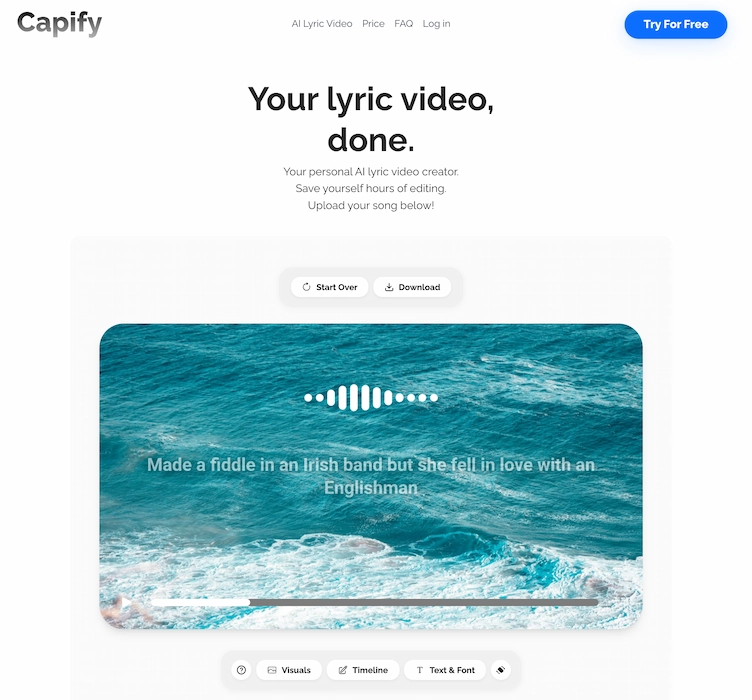
For example, Capify describes an audio-first workflow where users upload a song, review synced lyrics, customize visuals, and export; its page also highlights word-level timing, editable lyrics, fonts, backgrounds, animations, and real-time playback. (Capify)
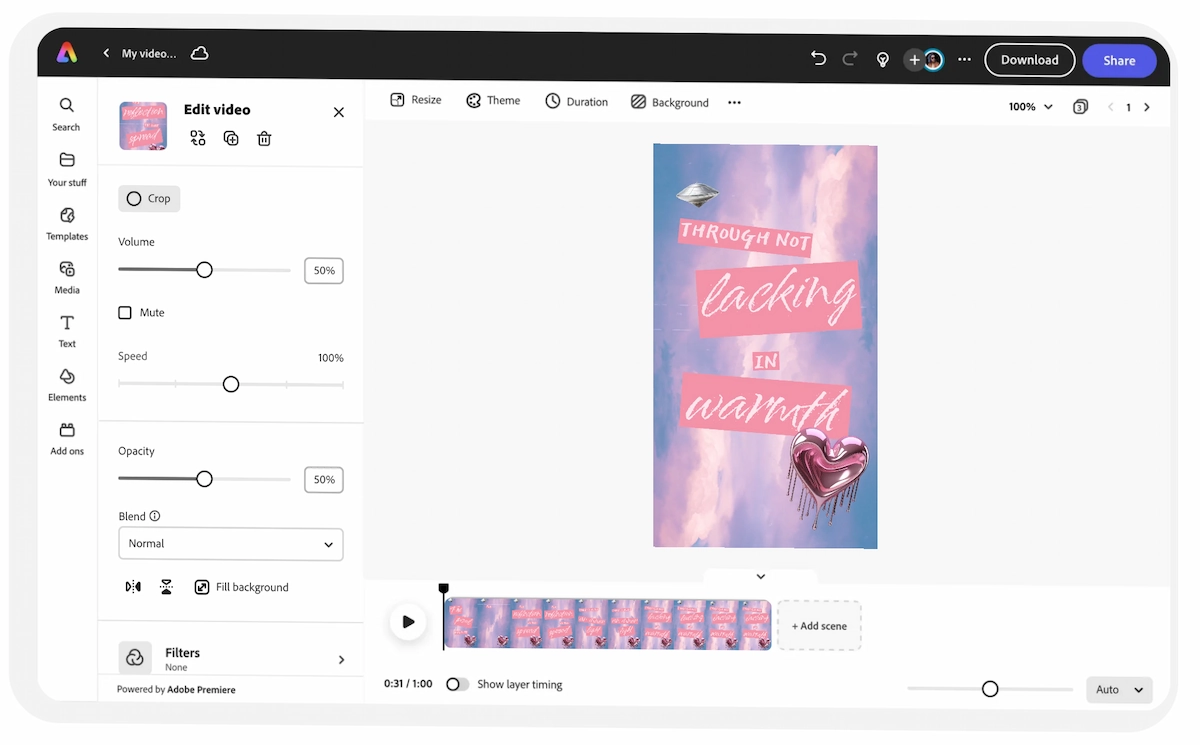
Adobe Express focuses more on templates and general video editing, letting users upload a soundtrack, add images, trim or crop scenes, resize videos, and customize lyric videos with fonts and branded elements. (Adobe)
The core parts of AI lyric sync
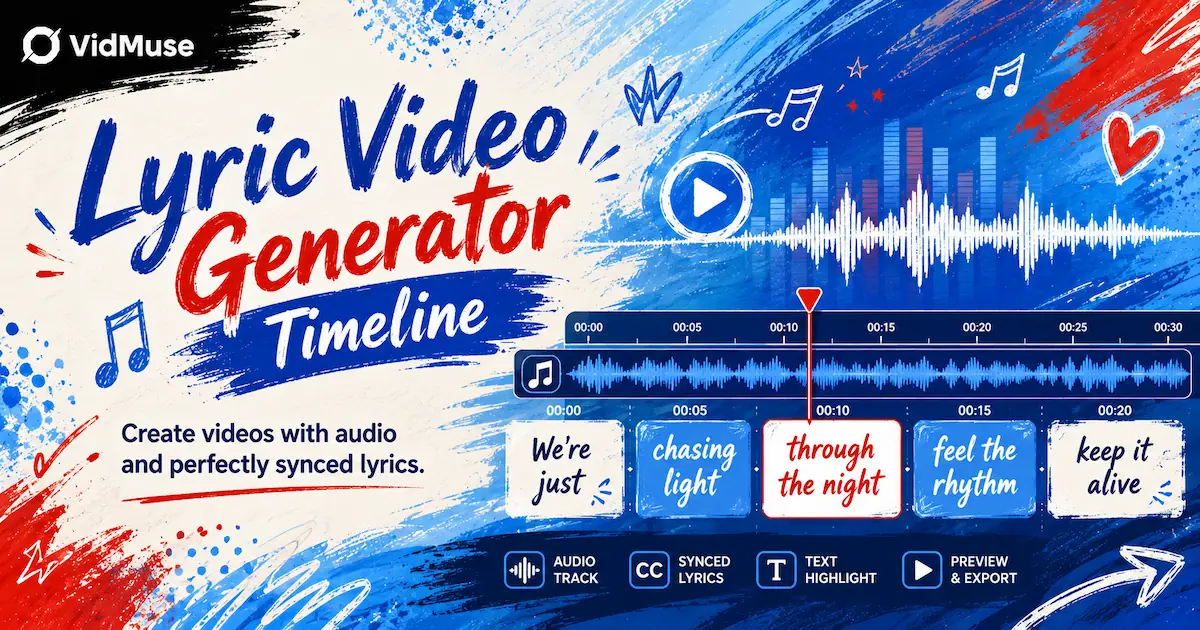
AI lyric sync usually involves four layers:
- Audio analysis
The tool reads the audio file and detects vocal timing, phrasing, pauses, and sometimes beat structure. - Transcription or lyric input
Some tools auto-transcribe the song. Others let you paste lyrics or upload a lyric file. For music, pasted lyrics are often safer because sung vocals, harmonies, ad-libs, and vocal effects can confuse transcription. - Timing alignment
The system estimates when each line, word, or phrase should appear. Word-level sync is useful for karaoke-style and rap videos. Line-level sync can feel cleaner for ballads, singer-songwriter tracks, and cinematic visuals. - Visual rendering
The tool combines text, animations, backgrounds, aspect ratio, and export settings into the final video.
This automation is valuable because manual timing can be slow. However, AI timing is still an estimate. Fast flows, layered vocals, unclear mixes, and stylized pronunciation can all create errors.
What “AI” can mean in lyric video tools
The phrase lyric video generator AI can describe different features, so check what the tool actually does.
AI may mean:
- Auto-transcription from audio
- Word-level lyric timing
- Beat detection
- Automatic text animation
- AI-generated backgrounds
- Scene generation from lyric meaning
- Prompt-based editing
- Full storyboard planning
Neural Frames, for example, positions its lyric tool around AI-generated scenes where lyrics become part of the picture, and its workflow describes uploading a track, detecting lyrics and timing, creating scenes per lyric, and exporting for platforms. (Neural Frames) That is different from a template editor where lyrics sit over album art.
Neither approach is automatically better. The right approach depends on whether your main goal is clarity, speed, visual originality, or a complete music video experience.

How to Make a Lyric Video Step by Step
A strong lyric video workflow starts with clean inputs, then moves through sync, style, review, and platform-specific export.
Prepare the audio and lyrics
Start with the cleanest version of the track and prepare official lyrics in a plain text document.
Choose the right visual format
Decide whether the release needs horizontal, vertical, square, Spotify Canvas-style, visualizer, or full MV output.
Upload audio into your lyric video maker
Upload the song and treat the first generation as a timing and structure draft.
Add or verify the lyrics
Compare AI transcription against official lyrics, especially for fast vocals, ad-libs, and multilingual phrases.
Review timing line by line
Check the sync before judging visuals, then correct early, late, or unreadable lyric timing.
Design for readability first
Use high contrast, simple fonts, mobile-safe margins, and stable lyric placement.
Match visuals to the song's emotional arc
Let colors, motion, background intensity, and lyric animation evolve by song section.
Export and review on real devices
Watch drafts on phone, laptop, and TV before publishing.
Do not begin by choosing fonts or effects. Begin by deciding what the video must achieve: sing-along clarity, social hook promotion, full YouTube release, or a bridge toward a complete music video. That decision affects every editing choice.
Step 1: Prepare the audio and lyrics
Start with the cleanest version of the track you can use. Export a final mix or approved demo in a common format such as MP3 or WAV. Avoid uploading rough versions if the timing or structure may change.
Then prepare the lyrics in a plain text document.
Before importing, check:
- Spelling and capitalization
- Repeated choruses
- Ad-libs and background lines
- Explicit lyric preferences
- Line breaks by musical phrase
- Section labels such as verse, chorus, bridge, and outro
Good line breaks matter. A lyric video should follow how the listener hears the song, not how the lyrics appear in a notebook.
Step 2: Choose the right visual format
Pick the format before generating the video.
Common options include:
- Full horizontal video for YouTube
- Vertical short for TikTok, Reels, or Shorts
- Square teaser for feeds
- Spotify Canvas-style short loop
- Background visualizer with lyrics
- Story MV or performance-style music video with lyrics
If you need one full video and several short clips, plan for both from the start. A lyric layout that works in 16:9 may not fit a vertical crop. Large centered text often adapts better than wide multi-line text.
Step 3: Upload audio into your lyric video maker
Upload the track into your chosen tool. Some platforms start from audio only. Others ask for a video, image, album artwork, or template first.
MakeLyricVideo, for example, presents a workflow built around uploading a song file, auto-syncing lyrics, using dynamic animations, and downloading the result; its FAQ also says users can edit lyrics or timing after generation.
At this stage, do not judge the final quality too early. The first generation is usually a timing and structure draft.
Step 4: Add or verify the lyrics
If the tool auto-transcribes lyrics, compare them against your official lyric sheet. AI transcription can struggle with:
- Vocal doubling
- Heavy reverb
- Fast rap delivery
- Non-English phrases
- Slang or invented words
- Backing vocals
- Intentional pronunciation changes
If the tool lets you paste lyrics first, do that. Official lyrics usually produce cleaner results than raw transcription.
Step 5: Review timing line by line
Play the video from start to finish and watch only the sync. Do not review visuals yet.
Look for:
- Lines appearing too early
- Lines disappearing too late
- Words lagging behind the vocal
- Chorus timing drifting after repeated sections
- Rap verses where text cannot be read quickly enough
- Instrumental breaks where lyrics should pause
A good rule: if you notice the sync error on first watch, fans will notice it too.
Step 6: Design for readability first
Readable lyric design beats flashy lyric design.
Use:
- High contrast between text and background
- Simple fonts for fast sections
- Larger type for mobile viewing
- Short line lengths
- Consistent lyric placement
- Safe margins away from platform UI
Avoid:
- Thin fonts over busy backgrounds
- Too many animation styles
- Text that moves faster than the vocal
- Full-screen lyrics on every beat
- Long paragraphs of lyrics
- Low-contrast colors
This is where many lyric videos fail. The viewer should not work hard to read.
Step 7: Match visuals to the song’s emotional arc
A lyric video should evolve with the track. Even a simple video can change background intensity, lyric animation, color, or motion between sections.
For example:
- Verse: minimal motion, smaller text, darker background
- Pre-chorus: rising motion, more contrast
- Chorus: larger typography, stronger animation
- Bridge: visual reset or new color palette
- Final chorus: full energy, brighter or wider composition
This structure makes the video feel produced rather than pasted together.
Step 8: Export and review on real devices
Export a draft and watch it where the audience will watch it: a phone, laptop, and TV if the video is for YouTube.
Check:
- Can you read the lyrics on a phone?
- Does the audio stay in sync after export?
- Are captions or platform buttons covering text?
- Does the first 3 seconds make sense without context?
- Does the thumbnail frame communicate the song mood?
- Are the artist name and song title visible where needed?
Do one final review with audio on and another with audio off. If the visual hook still makes sense without sound, it is more likely to work in social feeds.
Watch for the order of decisions: audio first, lyrics second, sync third, visuals fourth, export last. This prevents the most common problem: designing a beautiful video around inaccurate timing.
The key takeaway is simple. AI can speed up the first draft, but the publishable version still comes from human review.
Lyric Video Generator vs AI Music Video Generator
A lyric video generator focuses on synchronized words, while an AI music video generator focuses on visual scenes, pacing, story, and music-driven direction.
This distinction matters because many musicians search for a lyric tool when they actually need a music video workflow. The formats overlap, but they are not the same.
Lyric Video Generator
Best for
- Fast release asset
- Sing-along clarity
- Hook clips
- Text-first workflow
Watch out
- Can feel static
- Depends heavily on readable timing
AI Music Video Generator
Best for
- Scenes and shots
- Narrative or abstract direction
- Reusable campaign assets
- Full visual identity
Watch out
- Needs more planning than a basic lyric video
Choose a lyric video generator when clarity is the goal
Use a lyric-first workflow when:
- The lyrics are the main selling point.
- You need a fast release asset.
- You want fans to sing along.
- You have limited visual assets.
- You are making a YouTube lyric upload.
- You need short lyric clips from the hook.
A free lyric video generator can be enough for demos, social snippets, or early fan tests, especially if the watermark and export quality are acceptable for your use.
Choose an AI music video generator when the release needs scenes
Use a music-video-first workflow when:
- You want a narrative or abstract MV.
- You need shots, not only text.
- You want recurring visual motifs.
- You need performance, avatar, or lifestyle content.
- You want multiple assets from one creative direction.
- You are turning a Suno or Udio track into a fuller release package.
Freebeat, for example, describes an AI music video workflow where users upload an MP3 or paste a link from sources including Suno or Udio, choose a mode and style, generate and refine, then turn on lyrics for a synced lyrics video. That shows the key difference: lyrics are one layer inside a broader music-to-video process.
Use both when the song needs clarity and world-building
Many releases benefit from a hybrid format. The video can have scenes, movement, and visual identity while still showing the most important lyrics.
A hybrid lyric MV may use:
- Lyric overlays only during the chorus
- Large typography for hook phrases
- Story scenes during verses
- Performance visuals during drops
- Minimal lyrics in instrumental sections
- Social cutdowns built around the most quotable line
This is often the strongest format for AI-generated songs. It avoids the static feeling of a basic lyric video while keeping the words easy to understand.
How to Choose the Right AI Lyric Video Maker
The right AI lyric video maker is the one that matches your release goal, editing skill, visual ambition, and publishing requirements.
Do not choose based only on whether a tool says “AI” or “free.” Choose based on the final asset you need.
Use this decision framework
Ask these questions before choosing:
- Do I need a full song video or short clips?
- Do I need word-level sync or line-level sync?
- Do I already have official lyrics?
- Do I want album art, templates, visualizer motion, or AI-generated scenes?
- Do I need horizontal, vertical, and square versions?
- Will I publish commercially?
- Can I remove the watermark?
- Can I edit wrong lyrics and timing?
- Can I reuse assets across multiple releases?
- Do I need a lyric video only, or a full AI music video?
Features that matter most
Look for these capabilities:
- Audio upload from common formats
- Manual lyric editing
- Timing adjustment after AI sync
- Word-level or line-level control
- Font and color customization
- Background image or video support
- Motion and animation controls
- Multiple aspect ratios
- HD export
- Clear watermark policy
- Commercial-use clarity
- Project saving and versioning
The ability to edit mistakes is especially important. Any tool can look impressive in a demo. A serious release workflow needs correction controls.
Free lyric video maker tradeoffs
A free lyric video maker is useful when you are testing ideas, making a demo, or creating low-risk social content. It may not be enough for a final release if the export includes a watermark, limited resolution, short length, or restricted editing.
For instance, MakeLyricVideo says its free download includes a small watermark and offers a paid option to remove it. (Make a Lyric Video) That type of detail is exactly what you should check before committing a release asset.
A lyric video generator AI free workflow is best treated as a preview unless the terms, quality, and watermark meet your publishing standard.
What to test before publishing
Before using any tool for a real release, create a 20–30 second test using the hardest part of the song.
Pick a section with:
- Fast vocals
- Dense lyrics
- A chorus transition
- Backing vocals
- A beat drop
- A quiet phrase
- A line that must be visually emphasized
If the tool handles the hardest section well, it will probably handle the rest of the song with fewer corrections.
Where VidMuse Fits in a Lyric Video Workflow
VidMuse fits best when a lyric video needs planned music-video direction, not just automated text over a background.
Create Your AI Video in Minutes
Turn your idea into a video with VidMuse.
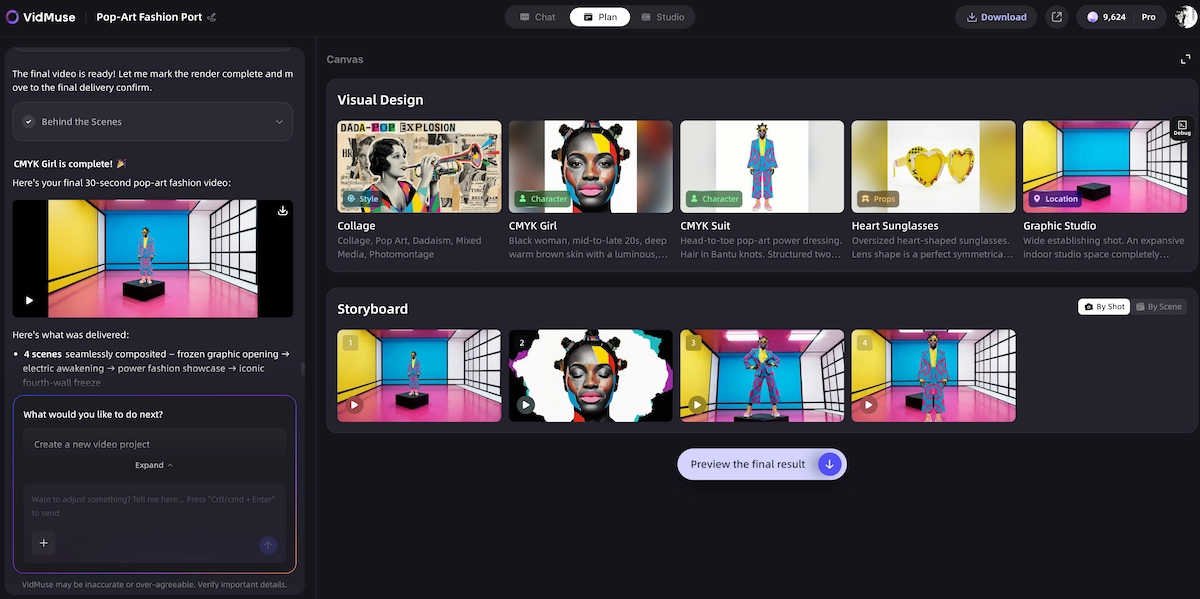
VidMuse is an AI audio-visual creation platform positioned as an AI Director for music video production. Its core workflow is Creative Brief → Reference Generation → Scene & Shots List → Storyboard → Video Generation. That makes it relevant when your goal is not only to display lyrics, but to turn a song into a structured visual piece.
For a simple karaoke lyric video, a dedicated lyric sync tool may be enough. For an indie musician who wants to turn a Suno or Udio-style track into a stronger visual release, VidMuse can help plan a fuller MV around the song’s mood, sections, and creative direction.
How VidMuse can support lyric video making
VidMuse is useful when you want to move from “lyrics on screen” to a real visual concept.
A practical VidMuse workflow could look like this:
- Creative Brief
Define the song mood, artist identity, target platform, lyric themes, and visual references. - Reference Generation
Create or organize visual references for the release world, such as color, character, location, texture, or motion style. - Scene & Shots List
Break the song into sections and decide what each verse, chorus, bridge, or drop should show. - Storyboard
Map the key visual moments before generating final clips. - Video Generation
Generate the scenes through the appropriate video model workflow, then refine the result for release.
This is different from one-shot prompting. VidMuse’s differentiator is agent-based logic: it plans the full MV rather than only executing a single prompt.
When to use VidMuse Studio or Lite
Use Studio when quality and creative control matter most. This is the flagship mode and is better aligned with full MVs, polished visual storytelling, performance concepts, and release assets where the visual identity matters.
Use Lite when speed and cost efficiency are more important. Since Lite uses the Seed series, it can be a practical choice for rapid drafts, social variations, or lean creator workflows.
For lyric-led concepts, VidMuse template types can help shape the direction:
- Story MV for narrative lyrics
- Abstract MV for mood, metaphor, or experimental visuals
- Performance MV for artist or avatar-driven presentation
- Viral Short for hook-first social clips
- TVC for brand or campaign-style music content
- Explainer for educational or SMB marketing uses
How VidMuse 2.0 features help after generation
VidMuse 2.0 features are relevant when a release needs iteration.
Shot Refine by Quoting can help creators point to a specific shot or moment and refine it without restarting the whole creative direction.
Timeline Editor can help organize generated clips into a structured sequence, which matters when lyrics, beats, and visual changes must line up.
Asset Library & Memory can help keep recurring references, characters, or visual motifs consistent across a project or creator workflow.
For indie musicians, this matters because a lyric video is often only one part of a release campaign. The same visual world may need a full MV, teaser clips, chorus cutdowns, thumbnails, and future song visuals.
Common Mistakes That Make Lyric Videos Hard to Watch
Most lyric video problems come from poor sync, weak readability, or visuals that distract from the song.
A lyric video can look modern and still fail if the viewer cannot comfortably follow the words. The best lyric videos are usually disciplined: clear text, intentional pacing, and a visual system that supports the track.
Mistake 1: Trusting AI transcription without review
AI transcription can save time, but it should not be treated as final lyrics. Always compare the output to the official lyric sheet.
Pay special attention to:
- Artist names
- Slang
- Repeated phrases
- Background vocals
- Non-English words
- Emotional ad-libs
- Homophones
- Profanity edits
One wrong word in a lyric video can become the only thing fans remember.
Mistake 2: Using text that is too small for mobile
Many creators design on a desktop screen and forget that the video will be watched on a phone.
Use larger text than you think you need. Test vertical versions on an actual device. Keep important words away from the bottom and side areas where platform interfaces may cover them.
Mistake 3: Over-animating every line
Motion should help the listener feel timing, emphasis, and emotion. It should not compete with the vocal.
Use stronger animation for:
- Hooks
- Drops
- Title lines
- Emotional phrases
- Final chorus moments
Use simpler animation for:
- Fast verses
- Dense lyrics
- Quiet bridges
- Story-heavy sections
Mistake 4: Choosing visuals that fight the lyrics
A busy background can make even beautiful typography unreadable. If the background changes color, brightness, or texture constantly, the lyrics may disappear.
Fix this with:
- Text shadow
- Background blur
- Dark overlays
- Consistent lyric placement
- High-contrast text
- Simpler backgrounds during fast sections
Mistake 5: Exporting only one aspect ratio
A YouTube lyric video is not automatically a good TikTok clip. A vertical crop can cut off text, distort composition, or hide important words behind interface elements.
Plan your exports:
- 16:9 for YouTube
- 9:16 for TikTok, Reels, and Shorts
- 1:1 when a square feed asset is needed
- Short hook edits for social testing
Mistake 6: Treating the lyric video as an afterthought
A lyric video is part of the release experience. Fans may discover the song through it before they hear the track anywhere else.
Add basic release context where appropriate:
- Artist name
- Song title
- Album or EP name
- Release date, if relevant
- Visual motif from the cover art
- Call-to-action in the description, not over the whole video
Keep the video clean, but do not make it anonymous.
Troubleshooting: Fix Sync, Readability, and Export Problems
Troubleshooting a lyric video is easiest when you isolate one problem at a time: words, timing, visuals, then export.
Do not regenerate the entire project for every issue. First identify whether the problem is transcription, timing, design, or format.
If the lyrics are wrong
Use official lyrics rather than relying only on transcription. Paste the correct text if the tool allows it. For unusual names, slang, or multilingual lines, check every occurrence.
If a phrase is intentionally unclear in the song, decide how you want it written. The lyric video becomes part of the official interpretation.
If the timing feels late
Shift the line slightly earlier. Lyrics often need to appear a fraction before the vocal so the viewer can read and process them as they are sung.
For fast songs, consider showing shorter phrases rather than full lines. For rap, word-level timing may work better than line-level timing.
If the timing feels early
Check whether the line appears during a breath, pickup, or instrumental lead-in. Sometimes the lyric should appear early for anticipation; other times it feels like a mistake.
Use playback at normal speed. Slow playback can help editing, but normal playback reveals whether the viewer experience feels right.
If the text is hard to read
Do not solve readability only by making text bigger. Check contrast first.
Try:
- Darkening the background
- Adding blur behind text
- Using a heavier font weight
- Reducing line length
- Removing decorative effects
- Keeping text in one stable area
If the video feels boring
Add visual progression by song section. Change background, color, scale, camera motion, or lyric animation at meaningful points.
Do not add random effects. Tie each change to the song structure.
If export quality looks poor
Check resolution, bitrate options, watermark settings, and aspect ratio. Also check whether the tool compresses previews more heavily than final exports.
If the tool only provides low-resolution or watermarked exports on the free plan, decide whether that is acceptable before publishing.
FAQ
This FAQ answers common search questions about lyric video generators, AI lyric sync, free tools, and audio-to-video workflows.
What is the best lyric video generator for beginners?
The best lyric video generator for beginners is one that lets you upload audio, add or transcribe lyrics, edit timing, customize text, and export without learning a full video editor. Prioritize correction tools over flashy templates. If you cannot fix wrong lyrics or timing, the workflow is risky for a real release.
How does a lyric video generator from audio work?
A lyric video generator from audio analyzes the song, creates or aligns lyrics, estimates when each word or line should appear, and renders the text over a visual background. Most tools still need human review because sung vocals, rap, effects, and layered harmonies can cause timing or transcription errors. The best workflow is AI first draft, human polish, then final export.
Is there a free lyric video maker without a watermark?
Some tools advertise free lyric video creation, but watermark rules vary by platform. A free lyric video maker may allow previews, short exports, or watermarked downloads, while paid options remove branding or unlock higher quality. Always check watermark, length, resolution, and commercial-use terms before publishing.
Is a lyric video generator AI free enough for a music release?
A lyric video generator AI free plan can be enough for drafts, demos, or social tests if the export quality meets your needs. For an official release, inspect the watermark, resolution, audio quality, sync controls, and usage rights. Free is useful only if the final video still looks intentional and publishable.
What does “lyric video generator AI” mean?
Lyric video generator AI usually means the tool uses artificial intelligence for at least one part of the workflow, such as transcription, lyric timing, beat detection, text animation, or background generation. It does not always mean the tool creates a complete music video. Read the feature list carefully to see whether the AI handles sync only or the full visual concept.
Can I make a lyric video from a Suno or Udio song?
Yes, you can make a lyric video from a Suno or Udio song if you have the audio file and the rights needed to use and publish it. Upload the track, paste the final lyrics when possible, sync the timing, and export in the correct format. For a fuller release, consider an AI music video workflow that turns the song into scenes instead of only showing text.
What is the difference between an AI lyric video maker and a music visualizer?
An AI lyric video maker focuses on showing lyrics in sync with the vocals. A music visualizer focuses on motion, rhythm, waveform, particles, or abstract visuals that react to the sound. Many release videos combine both: a visualizer background with readable lyric overlays.
Do I need official lyrics before using an AI lyric video generator?
You should use official lyrics whenever possible. Auto-transcription can help create a draft, but it may mishear words, skip ad-libs, or format repeated sections incorrectly. Official lyrics make the sync process cleaner and reduce embarrassing mistakes.
Can I use a lyric video maker for commercial music marketing?
Yes, a lyric video maker can be used for commercial music marketing if you own or have permission to use the song, lyrics, fonts, images, video clips, and generated assets. The tool itself does not clear rights for third-party material you upload. Check the platform’s terms before using the video in ads, monetized YouTube uploads, or client work.
What is better: a lyric video or a full AI music video?
A lyric video is better when the words are the main focus and you need a fast, clear release asset. A full AI music video is better when the song needs story, performance, visual identity, or multiple campaign cuts. Many artists use both: a lyric video for clarity and a music video for brand-building.
Conclusion
A lyric video generator helps musicians turn audio into a readable, shareable visual asset faster than manual editing.
The best workflow is simple: prepare clean audio, use official lyrics, generate a sync draft, review every line, design for mobile readability, export in the right aspect ratios, and test the result before release. AI can remove hours of manual timing, but the final quality still depends on human choices: what to show, what to emphasize, and how clearly the audience can follow the song.
For straightforward karaoke-style videos, a dedicated lyric video maker may be enough. For artists who want a lyric-led MV with story, shots, visual references, and reusable campaign assets, VidMuse offers a broader AI Director workflow: Creative Brief, Reference Generation, Scene & Shots List, Storyboard, and Video Generation.
Use the lyric video as more than a placeholder. Treat it as the first visual world your audience enters when they hear the song.
Create Your AI Video in Minutes
Turn your idea into a video with VidMuse.

Written By
VidMuse Team
Continue Reading
Latest blog posts related to AI video creation.
PixVerse V6 x VidMuse AI: Model Guide and Video Workflow
PixVerse V6 review and VidMuse integration guide. Capabilities, 15s 1080p video, prompt tips, model comparison, pricing, and how to use V6 in VidMuse workflows.
FLUX 3: What It Is, Capabilities, and How to Access It
FLUX 3 is Black Forest Labs' multimodal AI model for image, video, audio, and action. Full guide: capabilities, FLUX 3 vs FLUX 2, availability, and pricing.
Free Music Visualizer: 10 Best Free Tools in 2026
Compare 10 best free music visualizers in 2026. Waveform tools, AI music video makers, watermark policies, export limits, and which tool fits your workflow.