

An AI Facebook ad generator lets you go from product link to publish-ready video ad in 15–25 minutes — no production crew, no editor, no voiceover artist required. The process works by giving the AI your product inputs (a URL, photos, or a text brief), then letting it handle creative planning, scriptwriting, visual generation, and final assembly. Tools like VidMuse AI take this a step further: instead of generating one shot at a time, an agent-based "AI Director" plans the complete ad sequence before producing a single frame. This guide walks you through the full workflow, template selection, common mistakes, and what free versus paid AI Facebook ad generator options actually deliver.
Key Takeaways
- An AI Facebook ad generator replaces a multi-day production workflow with a single pipeline: input → plan → generate → render → export MP4.
- Video ads outperform static image ads in Facebook's auction because autoplay captures attention before the user makes a conscious choice to stop.
- The quality of your AI-generated ad scales directly with input richness — a product link alone is good; add your own photos and a reference ad to reach the highest output quality.
- VidMuse operates as an AI Director: it writes the script, builds a shot-by-shot storyboard, generates each keyframe image, animates each clip using models like Seedance 2.0 Pro and Kling V3.0 Pro, then assembles the timeline — all within one continuous workflow.
- Free AI Facebook ad generator tiers work for validation and proof-of-concept; paid tiers unlock the resolution, creative variation, and multi-language voiceover needed to run live campaigns at scale.
Create Facebook Video Ads with AI
Turn product links, images, or simple ideas into ready-to-use Facebook video ads with VidMuse.
What Is an AI Facebook Ad Generator?
An AI Facebook ad generator is a tool that helps you create Facebook video ads from simple product inputs such as a URL, product photo, text brief, or reference ad. Instead of manually writing scripts, designing visuals, editing clips, adding captions, and sourcing music, the AI helps plan and generate the full creative workflow.
For Facebook advertisers, this is useful because video ads often require multiple versions: different hooks, different aspect ratios, different templates, and different messages for Feed, Reels, Stories, or in-stream placements.
Why Use VidMuse for Facebook Ad Generation?
VidMuse is designed as an AI Director for ad creation. Instead of generating one random clip from a single prompt, VidMuse first plans the ad structure, then generates the storyboard, visuals, audio, and final video around that plan. If you want the broader product workflow before building ads, the VidMuse guide explains the same planning-first system from assets to final video.
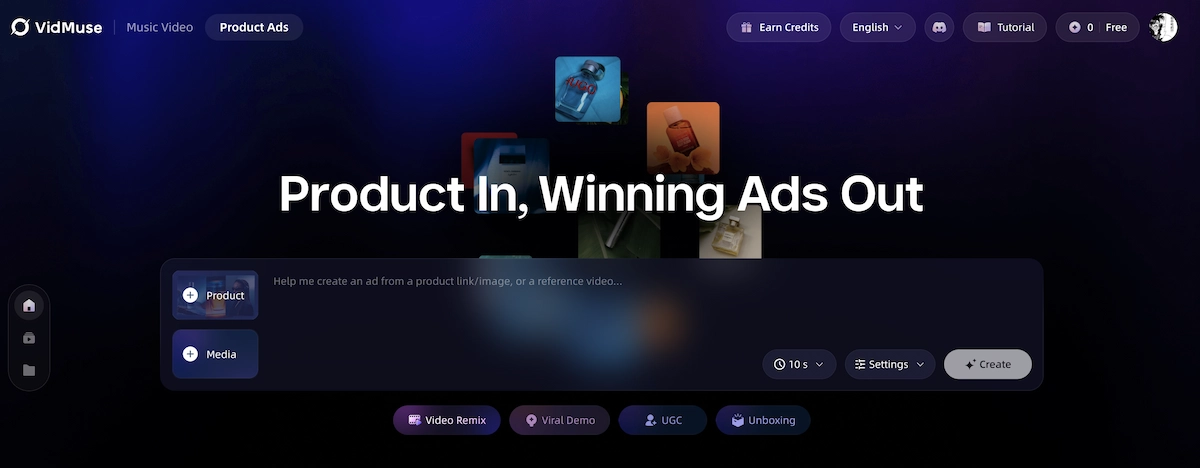
This makes VidMuse especially useful for SMBs, e-commerce sellers, creators, and marketing teams that need video ads but do not have a full production team.
Key VidMuse Advantages
| Feature | Why It Matters for Facebook Ads |
|---|---|
| Product URL to Video | Paste an Amazon or eBay product link and quickly turn it into an ad concept |
| AI Storyboard Planning | Review the ad structure before generating final clips |
| Product Photo Support | Keep product visuals closer to your real product |
| Reference Ad Input | Guide the style, pacing, and structure of the output |
| AI Avatar Options | Create presenter-style ads without hiring talent |
| Built-in Music Generation | Reduce the need to source external background music |
| Timeline Editor | Adjust clip order, pacing, and final structure before export |
| Shot Refinement | Regenerate individual shots instead of rebuilding the whole ad |
The biggest benefit is workflow continuity. You do not need to move between separate tools for scriptwriting, image generation, video generation, music, subtitles, and editing. VidMuse keeps the process in one pipeline. For teams starting from an existing ad style, the same idea connects naturally with a reference ad remix workflow rather than a blank prompt.
Create Facebook Video Ads with AI
Turn product links, images, or simple ideas into ready-to-use Facebook video ads with VidMuse.
How to Create a Facebook Ad with VidMuse AI
Step 1: Add Your Product Input
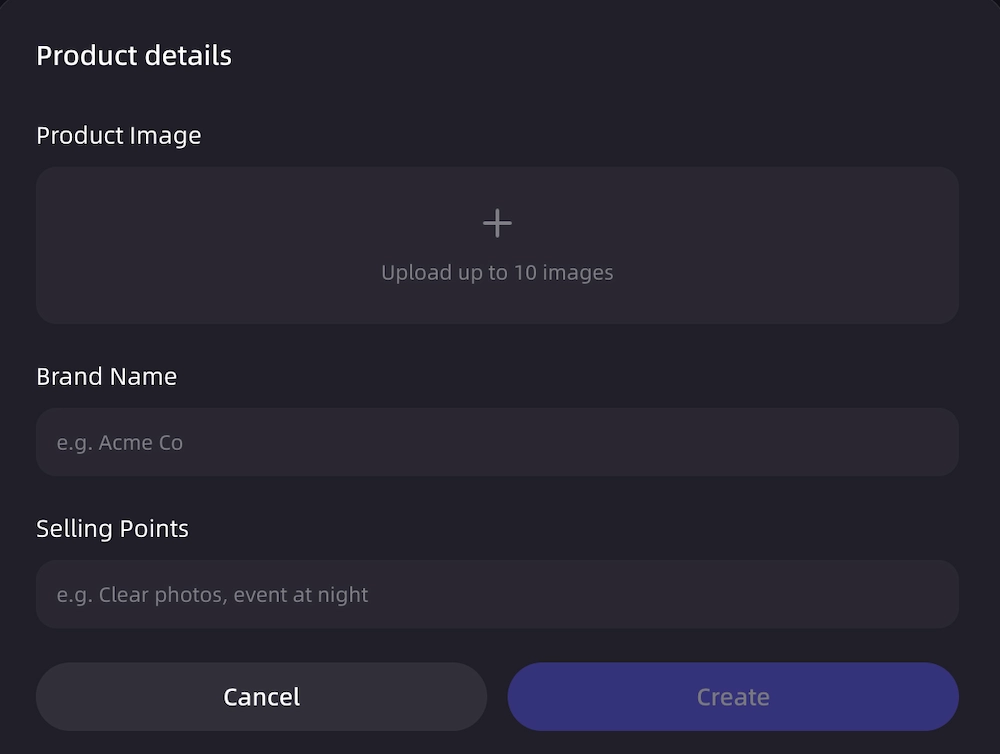
Start by giving VidMuse enough product information to understand what the ad should promote. You can use one or more of the following inputs:
| Input Type | Best For |
|---|---|
| Product URL | Fast product-to-ad generation |
| Product Photos | Better product accuracy and visual consistency |
| Text Brief | Custom messaging, audience, and tone |
| Reference Ad | Matching a desired style or pacing |
For best results, do not rely on a product name alone. A product URL plus 3–5 real product images usually gives the AI a much stronger foundation.
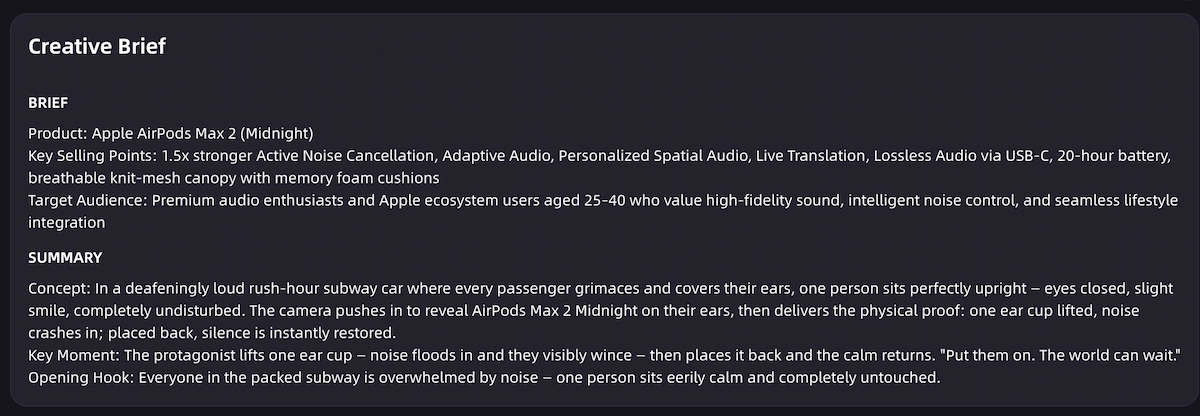
Step 2: Review the Creative Brief
After parsing your inputs, VidMuse creates a creative brief that summarizes the product, target audience, key selling points, tone, and recommended ad direction.
Before moving forward, check:
- Is the product name correct?
- Are the main selling points accurate?
- Does the tone match your brand?
- Is the suggested format suitable for Facebook Feed, Reels, or Stories?
- Is the hook strong enough for the first few seconds?
This is the best time to make changes because editing the brief is easier than regenerating final video clips later.
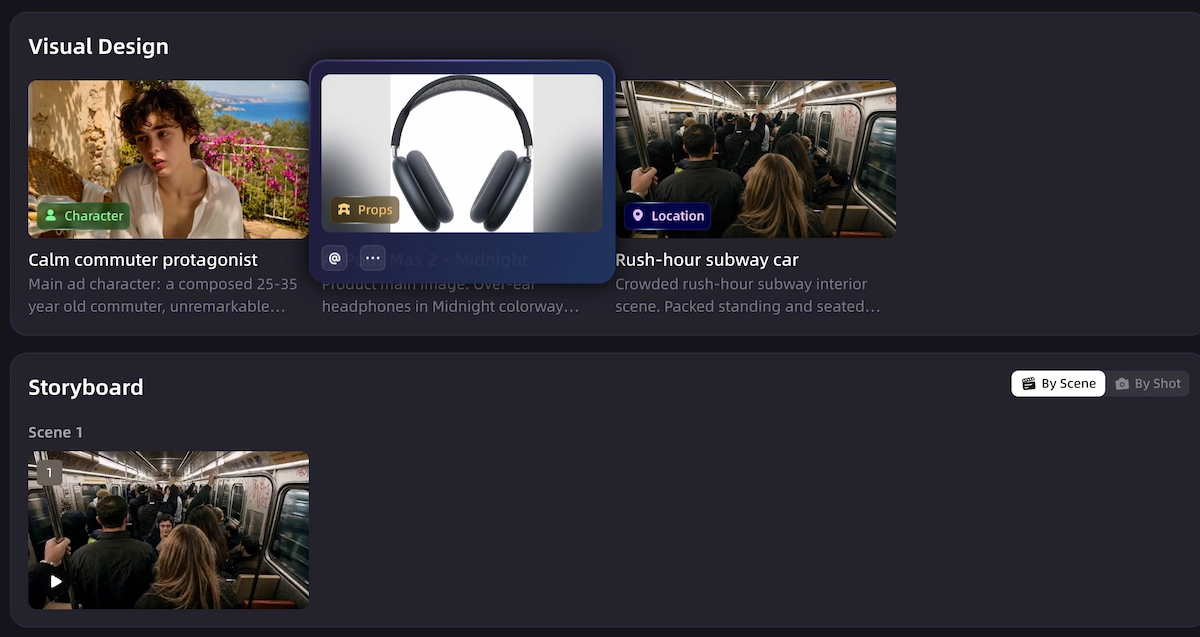
Step 3: Generate the AI Storyboard
VidMuse then creates a shot-by-shot storyboard for the ad. This is one of the most important parts of the workflow because it defines the structure before visual generation begins.
A simple Facebook ad storyboard may look like this:
| Scene | Duration | Purpose |
|---|---|---|
| Hook | 2–3s | Capture attention with a problem, product reveal, or bold visual |
| Product Benefit | 4–6s | Show the main feature or use case |
| Lifestyle Scene | 4–6s | Demonstrate the product in context |
| Proof or Detail | 3–5s | Highlight quality, result, or key differentiator |
| CTA | 2–3s | Push the viewer to shop, learn more, or try now |
For a 15–30 second Facebook ad, 4–6 scenes are usually enough. Too many scenes can make the ad feel rushed; too few can make it feel static.
Step 4: Generate Visuals, Voiceover, and Music
Once the storyboard is approved, VidMuse generates the creative assets for each scene. Depending on your settings and template, this may include:
- Product keyframes
- Lifestyle visuals
- AI avatar presenter shots
- Voiceover narration
- Captions or text overlays
- Background music
- Animated video clips
This is where the quality of your input matters most. If you provide a clear product link, strong images, and a reference style, the generated ad will usually feel more specific and less generic.
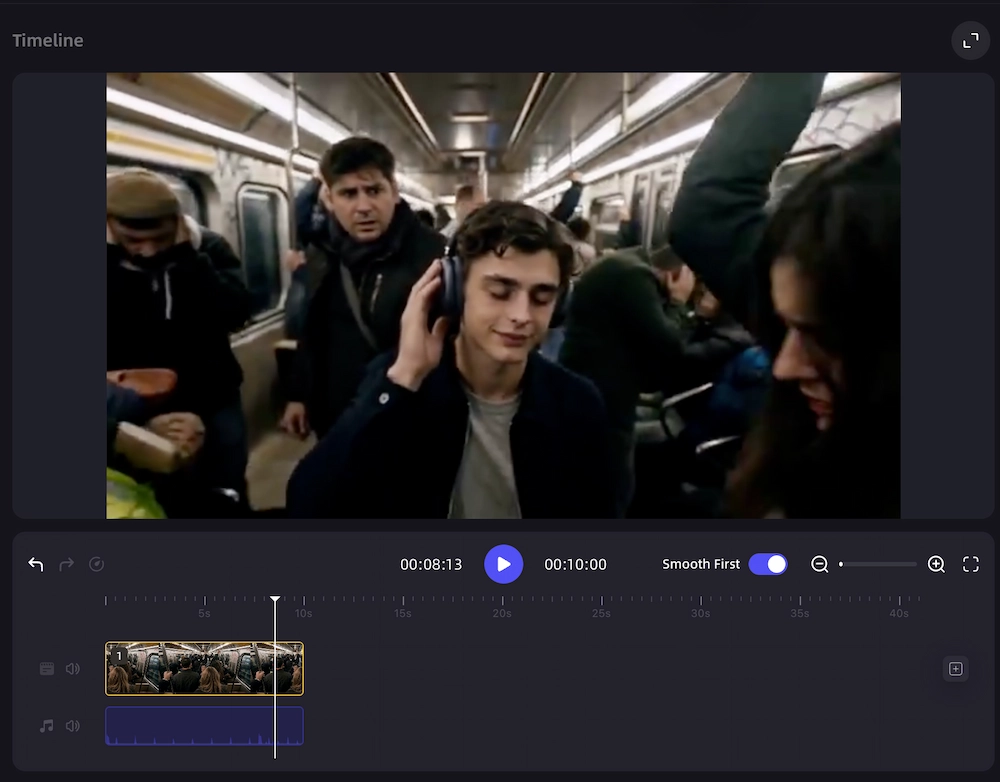
Step 5: Refine the Video in the Timeline
After the clips are generated, VidMuse assembles them into a timeline. Review the full ad as one continuous video, not just as separate clips.
Check the following before export:
| Review Point | What to Look For |
|---|---|
| Hook | Does the first 1–3 seconds create interest? |
| Product Accuracy | Does the product look consistent across scenes? |
| Pacing | Does the video move quickly enough for Facebook? |
| Captions | Are text overlays readable on mobile? |
| CTA | Is the final action clear? |
| Music & Voiceover | Is the voice easy to hear over the music? |
If one scene feels weak, use shot refinement instead of regenerating the entire ad. This saves time and keeps the rest of the video intact.
Step 6: Export for the Right Facebook Placement
Choose the right aspect ratio before uploading your ad to Meta Ads Manager.
| Placement | Recommended Ratio | Best Use |
|---|---|---|
| Facebook Reels | 9:16 | Short, fast, hook-driven ads |
| Stories | 9:16 | Mobile-first vertical ads |
| Feed | 1:1 or 4:5 | Product, lifestyle, or direct-response ads |
| In-stream | 16:9 | Longer explainer or brand videos |
A common mistake is using a horizontal 16:9 ad for Reels or Stories. This creates wasted screen space and makes the ad look less native on mobile.
Create Facebook Video Ads with AI
Turn product links, images, or simple ideas into ready-to-use Facebook video ads with VidMuse.
Best Facebook Ad Templates to Use
The right template depends on your campaign goal. Here is a practical way to choose:
| Goal | Recommended Template | Best Placement |
|---|---|---|
| Launch a new product | Product Reveal / Unboxing | Feed, Reels |
| Explain a feature | Explainer / Feature Walkthrough | Feed, In-stream |
| Sell a lifestyle product | Lifestyle / In-Use | Feed, Stories |
| Drive direct response | Short-form Social Ad | Reels, Stories |
| Show a problem and solution | Problem → Solution | Feed, Reels |
| Build trust quickly | AI Avatar Presenter | Feed, In-stream |
| Create a premium feel | Luxury Brand Film | Feed, In-stream |
For e-commerce products, the most practical starting points are usually Product Reveal, Lifestyle / In-Use, and Problem → Solution. These formats are easy for viewers to understand and work well with short Facebook video ads. For a broader feature overview of the same product-ad workflow, see the AI product ad video launch post.
Common Mistakes to Avoid
1. Giving the AI Too Little Information
A product name alone is rarely enough. Add a product link, images, selling points, audience details, and style references when possible.
2. Skipping the Storyboard Review
The storyboard is where you catch weak hooks, wrong scene order, or inaccurate product messaging before spending time generating video clips.
3. Choosing the Wrong Template
A slow luxury-style brand film may work in Feed but fail in Reels. Match the template to the placement and viewing behavior.
4. Ignoring the First Three Seconds
Facebook users scroll quickly. The opening must show a clear hook, visual movement, problem, benefit, or product reveal almost immediately.
5. Using Only One Creative
Facebook campaigns usually need multiple variations. Test different hooks, openings, CTAs, and formats instead of relying on one video.
6. Forgetting Mobile Readability
Most Facebook ads are viewed on mobile. Keep text large, simple, and away from UI-heavy edges of the screen.
Free vs Paid AI Facebook Ad Generators
A free AI Facebook ad generator can be useful for testing the workflow, but free plans often come with limits such as lower resolution, watermarks, shorter video length, fewer generations, or restricted export options.
| Option | Best For | Main Limitation |
|---|---|---|
| Free AI Ad Generator | Testing ideas and validating workflow | Limited quality, length, or exports |
| Paid AI Ad Generator | Running real campaigns and producing variations | Requires budget |
| Full Production Team | High-budget brand campaigns | Slow and expensive |
For early testing, a free workflow is enough. For live paid campaigns, you usually need higher-quality exports, more creative variations, and more control over editing.
FAQ
What is an AI Facebook ad generator?
An AI Facebook ad generator is a tool that creates Facebook ad creatives from product information, images, URLs, or text prompts. It can help generate scripts, visuals, voiceover, music, captions, and final video ads without traditional editing skills.
Can I create Facebook video ads with AI?
Yes. Tools like VidMuse can help turn product inputs into Facebook-ready video ads by planning the creative structure, generating scenes, adding audio, and exporting a final MP4 for campaign use.
What inputs produce the best AI Facebook ads?
The best results usually come from combining a product URL, 3–5 product photos, a short text brief, and a reference ad. This gives the AI both product accuracy and creative direction.
Is a free AI Facebook ad generator enough?
A free AI Facebook ad generator is useful for testing, but it may not be enough for serious paid campaigns. Free tiers often limit resolution, video length, export quality, watermark removal, or the number of generations.
What Facebook ad format should I use?
Use 9:16 for Reels and Stories, 1:1 or 4:5 for Feed, and 16:9 for in-stream video. For most mobile-first Facebook campaigns, vertical or square formats are usually safer than horizontal video.
What templates work best for e-commerce products?
Product Reveal, Lifestyle / In-Use, and Problem → Solution templates are strong starting points for e-commerce. They help show what the product is, how it works, and why viewers should care.
How long does it take to create a Facebook ad with AI?
A simple AI-generated Facebook video ad can often be created in minutes, depending on the number of scenes, model quality, voiceover settings, and final render time. More polished ads may take longer because they require storyboard review and refinement.
How is VidMuse different from one-shot AI video tools?
VidMuse uses an AI Director workflow. It first plans the ad with a creative brief and storyboard, then generates assets and assembles the final video. This makes the output more structured than a single-prompt video generation workflow.
Conclusion
An AI Facebook ad generator helps marketers, creators, and e-commerce sellers create video ads faster by turning product inputs into structured ad creatives. The best results come from clear inputs, the right template, a strong hook, and careful storyboard review.
VidMuse is especially useful when you need a complete workflow: product input, AI creative planning, storyboard generation, video creation, music, timeline editing, and shot-level refinement. For teams that need more Facebook ad variations without a full production process, it provides a practical way to move from idea to publish-ready video faster.
Start with a simple product ad, test different hooks and templates, then scale the versions that match your campaign goal.
Create Facebook Video Ads with AI
Turn product links, images, or simple ideas into ready-to-use Facebook video ads with VidMuse.

Written By
VidMuse Team
Continue Reading
Latest blog posts related to AI video creation.
PixVerse V6 x VidMuse AI: Model Guide and Video Workflow
PixVerse V6 review and VidMuse integration guide. Capabilities, 15s 1080p video, prompt tips, model comparison, pricing, and how to use V6 in VidMuse workflows.
FLUX 3: What It Is, Capabilities, and How to Access It
FLUX 3 is Black Forest Labs' multimodal AI model for image, video, audio, and action. Full guide: capabilities, FLUX 3 vs FLUX 2, availability, and pricing.
Free Music Visualizer: 10 Best Free Tools in 2026
Compare 10 best free music visualizers in 2026. Waveform tools, AI music video makers, watermark policies, export limits, and which tool fits your workflow.