

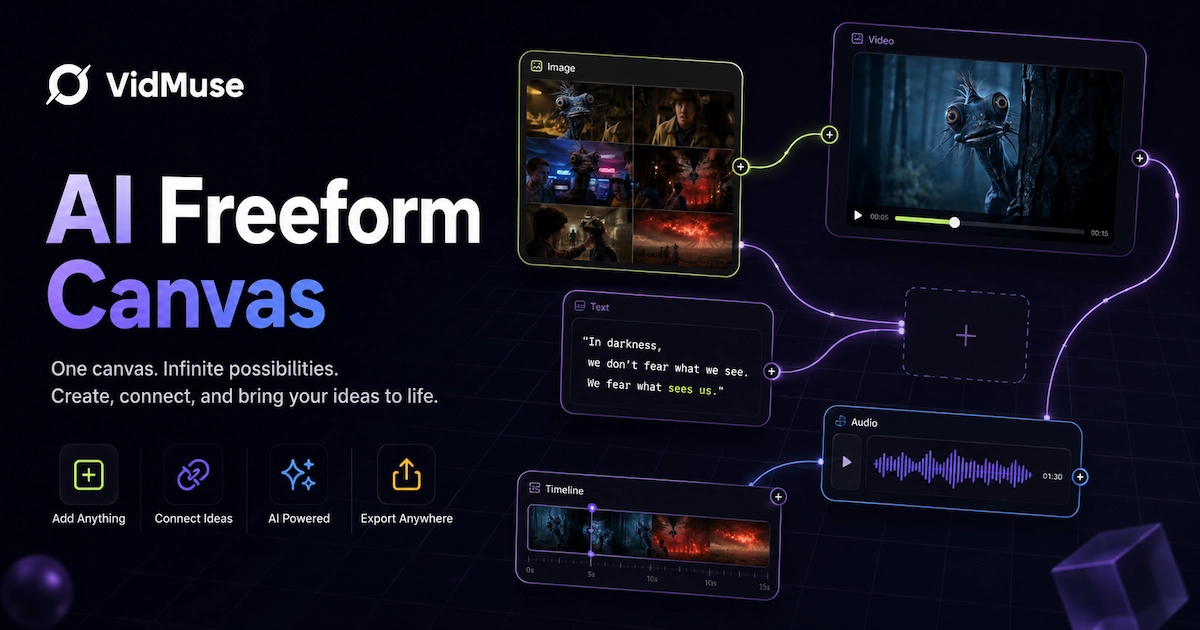
VidMuse Freeform Canvas is a node-based creative workspace where you organize assets — images, videos, audio, and text — as visual nodes on an infinite canvas, connect them with wires, and generate new content from those connections. Instead of a linear chat window, you see your entire project laid out visually: every asset, every relationship, every generation path.
Freeform Canvas is built for creators who need more control than a one-click pipeline. You decide what connects to what, which model generates each asset, and how your scenes flow together — then export to VidMuse's Timeline Editor for final assembly.
This guide walks you through everything: how the canvas works, what each node type does, how connections drive generation, and step-by-step workflows for music videos, ads, and script-based projects.
Key Takeaways
-
Freeform Canvas is a visual, node-based workspace — you organize images, videos, audio, and text as nodes and connect them to define generation relationships.
-
Four quick-start modes: MV Storyboard, SMB Ad, Script, and Blank Canvas — each pre-builds a starting node layout for your project type.
-
Connections are directional: an upstream node (image, audio, text) feeds into a downstream node to influence what gets generated. Audio → Image means "generate an image that matches this track's mood."
-
The AI Chat panel on the left side lets you talk to the AI, reference canvas nodes, and add generated results back to the canvas — bridging free-form exploration with structured generation.
-
When your first video is generated, a Timeline component appears at the bottom for sequencing, audio sync, and export.
What Is Freeform Canvas?
Freeform Canvas is VidMuse's node-based creative workspace for organizing and generating AI video content. It's designed for creators who want to see and control the full structure of their project — not just type prompts into a chat box.
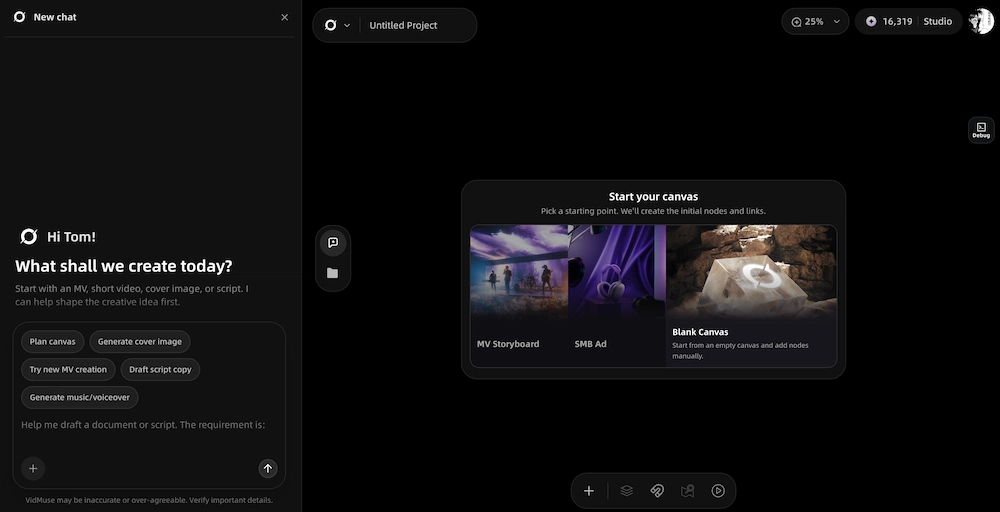
The Core Idea
Every asset in your project — an image, a video clip, an audio track, a text block — lives as a node on an infinite canvas. You arrange nodes spatially, connect them with wires, and each connection tells the AI: "use this upstream asset as input or reference when generating the downstream asset."
For example:
- Audio → Image: Generate images that match the song's mood, energy, and style
- Image → Video: Turn a keyframe image into a video clip (image-to-video)
- Text → Image: Generate images from a text description (text-to-image)
- Two Images → Video: Use as first frame and last frame for video generation
This node-and-wire model gives you the creative control of a professional production tool with the generation power of AI.
Who Is It For?
Freeform Canvas is designed for:
- Music video creators who want to plan scenes visually before generating clips
- Ad creatives who need to explore multiple visual directions from one product
- AI video producers who want granular control over which models generate which assets
- Script-based creators who are adapting screenplays or stories into visual content
If you're comfortable with VidMuse's one-click MV or Ad workflows and don't need more control, those pipelines are still available. Freeform Canvas is the power-user mode.
Try VidMuse Freeform Canvas
See your entire creative project on one canvas — organize assets as nodes, connect them, and generate music videos, ads, and more.
Getting Started: The Four Quick-Start Modes
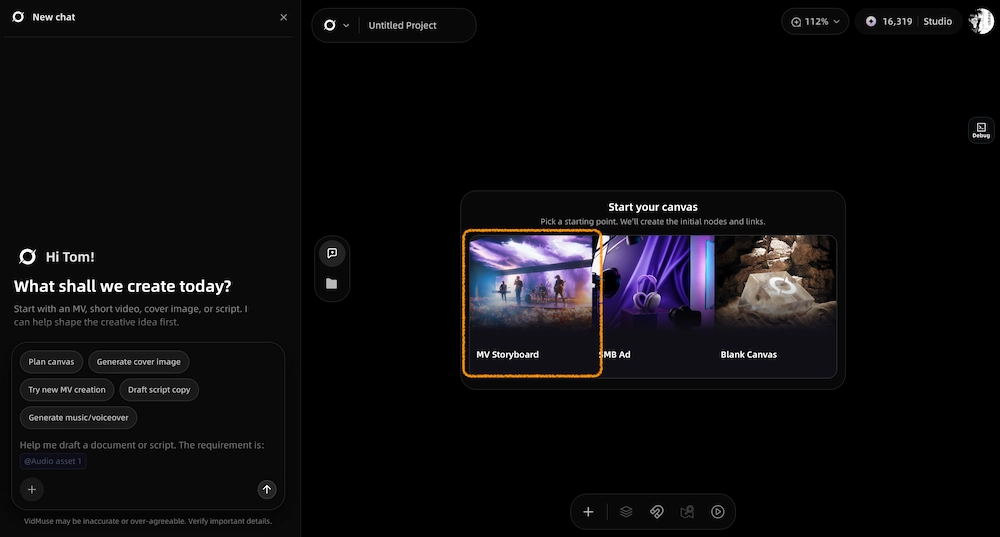
When you open a new canvas project, you'll see a cold-start panel with four entry points. Each one creates a different starting layout of nodes and connections tailored to your project type.
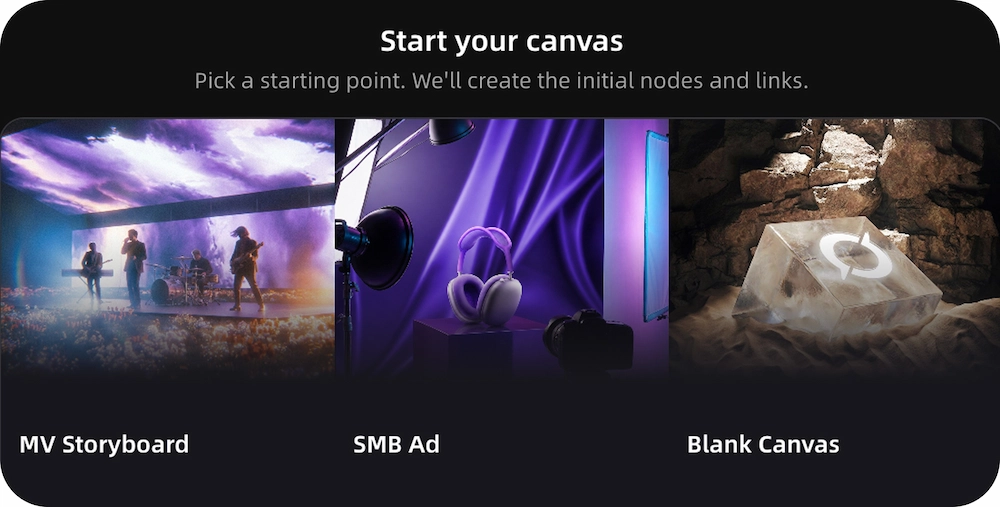
1. MV Storyboard
Best for: Music video projects starting from a track.
Upload your music file or paste lyrics. The canvas creates starting nodes for your audio, reference images, and text prompts — pre-wired for a music video workflow. From here, you generate scene keyframes, turn them into video clips, and assemble in the Timeline.
2. SMB Ad
Best for: Product ad videos starting from a product image or description.
Upload your product photo or logo and add a description. The canvas sets up nodes for your product assets, ad copy, and video generation — pre-wired for an ad workflow. This connects to VidMuse's ad template system for unboxing, UGC-style, and other ad formats.
3. Script
Best for: Story-driven projects starting from a written script.
Upload a script file (TXT, DOCX, or PDF). The AI analyzes the script and extracts characters and scenes into separate groups on the canvas, each with auto-generated prompts. No visuals are generated yet — you review, edit, and then generate at your own pace. This is ideal for short films, narrative music videos, or ad storyboards based on written concepts.
File limits: TXT < 350KB, DOCX < 0.8MB, PDF < 1.5MB.
4. Blank Canvas
Best for: Free-form exploration or custom workflows.
Starts with an empty canvas. You add nodes manually — drag in images, create text blocks, upload audio — and build your own generation graph from scratch. Maximum flexibility, no guardrails.
Tip: Once you create any node, the cold-start panel disappears. You're now in full canvas mode.
Start Building on Canvas
Choose MV Storyboard, SMB Ad, Script, or Blank Canvas — and start creating with full visual control.
Node Types Explained
Every element on the canvas is a node. There are four node types, and each one has specific capabilities.
Text Node
A text block for prompts, scripts, descriptions, or creative notes.
- Editing: Supports headings (H1/H2/H3), bold, italic, ordered/unordered lists. Full-screen editing mode available for long scripts.
- AI Optimize: Click "AI Optimize" to open the AI Chat with your text auto-referenced — the AI suggests improved prompts or expanded copy without overwriting your original.
- Rename: Node titles sync to the Asset Library and downloads.
- As upstream input: Text → Image (text-to-image), Text → Video (text-to-video), Text → Text (expand, rewrite, plan).
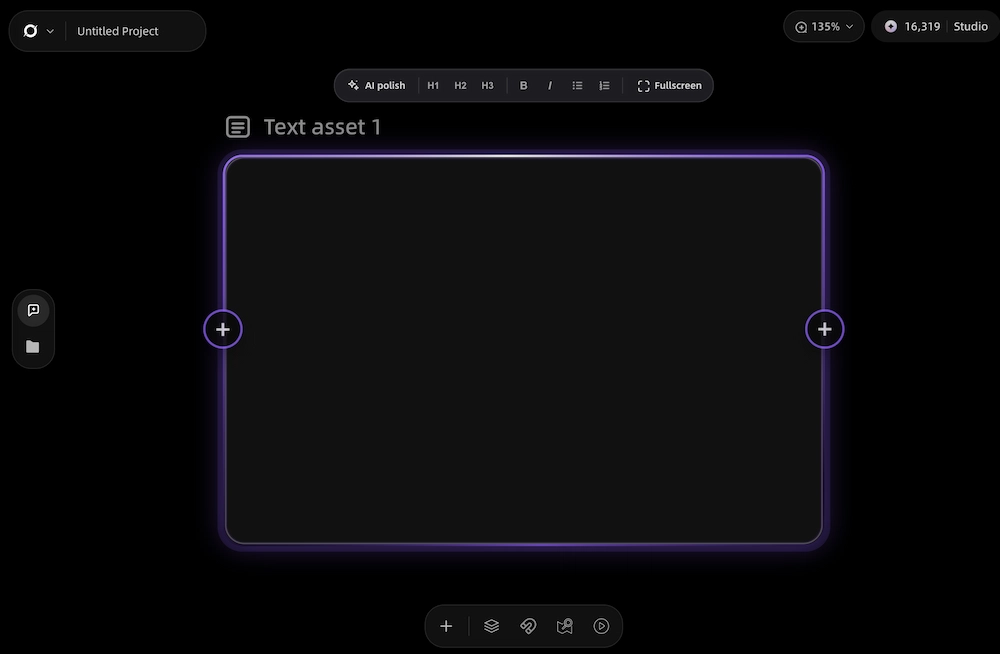
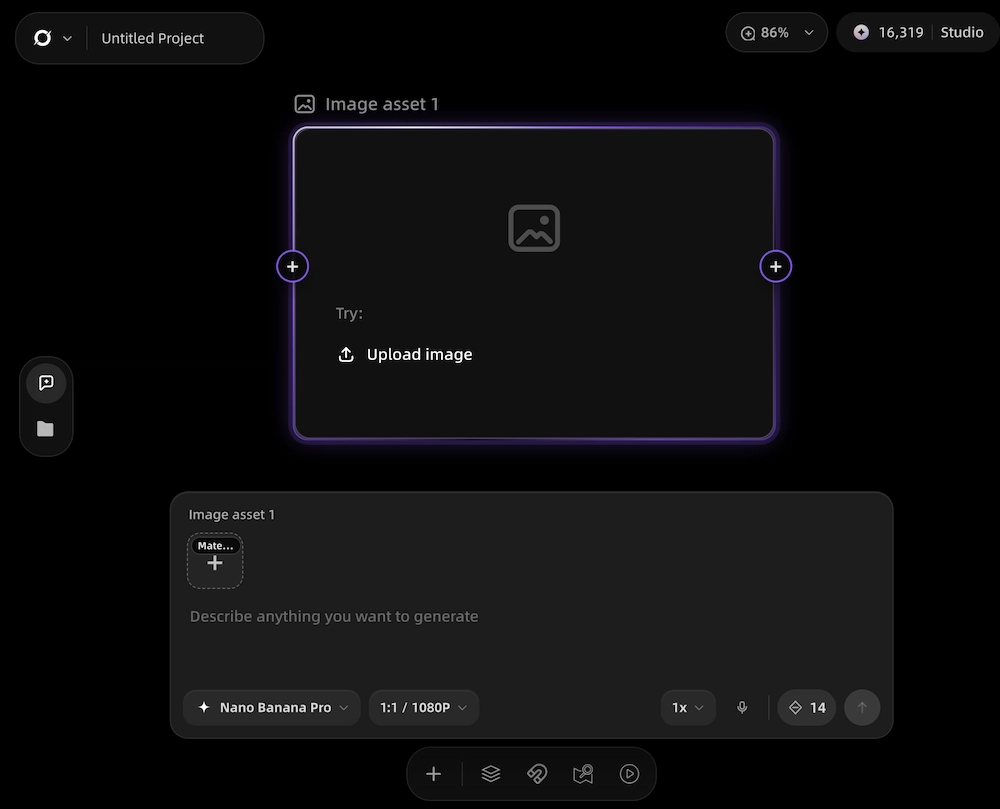
Image Node
A single image — uploaded, pasted, or AI-generated.
- Generation settings: Model, aspect ratio, resolution, quantity (1 / 2 / 4), style reference, scene description prompt.
- Type labels: Each generated image is labeled as "Scene" or "Character" (top-left corner) for organizational clarity.
- Batch generation: Generate 1, 2, or 4 images at once. New images appear as new nodes connected to the same upstream — they never overwrite existing images.
- Regenerate: Uses the same upstream inputs and parameters. Creates a new result alongside the original.
- Empty state: Shows an upload prompt only. When connected to an upstream node, upload is disabled — the node is generation-only.
- As upstream input: Image → Image (image-to-image reference), Image → Video (image-to-video, first/last frame), Image → Text (describe/analyze image).
Video Node
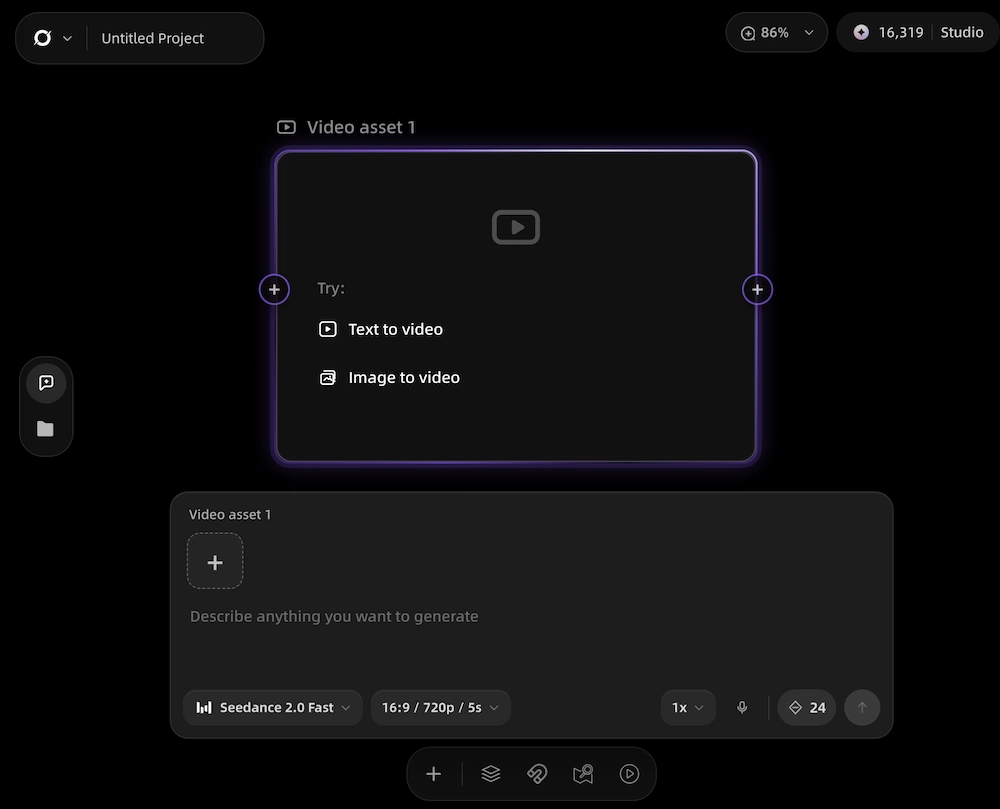
A video clip — AI-generated or uploaded.
- Generation modes (depend on selected model):
- Text-to-video: No image input required
- Image-to-video: One image as starting frame
- Image reference: 1–9 images as visual reference
- First & last frame: Two images define start and end points
- Settings: Model, aspect ratio, resolution, duration (4–15 seconds, model-dependent), audio on/off.
- Model determines mode: When you select a model, the available generation modes update automatically. If a model doesn't support first/last frame, that option won't appear.
- Duration: Varies by model. Some support 4s, 7s, 9s only; others offer a continuous slider up to 15s. Shown in the model selector.
- Empty state: Guides you to choose Text-to-Video (creates a prompt input) or Image-to-Video (connects an upstream image node).
- As upstream input: Video → Video (reference video), Video → Text (analyze/describe video).
Audio Node
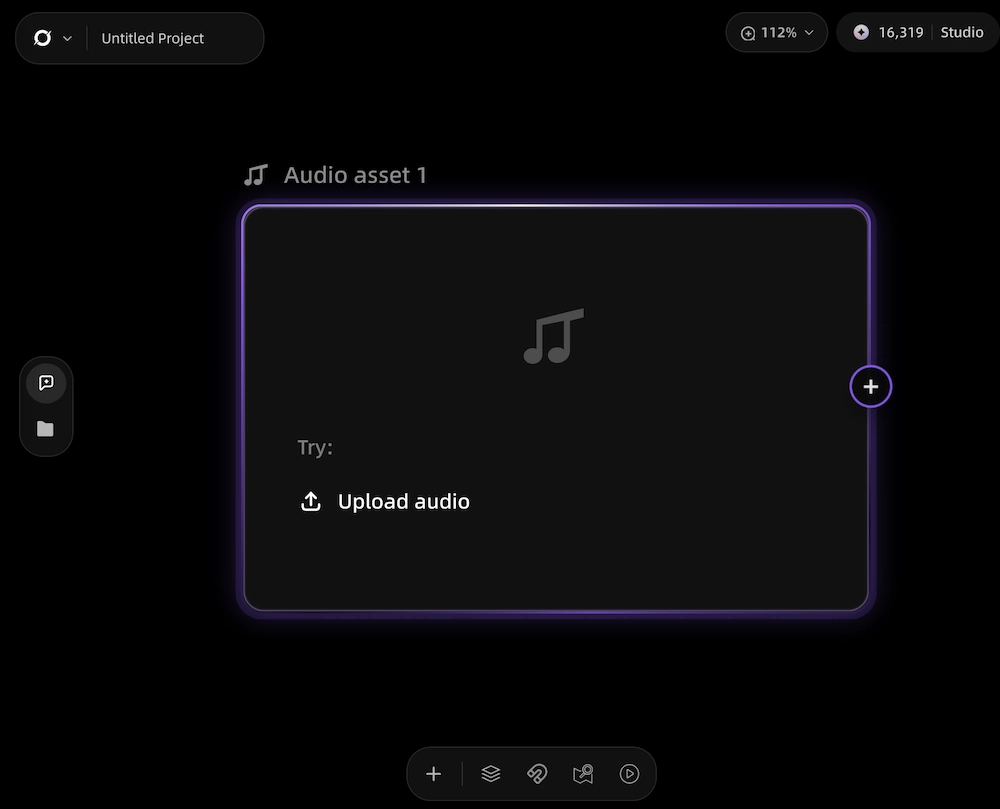
A music track or sound file — uploaded by the user.
- Upload only in the current version (no AI audio generation on canvas).
- As upstream input: Audio → Image (mood-driven image generation), Audio → Video (mood-driven video generation), Audio → Text (analyze song, generate lyrics or descriptions).
How Connections Work
Connections (wires) are the core mechanic of Freeform Canvas. Every wire is directional — it flows from an upstream node to a downstream node and tells the AI: "use this asset as context when generating."
Connection Rules
Visual Feedback
- Click a node: Its upstream and downstream connections highlight; everything else dims.
- During generation: Active connection wires animate with a flowing effect.
- Dragging a new wire: Compatible target nodes highlight; incompatible nodes dim.
- Wire to empty space: Dropping a wire with no target creates a new node of the appropriate type.
Important Rules
- Nodes, not groups: Connections are always between individual nodes, never between groups.
- New outputs don't overwrite: Batch generation or regeneration creates new nodes connected downstream — your originals stay untouched.
- Right side = output, left side = input: Each node shows output connection points on the right (to create downstream) and input points on the left (to connect upstream).
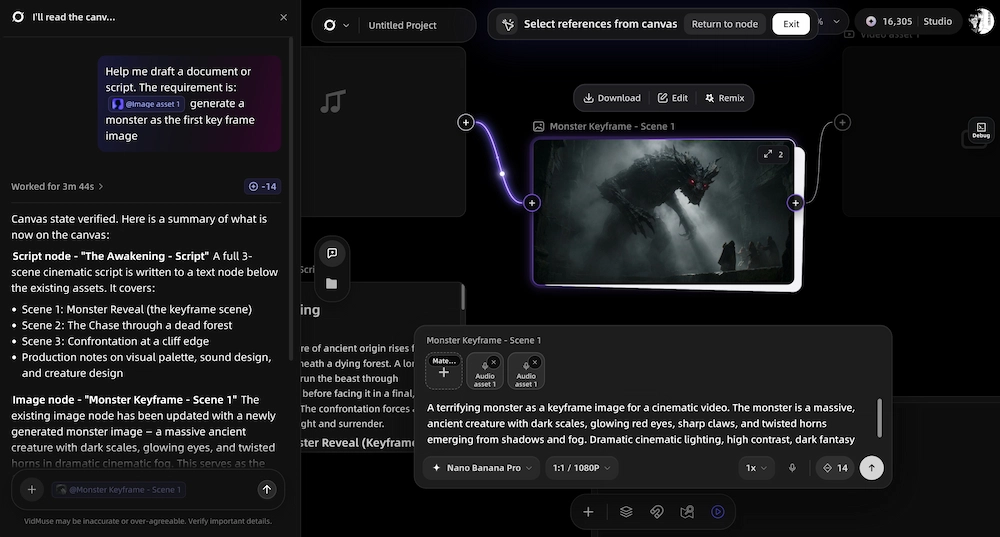
- Referenced assets show in chat: When you open the generation panel for a node, all connected upstream assets appear as references at the top of the chat window.
Groups: Organizing Your Canvas
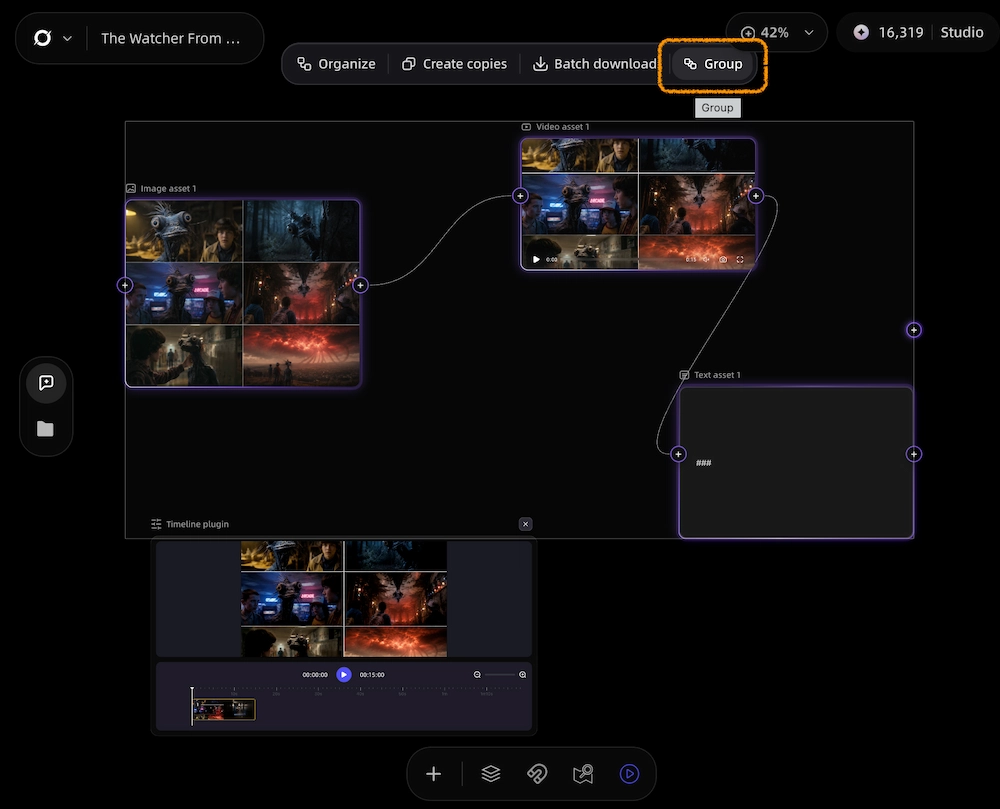
Groups are containers for organizing related nodes visually. They don't participate in connections or generation — they're purely organizational.
How Groups Work
- Create: Select multiple nodes → right-click → "Group" (or use the toolbar).
- Resize: Drag the corners to expand or shrink the group boundary.
- Membership: A node is "in" a group if it overlaps the group boundary. Drag a node fully outside the group to remove it; drag a new node into the boundary to add it.
- Selection: Clicking a group selects the group container only, not the nodes inside. Double-click or click individual nodes to select them.
- Locate: Click a group name in the Asset Library to auto-zoom the canvas to show the entire group.
Groups are especially useful for Script-mode projects, where the AI automatically creates groups for each scene or character extracted from your script.
The AI Chat Panel
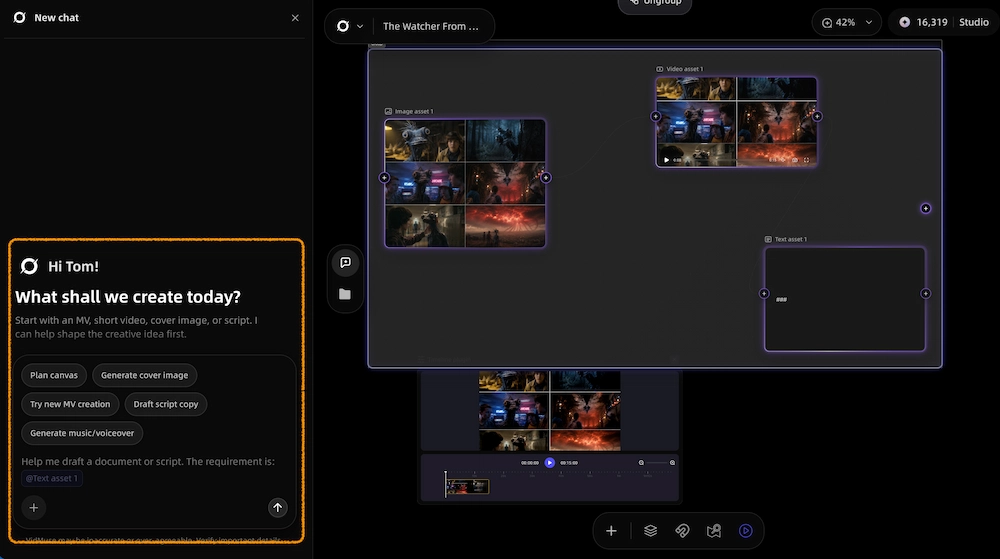
The left sidebar contains an AI Chat panel — a conversational interface that bridges free-form exploration with structured canvas generation.
What It Does
- Planning assistance: Ask the AI to help plan your video structure, suggest scene ideas, or write scripts.
- Bulk generation: Upload assets and request batch image or video generation through conversation.
- Canvas integration: Generated content (text, images, videos) from chat can be added to the canvas — either automatically after confirmation, or manually by clicking "Add to Canvas" on any generated result.
Asset Referencing
- Click a node while the Chat panel is open → the asset is automatically referenced in the chat input.
- Click multiple nodes (or box-select) → all selected assets are referenced.
- Same node = no duplicate: Clicking the same node again doesn't add a duplicate reference.
- Group click: Clicking a group references only the clicked node inside it, not all group members.
Panel States
- Default: Open on the left when you first enter the canvas.
- Collapsed: Folds to a thin sidebar. Only auto-opens when you click "AI Optimize" on a text node.
- Content goes to canvas: Generated results from chat only appear on the canvas when you explicitly confirm or click "Add to Canvas."
The VidMuse Canvas Timeline Component
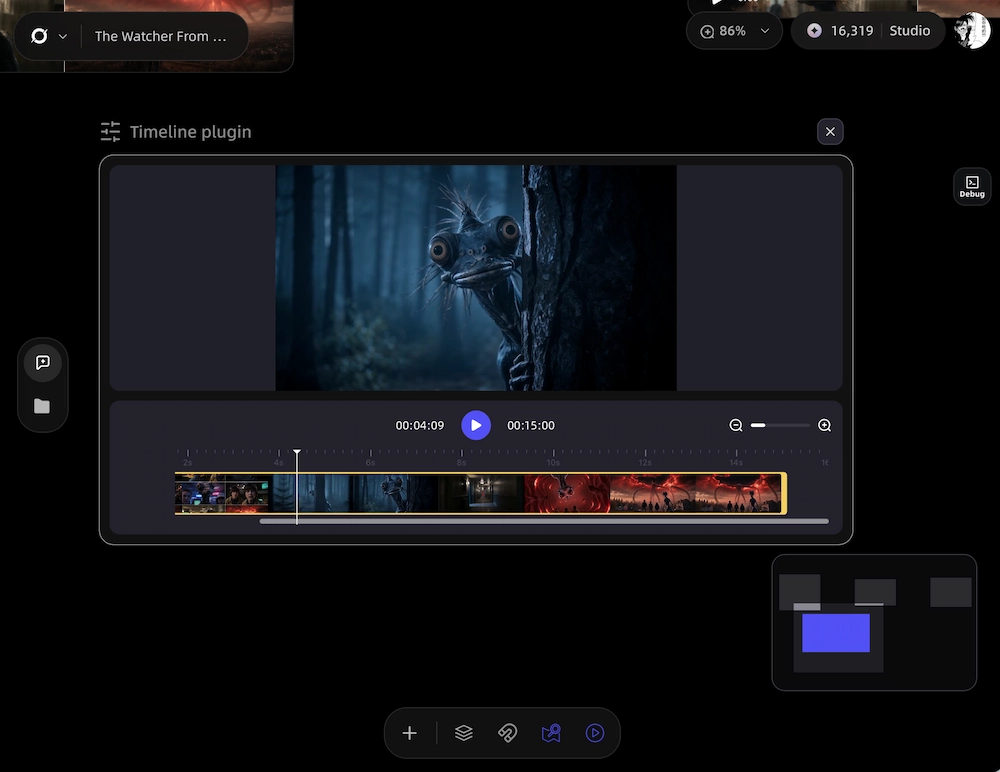
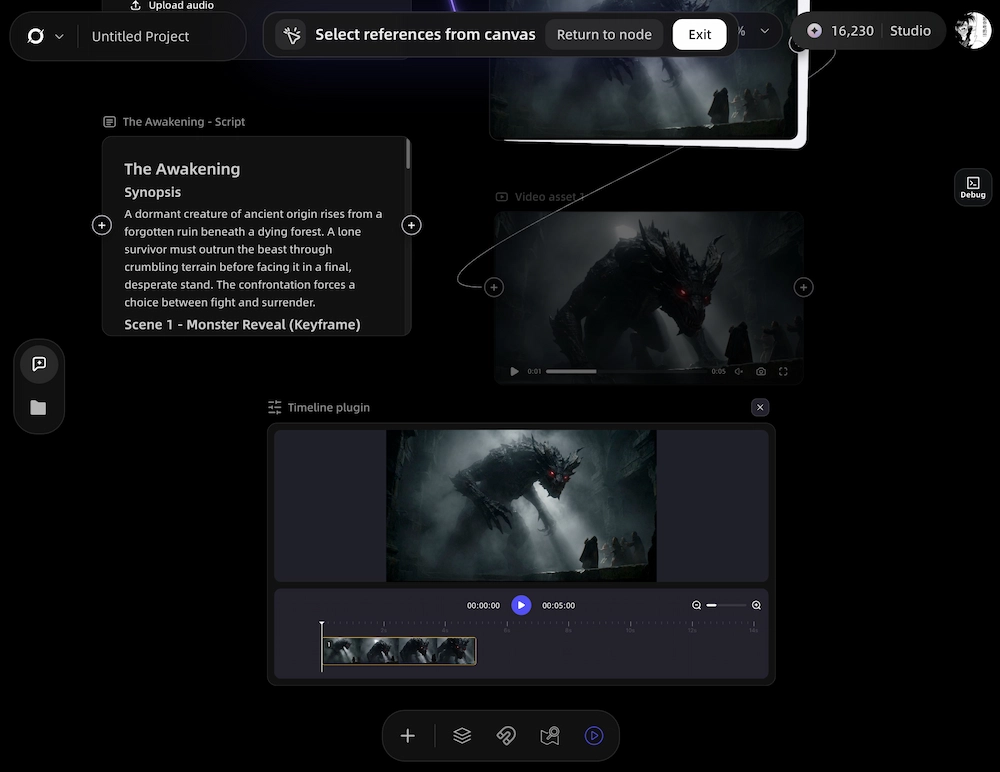
When your first video node is generated on the canvas, a Timeline component appears at the bottom of the screen. This is the same Timeline Editor from VidMuse 2.0 — embedded directly in the canvas workspace.
How It Works
- Auto-appears: Triggers when the first video is created. Can also be manually added from the bottom toolbar.
- Empty state: If no videos exist on the canvas, the Timeline shows an empty track ready for content.
- Functionality: Same as VidMuse's existing Timeline — arrange clips, sync audio, add transitions, adjust timing, and export the final video.
- Removable: You can close the Timeline component from the canvas if you don't need it yet.
Step-by-Step: Creating a Music Video on Canvas
Here's a complete workflow for creating a music video using Freeform Canvas.
1. Start with MV Storyboard
Open a new canvas project and select MV Storyboard. Upload your track. The canvas creates your audio node and initial connection structure.
2. Generate Scene Keyframes
Create image nodes downstream from your audio node. The AI uses the track's mood, tempo, and energy as reference. Write scene descriptions in text nodes and connect them as additional input. Generate 2–4 keyframe options per scene.
3. Choose and Refine
Review your generated keyframes. Keep the ones you like; regenerate or create variations for the others. Use Image → Image connections to iterate on a specific look.
4. Generate Video Clips
Connect your chosen keyframes to video nodes. Select your model (Seedance 2.0, Kling V3.0, Veo 3.1, etc.), set duration (4–15s), and generate. Each keyframe becomes a video clip with camera motion and pacing matched to the connected audio's energy.
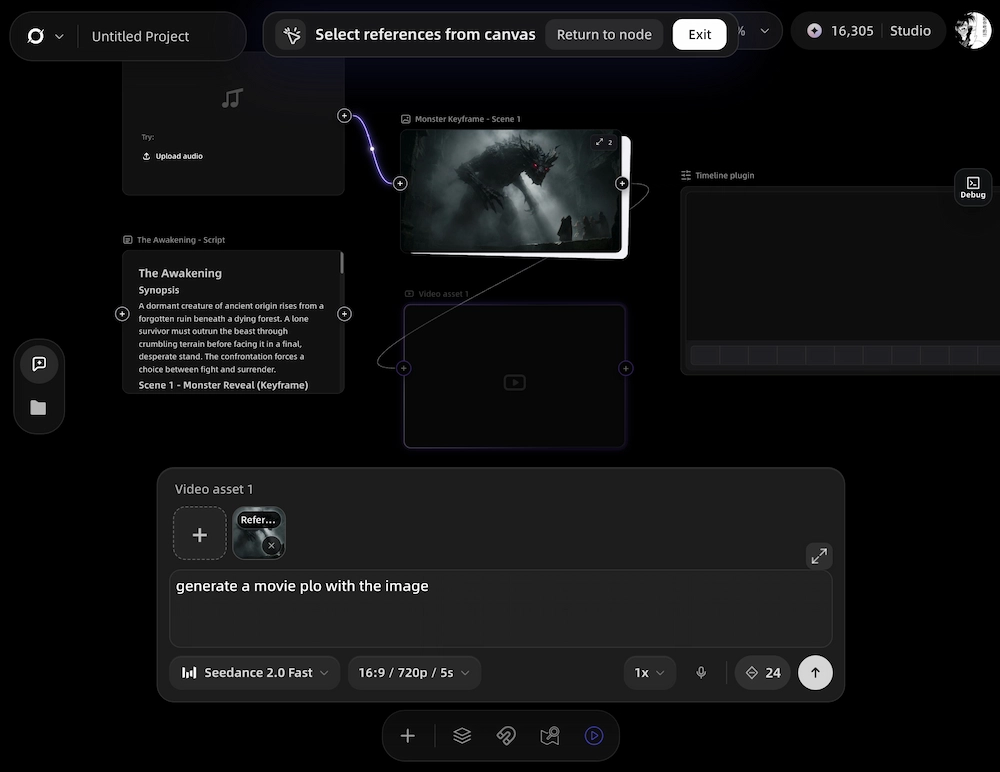
5. Assemble in Timeline
Once your first video clip generates, the Timeline appears. Drag your clips into sequence, sync with the audio track, adjust transitions, and preview the full music video.
6. Export
Download the final video as MP4, or export individual clips and images from the canvas.
Create Your First Canvas Music Video
Upload your track, generate keyframes, produce video clips, and assemble your MV — all on one visual canvas.
Step-by-Step: Creating an Ad Video on Canvas
1. Start with SMB Ad
Select SMB Ad from the cold-start panel. Upload your product photo and add a description. The canvas creates product, text, and video nodes.
2. Explore Creative Directions
Create multiple text nodes with different ad angles — "focus on durability," "lifestyle context," "unboxing reveal." Connect each to separate image nodes. Generate keyframes for each direction in parallel.
3. Generate Video Variants
Pick your winning directions. Connect the best keyframes to video nodes. Generate video clips with different models to compare visual styles.
4. Assemble and Export
Use the Timeline to arrange your chosen clips. Add voiceover, music, subtitles, and CTA through VidMuse's audio tools. Export the finished ad.
Bottom Toolbar Reference
The bottom toolbar provides canvas-wide controls:

Tips and Best Practices
-
Start small, branch out. Begin with 2–3 key scenes, generate keyframes, then expand. Don't try to plan 20 scenes before generating anything.
-
Use groups for scenes. When working on a music video or scripted project, create one group per scene. This keeps the canvas organized as it grows.
-
Explore in parallel. Freeform Canvas excels at A/B testing creative directions. Create two branches from the same source node — different prompts, different styles — and compare results side by side.
-
Reference assets intentionally. Every upstream connection affects the output. If you connect an audio node and an image node to a video node, the AI uses both as reference. Be deliberate about what feeds into each generation.
-
Check credits before generating. Batch generation (especially video) consumes credits quickly. The credit estimate appears before each generation — review it.
-
Keyboard shortcuts: Copy (C), Paste (V), and Undo (Z) work on selected nodes. You can also paste images directly from your clipboard onto the canvas.
Limitations
-
Canvas and main workflows are separate. Assets created on the canvas don't automatically appear in VidMuse's standard MV or Ad pipelines, and vice versa.
-
Audio is upload-only. You can't generate music or voiceover directly on the canvas. Upload pre-made audio files, or use VidMuse's Suno integration in the standard workflow first, then bring the audio file to canvas.
-
Video duration is 4–15 seconds per clip. Longer videos require multiple clips assembled in the Timeline.
-
Generation modes are model-dependent. Not all models support all modes (first/last frame, image reference, etc.). The canvas UI updates available options when you switch models.
-
No sharing in MVP. The current version doesn't support sharing canvas projects with collaborators. Export your final output instead.
FAQ
What is VidMuse Freeform Canvas?
Freeform Canvas is a node-based creative workspace inside VidMuse where you arrange images, videos, audio, and text as visual nodes, connect them with wires, and generate AI content based on those connections. It gives you more creative control than chat-based or one-click workflows.
Do I need to use Freeform Canvas, or can I still use the regular VidMuse workflow?
Both workflows are available. The standard MV and Ad pipelines work the same way as before. Freeform Canvas is an additional option for users who want more granular control over their creative process.
What can I create with Freeform Canvas?
Music videos, product ads, script-based video content, AI art explorations, and any project that benefits from visual asset organization. The four quick-start modes (MV Storyboard, SMB Ad, Script, Blank Canvas) cover the most common use cases.
How do connections between nodes work?
Connections are directional wires from an upstream node to a downstream node. The upstream asset becomes input or reference for the downstream generation. For example, connecting an Image node to a Video node tells the AI to use that image as the starting frame for video generation.
Does Freeform Canvas use the same AI models as the rest of VidMuse?
Yes. Canvas uses the same image generation models (Flux.2-Pro, Midjourney V7, Seedream 5.0, etc.) and video generation models (Seedance 2.0, Kling V3.0, Veo 3.1, Hailuo 2.3, etc.) available across VidMuse. You select the model per node.
Does generation on canvas cost credits?
Yes. Image and video generation on canvas uses the same credit system as VidMuse's standard workflows. Credit estimates are shown before each generation.
Conclusion
VidMuse Freeform Canvas gives you a visual, node-based workspace for AI video creation — the creative control of a professional production tool combined with VidMuse's multi-model generation power. Whether you're planning a music video, exploring ad directions, or building from a script, the canvas lets you see your entire project, control every connection, and iterate without losing work.
Start with one of the four quick-start modes, or open a blank canvas and build your own workflow from scratch.
Try Freeform Canvas
See your entire creative project on one canvas. Organize, connect, generate, and export — all in one workspace.
Written By
VidMuse Team
Continue Reading
Latest blog posts related to AI video creation.
AI Product Video Generator: VidMuse Guide for 2026
Create product videos from images, URLs, and descriptions with VidMuse AI. Plan scenes, generate clips, refine CTAs, and export product videos for ecommerce.
AI Marketing Video Generator: VidMuse Campaign Guide
VidMuse is the AI marketing video generator built to turn product inputs into campaign-ready promo videos, product demos, UGC-style ads, and social ads.
AI Ad Generator Free: Best Tools and Video Workflow
Compare AI ad generator free tools, check free-plan limits, and learn how VidMuse helps create product video ads with scripts, clips, subtitles, and CTAs.