

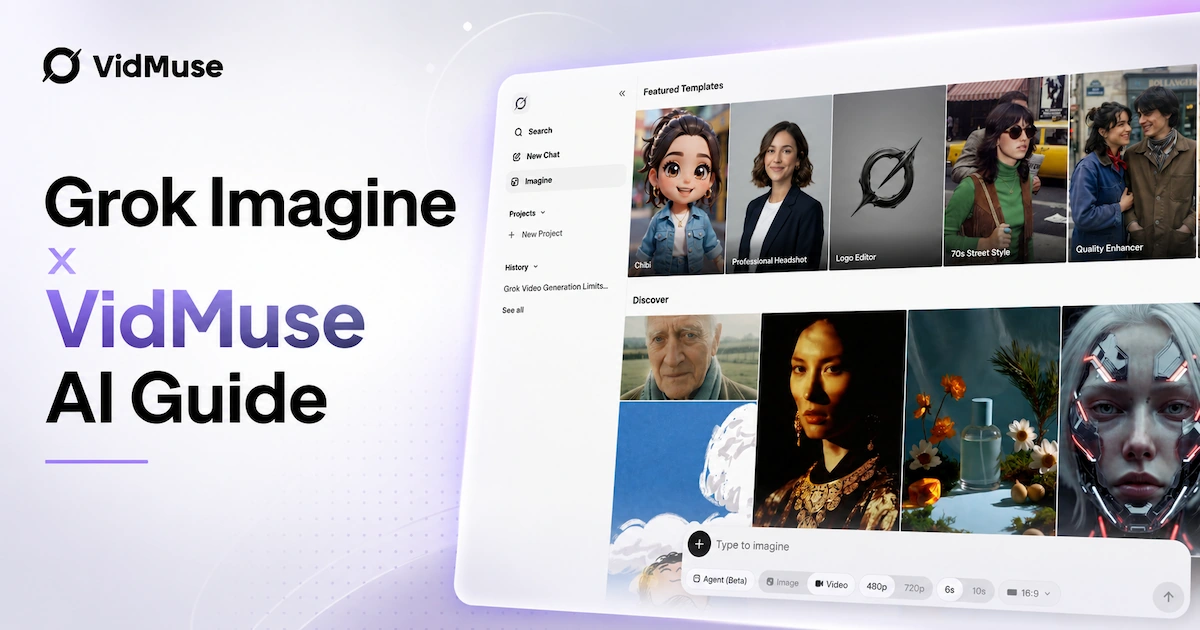
Grok Imagine is xAI's unified platform for AI image generation, image editing, and video creation — and its latest model, Grok Imagine Video 1.5, currently ranks #1 on Arena.ai's global image-to-video leaderboard.
VidMuse integrates both Grok Imagine Image and Grok Imagine Video natively inside its video generation workflow, meaning you can generate reference stills and animate them into shots without leaving the platform.
Key Takeaways
- VidMuse integrates both Grok Imagine Image and Grok Imagine Video natively — creators can generate reference stills and animate them into video shots inside a single platform workflow.
- Grok Imagine Video 1.5 holds the #1 position on Arena.ai's image-to-video leaderboard (1,473 Elo), outscoring Seedance 2.0 and Happy Horse 1.0 in blind global user voting.
- The Grok Imagine API covers five distinct video modes — text-to-video, image-to-video, reference-to-video, video editing, and video extension — all from one endpoint.
- Pricing starts at $0.02 per image and $0.05–$0.14 per second of video at API level; limited free access is available to X Premium subscribers on the X platform.
- Grok Imagine's Spicy Mode unlocks less-restricted image outputs for eligible accounts and is one of the platform's most-discussed features on Reddit and social media.
Get Access to Grok Imagine in VidMuse AI
Turn your idea into a reference image and a video with VidMuse AI.
What Is Grok Imagine?
Grok Imagine is xAI's visual generation suite, covering AI image generation, image editing, and video generation under a single brand and API surface. Built by the AI company founded by Elon Musk, it is accessible both through the X platform (formerly Twitter) for consumer users and through the xAI developer console for teams building production applications.
The platform has iterated at an unusually fast pace. What began as a text-to-image feature inside X has grown into a multi-modal visual API with five distinct video modes, multi-image editing, video extension, and now the 1.5 preview model — all within a compressed development timeline that reflects xAI's stated philosophy of aggressive iteration.
Why it matters for creators: Grok Imagine's breadth of generation modes, competitive pricing, and top-tier image-to-video quality make it one of the most capable AI visual tools currently available. For music artists and video producers using VidMuse, it is available as a selectable model for both image generation and video generation directly inside the platform — no separate API setup required.
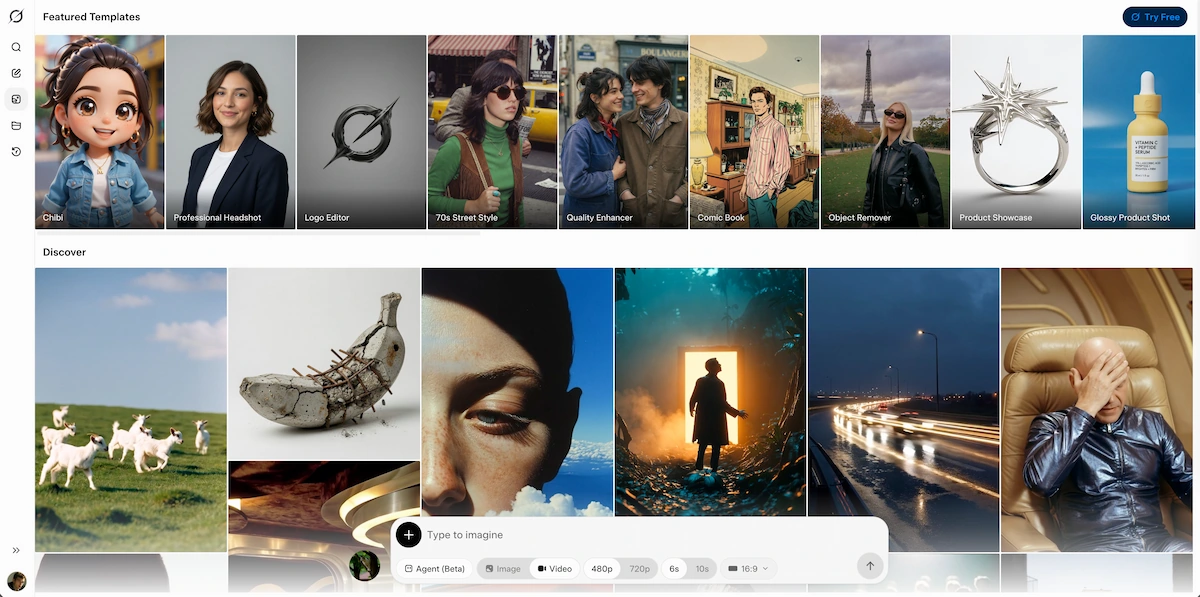
Grok Imagine Models: Image vs. Video
Grok Imagine divides its capabilities into two product lines: image models and video models. Both are integrated inside VidMuse's video generation workflow. Understanding each line helps you choose the right model for the right stage of your production.
Grok Imagine Image
The image side of Grok Imagine covers three core workflows:
- Image Generation — Create new images from a text prompt. Supports up to 10 images per request, configurable aspect ratio, and 1K or 2K resolution output. Priced at $0.02 per image.
- Image Editing — Edit an existing image using natural language. Accepts up to 3 reference images per request for style transfer, subject compositing, and scene assembly. Billed at $0.02 for input and $0.02 for output.
- Multi-Image Editing — Combine up to 3 source images into a single output, enabling complex compositing from multiple visual references.
Inside VidMuse AI, Grok Imagine Image is used during the Reference Generation and Storyboard stages — producing the still frames that anchor each scene before video generation begins.
Grok Imagine Video
xAI currently maintains two active video models:
grok-imagine-video (stable)
- Supports text-to-video, image-to-video, reference-to-video, video editing, and video extension
- Duration: 1–15 seconds (editing capped at 8.7 seconds)
- Resolutions: 480p (default) and 720p
- Pricing: $0.05/sec at 480p, $0.07/sec at 720p
- Rate limit: 70 requests per minute
grok-imagine-video-1.5-preview (preview — image-to-video only)
- Currently supports image-to-video only; text-to-video is not yet available on this model
- Resolutions: 480p and 720p
- Pricing: $0.08/sec at 480p, $0.14/sec at 720p
- Image input: $0.01 per image; video input: $0.08/sec
- Rate limit: 60 requests per minute
- Available in us-east-1 and eu-west-1 regions
The 1.5 preview model scored 1,473 on Arena.ai's blind-test leaderboard — 52 points higher than the previous Grok Imagine Video model and six points ahead of ByteDance's Seedance 2.0 in second place. Arena.ai rankings are based entirely on anonymous global user voting without vendor input, which gives the result strong independent credibility.
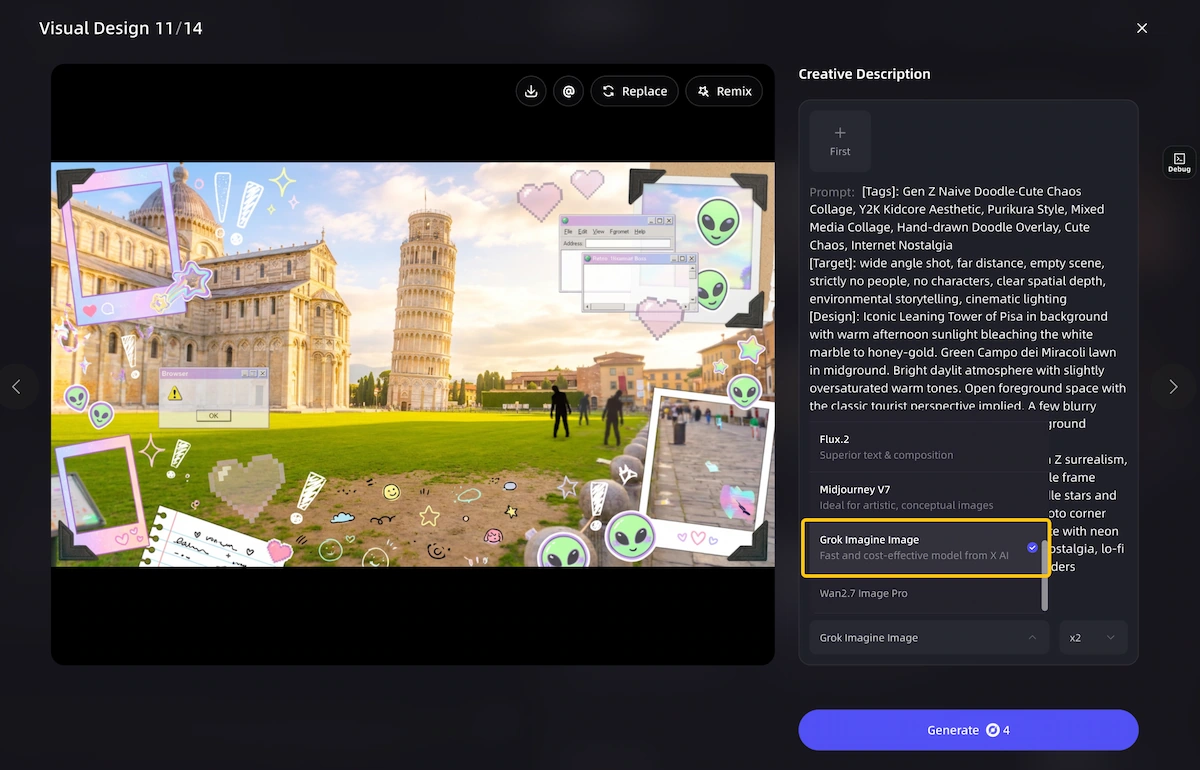
Inside VidMuse, Grok Imagine Video is available as a selectable model during the Video Generation stage. Creators can mix it with other models in VidMuse's matrix — Seedance 2.0, Kling V3.0 Pro, Veo 3.1, Hailuo 2.3 Pro, and others — assigning the most suitable model to each individual shot.
How to Use Grok Imagine — Step-by-Step
Grok Imagine is accessible in two ways: through X directly (no code required) and through the xAI API. VidMuse AI users access both Grok Imagine Image and Video through VidMuse's interface without needing to configure either separately.
Use Grok Imagine on X
Open Grok inside X, choose Imagine, enter a prompt, generate image or video output, then download or share.
Use Grok Imagine via API
Create an xAI API key, install the SDK, set your environment variable, then call image or video generation.
Use Grok Imagine inside VidMuse AI
Select Grok Imagine Image for reference stills and Grok Imagine Video for shot generation inside the VidMuse workflow.
Using Grok Imagine on X (No Code)
- Log in to X at x.com or open the X mobile app.
- Navigate to Grok from the left sidebar or the Grok tab.
- Select the Imagine tab to enter the visual generation interface.
- Type your prompt. Include subject, style, lighting, and mood for best results.
- Choose image or video output and configure aspect ratio if prompted.
- Click Generate. Image generation is near-instant; video generation takes one to several minutes depending on duration and resolution.
- Download or share directly from the interface.
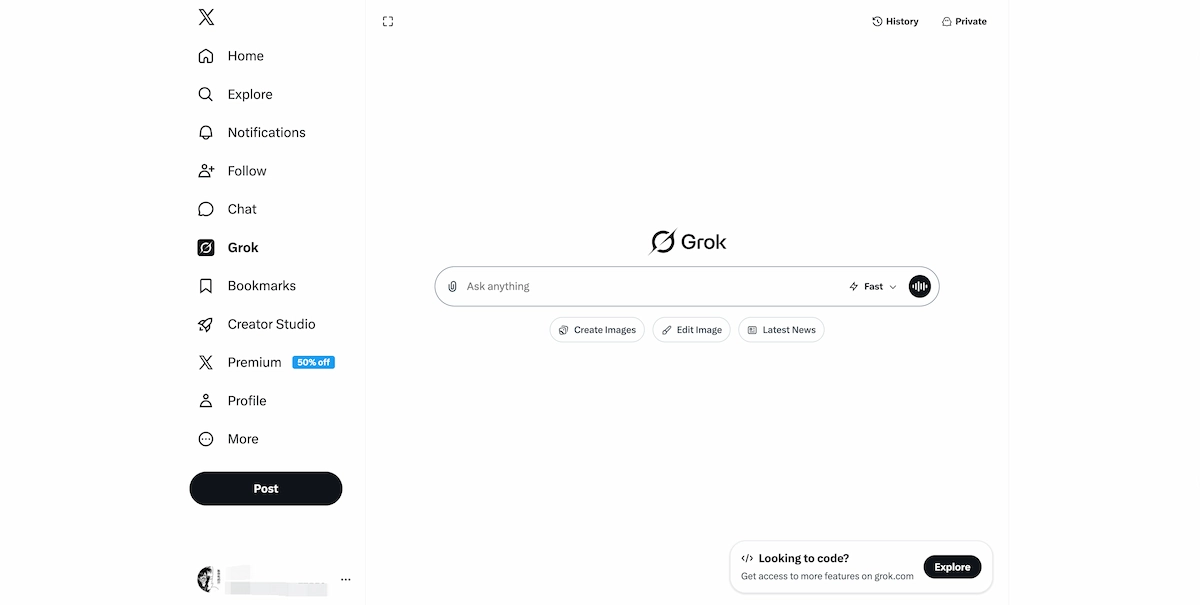
Note: Grok Imagine Video 1.5 access on X is rolling out in stages to Premium subscribers. If the 1.5 option is not visible, you are on the stable grok-imagine-video model.
Using Grok Imagine via API (Developers)
- Create an API key at console.x.ai.
- Install the xAI SDK:
pip install xai-sdkornpm install @xai/sdk. - Set your environment variable:
export XAI_API_KEY=your_key_here. - For image generation, call
client.image.sample()with your prompt and the modelgrok-imagine-image-quality. - For video generation, call
client.video.generate()with prompt, model name, duration (1–15s), aspect ratio, and resolution. - Video generation is asynchronous — the SDK handles polling automatically and returns the completed video URL.
- For manual polling, use
client.video.start()to receive arequest_id, thenclient.video.get(request_id)to check status: pending → done / failed / expired.
REST API users must implement the two-step start/poll flow manually using POST /v1/videos/generations followed by GET /v1/videos/{request_id}.
Using Grok Imagine Inside VidMuse AI
- Start a new project in VidMuse and complete the Creative Brief.
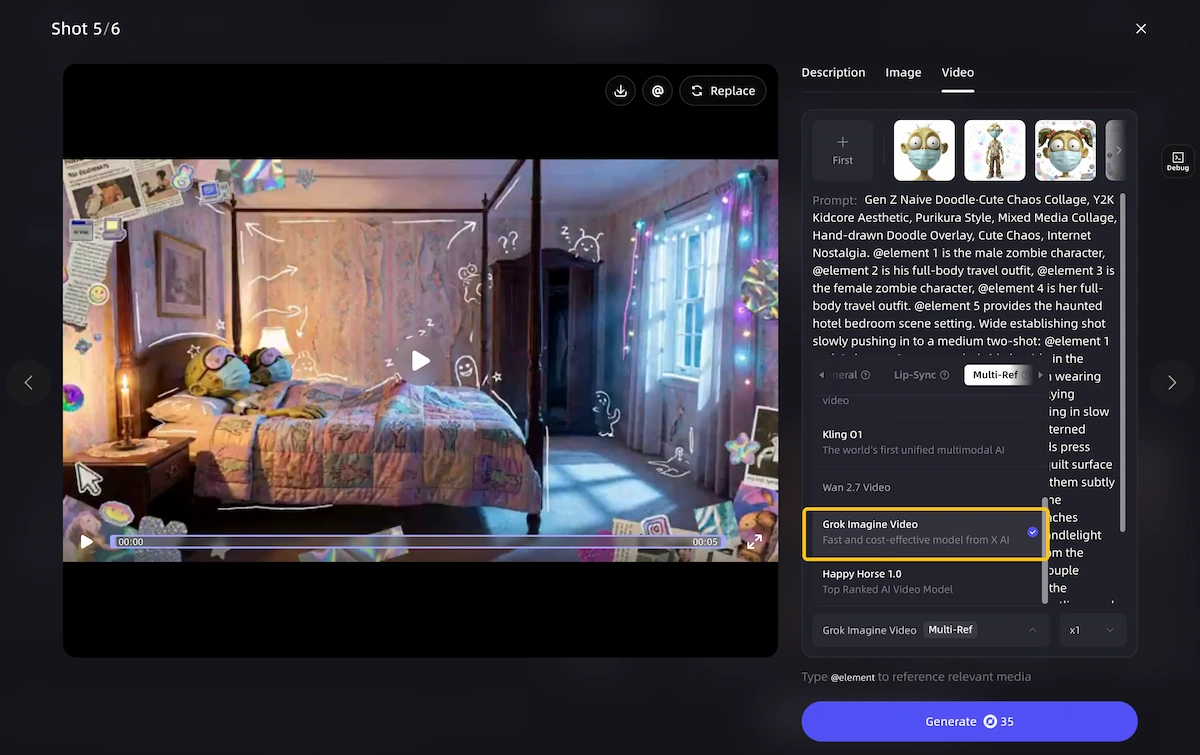
- During Reference Generation, select Grok Imagine Image as your image model to generate scene-anchoring stills from your prompts.
- At the Storyboard stage, each shot is visualized as a frame — edit prompt language and visual references at the shot level.
- During Video Generation, select Grok Imagine Video (stable or 1.5 preview) for shots where image-to-video quality is the priority.
- Use the Timeline Editor (VidMuse 2.0) to sequence, trim, and sync shots to your music track.
- Use Shot Refine by Quoting (VidMuse 2.0) to regenerate only the portion of a shot that needs adjustment, preserving the rest.
Get Access to Grok Imagine in VidMuse AI
Turn your idea into a reference image and a video with VidMuse AI.
This integrated path is the most efficient way to use Grok Imagine for music video production — it combines Grok's generation quality with VidMuse's narrative planning and timeline tools.
Grok Imagine Spicy Mode and Content Controls
Grok Imagine Spicy Mode is one of the platform's most-searched features, regularly surfacing in Reddit threads and topping keyword lists for the product. Spicy Mode is an opt-in content setting that unlocks less-restricted image generation outputs — allowing more mature or stylistically bold results that the default safe mode filters.
Key facts about Spicy Mode:
- It is an opt-in toggle, not the default state.
- Availability requires adult-verified X Premium account status.
- All Grok Imagine outputs — regardless of mode — are subject to xAI's content policy review. The API documentation confirms generated media is not used for model training.
- For API and enterprise users, the
respect_moderationfield in video generation responses signals whether a clip passed content review. Afalsevalue means the output was filtered. - If a generation is rejected with an
invalid_argumenterror citing content moderation, revise the prompt to remove policy-violating elements and resubmit.
For enterprise workloads, the Imagine API is SOC 2 Type II audited, HIPAA-eligible, and GDPR-compliant, with data residency options available.
Grok Imagine Pricing and Free Tier
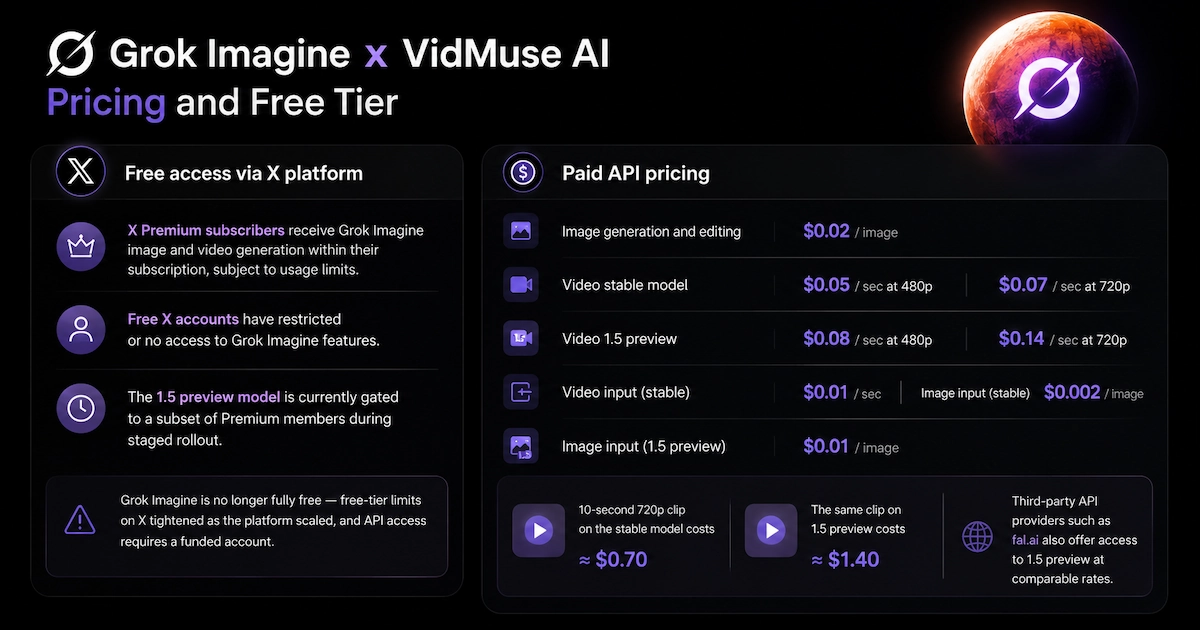
Is Grok Imagine free? Partially. Here is the full breakdown:
Free access via X platform:
- X Premium subscribers receive Grok Imagine image and video generation within their subscription, subject to usage limits.
- Free X accounts have restricted or no access to Grok Imagine features.
- The 1.5 preview model is currently gated to a subset of Premium members during staged rollout.
- Grok Imagine is no longer fully free — free-tier limits on X tightened as the platform scaled, and API access requires a funded account.
Paid API pricing:
- Image generation and editing: $0.02 per image
- Video stable model: $0.05/sec at 480p, $0.07/sec at 720p
- Video 1.5 preview: $0.08/sec at 480p, $0.14/sec at 720p
- Video input (stable): $0.01/sec; image input: $0.002
- Image input (1.5 preview): $0.01
A 10-second 720p clip on the stable model costs approximately $0.70. The same clip on 1.5 preview costs $1.40. Third-party API providers such as fal.ai also offer access to 1.5 preview at comparable rates.
Within VidMuse: Grok Imagine's generation costs are handled as part of VidMuse's platform credit system, so you are not managing xAI API billing separately when generating through VidMuse.
Grok Imagine API: Developer Quick-Start
The Grok Imagine API uses a standard REST architecture and is OpenAI SDK-compatible, minimizing integration friction for teams already using OpenAI tooling.
Five video modes are available from a single endpoint:
- Text-to-video — Prompt only; no image required. Available on stable model.
- Image-to-video — Provide an image URL or base64 data; it becomes the first frame. Available on both stable and 1.5 preview.
- Reference-to-video — Provide 1–3 reference images that guide composition and style without dictating the first frame.
- Video editing — Modify an existing video with a natural-language prompt; output retains original duration (max 8.7s).
- Video extension — Continue an existing video from its last frame, combining original and extension into a single clip.
Critical constraints:
- You cannot mix
imageandreference_imagesin a single request — use one or the other. - Video editing does not support custom duration, aspect ratio, or resolution overrides; output always matches the input video.
- The 1.5 preview model does not support text-to-video; image-to-video only.
- Concurrent generation is supported via
asyncio.gather()in the Python async client.
Enterprise features: SAML SSO, RBAC, audit logging, multi-region infrastructure, and custom SLAs for high-availability workloads. Full endpoint documentation: docs.x.ai/developers/models/grok-imagine-video
Grok Imagine vs. Alternatives
When evaluating Grok Imagine against other AI image and video tools, the decision often comes down to use case specificity rather than overall quality rankings.
Choose Grok Imagine when:
- You need a single API for both image and video generation with minimal setup overhead.
- Image-to-video quality is your top priority — the 1.5 model leads current public benchmarks.
- You need video extension (continuing a clip from its last frame) as a built-in native capability.
- You want OpenAI SDK-compatible integration with an alternative provider.
- You are working inside VidMuse, where both Grok Imagine Image and Video are already integrated.
Consider other models when:
- You need video output longer than 15 seconds per generation.
- You need 1080p resolution — Grok Imagine currently caps at 720p.
- You need text-to-video with the highest benchmark quality on the 1.5 model (not yet supported; use stable model).
- You need stylized, anime, or heavily motion-dynamic outputs — models like Kling V3.0 Pro or Hailuo 2.3 Pro may suit specific aesthetic requirements better.
For adjacent workflows, compare Grok Imagine with ChatGPT Image 2.0 for image prompting and Nano Banana Pro for image generation model selection.
Inside VidMuse, you are not locked into one model. The platform's model matrix includes Grok Imagine Video alongside Seedance 2.0 Fast/Pro, Kling V3.0 Pro, Veo 3.1, Hailuo 2.3 Pro, Wan 2.7, and others. You assign the best model to each individual shot — Grok Imagine where photorealistic image-to-video quality matters most, a different model where its strengths are better suited. This shot-level flexibility is a core advantage of using Grok Imagine through VidMuse rather than as a standalone tool.
How VidMuse Integrates Grok Imagine Image and Video
VidMuse integrates Grok Imagine Image and Grok Imagine Video as native generation options inside its full music video production workflow — not as external exports or separate tools. This means the entire pipeline, from generating a reference still to animating it into a shot to assembling it on a timeline, happens within one platform.
Get Access to Grok Imagine in VidMuse AI
Turn your idea into a reference image and a video with VidMuse AI.
The Production Gap Grok Imagine Alone Cannot Fill
Grok Imagine generates high-quality individual assets: stills up to 2K resolution and video clips up to 15 seconds at 720p. What it does not do is plan a narrative arc across 30–120 seconds, maintain visual continuity between shots, sync pacing to a music track, or manage asset memory across generation sessions. These are production-layer problems that require a workflow layer above the generation model.
VidMuse's AI Director Workflow with Grok Imagine
VidMuse's agent-based approach plans the full music video before a single frame is generated. Here is how Grok Imagine plugs into each stage:
Creative Brief
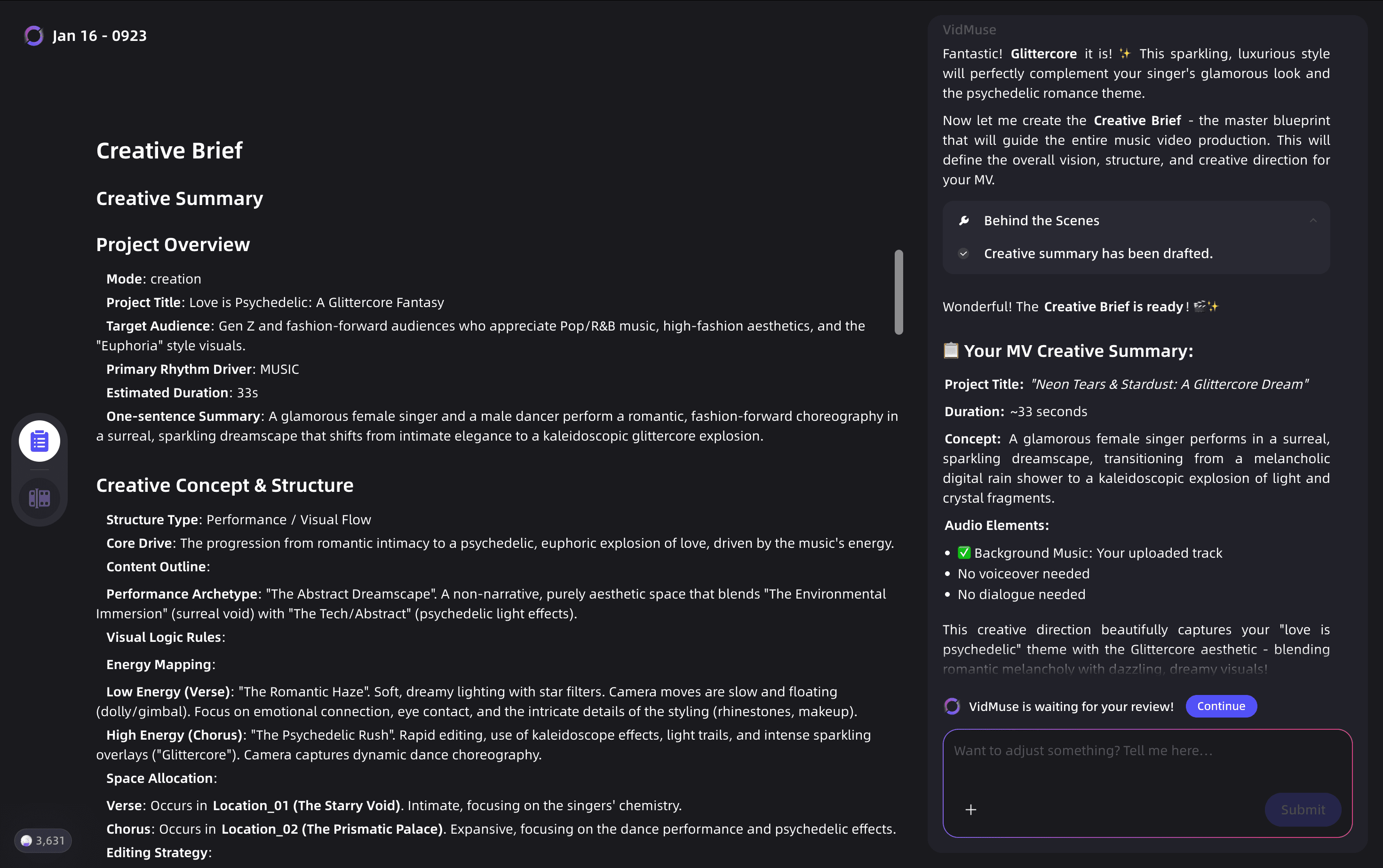
Define genre, mood, references, format, and downstream generation decisions.
Reference Generation
Select Grok Imagine Image to create character, environment, and color references.
Scene & Shots List
Let VidMuse decompose the brief into scenes, durations, camera motion, and moods.
Storyboard
Use Grok Imagine Image outputs as static visual anchors before video generation.
Video Generation
Select Grok Imagine Video for image-to-video quality or another model per shot.
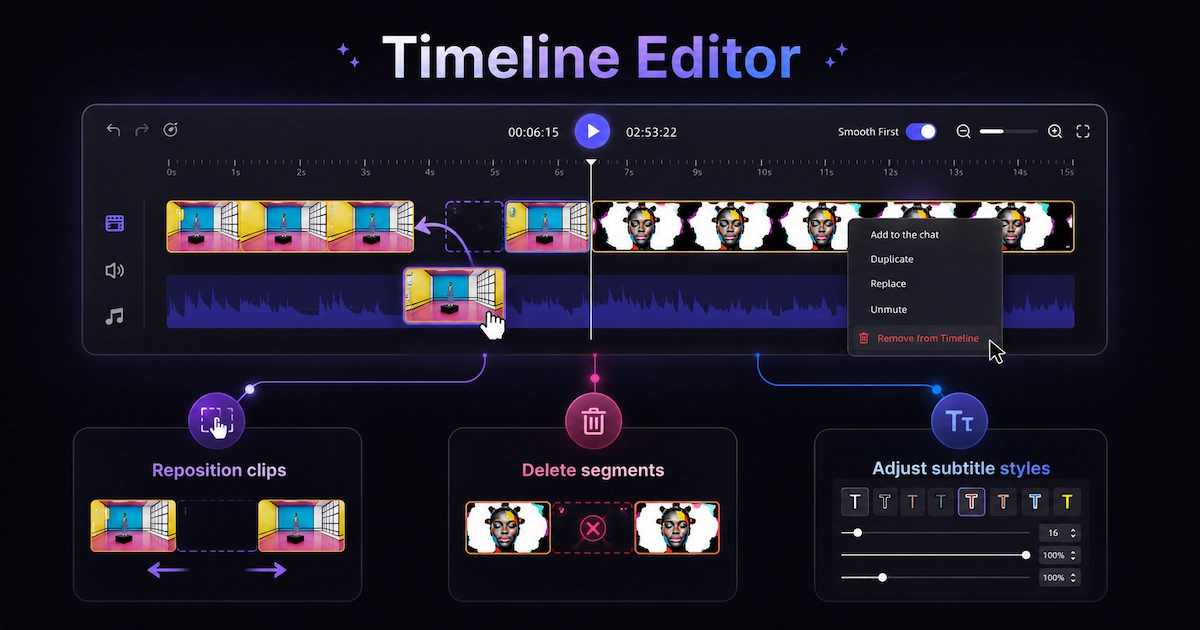
Timeline Editor
Adjust sequence, trim clips, add transitions, and sync cuts to the music track.
Shot Refine by Quoting
Regenerate only a selected portion of a shot instead of replacing the full clip.
Asset Library & Memory
Store generated clips, references, and storyboard frames for reuse and comparison.
1. Creative Brief
Define genre, mood, reference aesthetics, and intended format (Story MV, Abstract MV, Performance MV, Viral Short, TVC, or Explainer). This brief drives all downstream generation decisions, including model selection.
2. Reference Generation
Select Grok Imagine Image as your image model at this stage. Generate the visual references — character look, environment style, color palette — that will anchor the entire video's aesthetic. Grok Imagine Image's 1K/2K resolution and multi-image editing capability make it well-suited for producing tight, coherent reference frames.
3. Scene & Shots List
VidMuse's AI Director decomposes the brief into discrete scenes and shots, assigning duration, camera motion, and mood to each. Shot-level prompts are generated automatically and can be edited before generation begins.
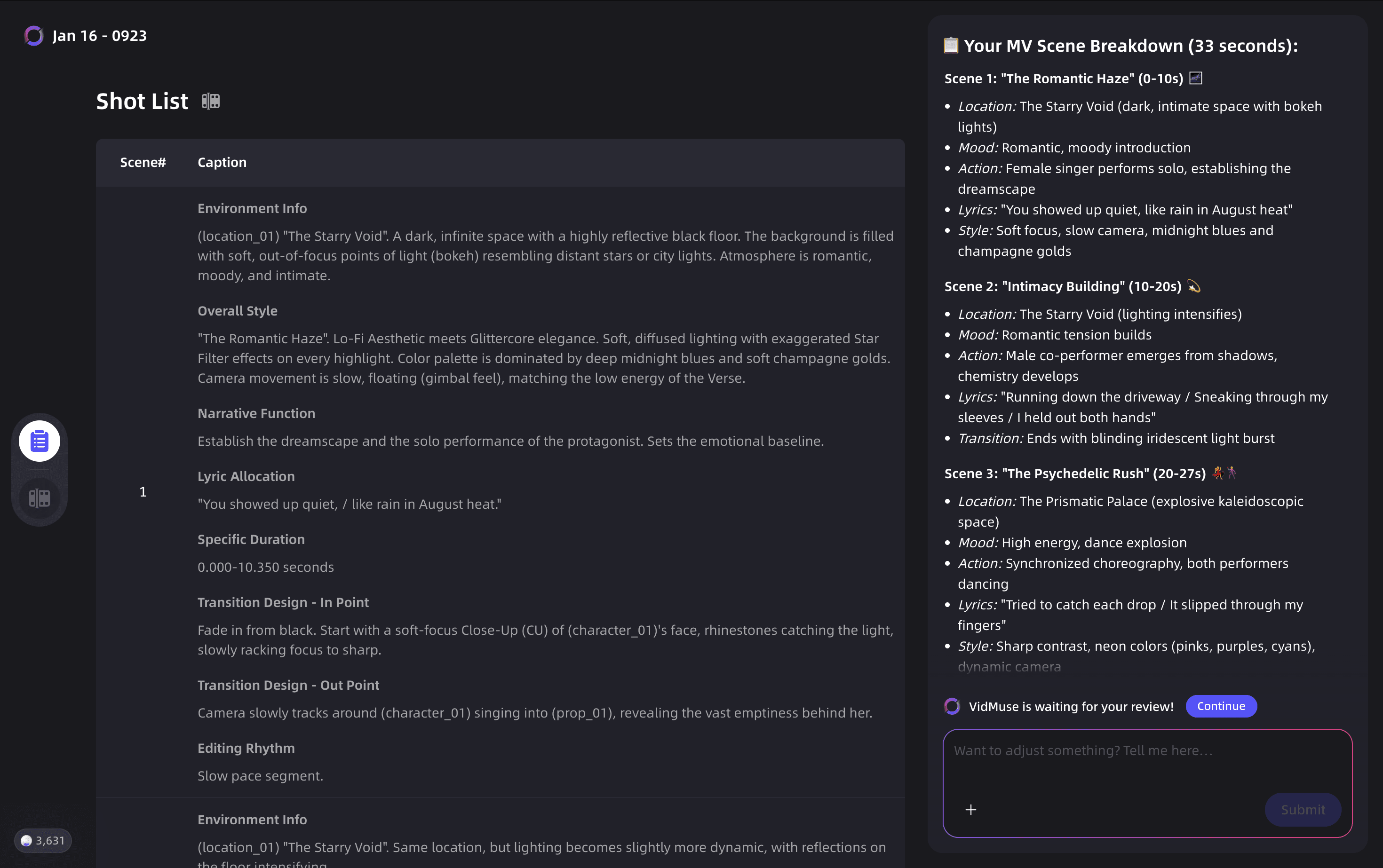
4. Storyboard
Each shot is visualized as a static frame. At this stage, your Grok Imagine Image outputs populate the storyboard, providing visual anchors that guide the subsequent video generation for each shot.
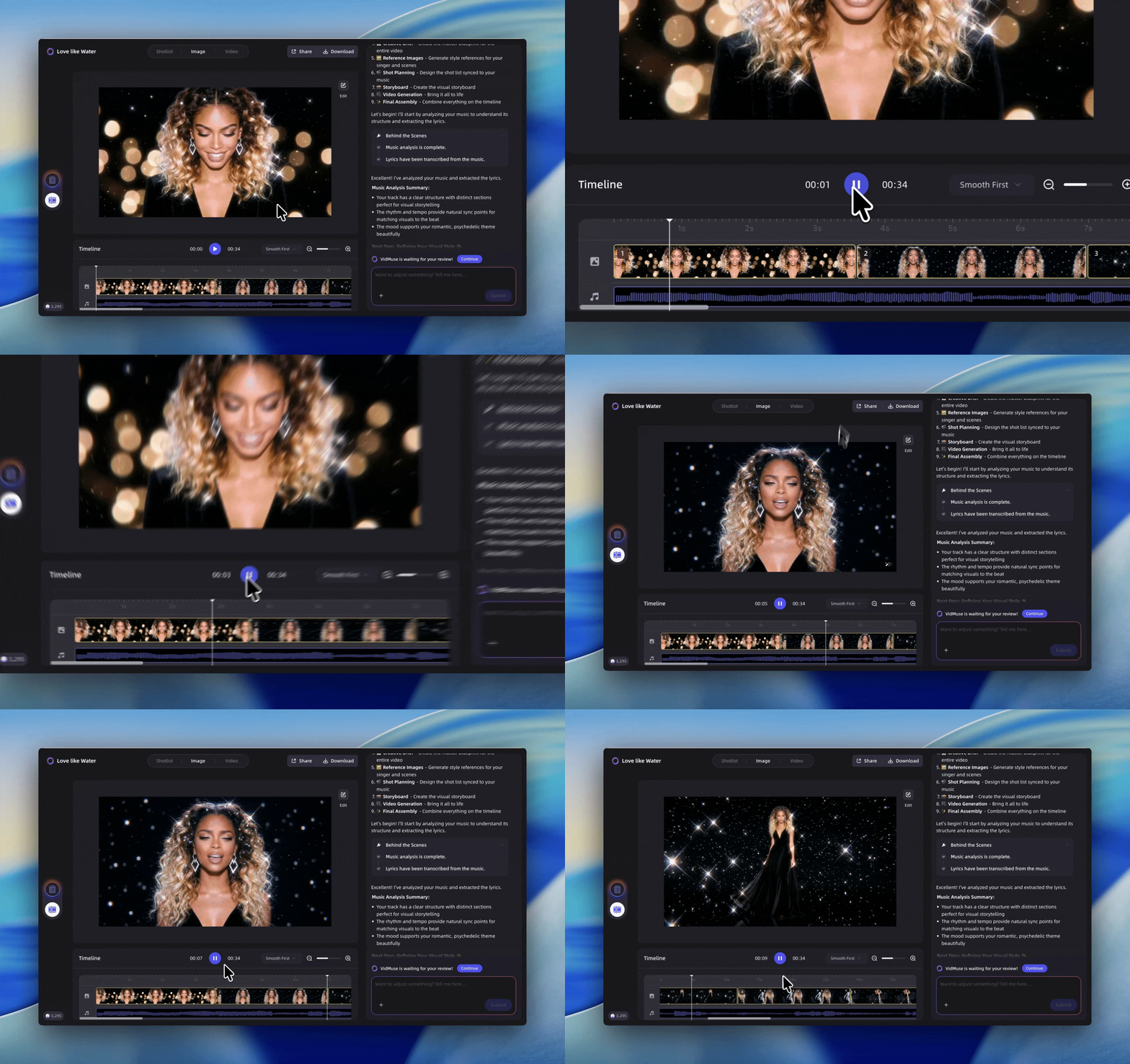
5. Video Generation
Select Grok Imagine Video (stable or 1.5 preview) for shots where image-to-video quality is the priority. The storyboard frame becomes the source image, and VidMuse passes it directly to Grok Imagine Video's image-to-video mode. For other shots, choose from the full model matrix — Seedance 2.0, Kling V3.0 Pro, Veo 3.1, or others — based on the aesthetic requirements of that specific scene.
6. Timeline Editor (VidMuse 2.0)
All generated shots load into a timeline interface where you adjust sequence, trim clips, add transitions, and sync visual cut points to your music track's beat structure.
7. Shot Refine by Quoting (VidMuse 2.0)
Select a specific portion of a Grok-generated clip that needs adjustment and regenerate only that section — no need to re-generate the entire shot. This is particularly useful when Grok's motion output is strong but a single element needs correction.
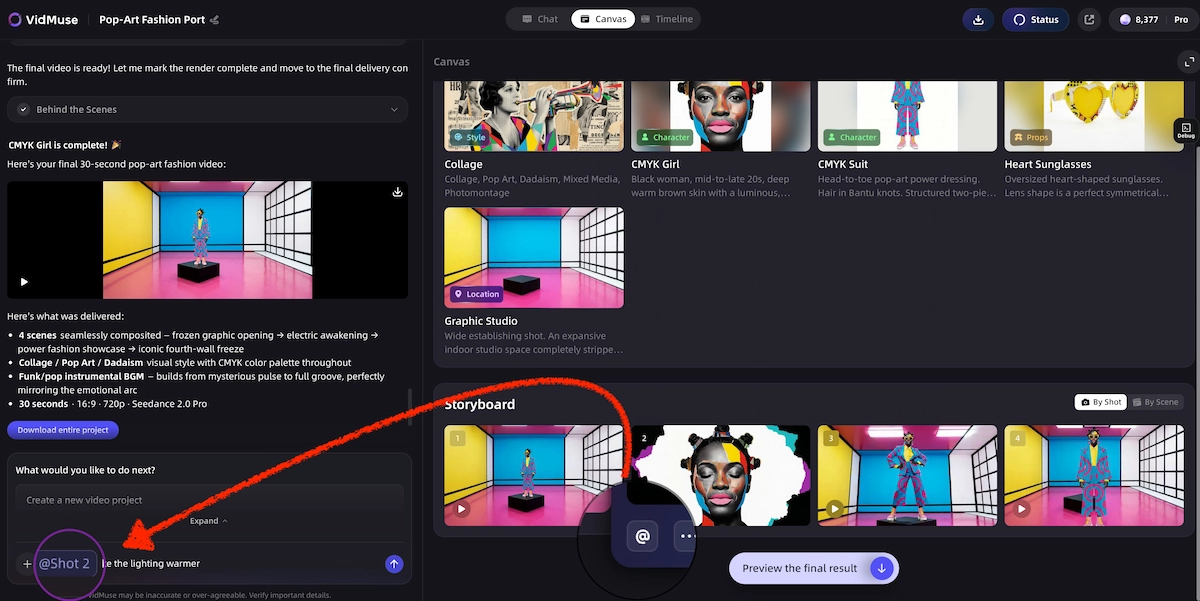
8. Asset Library & Memory (VidMuse 2.0)
All generated clips, reference images, and storyboard frames — including everything produced via Grok Imagine — are stored persistently in the project's Asset Library, enabling iteration, reuse, and version comparison across sessions.
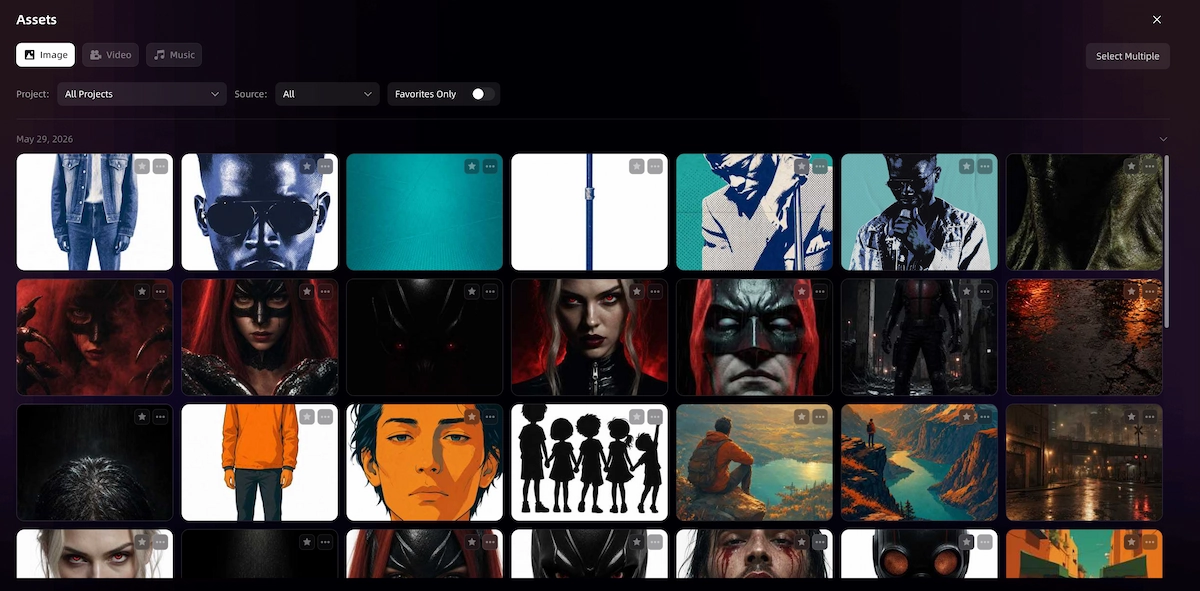
Practical Workflow: Suno Track to Finished MV Using Grok Imagine
A direct production path for indie musicians:
- Generate an original track using Suno AI, integrated natively inside VidMuse.
- Use the music to video AI workflow when you already have a finished track and want to build the full visual pipeline around it.
- In the Reference Generation stage, use Grok Imagine Image to create scene-anchoring stills from text prompts — establishing the visual world of the video.
- At Video Generation, assign Grok Imagine Video to shots requiring photorealistic motion quality. Assign Seedance 2.0 or Kling V3.0 Pro to shots requiring stylized or high-motion outputs.
- Assemble all shots on VidMuse's Timeline Editor, syncing cuts to the track.
- Use Shot Refine to adjust any clips without starting from scratch.
- Export a finished 30-second to 2-minute music video — the full Grok Imagine Image-to-Video pipeline executed inside a single platform.
For a related non-lyric use case, a music visualizer can work as an Abstract MV direction when the track needs reactive visuals rather than narrative shots.
Common Mistakes and Troubleshooting
Mistake 1: Using 1.5 preview for text-to-video
The grok-imagine-video-1.5-preview model supports image-to-video only. Text-only prompts on this model will return an error. Use grok-imagine-video (stable) for text-to-video, or provide a reference image — ideally one generated with Grok Imagine Image — when using the 1.5 preview.
Mistake 2: Skipping the image generation step before image-to-video
The 1.5 preview model's quality advantage is specifically in image-to-video generation. Feeding it a high-quality, purpose-built reference still — rather than a generic stock image — produces significantly better output. Use Grok Imagine Image inside VidMuse's Reference Generation stage to create that still before triggering video generation.
Mistake 3: Ignoring aspect ratio on image-to-video
When you pass an image to Grok Imagine Video, the output defaults to the input image's aspect ratio. Specifying a different aspect_ratio parameter stretches the image rather than cropping it. Prepare reference images at the intended output ratio before generating.
Mistake 4: Not handling asynchronous video responses
Video generation returns a request_id on submission — it is not an instant response. The xAI SDK handles polling automatically, but REST API users who treat the initial response as the final output will always see a pending status. Use the SDK or implement polling manually.
Mistake 5: Exceeding prompt length limits
Overly long prompts trigger an invalid_argument error. Keep prompts descriptive but concise — typically under 500 characters for consistent reliability.
Mistake 6: Treating Grok Imagine as a complete music video tool
Grok Imagine produces excellent individual image and video assets. It does not handle multi-shot narrative continuity, music synchronization, or timeline assembly. For a finished music video, VidMuse's workflow layer is what connects Grok Imagine's generation quality to a complete, exportable production.
Mistake 7: Mixing incompatible API modes
You cannot combine image input with reference_images in a single request. Setting multiple mode values (edit-video, extend-video, reference-to-video) in one AI SDK request also returns a 400 error. Each request supports exactly one mode.
FAQ
What is Grok Imagine and what can it generate?
Grok Imagine is xAI's visual generation platform covering AI image generation, image editing, and video generation from text or image inputs. It supports up to 10 images per request at 1K/2K resolution and video clips up to 15 seconds at 480p or 720p. VidMuse integrates both Grok Imagine Image and Grok Imagine Video directly inside its music video production workflow.
Is Grok Imagine free to use?
Grok Imagine offers limited free access for X Premium subscribers on the X platform, with usage caps. API access is paid: image generation costs $0.02 per image and video generation ranges from $0.05 to $0.14 per second depending on model and resolution. The 1.5 preview model is not available at the free tier. Grok Imagine is no longer fully free at the developer level.
What is Grok Imagine Spicy Mode?
Grok Imagine Spicy Mode is an opt-in content setting that allows less-restricted image generation outputs for adult-verified X Premium accounts. All outputs remain subject to xAI's content policy regardless of mode, and the `respect_moderation` field in API responses indicates whether a generated asset passed review.
What are the current Grok Imagine limits?
API rate limits are 70 requests per minute for `grok-imagine-video` and 60 requests per minute for `grok-imagine-video-1.5-preview`. Maximum video duration per generation is 15 seconds (8.7 seconds for video editing). Maximum resolution is 720p. Image requests support up to 10 outputs per call. The 1.5 preview model supports image-to-video only — text-to-video is not yet available on that model.
How do I use Grok Imagine for image-to-video generation?
Provide a source image URL or base64-encoded image alongside a text prompt describing the desired motion. The source image becomes the first frame of the generated video. Specify `duration` (1–15 seconds), `aspect_ratio`, and `resolution` in your request. The 1.5 preview model uses this mode exclusively and currently leads global image-to-video benchmarks. Inside VidMuse, this workflow is handled automatically — your Grok Imagine Image output from the Reference Generation stage feeds directly into Grok Imagine Video at the Video Generation stage.
How does VidMuse use Grok Imagine Image and Video together?
VidMuse integrates Grok Imagine Image for the Reference Generation and Storyboard stages — producing the scene-anchoring stills that define each shot's visual starting point. At the Video Generation stage, Grok Imagine Video (stable or 1.5 preview) animates those stills into clips using image-to-video mode. The Timeline Editor then assembles all clips into a complete music video synced to your track. This connected image-to-video pipeline is available inside VidMuse without requiring separate API configuration.
What are the best Grok Imagine prompts for music video content?
Effective prompts for music video clips specify: the subject, the camera motion (slow push-in, orbital pan, static wide shot), the lighting quality (golden-hour, neon-lit, overcast diffuse), and the mood (melancholic, euphoric, cinematic). For image generation prompts used as video reference frames, add specific style descriptors — film grain, aspect ratio, color grading reference — to establish a consistent visual language across shots. Inside VidMuse's Storyboard stage, shot-level prompts are auto-generated from your Creative Brief and can be edited before generation starts.
Is there a Grok Imagine API for developers?
Yes. The Grok Imagine API is available through the xAI developer console at console.x.ai. It is OpenAI SDK-compatible, supports Python, JavaScript, and direct REST calls, and covers all five video generation modes plus image generation and editing. Enterprise features include SOC 2 Type II compliance, HIPAA eligibility, GDPR compliance, SAML SSO, RBAC, and data residency options.
Final Words
Grok Imagine is one of the most capable AI visual generation platforms available today — with a leaderboard-leading image-to-video model, a five-mode video API, and competitive pricing that makes high-quality generation accessible at meaningful scale. Its honest ceiling: individual clips up to 15 seconds at 720p, with no native tools for narrative planning, music synchronization, or multi-shot assembly.
That is exactly where VidMuse extends what Grok Imagine can do. By integrating both Grok Imagine Image and Grok Imagine Video directly inside its production workflow, VidMuse lets you use Grok's generation quality — stills into storyboards, storyboards into animated shots — within the structured pipeline of a professional AI Director. Creative Brief, Reference Generation with Grok Imagine Image, shot-by-shot Video Generation with Grok Imagine Video, Timeline Editor, and Shot Refine: the complete path from track to finished music video, without leaving the platform.
If you are ready to go beyond individual clip generation and produce a complete music video using Grok Imagine's quality inside a full production workflow, VidMuse AI is the platform built to make that possible. Start from the AI music video generator workflow when you want the broader production path.
Get Access to Grok Imagine in VidMuse AI
Turn your idea into a reference image and a video with VidMuse AI.

Written By
VidMuse Team
Continue Reading
Latest blog posts related to AI video creation.
PixVerse V6 x VidMuse AI: Model Guide and Video Workflow
PixVerse V6 review and VidMuse integration guide. Capabilities, 15s 1080p video, prompt tips, model comparison, pricing, and how to use V6 in VidMuse workflows.
FLUX 3: What It Is, Capabilities, and How to Access It
FLUX 3 is Black Forest Labs' multimodal AI model for image, video, audio, and action. Full guide: capabilities, FLUX 3 vs FLUX 2, availability, and pricing.
Free Music Visualizer: 10 Best Free Tools in 2026
Compare 10 best free music visualizers in 2026. Waveform tools, AI music video makers, watermark policies, export limits, and which tool fits your workflow.