
Grok Imagine Video 1.5 is xAI's latest image-to-video model, built around three improvements over its predecessor: native synchronized audio generated in the same pass as the video, more physically consistent motion across a clip, and a generation speed that's nearly twice as fast as before.
Create Your AI Video in Minutes
Turn your idea, image, or music brief into a planned video with VidMuse.
The model is now generally available in the xAI API as grok-imagine-video-1.5, with a faster variant — Video 1.5 Fast — live on grok.com/imagine and the iOS and Android apps.
Key Takeaways
- Grok Imagine Video 1.5 generates synchronized audio — dialogue, sound effects, ambience, and music — in the same pass as the video, rather than as a separate step.
- The Fast variant produces a 6-second, 720p clip in about 25 seconds, down from 40+ seconds on the previous model.
- The model supports image-to-video, reference-guided generation, and video extension, but does not currently support text-to-video.
- Clips run 1 to 15 seconds, at 480p or 720p, 24 fps, with API pricing of $0.08–$0.14 per second depending on resolution.
- It's well suited to short-form social clips, product demos, and talking-head content; for longer, multi-shot music videos, a platform like VidMuse that plans full sequences across models may fit better.
What Is Grok Imagine Video 1.5?
Grok Imagine Video 1.5 is xAI's image-to-video generation model, designed to animate a starting image into a short video clip with synchronized audio. It's the successor to the original Grok Imagine Video model and is built specifically around image-to-video, reference-guided, and video-extension workflows rather than generating video from text alone.
The model is positioned for creators who need quick turnaround on short clips — talking-head content, product spots, and music-adjacent visuals — where a strong starting image and a clear motion prompt do most of the work. It currently does not support text-to-video generation, so every clip starts from an image input.
What's New Compared to the Previous Model
Grok Imagine Video 1.5 improves on three fronts that matter most for real creative work: audio, motion, and speed.
Audio and speech generation now happens in the same pass as the video.
Sound effects, ambience, and dialogue are generated alongside the motion and land on the action, with speech that's clearer and better synced to lip movement than before.
Motion and physics hold together more consistently across a clip.
Movement shows fewer warps and more believable weight and momentum over the length of a generation, which matters for anything involving fabric, hair, liquids, or physical interaction between objects.
Speed has nearly doubled with the Fast variant.
Grok Imagine Video 1.5 Fast produces a 6-second, 720p video in about 25 seconds, compared to 40+ seconds on the previous model. That difference adds up quickly for anyone iterating on multiple takes of the same shot.
xAI has also rolled out workflow features alongside the model itself, including Projects for organizing work in a sidebar, the ability to run multiple generation agents in parallel instead of waiting for one to finish before starting the next, and search across your generated image and video library.
Core Features and Capabilities
Each of the following features opens a different creative workflow, and most clips will combine two or three of them.
Native synchronized audio.
Dialogue with lip-sync, sound effects, ambient background, and music are generated together with the video in a single pass. You describe the sound in the same prompt as the motion — there's no separate audio-generation step. This is best suited to talking heads, product spots, and short music clips.
Animate a still image.
The image you provide becomes the first frame, and the model animates outward from it while keeping the original lighting, color, and detail rather than regenerating them. This works well for photos, product shots, or finished artwork you don't want the model to reinterpret.
Video extension.
An existing clip can continue from its final frame to build a longer shot, keeping the same subject, lighting, and motion. Repeating this step lets you assemble a multi-part sequence from a single starting clip — useful for story sequences or longer narrative beats.
Reference-guided generation.
Reference images guide style and character without fixing the first frame, which lets the model carry a consistent look into new shots. This is the feature to use when a character or visual style needs to stay steady across multiple, separately generated clips.
Strong prompt following and camera control.
The model follows detailed direction — shot type, a specific camera move like a dolly or pan, and timing for when an action happens — which makes a planned shot more predictable to reproduce on a retry.
Technical Specs
| Spec | Grok Imagine Video 1.5 |
|---|---|
| Provider | xAI |
| Modes | Image-to-video, reference-to-video, video editing, video extension |
| Text-to-video | Not currently supported |
| Audio | Native, synchronized (dialogue, effects, ambience, music) |
| Resolution | 480p or 720p |
| Duration | 1 to 15 seconds |
| Frame rate | 24 fps |
| Aspect ratios | 16:9, 9:16, 4:3, 3:4, 3:2, 2:3, 1:1 |
How to Prompt Grok Imagine Video 1.5
A strong prompt for this model reads like a short shot brief rather than a caption. Five elements consistently drive better results.
- Start from a strong still image.
Generate or attach a 16:9 image first, then animate it — the first frame is the single biggest lever on the final result.
- Keep the motion prompt short and specific.
Name the action and one camera move, and let the image carry the composition and style.
- Always name the audio.
Spell out dialogue, sound effects, ambience, or music in plain language, or the model may generate a silent clip.
- Limit each clip to one action.
Pack a single beat into a few seconds, then use video extension to build out longer sequences.
- Use reference images for consistency.
When a character or visual style needs to stay steady across multiple clips, attach reference images rather than relying on the prompt alone.
For talking characters specifically, frame a front-facing portrait with the mouth visible and keep spoken lines short for cleaner lip-sync.
Prompt elements to include:
| Element | What to include | Example |
|---|---|---|
| Subject | Who or what is in frame, described concretely | a presenter in a charcoal sweater |
| Motion | What moves, and how | she smiles and looks to camera |
| Camera | Shot type plus one move | medium shot, slow push-in |
| Audio | Dialogue, effects, ambience, or music | she says, "Welcome"; soft room tone |
| Duration | Clip length and aspect ratio | 5 seconds, 16:9 |
Weak vs. strong prompts:
| Focus | Weak | Strong |
|---|---|---|
| Camera | A woman in a city at night | Handheld tracking shot following a woman through rain-slicked streets, neon reflections, shallow depth of field |
| Motion and timing | The door opens and someone walks in | The door swings open slowly, a figure steps through after a beat, then the camera settles |
| Audio | A chef plating a dish | Close-up of a chef plating a dish, steam rising. Audio: pan sizzle, soft kitchen ambience, and "Service." |
Where to Access It and Pricing
Grok Imagine Video 1.5 is available in three places: grok.com/imagine, the Grok iOS and Android apps (running the Fast variant), and the xAI API for developers who want programmatic access.
In the API, the model is called as grok-imagine-video-1.5, with grok-imagine-video-1.5-preview and a dated alias also available. API pricing is usage-based:
- Image input: $0.01 per image
- Video output, 480p: $0.08 per second
- Video output, 720p: $0.14 per second
Rate limits on this model are capped at 60 requests per minute. Pricing varies slightly by region/cluster, so it's worth checking current rates before budgeting a production run.
Grok Imagine Video 1.5 vs. Seedance 2.0
For creators comparing models, the practical differences come down to audio handling, input flexibility, and where each model sits in a broader production workflow.
- Audio generation: Grok Imagine Video 1.5's defining feature is native, synchronized audio generated in the same pass as the video — dialogue, effects, ambience, and music together. This is a specific design choice that not every video model handles the same way.
- Input mode: Grok Imagine Video 1.5 is image-to-video only; it does not currently generate from text prompts alone. Workflows that depend on a strong starting image will suit it well; workflows that need pure text-to-video will need a different model.
- Speed: The Fast variant is built specifically for quick iteration, generating a 6-second 720p clip in roughly 25 seconds.
- Production context: Seedance 2.0 is one of several video models available inside platforms like VidMuse, which plans a full shot list and storyboard before generating, rather than producing one clip at a time. Where Grok Imagine Video 1.5 excels at a single, audio-rich clip, a multi-model planning layer becomes more relevant for assembling a full music video or ad from multiple shots.
Because both models serve different parts of a creative pipeline — one a clip-level generator, the other one option among several inside a fuller production tool — "better" depends on whether you're producing a single short clip or building a complete, multi-scene video.
Create Your AI Video in Minutes
Turn your idea into a video with VidMuse.
Where VidMuse Fits In
Grok Imagine Video 1.5 is strong for generating a single, audio-rich clip from a still image — a talking-head intro, a product close-up, a short performance beat. But a full music video or ad usually needs multiple coordinated shots from an AI music video generator, a consistent visual story, and a way to manage the handoff between models.
VidMuse approaches this as a planning problem rather than a single-generation problem. Its workflow moves from Assets Upload through Creative Brief, Reference Generation, Scene & Shots List, and Storyboard before generating video — and Grok Imagine Video sits among the model matrix it can call on, alongside options like Seedance 2.0 Pro, Kling V3.0 Pro, and Veo 3.1, depending on what a given shot needs.
For indie musicians turning a Suno or Udio track into a full music video, the Suno to video workflow matters because no single clip-generation model is built to plan an entire video end to end. VidMuse's Shot Refine by Quoting and Timeline Editor (part of VidMuse 2.0) let you adjust individual shots after the fact, which is harder to do when working with a single-clip tool directly.
FAQ
Does Grok Imagine Video 1.5 support text-to-video?
No. Grok Imagine Video 1.5 currently supports image-to-video, reference-guided generation, and video extension, but it does not generate video from a text prompt alone. Every clip needs a starting image.
How fast is Grok Imagine Video 1.5 Fast?
The Fast variant generates a 6-second, 720p video in about 25 seconds, compared to 40+ seconds on the previous model. Generation time can vary depending on resolution, duration, and current load.
What's the maximum video length for Grok Imagine Video 1.5?
Clips can run from 1 to 15 seconds at a time. For longer sequences, the video extension feature lets you continue from the last frame of a clip to build a multi-part video.
How much does Grok Imagine Video 1.5 cost through the API?
API pricing is $0.08 per second for 480p output and $0.14 per second for 720p output, plus $0.01 per image input. Rates can vary by region, so it's worth checking current pricing before a production run.
Is Grok Imagine Video 1.5 better than Seedance 2.0?
It depends on the use case. Grok Imagine Video 1.5 stands out for native synchronized audio generated in the same pass as the video, while Seedance 2.0 is typically used as one model among several inside multi-shot production workflows — so the better choice depends on whether you need a single audio-rich clip or a fully planned, multi-scene video.
Can I keep a consistent character across multiple Grok Imagine Video 1.5 clips?
Yes, using reference-guided generation. Reference images guide the style and character without fixing the first frame, which lets the model carry that look into separately generated clips.
Final Words
Grok Imagine Video 1.5 makes meaningful gains in audio quality, motion consistency, and generation speed over its predecessor, and the native synchronized audio feature in particular sets it apart for single-clip, talking-head, and product-spot work. Its image-to-video-only design means it's best paired with a strong starting frame and a clear, specific prompt.
For creators building a complete music video or multi-shot ad, the VidMuse guide explains the broader workflow; for Suno-first creators, the best AI music video generator for Suno comparison may also help. Rather than stopping at a single clip, a planning-first platform like VidMuse — which can call on models like Grok Imagine Video alongside others in its matrix — may be a better fit for managing the full production from brief to final cut.
Create Your AI Video in Minutes
Turn your idea into a video with VidMuse.

Written By
VidMuse Team
Continue Reading
Latest blog posts related to AI video creation.
How to Use Kling O3 in VidMuse to Make AI Videos
Kling O3 powers VidMuse Studio with 15s multi-shot generation, voice-persistent characters, native audio, and a practical AI video workflow.
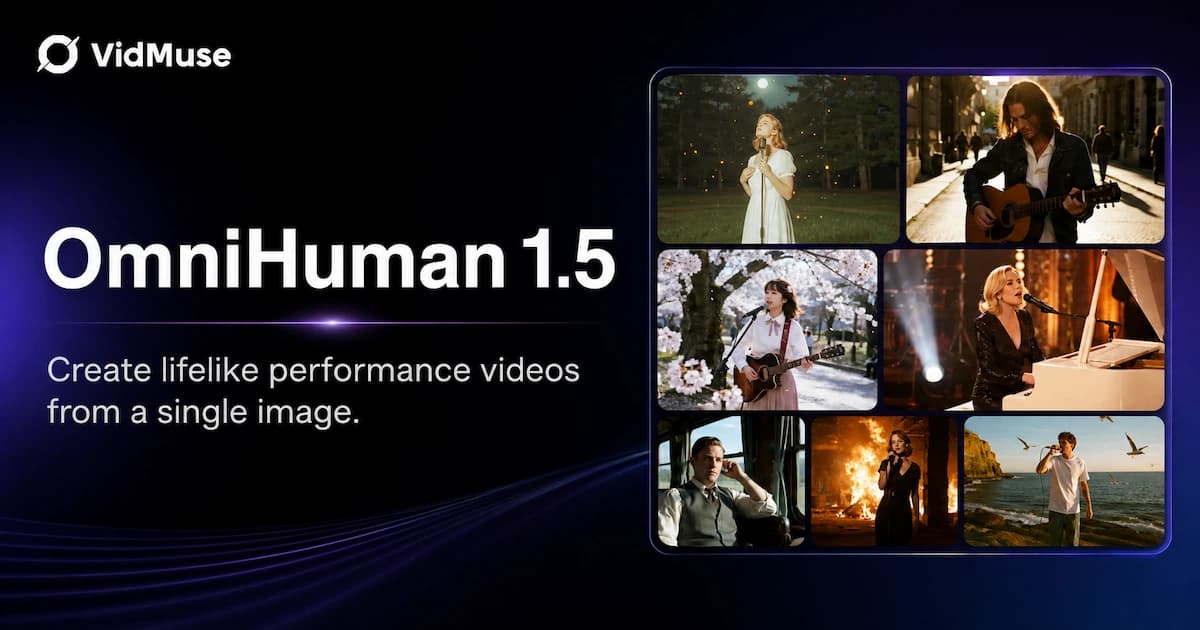
OmniHuman 1.5: The AI Avatar Model Explained
Discover what OmniHuman 1.5 can do — realistic lip-sync, emotional performances, and multi-person scenes — and how to use it inside VidMuse AI.
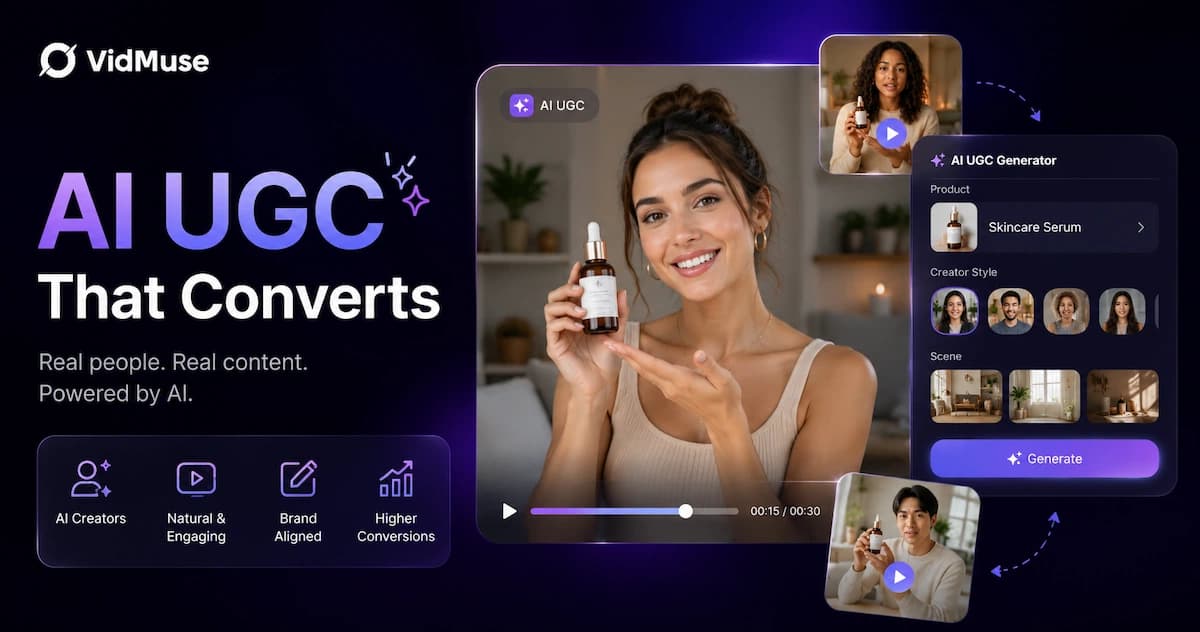
AI UGC: Complete Guide to AI UGC Video Ads in 2026
Learn what AI UGC is, how to make AI UGC video ads, and which tools help brands create storyboarded product ads for TikTok, Reels, and Shorts in 2026.