
Kling O3 (officially Kling VIDEO 3.0 Omni) is one of the primary video generation models inside VidMuse Studio mode, running alongside Seedance 2.0 Pro and Omnihuman V1.5 to produce cinematic music videos and product ads. If you're using VidMuse and wondering which model handles what — or if you're evaluating whether VidMuse is the right platform for producing Kling O3 content — this guide explains exactly how the two work together, from the agent-directed planning layer down to shot-level refinement with VidMuse 2.0.
Key Takeaways
- Kling O3 is available in VidMuse Studio mode as one of the primary video generation models, alongside Seedance 2.0 Pro and Omnihuman V1.5.
- VidMuse's agent-based logic handles model selection. You provide a creative brief; the platform plans the scene structure, storyboard, and routes each shot to the appropriate model — including Kling O3 when its capabilities fit the scene.
- Kling O3 contributes three specific advantages in VidMuse: 15-second multi-shot storyboarding, voice-persistent character elements, and native audio (disabled by default in music video workflows to avoid track conflict).
- VidMuse 2.0's Shot Refine by Quoting works directly on Kling O3 outputs, letting you isolate and re-generate specific shots without affecting the surrounding sequence.
- For indie musicians turning Suno AI tracks into videos, the Kling O3 + VidMuse combination handles narrative shot variety, consistent performer appearance, and visual quality in a single pipeline.
What Is Kling O3 and Why Does It Matter in VidMuse?
Kling O3 is the shorthand for Kling VIDEO 3.0 Omni, Kuaishou's flagship video generation model released in February 2026. It is the upgraded successor to Kling VIDEO O1, introducing three capabilities that weren't available in earlier versions: native audio-visual output, video-based character elements with voice binding, and native multi-shot storyboarding up to 15 seconds per generation.
In the context of VidMuse, these three capabilities directly address the most resource-intensive parts of music video and ad production:
- Multi-shot storyboarding replaces the manual work of generating, reviewing, and stitching together individual clips — a single Kling O3 generation can cover a complete 15-second narrative segment with multiple camera cuts.
- Voice-persistent character elements mean a musician or brand character built once as an element will maintain visual and vocal identity across every scene in the video, without re-specifying identity per prompt.
- Native audio is structurally important to know about even when it's disabled — it confirms the model understands dialogue and ambient sound at a generation level, which improves lip-sync accuracy and expressiveness even in audio-off mode.
VidMuse is not a Kling-only platform. Its model matrix includes Seedance 2.0, Veo 3.1, Hailuo 2.3, Wan 2.7, and more. Kling O3 is the model VidMuse's agent logic selects when the scene requires dynamic multi-character interaction, precise cinematic shot control, or character-element-heavy sequences.
Create Your AI Video in Minutes
Turn your idea into a video with VidMuse.
How VidMuse Uses Kling O3: The Agent Layer Explained
VidMuse's core differentiator is agent-based logic — it plans the full video before any generation happens. This is fundamentally different from using Kling O3 directly on the Kling AI platform, where you write one prompt and generate one clip.
Here's what the agent layer does before Kling O3 is ever called:
- Creative Brief ingestion — VidMuse reads your brief: song, genre, lyrical themes, visual style, target audience, and any uploaded assets (artist photos, product images, brand references).
- Scene & Shot List generation — The agent breaks the video into scenes and individual shots, each with a defined purpose, camera approach, and character or asset reference.
- Storyboard construction — Each shot is rendered as a storyboard frame using VidMuse's image model (Nano Banana Pro in Studio mode, Seedream 5.0 Lite in Lite mode) so you can review the visual plan before any video is generated.
- Model routing — The agent determines which video model handles each segment. Kling O3 is prioritized for scenes that benefit from its multi-shot capabilities, character element support, or motion dynamism. Seedance 2.0 Pro handles scenes requiring deep narrative coherence or slower-paced cinematic sequences. Omnihuman V1.5 handles AI avatar performance shots.
The result is that you're not managing model selection yourself. You're directing the video at the creative level; VidMuse and Kling O3 handle execution.
What Kling O3 Brings to VidMuse's Studio Mode
VidMuse Studio mode uses Kling O3 for its multi-shot flexibility, character consistency, and motion quality — three properties that are difficult to achieve with single-shot video models.
Multi-Shot Storyboarding at 15 Seconds
Kling O3's native multi-shot capability means a single generation can contain multiple planned camera cuts — wide shots, close-ups, cutaways — all within one 15-second output. For music video production, where a 90-second MV might require 12–20 distinct shots, this significantly reduces the number of generation passes needed.
VidMuse's storyboard layer maps directly onto this capability. The storyboard defines shot timing, framing, and transitions; Kling O3 executes them in a single coherent generation rather than requiring VidMuse to stitch separate single-shot clips together.
Character Element Consistency
In Studio mode, artists or recurring brand characters can be built as Elements — visual references that the model tracks across every shot. Kling O3's Elements 3.0 extends this with voice binding: upload a 3–8 second reference video of the character, and the model extracts both their appearance and voice tone, creating a reusable "Character Asset with Voice."
For a musician producing a performance-style music video, this means:
- Their face and look are consistent across outdoor shots, stage shots, and close-ups without separate reference uploads per scene
- Lip-sync and expression are driven by the character's extracted voice, not a generic audio estimation
- The element can be reused across multiple video projects without rebuilding from scratch
Motion Realism and Cinematic Physics
Kling O3 maintains Kling's reputation for realistic motion — fluid character movement, accurate physics for objects and environment interactions, and stable camera behavior during complex moves like dollies and cranes. These properties matter in product ad production (VidMuse's TVC, Unboxing, and Viral Demo Ad templates) where object behavior and camera choreography need to look considered rather than accidental.
VidMuse + Kling O3 Workflow: Step-by-Step
This is the full production path for a music video using VidMuse Studio mode with Kling O3 as the primary video model.
Create Your AI Video in Minutes
Turn your idea into a video with VidMuse.
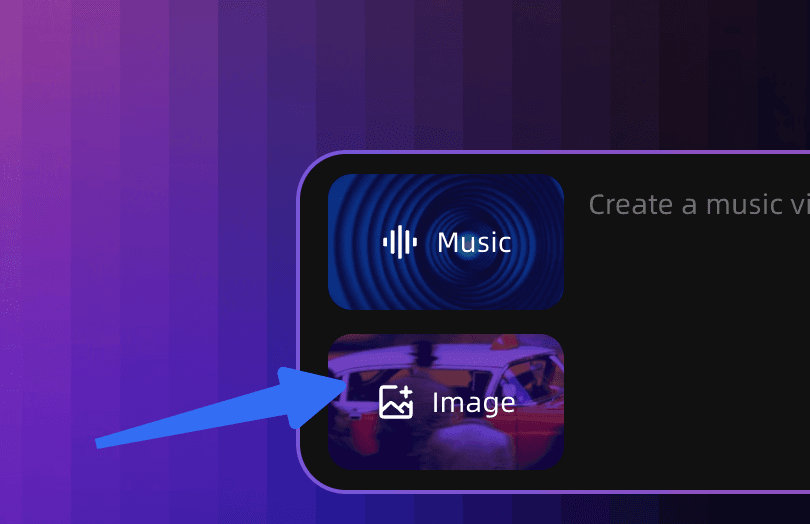
Step 1: Upload Your Assets
In VidMuse's Asset Upload stage, add:
- Artist/character photos — JPG or PNG, minimum 300×300px, ideally multiple angles for stronger element creation
- Reference video (optional) — 3–10 seconds of the character, ≤200MB, for voice and likeness extraction
- Product or scene references — any brand assets, environment photos, or mood board images
- Your music track — the Suno AI track or existing audio file the video will be built around
If the artist has recorded a short voice clip, upload it here for voice binding. Clean audio, moderate speech pace, and consistent tone produce the best lip-sync results downstream.
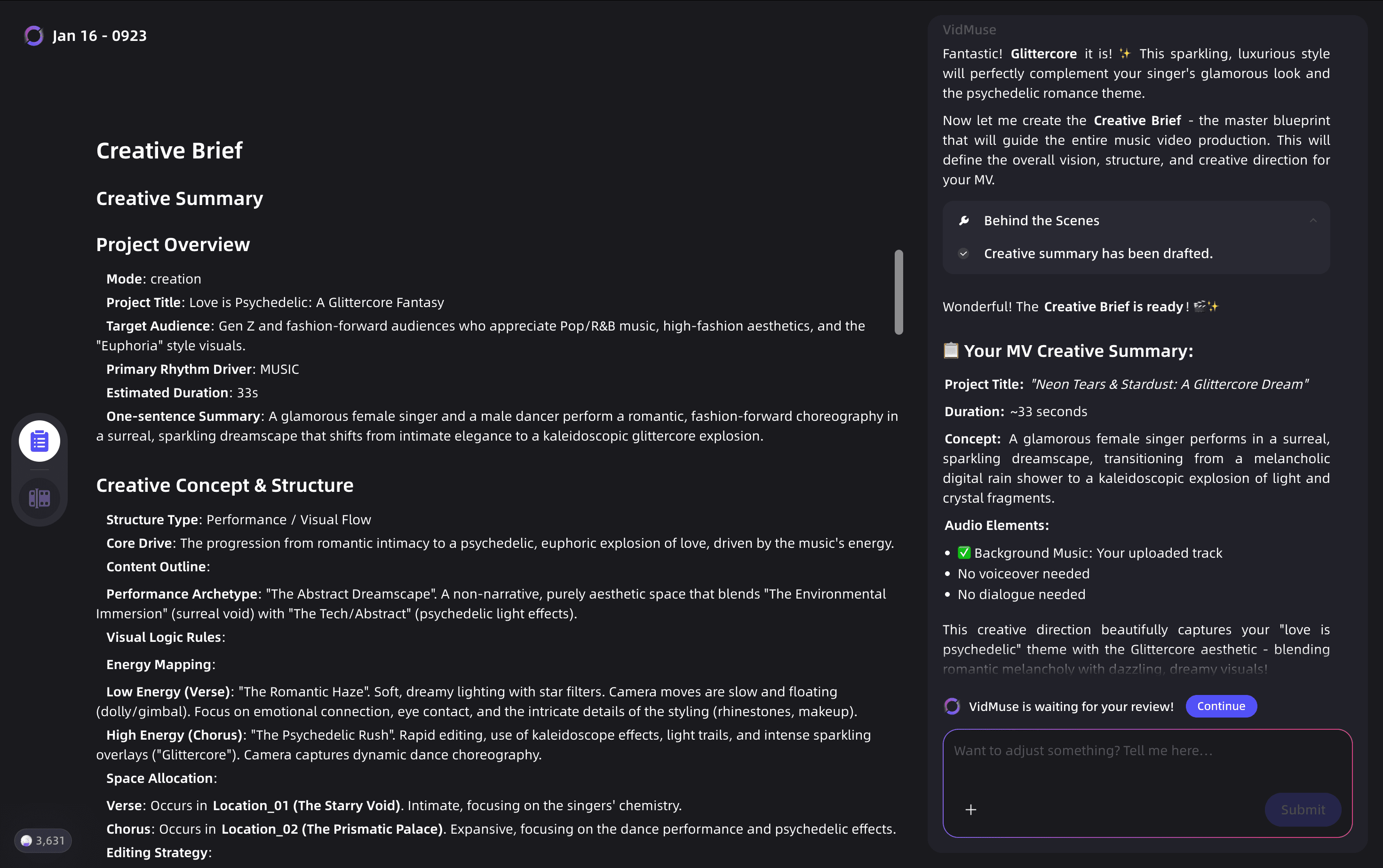
Step 2: Fill In the Creative Brief
The brief is where VidMuse's agent receives its direction. Include:
- Genre, mood, and pacing (e.g., "melancholic indie pop, slow build, wide-to-close cinematography")
- Narrative or thematic concept (e.g., "a solo performer in an empty city at night, intimate and introspective")
- Visual style references (optional)
- Template type — Story MV, Performance MV, or Abstract MV for music videos; TVC or Viral Demo Ad for product content
The more specific the brief, the more precisely VidMuse's agent can plan shot variety and assign the right model to each scene.
Step 3: Review Reference Generation and Storyboard
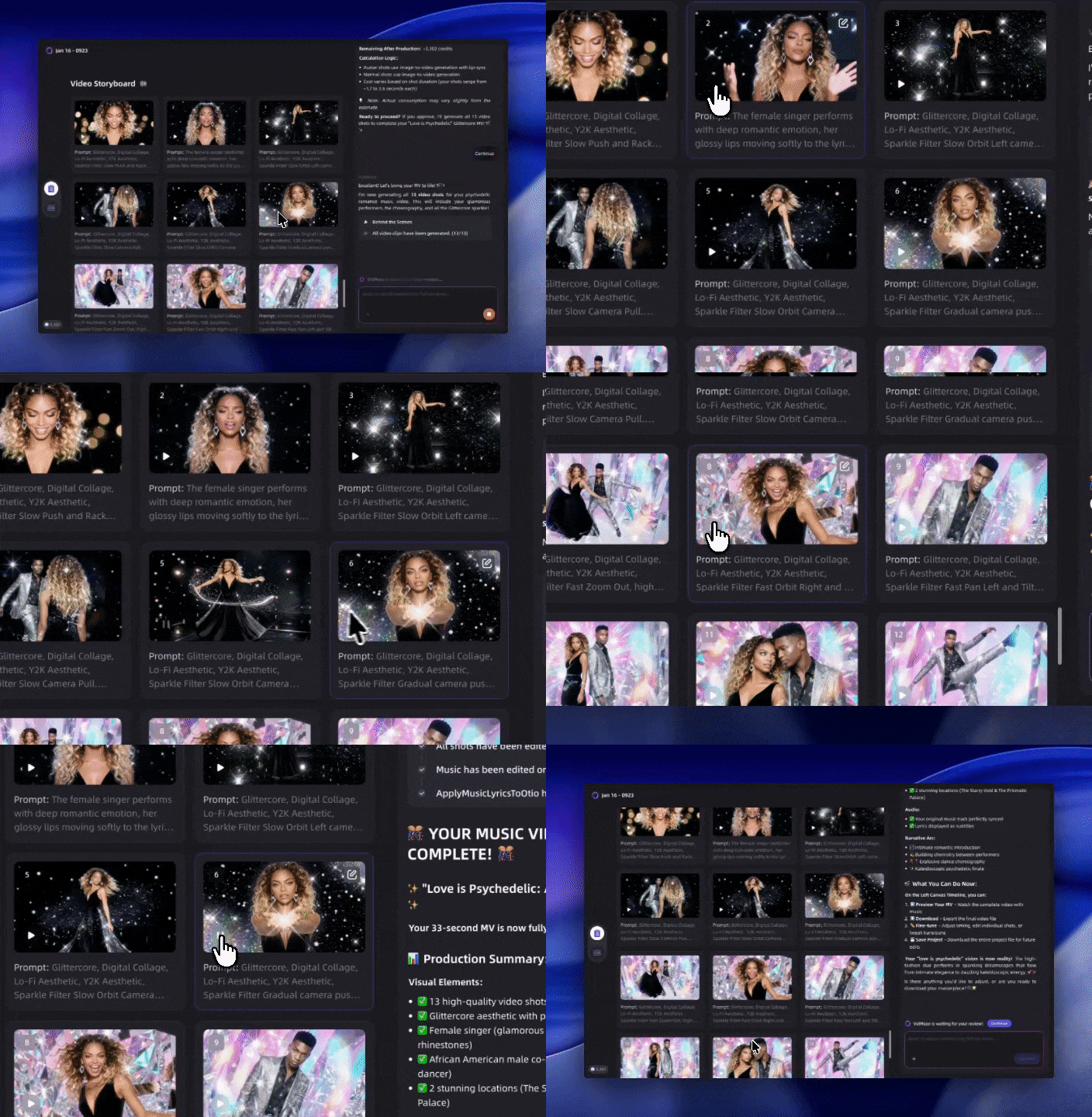
VidMuse generates reference images (using Nano Banana Pro in Studio mode) and builds a storyboard before any video is produced. This is your creative checkpoint:
- Review each frame for visual consistency with your brief
- Check character appearance against your uploaded reference materials
- Adjust shot descriptions, timing, or camera language in the storyboard before committing to video generation
Changes made at the storyboard stage cost nothing — changes made after video generation require re-generation with credit spend. Invest time here.
Step 4: Video Generation
VidMuse routes storyboard shots to the appropriate model. Kling O3-assigned scenes generate using the multi-shot storyboard logic, producing up to 15-second segments with defined camera cuts, character performance, and (if needed) ambient audio.
Credit planning note: In Studio mode, Kling O3 without video input and without native audio costs 8 credits/second at 1080p. A 15-second generation costs 120 credits. Plan your session budget accordingly — typically 3–5 generation passes per key scene to select the best take.
For music video workflows where you're syncing to a Suno AI track: disable native audio on Kling O3 generations. The generated audio will conflict with your track during the Timeline Editor stage, and disabling upfront keeps the output clean.
Step 5: Refine with Shot Refine by Quoting (VidMuse 2.0)
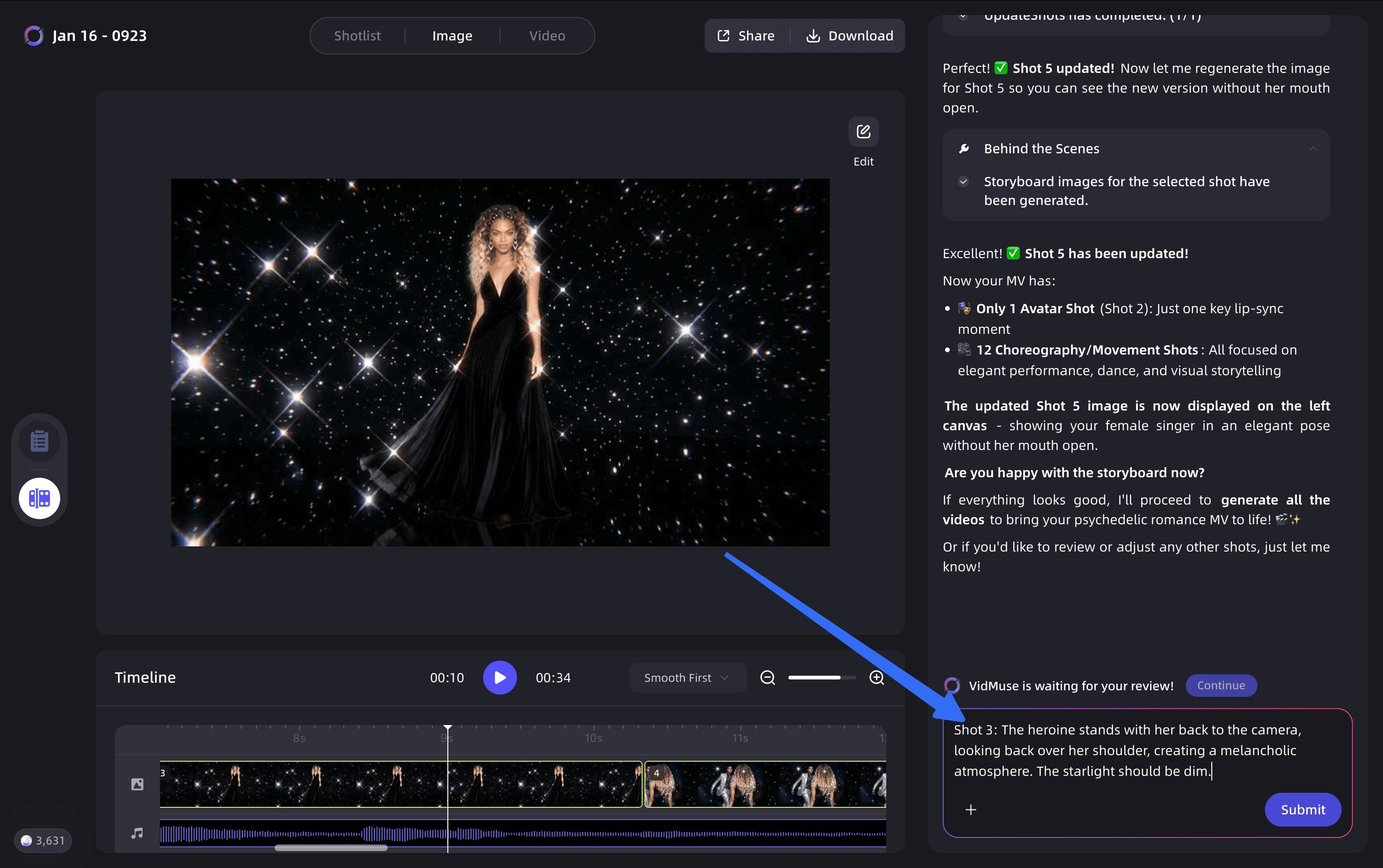
After generation, VidMuse 2.0's Shot Refine by Quoting feature lets you select a specific shot within a generated sequence and regenerate it without affecting surrounding shots. This is the most efficient way to fix:
- A single frame where character likeness drifted
- An unwanted camera movement or framing error
- A shot where lip-sync missed the intended dialogue timing
Quote the problematic shot, adjust the prompt instruction for that specific moment, and regenerate. The rest of the sequence remains intact.
Step 6: Timeline Editor and Final Assembly
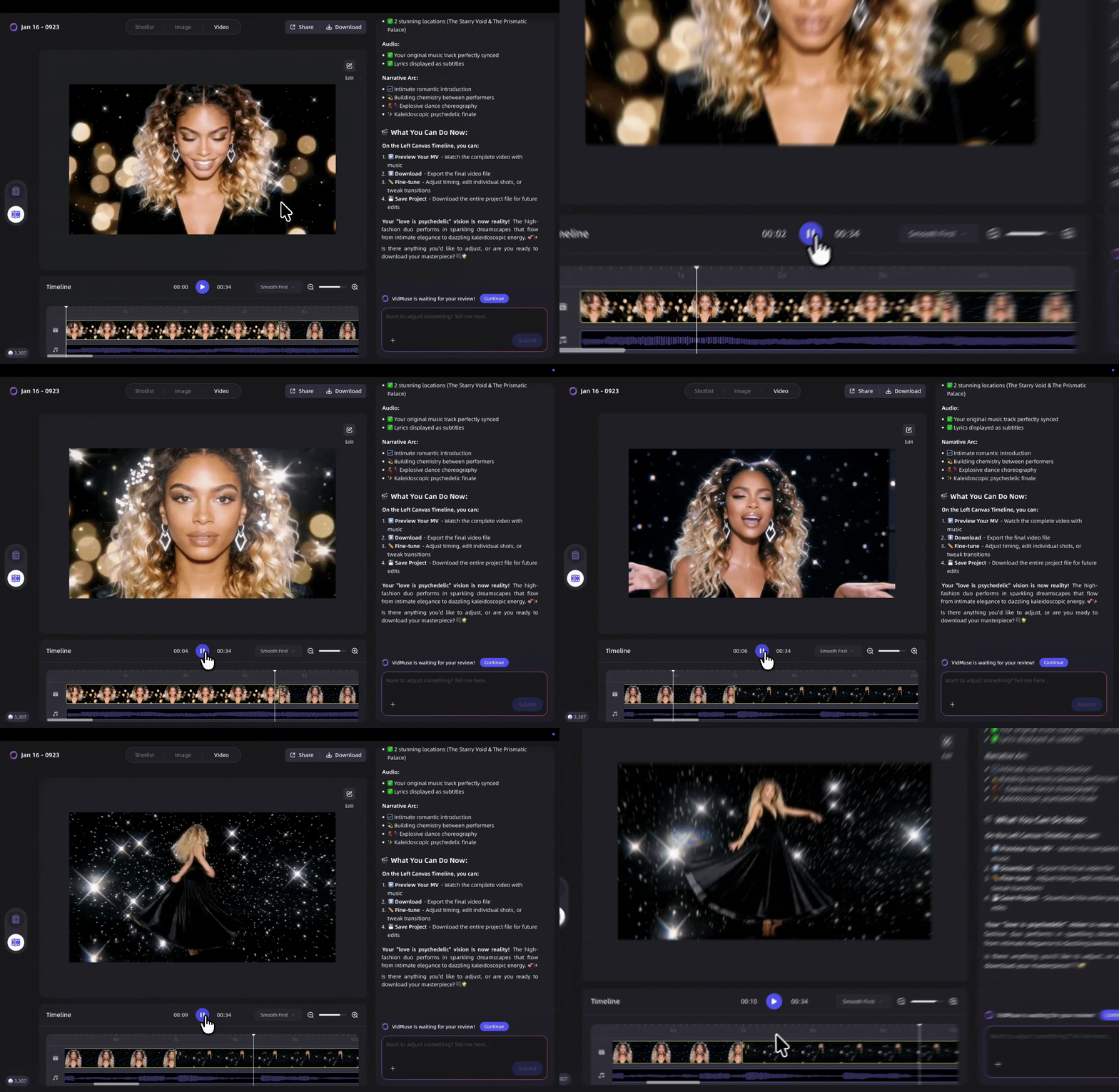
VidMuse 2.0's Timeline Editor handles final assembly — syncing video segments to your audio track, adjusting clip timing, and sequencing scenes. Generated Kling O3 segments drop in as video assets that you can trim, reorder, or layer. The Asset Library & Memory feature stores all generated clips, elements, and references so they're available across sessions and future projects.
Kling O3 vs. Kling O1 in the VidMuse Context
Both Kling O3 and Kling O1 are available in VidMuse's model matrix. Understanding when VidMuse's agent logic might lean toward each:
| Factor | Kling O1 | Kling O3 |
|---|---|---|
| Max Duration | 10s | 15s |
| Multi-shot | No | Yes |
| Native Audio | No | Yes (disable for MV work) |
| Character Voice Binding | No | Yes |
| Video Element Input | No | Yes |
| Credit Cost (1080p, no audio) | Lower | 8 credits/s |
| Best Use in VidMuse | Simple single-take scenes | Multi-character, dialogue-heavy, or longer narrative segments |
For a long-tail query like kling o3 vs kling o1: in the VidMuse context, the decision is largely about scene complexity. Single-shot performance clips with no dialogue and no character element requirements may still run efficiently through Kling O1 equivalent models. Any scene with multiple characters, planned shot cuts, or a narrative arc benefits from Kling O3's native multi-shot support.
When VidMuse Routes to Kling O3 vs. Other Models
VidMuse Studio mode uses multiple models. Understanding the routing logic helps you write better briefs.
Kling O3 (Kling V3.0 Pro in VidMuse's matrix) is typically routed for:
- Dynamic multi-character scenes requiring independent identity maintenance across camera moves
- Narrative scenes with dialogue or monologue requiring lip-sync accuracy
- Segments defined as multi-shot in the storyboard (2+ cuts within 15 seconds)
- Scenes where motion realism (fights, athletic movement, crowd sequences) is the primary requirement
Seedance 2.0 Pro handles:
- Story-driven scenes with strong cinematic pacing requirements
- Sequences where narrative arc within a single clip matters more than shot variety
- Content requiring a more painterly or film-grain visual aesthetic
Omnihuman V1.5 handles:
- AI avatar performance shots — a generated or uploaded digital performer delivering a direct-to-camera performance
- Lip-sync-first content where the visual is secondary to the audio-driven performance
For product ad templates — TVC, Unboxing Ads, Viral Demo Ads — VidMuse may mix all three models across segments of the same spot, with Kling O3 handling the kinetic product interaction scenes, Seedance 2.0 Pro handling the brand narrative, and Omnihuman V1.5 handling any presenter-style delivery.
VidMuse 2.0 Features That Work With Kling O3
VidMuse 2.0 extends Kling O3's usefulness beyond single-session generation. Three features matter most:
Shot Refine by Quoting
The most direct integration: select any shot within a Kling O3-generated multi-shot sequence and issue a refined prompt specifically for that moment. This avoids the most common pain point in AI video production — regenerating an entire 15-second clip to fix a 2-second moment.
Asset Library & Memory
All character elements, reference images, and generated clips are stored in VidMuse's Asset Library. A musician's Kling O3 character element — with their bound voice and likeness — persists across sessions and projects. This means a recurring artist character built for an EP's first MV is immediately available for the second and third, with no rebuilding.
Timeline Editor
Kling O3 generates segments; the Timeline Editor assembles them. For a 90-second music video, you might have 6–8 Kling O3-generated segments each covering 12–15 seconds. The Timeline Editor syncs these to the Suno AI track, handles transitions, and allows fine-tuned timing adjustments before export.
Together, these three features make VidMuse more than a generation interface for Kling O3 — they create a production environment where Kling O3 outputs are managed, refined, stored, and assembled at scale.
Common Mistakes When Using Kling O3 Through VidMuse
Mistake 1: Leaving native audio on for music video work.
Kling O3's native audio and your Suno AI track will conflict in the Timeline Editor. Always generate with native audio disabled for music video projects. Enable it only when producing social content where generated audio is the final output.
Mistake 2: Skipping the storyboard review stage.
VidMuse generates a full storyboard before video production. Creators who skip past this to reach video generation quickly often find that the scene structure doesn't match their vision — and then spend credits re-generating. The storyboard stage is free and reversible; video generation is not.
Mistake 3: Under-specifying the creative brief.
VidMuse's agent interprets the brief to plan shot variety, model routing, and scene structure. A vague brief ("moody music video, dark aesthetic") produces generic output. A specific brief ("slow-burn noir, single performer moving through a rain-soaked city at night, close-up on expression in Shots 2 and 4, wide establishing shot for opener") gives the agent material to work with.
Mistake 4: Building character elements with low-quality reference photos.
Kling O3's character consistency depends on the quality of the input. Blurry, low-resolution, or partially occluded reference images produce inconsistent character identity across shots. Use clear, well-lit, front-facing photos at or above 300×300px, with multiple angles for stronger element fidelity.
Mistake 5: Not using Shot Refine by Quoting for minor fixes.
Regenerating an entire 15-second Kling O3 clip to fix one 2-second shot wastes significant credits. VidMuse 2.0's Shot Refine by Quoting exists precisely for this. Any time a single shot within a generated sequence needs fixing, use the refinement tool rather than full regeneration.
Mistake 6: Using Lite mode when Studio quality matters.
VidMuse Lite mode (Seedream 5.0 Lite + Seedance 2.0 Fast as primary models) is optimized for speed and cost efficiency — it does not use Kling O3. If your project requires Kling O3's character elements, voice binding, or 15-second multi-shot storyboarding, ensure you're working in Studio mode.
When this workflow is not the right approach:
VidMuse + Kling O3 is not the optimal path if you need readable text rendered inside video frames (signs, labels, lower thirds) — add these in post-production. It's also not suited for projects requiring frame-accurate video editing at a clip level, since VidMuse's Timeline Editor is designed for assembly, not precision editing. For final-stage color grading or VFX compositing, export from VidMuse and continue in a dedicated editor.
FAQ
How does VidMuse use Kling O3?
VidMuse integrates Kling O3 (listed as Kling V3.0 Pro in its model matrix) as one of the primary video models in Studio mode, alongside Seedance 2.0 Pro and Omnihuman V1.5. VidMuse's agent-based logic plans the full scene structure and routes individual shots to the appropriate model — Kling O3 is selected for dynamic multi-character scenes, dialogue-driven segments requiring lip-sync accuracy, and multi-shot narrative segments up to 15 seconds.
What is the difference between Kling O3 and Kling O1 for music video production?
Kling O3 supports up to 15-second multi-shot storyboarding, native audio generation, and voice-persistent character elements — none of which were available in Kling O1 (VIDEO O1). For music video production, the multi-shot capability is the most impactful difference: a single Kling O3 generation can cover multiple camera cuts within one clip, reducing the number of generation passes needed to produce a complete MV. Kling O1 was limited to 10 seconds of single-shot video without native audio.
Can I use Kling O3 video to video generation inside VidMuse?
Kling O3 supports video input for video-to-video generation on the Kling AI platform at a cost of 16 credits/second at 1080p. Within VidMuse, the asset upload stage accepts reference videos that the model uses for character element creation and style reference. Whether VidMuse exposes direct video-to-video mode as a user-facing option depends on the current platform configuration — check VidMuse's workflow stages for available input types.
Do I need to know how to prompt Kling O3 to use VidMuse?
No. VidMuse's agent layer translates your creative brief and storyboard into the model-specific prompt format that Kling O3 requires. You work at the creative director level — describing mood, narrative, character, and visual style — and VidMuse handles the technical prompt construction, model routing, and generation parameters. This is the core advantage of VidMuse's agent-based architecture over direct model access.
How much does a VidMuse music video cost if it uses Kling O3?
Kling O3 in VidMuse Studio mode charges at the model's standard credit rate — 8 credits/second at 1080p without native audio (the typical setting for music video work). A 90-second MV requires roughly 6–8 Kling O3 segments, each 12–15 seconds. At 3 generation passes per segment to select the best take, a complete MV might consume 1,440–3,600 credits in Kling O3 generations alone, depending on segment length and iteration count. VidMuse's credit pricing for Studio mode covers the platform's planning and orchestration layer on top of model costs.
Does Kling O3 work with Suno AI tracks in VidMuse?
Yes. VidMuse includes Suno AI integration for generating original music tracks without leaving the platform. For music video production using a Suno track, Kling O3 is used with native audio *disabled* — the generated video is then synchronized to the Suno track in VidMuse 2.0's Timeline Editor. The model still benefits from its audio understanding for expressive character performance and lip-sync accuracy; it simply doesn't produce a competing audio layer in the output.
Is Kling O3 used in VidMuse Lite mode?
No. VidMuse Lite mode uses Seedream 5.0 Lite for image generation and Seedance 2.0 Fast as its primary video model, with Grok Imagine Video and Gaga Avatar 2 as additional options. Kling O3 is a Studio mode model. If you need Kling O3's character element capabilities, voice binding, or 15-second multi-shot generation, you need to work in Studio mode.
Conclusion
Kling O3 is not a standalone tool you use in isolation inside VidMuse — it's one layer of a production system that plans, routes, generates, refines, and assembles video at a scale and consistency that's difficult to replicate by prompting a single model directly.
The practical value of this combination:
- VidMuse handles the planning work (brief → scene list → storyboard) that's usually done manually or skipped entirely
- Kling O3 handles the execution work (multi-shot generation, character consistency, expressive performance) that's technically beyond single-shot models
- VidMuse 2.0 handles the refinement and assembly work (Shot Refine, Timeline Editor, Asset Library) that turns raw generated clips into a finished music video or ad
For indie musicians producing music videos from Suno AI tracks, the pipeline is complete from music generation to finished visual output without requiring external video editing software for the production phase. For SMB brands building product ad campaigns, VidMuse's template structure — TVC, Unboxing Ads, Viral Demo Ads — combines with Kling O3's motion quality and character consistency to produce spot-level content at a fraction of traditional production cost.
If you're starting your first VidMuse project, begin with the Story MV or Performance MV template in Studio mode with a specific creative brief and clear asset uploads. The storyboard stage will show you how the agent interprets your direction before any generation budget is spent.
Create Your AI Video in Minutes
Turn your idea into a video with VidMuse.

Written By
VidMuse Team
Continue Reading
Latest blog posts related to AI video creation.
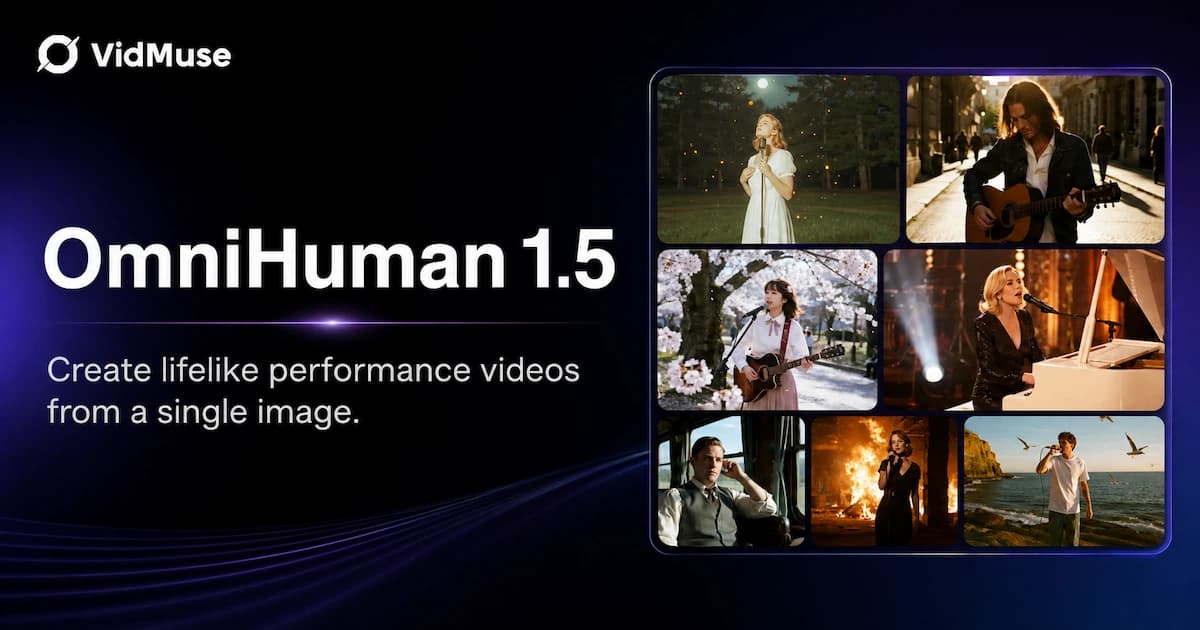
OmniHuman 1.5: The AI Avatar Model Explained
Discover what OmniHuman 1.5 can do — realistic lip-sync, emotional performances, and multi-person scenes — and how to use it inside VidMuse AI.
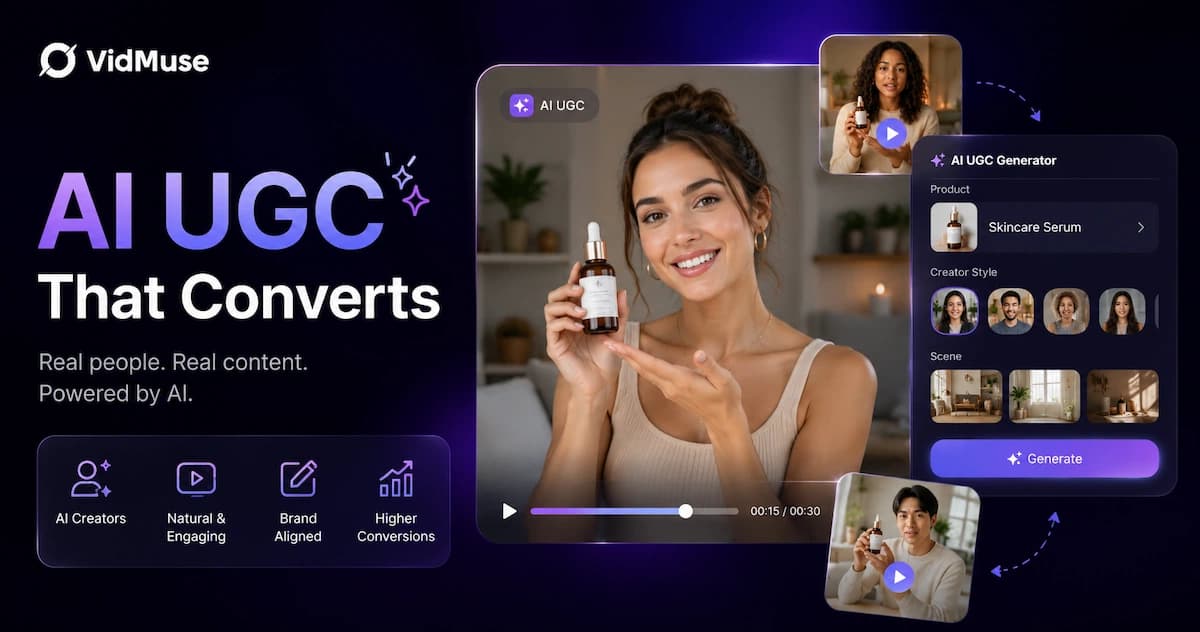
AI UGC: Complete Guide to AI UGC Video Ads in 2026
Learn what AI UGC is, how to make AI UGC video ads, and which tools help brands create storyboarded product ads for TikTok, Reels, and Shorts in 2026.
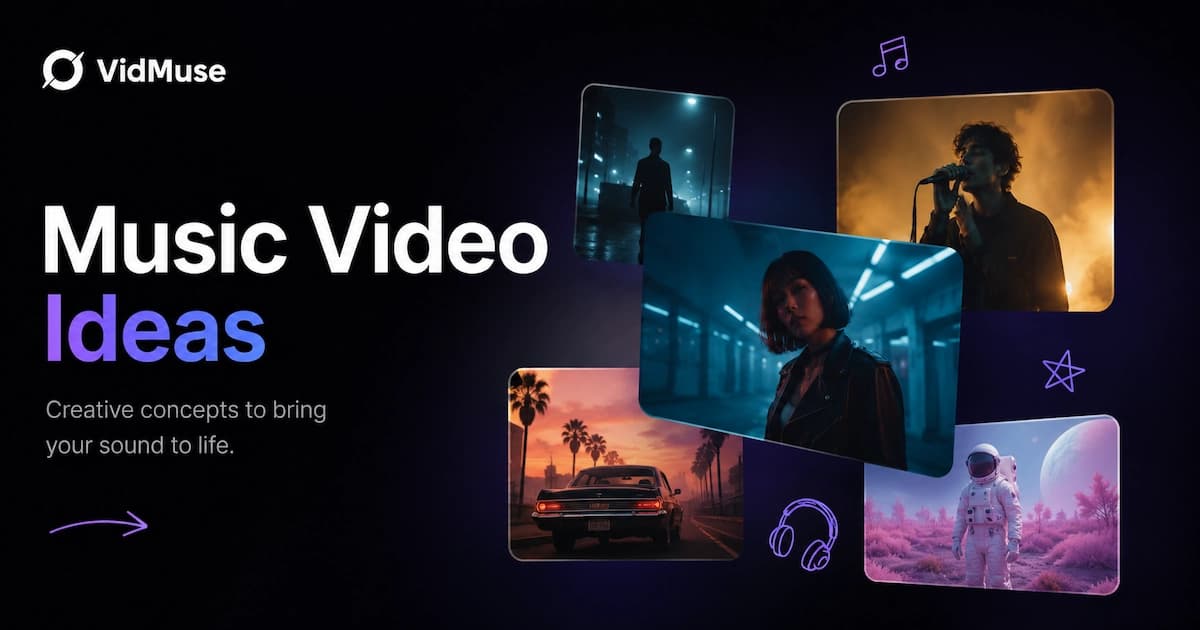
50 Music Video Ideas for Every Budget and Style in 2026
Explore 50 music video ideas for every budget and style, from at-home shoots to AI visuals, with practical steps to choose, plan, and finish your video.