

Kling 2.6 is Kuaishou's first "native audio" video generation model — it produces synchronized visuals, voiceovers, sound effects, and ambient audio in a single pass. If you've been asking what Kling 2.6 actually does differently, the short answer is this: it ends the era of silent AI video by tying sound and motion together at the generation level. Paired with the VidMuse AI video agent, Kling 2.6 Pro becomes a full music video production pipeline — from concept to finished clip — without manual post-production.
Key Takeaways
- Kling 2.6 is the first Kling model with native audio — voiceover, sound effects, and ambient sound are generated alongside the video, not added afterward.
- The Kling 2.6 Pro tier supports voice control, start/end frame locking, and motion control; the Standard tier generates video without audio only.
- Kling 2.6 motion control lets you drive a character's full-body movements using an uploaded reference video or a preset from the motion library, with generated video duration matching the uploaded clip (3–30 seconds).
- Kling 2.6 Pro costs 10 credits/second with native audio enabled, 5 credits/second without. Voice control adds 2 credits/second but is free for subscribers.
- Inside VidMuse, Kling 2.6 Pro is one of multiple available models — the agent selects it (or other models like Kling V3.0 Pro, Veo 3.1, or Hailuo 2.3 Pro) based on your scene requirements after completing the brief-to-storyboard workflow.
Create Your AI Video in Minutes
Turn your idea into a video with VidMuse x Kling 2.6 Pro.
What Is Kling 2.6?
Kling 2.6 is a video generation model released by Kuaishou's Kling AI team. Its defining upgrade over prior versions is native audio — the model generates sound at the same time as visuals rather than treating them as separate tasks. This matters for creators because voice timing, ambient rhythm, and character lip sync are handled by the model, not manually synced in post.
The model supports two primary creation paths:
- Text-to-audio-visual: Write a prompt describing scene, action, and sound. The model produces a complete video with synchronized audio.
- Image-to-audio-visual: Upload an image plus a text prompt. The model animates the image and generates matching audio.
Both paths are available on the Kling AI web and mobile platforms, and via the Kling API for developers.
How to Use Kling 2.6 Inside VidMuse
VidMuse is an AI video agent — it does not generate individual clips in isolation. Instead, it runs an agent-based workflow that takes a creative brief, generates a scene and shots list, builds a storyboard, and then executes video generation using the model best suited to each shot's requirements.
Kling 2.6 Pro is one of the available models in VidMuse's model matrix, alongside Kling V3.0 Pro, Veo 3.1, Hailuo 2.3 Pro, Seedance 2.0 Pro, and others.
Why this matters for music video production:
Indie musicians producing content with Suno AI tracks face a recurring problem: the visual tools that can match audio-driven pacing are either too expensive or require manual frame-by-frame control. VidMuse addresses this by:
- Running the full creative brief-to-storyboard pipeline before a single frame is generated
- Allowing creators to use Shot Refine by Quoting (VidMuse 2.0 features) to isolate and regenerate specific shots without re-running the entire video
- Storing generated assets in the Asset Library & Memory so visual styles stay consistent across a multi-scene music video
- Supporting the Timeline Editor for pacing adjustments after generation
Recommended workflow for Kling 2.6 music videos in VidMuse:
- Creative Brief — describe the track mood, performance type (live, narrative, abstract), character references, and any lyric sync requirements
- Reference Generation — VidMuse generates visual references based on the brief; confirm or adjust the style direction
- Scene & Shots List — the agent produces a shot-by-shot plan; review for pacing against the track
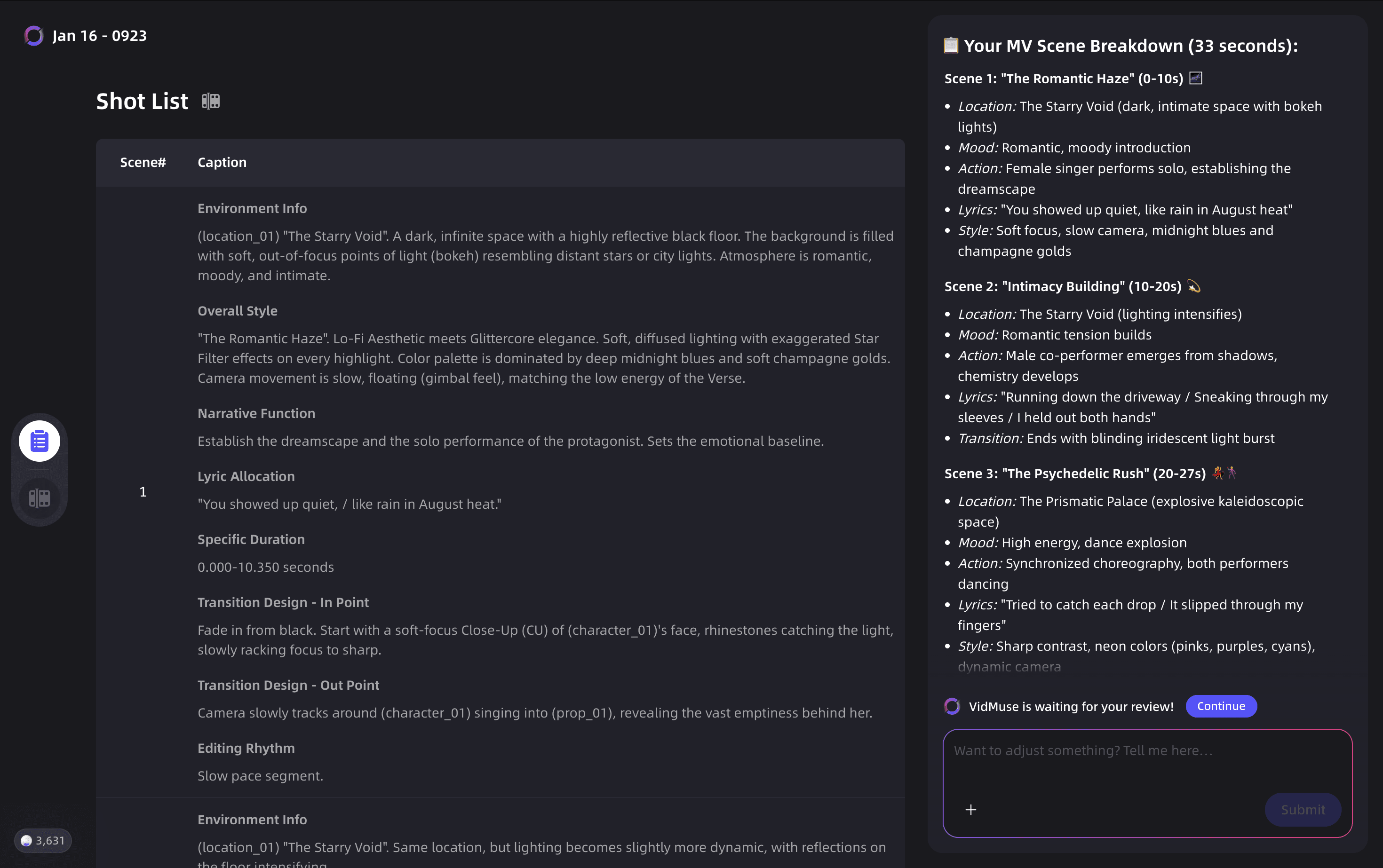
- Storyboard — visual storyboard is generated; use this stage to flag shots that need motion control or specific character voice sync
- Video Generation — VidMuse assigns models per shot; Kling 2.6 Pro is appropriate for performance and dialogue-heavy shots requiring native audio
- Shot Refine — quote specific shots that need revision; regenerate without affecting the rest of the timeline
The VidMuse Lite mode (Seedance series) is faster and lower cost for abstract or non-dialogue shots. Switching between Studio and Lite mode per shot is the practical way to manage credit spend across a full music video project.
Create Your AI Video in Minutes
Turn your idea into a video with VidMuse x Kling 2.6 Pro.
Kling 2.6 vs Previous Models: What's Actually Different?
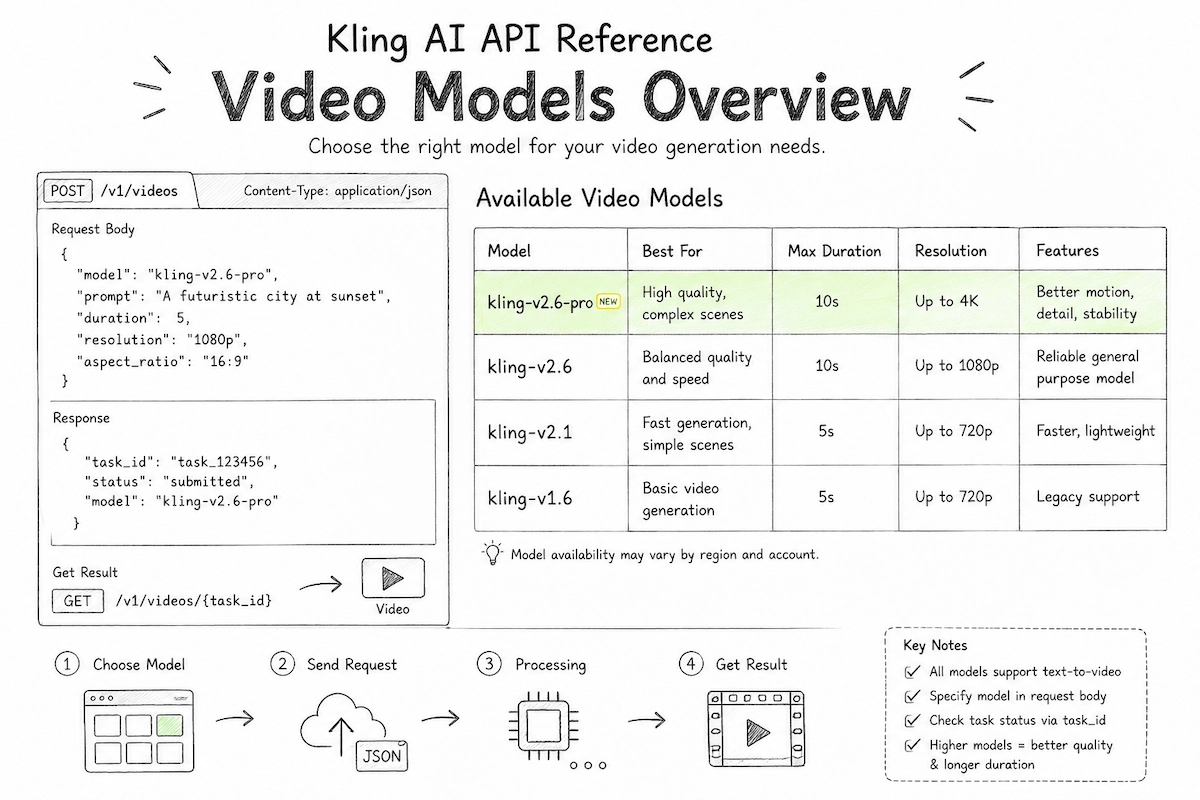
Prior Kling models — including v1, v1.5, v1.6, and v2.1 — generated silent video only. Audio had to be sourced, edited, and synchronized externally. Kling 2.6 changes this in three concrete ways:
- Audio-visual coordination: Voice rhythm, ambient sound, and on-screen actions are generated together. Lip movements align with spoken dialogue without manual adjustment.
- Sound type range: The model handles character narration, multi-person dialogue, singing, rap, sound effects (footsteps, glass breaking, machinery), ambient environments (rain, ocean, crowd), and pure music — in a single generation.
- Semantic understanding: Complex storylines, emotional tones, and distinct speaking styles defined in the prompt are interpreted by the model and reflected in the output.
Is Kling 2.6 better than 2.5?
Kling 2.5 (internally referred to as kling-v2-5-turbo in the API) is a fast-generation model optimized for speed. Kling 2.6 is not simply a quality upgrade over 2.5 — it introduces an entirely new capability class through native audio. If you need audio-visual content, Kling 2.6 is the clear choice. If you need fast, silent video at scale, the 2.5 Turbo tier remains available.
Native Audio: Voices, Effects, and Atmosphere in One Pass
Native audio is toggled on or off in the Kling creation panel. When enabled (Pro mode), every generation includes synchronized audio. When disabled, the model behaves like prior-generation silent models.
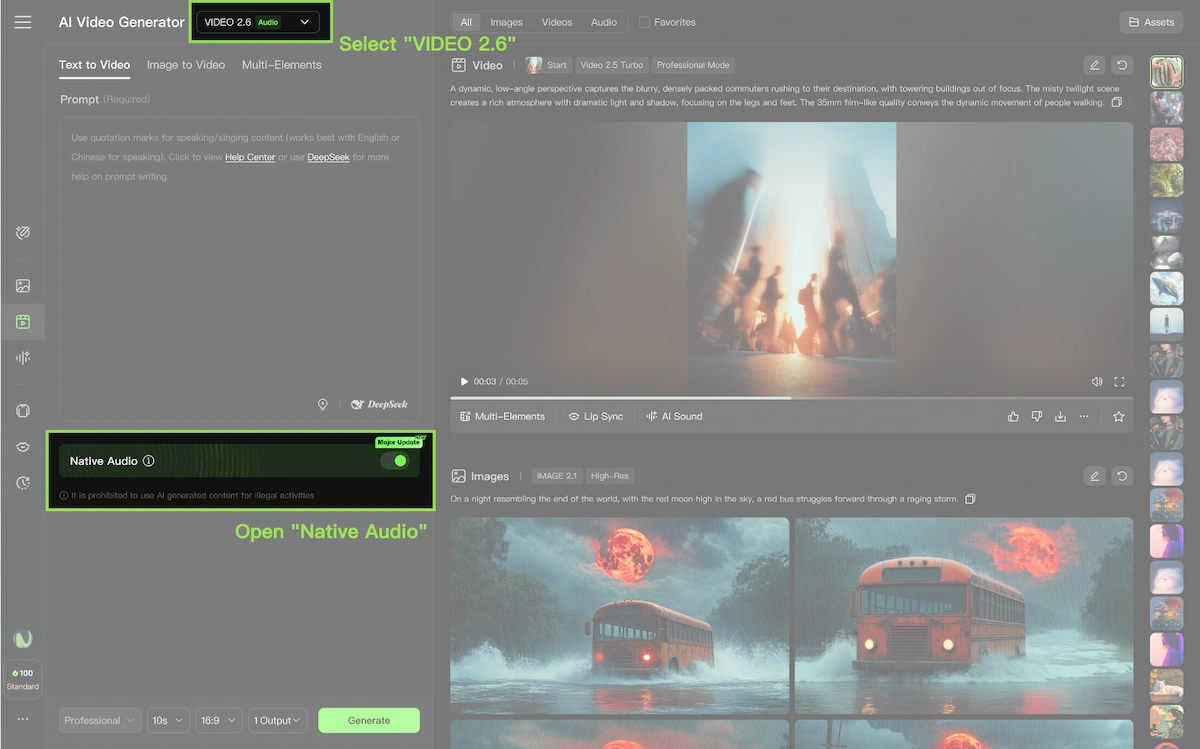
Supported audio types include:
- Voice narration — a single character speaks directly to camera with natural lip sync
- Multi-character dialogue — two or more characters with distinct voices, emotion labels, and turn-taking cues
- Singing and rap — characters perform lyrics with specified style (pop, opera, hip-hop trap flow, etc.)
- Sound effects — object-level (glass shattering, footsteps) and mechanical (alarm, braking, gears)
- Ambient soundscapes — urban traffic, birdsong, café background, fireplace
- Mixed audio — voice plus effects plus background music in a single output
Prompt structure for audio-visual content:
Scene + Subject + Movement + Audio content + Style/camera
For dialogue specifically, the recommended format is:
[Character label, emotion/tone]: "Dialogue text." Immediately, [Character B, emotion]: "Response."
The word "Immediately" is the temporal control marker — it signals to the model that one speaker has finished and the next begins. Without it, the model may continue the first character's speech or blend voices.
Current limitations: The model supports Chinese and English voice output only. Other languages are auto-translated to English for audio generation. The visual content remains unaffected. Singing scenarios may show weaker voice consistency compared to spoken dialogue.
Kling 2.6 Motion Control Workflow
Kling 2.6 motion control enables character animation driven by a reference video — the character in your image performs the same movements as the person in the reference clip. This is separate from the native audio feature and available in Pro mode.
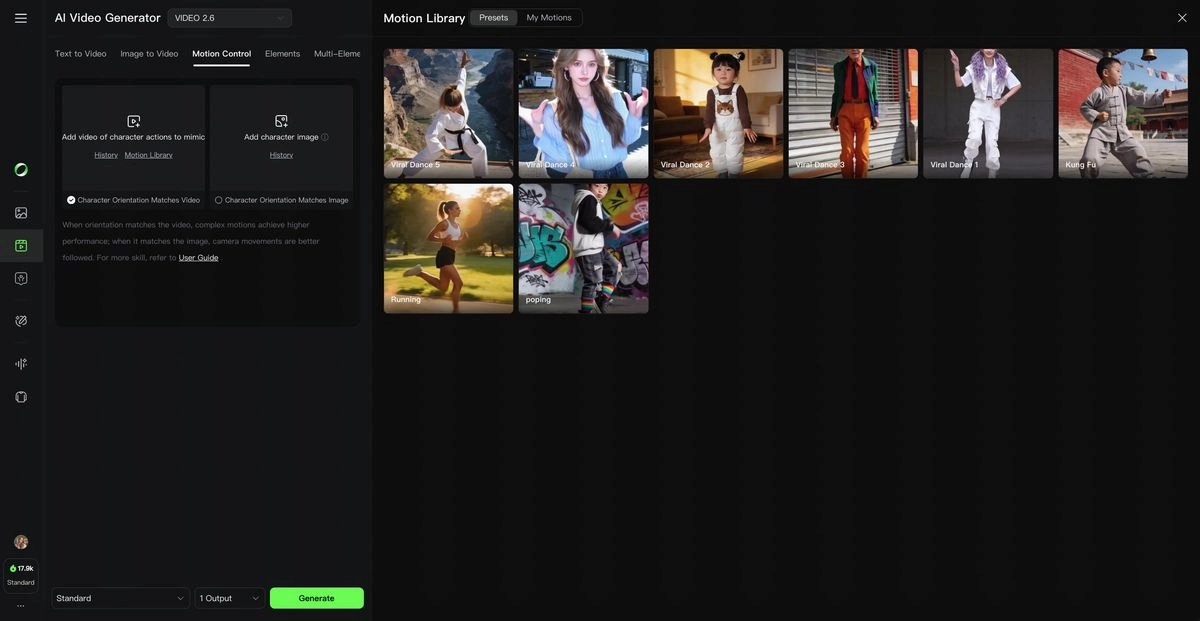
How it works, step by step:
Open Image-to-Video
Open the Kling AI platform and select Image-to-Video mode.
Upload your character image
Use a full-body or half-body image that matches your intended output framing.
Add motion reference
Upload a 3–30 second reference video or choose a Motion Library preset.
Choose orientation
Decide whether the character follows the reference video or the original image direction.
Add environment prompt
Control background details, props, and environment with text.
Generate
Output duration matches the uploaded motion reference.
- Open the Kling AI platform (web or app) and select the Image-to-Video mode.
- Upload your character image. Ensure the full body or half-body (matching your intended output) is visible and unobstructed.
- Upload a motion reference video (3–30 seconds), or select a preset from the Motion Library.
- Choose character orientation: Character Orientation Matches Video (default — character follows the reference camera and direction) or Character Orientation Matches Image (the character's facing direction stays anchored to the original image, allowing camera movements via prompt).
- Add a text prompt to control background details, props, or environment.
- Generate. Output duration matches the uploaded motion reference.
What makes a good motion reference:
- Wide range of motion, moderate pace, minimal fast displacement
- Single character clearly visible throughout (no cuts or camera changes)
- Minimum short edge of 340px; maximum long edge of 3850px
- 3–30 seconds; complex or very fast motions may result in shorter outputs as the model extracts valid continuous segments only
Kling 2.6 motion control vs Kling 3.0 motion control:
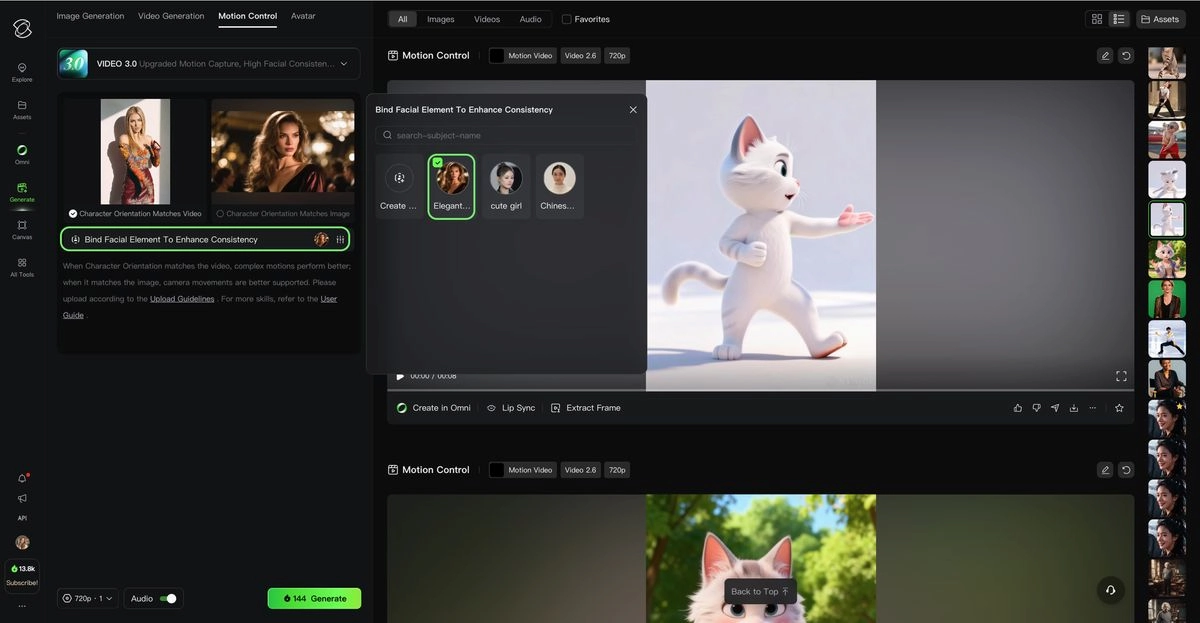
Kling 3.0 Motion Control (the model identifier is kling-v3-omni in the API) builds on 2.6's foundation with enhanced facial consistency across multi-angle and long-duration sequences, plus expanded cinematic and high-precision capture scenarios. Kling 2.6 Motion Control costs 8 credits/second (Pro), while Kling 3.0 Motion Control costs 12 credits/second (Pro) and 9 credits/second (Standard).
| Model | Mode | Credit Usage | Pricing Principle |
|---|---|---|---|
| Kling VIDEO 3.0 Motion Control | Professional | 12 Credits/s | Pricing is based on seconds, with video duration and actual price rounded to the nearest whole second. A 3.4s standard video is calculated as 3s x 9 credits/s = 27 credits. A 3.6s standard video is calculated as 4s x 9 credits/s = 36 credits. |
| Kling VIDEO 3.0 Motion Control | Standard | 9 Credits/s | Pricing is based on seconds, with video duration and actual price rounded to the nearest whole second. |
| Kling VIDEO 2.6 Motion Control | Professional | 8 Credits/s | Pricing is based on seconds, with video duration and actual price rounded to the nearest whole second. A 3.4s standard video is calculated as 3s x 5 credits/s = 15 credits. A 3.6s standard video is calculated as 4s x 5 credits/s = 20 credits. |
| Kling VIDEO 2.6 Motion Control | Standard | 5 Credits/s | Pricing is based on seconds, with video duration and actual price rounded to the nearest whole second. |
If you need reliable facial identity preservation across complex head turns, Kling 3.0 Omni's element binding feature is worth the credit difference. For general full-body motion replication, Kling 2.6 Motion Control remains capable and cost-efficient.
Voice Control: Custom Voices and Multi-Character Dialogue
Voice control in Kling 2.6 is a distinct feature from native audio — it lets you bind a specific extracted voice to a specific character using the @VoiceName syntax in your prompt.
Creating a custom voice:
- Navigate to the voice management panel.
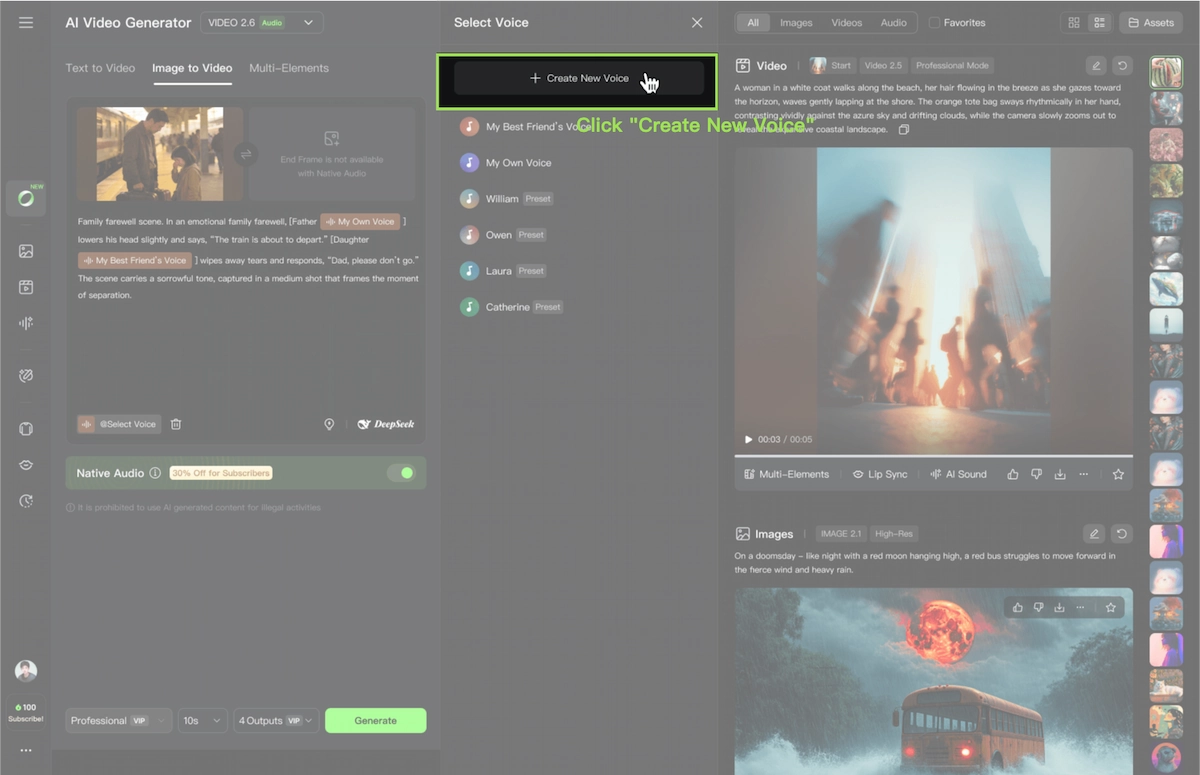
- Click + Create New Voice.
- Upload an audio/video file (mp3, wav, or mp4 on web; video only on app). Requirements: 5–30 seconds, single speaker, neutral emotion, steady pace, minimal background noise.
- The system extracts and names the voice. Up to 200 voices can be stored per account.
Using a voice in a prompt:
Single character: [Character Name@VoiceName]: "Dialogue."
Multi-character: [Character A@VoiceA]: "Line A." Immediately, [Character B@VoiceB]: "Line B."
Common mistakes with voice control:
- Using
@VoiceNamewithout a character label — the model won't know which entity the voice belongs to - Binding two characters to the same voice — they will sound identical, defeating the purpose
- Placing the
@tag inside the dialogue string — it must appear immediately after the character label, before the colon - Binding a voice to a silent character or a non-human entity (sound effect, prop)
Voice control currently supports Chinese and English audio sources only. Cross-language performance (a voice trained in Chinese performing English dialogue) is supported and functional, but results vary by voice profile.
Kling 2.6 Pricing and Credits
Kling 2.6 Pro pricing:
| Feature | Credit cost | Notes |
|---|---|---|
| Native audio ON | 10 credits/second | Pro mode with synchronized audio |
| Native audio OFF (Pro) | 5 credits/second | Pro video generation without audio |
| Native audio OFF (Standard) | 3 credits/second | Standard video generation without audio |
| Voice control add-on | +2 credits/second | Waived for subscribers |
| Motion control (Pro) | 8 credits/second | Reference-driven movement in Pro mode |
Credits are calculated per second, rounded to the nearest whole second. A 3.4-second video is billed as 3 seconds; a 3.6-second video is billed as 4 seconds.
For subscribers, the voice control surcharge is waived, making multi-character voice-driven content effectively priced at the base native audio rate. API users are billed through resource packages purchased at kling.ai/dev/pricing.
Kling 2.6 API Access
The Kling 2.6 API uses the model identifier kling-v2-6. The API domain is https://api-singapore.klingai.com.
API capability summary for kling-v2-6:
- Text-to-video (Pro and Standard): 5s and 10s, no audio in Standard; full native audio in Pro
- Image-to-video (Pro): 5s and 10s, with start/end frame support and voice control
- Motion control: Pro only, with flexible duration matching the uploaded reference
- Standard mode: video generation without audio, no motion control or voice control
Setup steps:
- Visit kling.ai/dev and purchase a video generation resource package
- Log in to the developer console at kling.ai/dev/api-key
- Create an API key and save the Secret Key immediately — it cannot be retrieved after closing
- Generate a JWT token using the specified encryption method (RFC 7519)
- Pass the token as
Authorization: Bearer [token]in request headers - Call the API at the Singapore endpoint
Kling AI also provides trial resource packages for integration testing before committing to a paid package.
Common Mistakes to Avoid
In Kling 2.6 prompts:
- Stacking too many audio elements in one prompt (multiple ambient sounds + complex dialogue + music) — simplify to one core theme per generation
- Writing prompts without character labels in multi-person scenes — the model cannot assign dialogue or voice to an unlabeled entity
- Using pronouns ("he", "she") after establishing a character label — always repeat the label consistently
- Omitting temporal markers ("Immediately") between dialogue turns — this causes voice blending or one character speaking the other's line
In motion control:
- Uploading motion references with camera movement or cuts — the model will truncate the output at the first cut
- Mismatching half-body reference images with full-body motion references — always match the body framing
- Using very fast or acrobatic reference videos — moderate, steady movement yields significantly better results
In VidMuse:
- Generating the full video without reviewing the storyboard first — misaligned pacing is much harder to fix after generation than before
- Using Studio mode for every shot indiscriminately — Lite mode is appropriate for abstract or transition shots and saves credits for performance shots where quality matters more
Create Your AI Video in Minutes
Turn your idea into a video with VidMuse x Kling 2.6 Pro.
FAQ
What is Kling 2.6 and how is it different from other Kling models?
Kling 2.6 is Kling AI's first model with native audio generation — it produces voiceovers, sound effects, and ambient sound synchronized with visuals in a single pass. Prior models (v1, v1.5, v1.6, v2.1) generated silent video only. The audio-visual coordination is built into the model, not added in post-production.
Is Kling 2.6 open source?
No. Kling 2.6 is a proprietary model developed by Kuaishou. It is accessible via the Kling AI platform and through the Kling API using a commercial resource package. There is no publicly available open-source release of the Kling 2.6 weights or architecture.
How do I use Kling 2.6 motion control?
Upload a character image and a motion reference video (3–30 seconds, single character, no cuts) in the Kling AI Image-to-Video panel. Choose whether the character's orientation follows the reference video or the original image. Add a text prompt to control background and environment details. The output matches the duration of your uploaded motion reference, billed at 8 credits/second in Pro mode.
What is the Kling 2.6 Pro cost per video?
Kling 2.6 Pro with native audio enabled costs 10 credits per second. A 10-second video with audio costs 100 credits. Adding voice control costs an additional 2 credits/second, but this surcharge is waived for platform subscribers. Without audio, Pro mode costs 5 credits/second.
Can I use Kling 2.6 to make a music video?
Yes. For performance-style shots, Kling 2.6 supports singing, rap, and instrumental performance scenes with synchronized audio. For full music video production — including multi-scene structure, storyboard planning, and consistent visual style — using Kling 2.6 inside VidMuse gives you agent-managed planning, shot-level refinement, and an asset library to maintain consistency across the full video runtime.
How long can a Kling 2.6 video be?
Standard text-to-video and image-to-video outputs are 5 or 10 seconds. Motion control outputs match the uploaded reference video duration, which can be up to 30 seconds. For longer videos, VidMuse chains multiple generated shots through its timeline editor, combining them into a cohesive sequence.
What languages does Kling 2.6 voice output support?
The current model supports Chinese and English voice output. If you write prompts in other languages, the platform automatically translates the spoken content to English for voice generation while the visual output remains unaffected. Cross-language voice performance (a voice trained in one language performing in another) is supported for Chinese–English bidirectional adaptation.
Conclusion
Kling 2.6 is the most capable Kling model for creators who need audio and visuals produced together — singers, dialogue-heavy short films, product demos with voiceover, and narrative music videos. The native audio system is practical and flexible: it handles monologue, multi-character dialogue, singing, sound effects, and ambient atmosphere with prompt-level control.
Motion control extends its usefulness into performance-driven content, letting any image-based character follow real reference movement at a fraction of the cost of traditional motion capture.
For music video creators specifically, the most efficient path is Kling 2.6 Pro inside VidMuse — where the agent handles scene planning and model selection, Shot Refine handles iteration, and the Timeline Editor assembles the final cut. Suno AI tracks can feed directly into the brief, and VidMuse's asset memory keeps visual identity consistent from the first shot to the last.
Ready to build your next music video? Start with a creative brief in VidMuse and let the agent plan the shot list before you spend a single credit on generation. You can also compare the broader category in the best AI music video generator guide or start lighter with a free AI music video generator workflow. If your track is already finished, the music to video path is the most direct production route.
Create Your AI Video in Minutes
Turn your idea into a video with VidMuse x Kling 2.6 Pro.

Written By
VidMuse Team
Continue Reading
Latest blog posts related to AI video creation.
PixVerse V6 x VidMuse AI: Model Guide and Video Workflow
PixVerse V6 review and VidMuse integration guide. Capabilities, 15s 1080p video, prompt tips, model comparison, pricing, and how to use V6 in VidMuse workflows.
FLUX 3: What It Is, Capabilities, and How to Access It
FLUX 3 is Black Forest Labs' multimodal AI model for image, video, audio, and action. Full guide: capabilities, FLUX 3 vs FLUX 2, availability, and pricing.
Free Music Visualizer: 10 Best Free Tools in 2026
Compare 10 best free music visualizers in 2026. Waveform tools, AI music video makers, watermark policies, export limits, and which tool fits your workflow.