

Spotify Canvas is a 3–8 second vertical looping video that replaces your album artwork in the Now Playing view on the Spotify mobile app. To add one, upload an MP4 (or JPG for a static frame) at 9:16 ratio, between 720px and 1080px tall, directly through Spotify for Artists on desktop or mobile. Artists who add a compelling Canvas see listeners become 20% more likely to add that track to a playlist — and the right visual can lift streams by up to 120%. This guide covers every spec, best practice, step, and tool you need to go from zero to a published Canvas today.
Key Takeaways
- Spotify Canvas dimensions are 9:16 vertical ratio, 720px–1080px tall, delivered as an MP4 or JPG file.
- Canvas length must be between 3 and 8 seconds; looping is automatic on the Spotify mobile app.
- Tracks with strong Canvas visuals have shown up to 120% more streams and 114% more saves based on Spotify's own data.
- Canvas is free to use for any artist with a Spotify for Artists account — no paid tier required.
- VidMuse AI lets you generate a polished, on-spec Canvas video from a track concept or reference image in minutes, using its agent-based workflow that plans scenes rather than firing one-shot prompts.
Create Your Spotify Canvas Video in Minutes
Turn your idea into a Spotify Canvas music video with VidMuse.
What Is Spotify Canvas?
Spotify Canvas is a short looping visual — 3 to 8 seconds — that fills the Now Playing view on the Spotify mobile app in place of static album art. Think of it as album artwork for the streaming era: dynamic, atmospheric, and engineered to hold attention during the exact moment a listener decides whether to keep playing or skip.
Canvas was introduced in limited beta around 2019 and is now available to all artists globally through Spotify for Artists. It appears in the Now Playing view when a listener plays your track on mobile and, crucially, carries over when that listener shares your song to Instagram Stories, Snapchat, or Facebook Stories — your Canvas loops in the background of the Story with a Play on Spotify link attached.
Listeners can also discover Canvas-enabled tracks by swiping through the visual feeds on Spotify's Home tab or inside playlists, making it a passive discovery surface you can activate for every release at no cost.
Metrics tracked through Spotify for Artists include: views (total impressions), streams, saves, shares, and artist page visits tied to Canvas-enabled tracks.
Spotify Canvas Specs & Technical Requirements
Spotify Canvas has strict technical requirements — uploading a file that falls outside them will cause the upload to fail or the Canvas to display incorrectly.
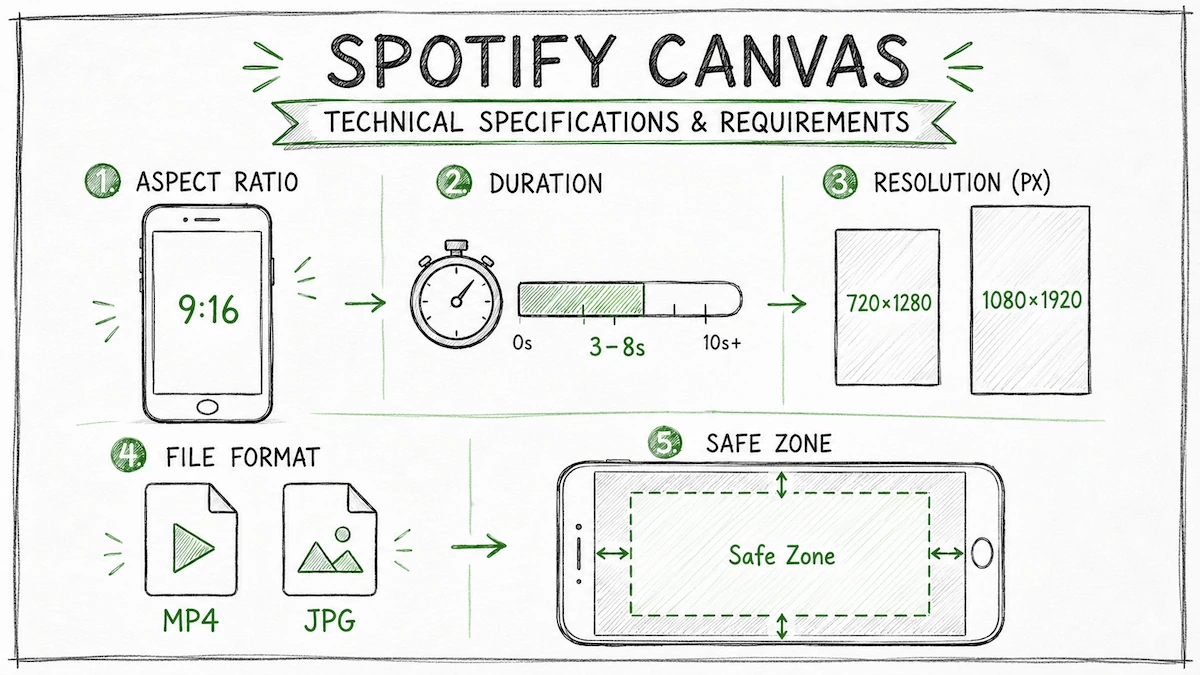
Here are the official Spotify Canvas video specs:
- Length: 3–8 seconds (both limits are hard; no exceptions)
- Aspect ratio: 9:16 vertical
- Resolution: 720px–1080px tall (width scales proportionally with the 9:16 ratio)
- File format: MP4 (video loop) or JPG (static image treated as a canvas)
- Frame safe zone: Keep key visuals away from the edges — phone bezels and UI chrome cut off the outer edges on many devices
Spotify Canvas Size Summary
- Minimum: 720 × 1280px at 9:16
- Recommended: 1080 × 1920px at 9:16
- Aspect ratio: 9:16 only
- Duration: 3–8 seconds
- Format: MP4 or JPG
These are the same Spotify Canvas dimensions used for both static and animated uploads. If you're working from a template, set your canvas to 1080 × 1920px and export at H.264 MP4 for maximum compatibility.
How to Create a Spotify Canvas with VidMuse AI
VidMuse AI solves the hardest part of Canvas creation: producing a high-quality, on-spec looping video without a production team or hours of editing. Rather than dropping a one-line prompt and hoping for the best, VidMuse uses an agent-based workflow that plans the full visual before generating a single frame.
Create Your Spotify Canvas Video in Minutes
Turn your idea into a Spotify Canvas music video with VidMuse.
Here's how the Canvas creation workflow maps to VidMuse's pipeline:
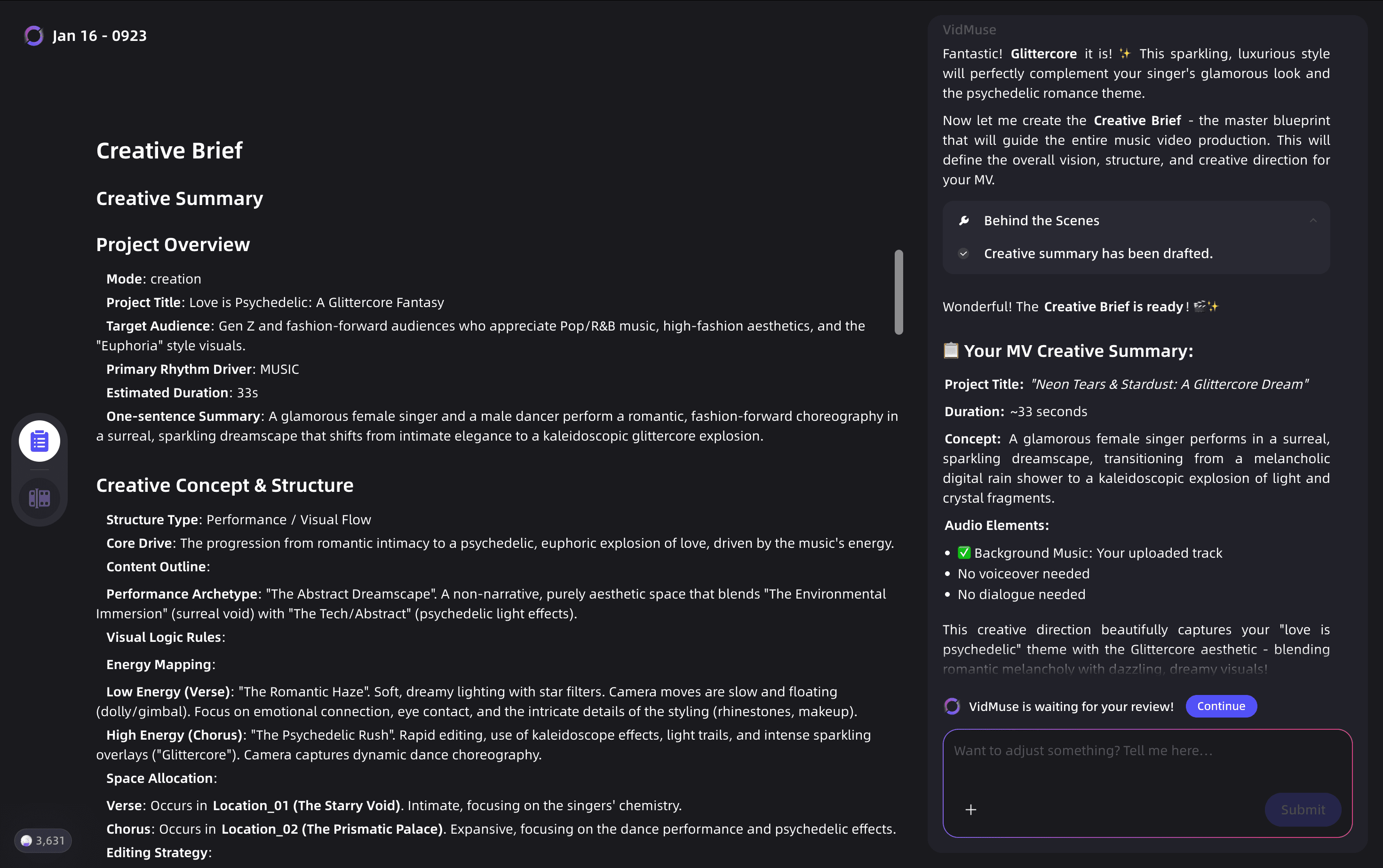
Step 1: Creative Brief
Open VidMuse and start a new project. Describe your track's mood, genre, visual style, and any reference images or color palettes. This brief feeds the AI Director — VidMuse's planning layer — which builds out a shot logic aligned to your aesthetic rather than generic defaults.
Step 2: Reference Generation
VidMuse generates reference frames using its image generation models. For a Canvas, you're working in the atmospheric or abstract register, so models like Seedream 5.0 Lite or Nano Banana Pro are strong choices for generating mood-appropriate still references before you commit to motion.
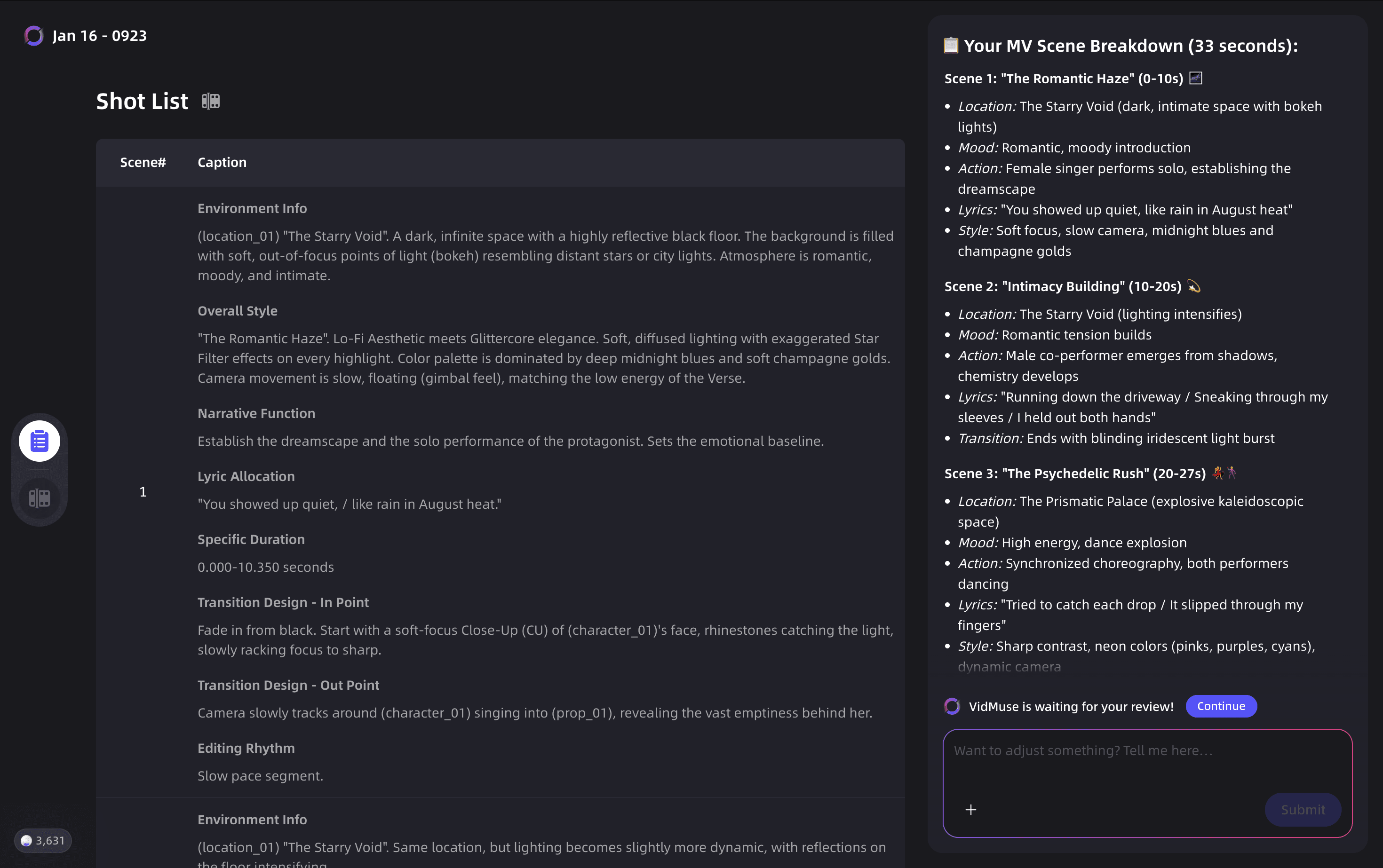
Step 3: Scene & Shots List
The agent produces a scene and shots plan for your 3–8 second loop, specifying motion direction, focal point, and loop type (continuous, hard cut, or rebound). You review and adjust before any video generation runs.
Step 4: Video Generation
Choose your generation mode:
- Studio mode — Highest quality output; ideal if the Canvas is the centerpiece of a release campaign
- Lite mode — Faster and more cost-efficient; fine for rapid iteration or testing multiple canvas concepts
For model selection, Kling 3.0 and Veo 3.1 are strong options for cinematic motion quality. Hailuo 2.3 Pro handles fluid, atmospheric loops well. If you want something more stylized or abstract, Wan 2.7 and Pixverse v6 give distinct visual characters.
Step 5: Shot Refine & Export
Use VidMuse 2.0's Shot Refine by Quoting feature to iterate on specific frames without re-generating the entire clip. Once satisfied, export at 1080 × 1920px, 9:16 ratio, as an MP4 — ready to upload directly to Spotify for Artists.
For artists who generate original tracks with Suno AI inside VidMuse, the workflow is fully closed-loop: create the track, generate the Canvas visual, and upload — all without leaving the platform. For a longer release video, move from Canvas into the music to video AI workflow or the broader AI music video generator pipeline.
How to Add a Canvas on Spotify (Step-by-Step)
Adding a Canvas to a Spotify track takes under five minutes once your file is ready. Here's the full process for both desktop and mobile:
Log in
Go to artists.spotify.com and log in to Spotify for Artists.
Open Music
Click Music in the left navigation and choose the track.
Add Canvas
Click Add Canvas or Edit Canvas if one already exists.
Upload file
Upload the MP4 or JPG file that meets Spotify Canvas specs.
Preview
Preview the loop and trim if needed.
Save
Click Save and allow time for the Canvas to propagate.
Upload from Desktop (Web)
- Go to artists.spotify.com and log in.
- Click Music in the left navigation.
- Select the track you want to update.
- Click Add Canvas (or Edit Canvas if one already exists).
- Upload your MP4 or JPG file.
- Preview the loop, trim if needed, and click Save.
Upload from the Mobile App
- Open the Spotify for Artists app on iOS or Android.
- Tap Music at the bottom of the screen.
- Select the track.
- Tap Canvas.
- Upload your file, preview, and save.
Who can add a Canvas? Only the first main artist on the track, or the main artist on both the track and the release, with an account role of Admin or Editor in Spotify for Artists. If you're a featured artist but not the primary, you cannot add a Canvas to that track.
You can add a Canvas to upcoming releases before they go live — a smart move for release-day impact since the Canvas will be ready the moment the track becomes available to listeners.
Spotify Canvas Ideas: What Actually Works
The most effective Canvas visuals are atmospheric, loopable, and free of text, lip-sync, or direct calls to action. Here's what creative directors and artists who've used Canvas successfully recommend:
Abstract and 3D visuals work especially well because they loop naturally and create mood without needing to tell a literal story. Think slow-moving gradients, particle effects, liquid textures, or geometric morphs tied to your album's color palette.
Short narrative snippets — a trimmed scene from a music video, a cinematic moment that doesn't resolve — leave listeners wanting more. Olivia Rodrigo's team used this approach for "Drivers License," creating a Canvas that felt like an excerpt from a larger visual world.
Performance-based clips showing hands on an instrument, a close-up of movement, or abstract light-play work well for artists whose identity is rooted in the physical act of making music.
Thematic consistency is what separates a good Canvas from a great one. Connect your Canvas palette, typography style, and visual motifs to your album art, profile photo, and header image. Artists like Glass Animals and Gorillaz use Canvas as part of a unified visual system across every Spotify surface.
Content to Avoid
- Text with URLs, social media handles, or brand logos — Spotify will remove it
- Lip-syncing or direct singing-to-camera (the clip won't match the audio)
- Rapid cuts or intense flashing graphics (overwhelming on a small screen)
- Overly promotional content directing people off-platform (violates Canvas content policy)
- Profanity, imagery of violence, drug use, or sexual content (must be marked explicit if included)
Best Loop Types for Canvas
Spotify Canvas supports three distinct loop styles, and choosing the right one for your track's mood is as important as the visual content itself.
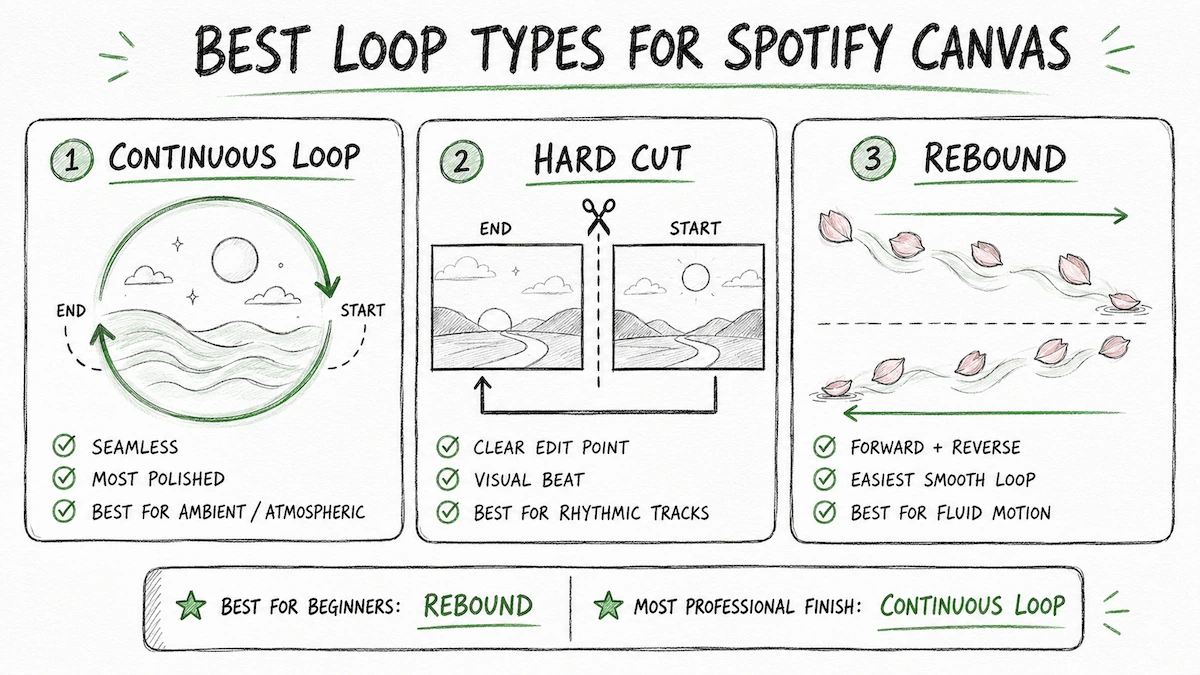
Continuous Loop — The clip ends and begins seamlessly. Best for ambient, atmospheric, or abstract visuals where the loop point is invisible. Requires the most planning in post-production but produces the most polished result.
Hard Cut — The clip ends with a clear edit point before restarting. Artful hard cuts can be used intentionally for percussive or rhythmically driven tracks, where the cut functions as a visual beat.
Rebound — The clip plays forward, then reverses back to the start. The easiest way to achieve a smooth loop because the reverse motion naturally returns to the first frame. Works well for fluid motion: falling petals, smoke, water, hair movement.
If you're creating a Canvas for the first time and want a reliable result fast, Rebound is the most forgiving format. If you have a strong concept and want maximum visual impact, Continuous Loop gives the most professional finish.
Spotify Canvas Maker: Free vs. Paid Options
A Spotify Canvas maker needs to output a 9:16 MP4 between 3–8 seconds — that's the filter that separates tools that technically work from tools that make the process efficient.
Here's a practical comparison of your options:
| Tool | Good for | Limitation |
|---|---|---|
| Manual video editing (Premiere, DaVinci, CapCut) | Full control over motion, timing, color grading | Requires skill and time; the 3–8 second loop requirement is easy to violate accidentally |
| Canva (Spotify Canvas template) | Simple animated graphics and motion text | Limited motion generativity; output quality depends on stock assets |
| Spotify Canvas maker free tools (online converters) | Quick static-to-video conversion | No creative intelligence; you still need to supply the raw visual |
| VidMuse AI | Generating a purpose-built looping visual from a concept or reference, spec-correct output, full agent workflow | Requires a VidMuse account; generative output quality varies by model and brief specificity |
If you already have footage and just need to trim and export, a manual editor or Canva template is fast and sufficient. If you're starting from nothing — no footage, no concept, just a track and a vision — VidMuse's generative pipeline produces Canvas-quality output that would otherwise require a motion design team.
For related planning, compare the best AI music video generator options or start with a free AI music video generator workflow.
Create Your Spotify Canvas Video in Minutes
Turn your idea into a Spotify Canvas music video with VidMuse.
Common Mistakes & Troubleshooting
Spotify Canvas Not Working — Common Causes
Canvas only displays on the Spotify mobile app. If you or a listener is on desktop or web, the Canvas won't appear — this is by design, not a bug.
File is out of spec. Even one second over eight seconds will cause the upload to fail. Trim precisely. Also verify the file is MP4 (H.264 encoding is most reliable) and the resolution is within the 720px–1080px height range.
Wrong account role. Only Admins and Editors on the artist's Spotify for Artists account can upload Canvas. Check your role under Settings > Team.
Content policy violation. If your Canvas contains a URL, brand logo, social handle, or prohibited content, Spotify will remove it after upload. Review the Canvas content policy before uploading.
Canvas uploaded but not visible yet. Propagation can take a few hours after upload. Wait 24 hours before assuming something is wrong.
Creative Mistakes
- Making the clip too long and trimming to 8 seconds at the end — plan the loop point from the start
- Using vertical footage shot in landscape and cropped, which loses resolution and leaves key visuals off-center
- Designing for desktop and discovering the phone edges cut off crucial elements — always preview on a physical mobile device
FAQ
How long are Spotify Canvas videos?
Spotify Canvas videos must be between 3 and 8 seconds long. Both limits are hard requirements — clips shorter than 3 seconds or longer than 8 seconds cannot be uploaded. The loop plays continuously in the Now Playing view while the track is active. Most effective Canvas visuals use the full 8 seconds to build a mood or micro-narrative before seamlessly returning to the start.
What are the Spotify Canvas video specs?
The official Spotify Canvas specs are: 9:16 vertical aspect ratio, 720px to 1080px tall (1080 × 1920px is the recommended full resolution), 3–8 seconds duration, and MP4 or JPG file format. MP4 is strongly preferred for animated loops. Keep key visuals away from the edges, as phone bezels and Spotify's UI elements may crop the outer frame on some devices.
How do I turn on Canvas on Spotify?
Canvas is not a listener-side setting — it's enabled by artists uploading a Canvas file through Spotify for Artists. Listeners see the Canvas automatically in the Now Playing view on the mobile app when the artist has uploaded one. If you're an artist, log in to artists.spotify.com, go to Music, select your track, and click Add Canvas. No listener action is required.
Is there a free Spotify Canvas maker?
Spotify Canvas itself is free to upload — no paid plan is required. For creating the actual visual, free tools like Canva (with a Spotify canvas template) work for simple graphics. VidMuse offers AI-generated Canvas visuals with a free tier, making it possible to produce a generative looping video without a production budget. For the highest quality output, VidMuse's Studio mode generates cinematic motion that matches professional Canvas creative standards.
Can I download someone else's Spotify Canvas?
Spotify does not provide an official Spotify Canvas downloader feature. Third-party tools that claim to download Canvas videos operate in a gray area and may violate Spotify's terms of service. If you want to use a Canvas-style visual from another artist for reference, note the style and recreate the concept rather than downloading the file directly.
What countries is Spotify Canvas available in?
Spotify Canvas is available to all artists globally through Spotify for Artists — there are no country restrictions on uploading or displaying Canvas. The feature is visible to listeners on the Spotify mobile app in all markets where Spotify operates. The Canvas displays in the Now Playing view regardless of where the listener or artist is located.
How do I add music from Spotify to a Canvas in Canva?
Canva does not have direct Spotify audio integration for Canvas creation. To create a Canvas that pairs with your Spotify track, you need to produce the visual separately (in Canva, VidMuse, or a video editor), export it as an MP4, and then upload it to Spotify for Artists. The audio is automatically paired with your Canvas on Spotify's side — you don't embed audio into the video file itself.
Take Away
Spotify Canvas is one of the highest-leverage free tools available to independent artists today. A well-crafted 3–8 second loop doesn't just make the Now Playing view more interesting — it creates a discovery surface, a shareability moment, and a brand impression that travels with every track share to Instagram, Snapchat, and Facebook Stories.
That's exactly where VidMuse AI earns its place in the workflow. Its agent-based planning layer turns a concept brief into a shot-planned, spec-correct looping video without requiring you to own a camera, hire a director, or spend hours in a timeline editor. Whether you're releasing your first single or building a consistent visual identity across an album, VidMuse gives you a Canvas production pipeline at minimal cost.
Ready to create your first Canvas? Start a new project in VidMuse AI and use the Creative Brief stage to describe your track's mood — the AI Director handles the rest.
Create Your Spotify Canvas Video in Minutes
Turn your idea into a Spotify Canvas music video with VidMuse.
Written By
VidMuse Team
Continue Reading
Latest blog posts related to AI video creation.
PixVerse V6 x VidMuse AI: Model Guide and Video Workflow
PixVerse V6 review and VidMuse integration guide. Capabilities, 15s 1080p video, prompt tips, model comparison, pricing, and how to use V6 in VidMuse workflows.
FLUX 3: What It Is, Capabilities, and How to Access It
FLUX 3 is Black Forest Labs' multimodal AI model for image, video, audio, and action. Full guide: capabilities, FLUX 3 vs FLUX 2, availability, and pricing.
Free Music Visualizer: 10 Best Free Tools in 2026
Compare 10 best free music visualizers in 2026. Waveform tools, AI music video makers, watermark policies, export limits, and which tool fits your workflow.