
At the time of writing, Spotify does not offer a built-in, listener-controlled spotify music visualizer that turns every song into real-time waveforms, particles, or animated graphics. The closest native Spotify feature is Canvas, but Canvas is an artist-uploaded 3–8 second vertical loop in the Now Playing view, not a beat-reactive audio visualizer for listeners.
For real-time playback visuals, you need a third-party online visualizer, desktop app, mobile app, or an AI music video workflow. Spotify’s own support docs describe Canvas as a short vertical loop, while Spotify Community requests for a toggleable visualizer remain separate feature ideas.
Key Takeaways
The right Spotify visualizer depends on what you want to create: live playback ambience, a social clip, an artist Canvas, or a full music video.
- Spotify does not currently include a standard real-time audio visualizer for listeners. Canvas is native to Spotify, but it is a short artist-side visual loop, not a live spectrum or particle visualizer.
- A Spotify music visualizer online free tool is best for casual listening. It is usually faster than installing software, but may require browser permissions, Spotify authorization, or a virtual audio setup.
- A desktop visualizer app is best for parties, screensavers, VJ-style setups, and longer listening sessions. Tools in this category often react to system audio instead of needing direct Spotify file access.
- A Canvas is best for artists who want visuals inside Spotify mobile. Spotify requires Canvas files to be 3–8 seconds long, vertical 9:16, 720–1080px tall, and MP4 or JPG.
- AI video workflows are best when you want shareable content, not just abstract motion. For example, VidMuse can help plan an MV from creative brief to storyboard to generation instead of relying on one-shot prompts.
Create Your Spotify Music Visualizer in One Click
Turn your idea into a spotify music visualizer video with VidMuse AI.
What a Spotify Music Visualizer Is
A Spotify music visualizer converts music playback into moving visuals, usually by reacting to rhythm, loudness, frequency, or track metadata.
In plain terms, a visualizer is the moving pattern you see when sound becomes motion. It may show spectrum bars, circular waveforms, kaleidoscopic geometry, particles, 3D tunnels, animated album art, lyric motion, or AI-generated scenes.
A Spotify audio visualizer can mean three different things:
- A real-time visualizer that reacts while Spotify plays
- A rendered video made from a Spotify track or an artist-owned audio file
- A Spotify Canvas loop uploaded by an artist through Spotify for Artists
These are not the same workflow. A listener who wants “something cool on screen while music plays” should look for a real-time visualizer. An artist promoting a release should think about Canvas, lyric videos, Shorts, Reels, and music video assets. A creator making marketing content should consider export quality, aspect ratio, brand consistency, and usage rights.
This distinction matters because many search results use “Spotify visualizer” loosely. Some tools only visualize local audio files. Some need a microphone or system-audio route. Some are designed for exported promotional videos. Some are not actually connected to Spotify at all.
Does Spotify Have a Visualizer?
Spotify does not currently provide a general built-in audio visualizer that listeners can turn on for every song.
Older articles sometimes mention the hidden “spotify:app:visualizer” trick, but current third-party guides note that this old feature is no longer accessible. VideoProc’s 2026 roundup, for example, says Spotify removed that trick and now users rely on online or downloadable visualizers instead.
Spotify does have Canvas, but Canvas is different. Spotify defines Canvas as a short vertical loop that replaces album art in the Now Playing view on the mobile app, and Spotify’s Canvas guidelines say it should be 3–8 seconds, 9:16, 720–1080px tall, and MP4 or JPG. Spotify also warns that these short clips do not sync with lyrics.
So the direct answer to the two most common questions is:
Does Spotify have a visualizer?
Not as a standard listener-controlled real-time visualizer.
Does Spotify have an audio visualizer?
Not a full audio-reactive visualizer inside the main app. Spotify Canvas is visual, but it is not generated live from the audio.
Spotify Music Visualizer Online Free Tools
A Spotify music visualizer online free tool is usually the fastest way to test reactive visuals without building a full video project.
Online visualizers are popular because they feel immediate. You open a browser, connect an audio source, choose a visual style, and play music. Some tools use Spotify authorization. Others listen to microphone input or a virtual audio device.
Common examples found in current visualizer roundups include Kaleidosync, Wavesync, Tessellator, and browser-based visualizers that use WebGL, particles, waveforms, or shader-style graphics. VideoProc lists several online and downloadable Spotify visualizer options, while TuneMobie describes web-based tools such as Kaleidosync and Wavesync alongside desktop options.
However, online tools have three practical limitations.
First, browsers usually cannot listen to another app’s audio automatically. A tool like vizz.fm explains that browsers do not directly access audio from other apps, so users may need a virtual audio device to route system audio into the browser.
Second, online visualizers can require account permissions. Before connecting Spotify, check what the app requests. If it asks for more than playback state or basic account access, pause and review whether the tool is trustworthy.
Third, free online tools often focus on ambience, not export quality. They may look good full-screen while music plays, but they may not create a polished vertical video for TikTok, Reels, Shorts, or Spotify Canvas.
Spotify Music Visualizer App Choices
A Spotify music visualizer app is better when you want full-screen stability, system-audio reaction, or more control than a browser tool provides.
Desktop visualizers often listen to your computer’s audio output or a selected input device. This makes them useful for Spotify desktop playback, parties, focus sessions, livestream backgrounds, and room displays.
Common app categories include:
- Media player visualizers, such as VLC-style visual effects for local files
- Open-source visualizers, such as projectM, MilkDrop-inspired tools, or VSXu-style systems
- Desktop customization tools, such as Rainmeter visualizer skins on Windows
- Professional VJ tools, which offer deeper control for live performance
- Mobile visualizer apps, which can create phone-ready clips or react through the microphone
Community discussions often point casual listeners toward tools that can react to PC system audio. In one r/vjing thread, the original poster specifically asked for a free or low-cost visualizer that “listens to PC system audio” from Spotify, and commenters suggested options such as projectM, MilkDrop-related tools, and browser-based alternatives.
The tradeoff is setup. Desktop tools can be more powerful, but they may require choosing the correct audio input, changing system permissions, installing plugins, or learning hotkeys. For a casual listener, that may be too much. For a creator, DJ, or venue display, the extra control can be worth it.
How to Make a Spotify Music Visualizer Step by Step
A Spotify music visualizer works best when you choose the output first, then select the tool.
Choose your goal
Decide whether you are watching, posting, or promoting before choosing a visualizer.
Confirm your audio rights
Use music you own, control, licensed, or are allowed to use for the intended purpose.
Pick the visualizer type
Choose live playback, exportable social video, Spotify Canvas, or a full release package.
Set the format
Match the aspect ratio, duration, and file format to Spotify Canvas, Shorts, Reels, YouTube, or TV.
Match visual motion to the song
Use motion intensity that fits the track's genre, energy, and emotional arc.
Test playback before publishing
Check timing, brightness, mobile readability, crop, resolution, watermark, and permissions.
Use this workflow before downloading anything.
Step 1: Choose your goal
Start with one question: are you watching, posting, or promoting?
Choose watching if you want real-time visuals while Spotify plays.
Choose posting if you want an exported video for social platforms.
Choose promoting if you are an artist preparing a Canvas, lyric video, teaser, or full MV.
This prevents the most common mismatch: using a live visualizer when you actually need an exportable marketing asset.
Step 2: Confirm your audio rights
Use music you own, control, have licensed, or are allowed to use for the intended purpose.
Spotify’s terms give users limited, personal, non-commercial access to the service and content, and state that users may not redistribute, sell, or transfer Spotify content. Spotify offline downloads also remain part of Spotify’s app experience, not general-purpose files for editing and redistribution.
For personal listening visuals, streaming inside Spotify is usually the use case. For public uploads, ads, business content, or artist promotion, work from an owned master file, licensed track, or original song.
Step 3: Pick the visualizer type
Choose based on your goal:
- For casual playback: use an online visualizer or desktop app.
- For a vertical social video: use an exportable music visualizer or AI video workflow.
- For Spotify mobile presence: create a Spotify Canvas.
- For a full release campaign: create a visual system across Canvas, Shorts, lyric video, and MV.
Step 4: Set the format
Use the platform format before designing visuals.
For Spotify Canvas, use 9:16 vertical, 3–8 seconds, 720–1080px tall, and MP4 or JPG, following Spotify’s guidelines.
For TikTok, Reels, and Shorts, use vertical 9:16.
For YouTube, use 16:9 unless you are posting Shorts.
For party screens and TVs, use 16:9 horizontal.
For album-art visualizers, use square 1:1 if the destination supports it.
Step 5: Match visual motion to the song
Do not use the same visual intensity for every track.
For ambient music, use slow movement, soft loops, minimal particles, and long camera drift.
For EDM, hip-hop, or pop, use stronger beat accents, waveform pulses, fast cuts, and bolder motion.
For acoustic, indie, or singer-songwriter tracks, use lyric emphasis, filmic scenes, subtle animation, or performance-based visuals.
Step 6: Test playback before publishing
Watch the visualizer with the full song or preview segment.
Check for:
- Motion that feels off-beat
- Visuals that are too bright or flashing
- Text that is too small on mobile
- Album art that gets cropped
- Low-resolution exports
- Watermarks on free plans
- Permissions or login issues
If the output is for public promotion, test it on a phone. Most music visualizer videos are consumed vertically, quickly, and with UI overlays.
How to Turn a Spotify Track Into a Shareable Visual Video
A shareable visual video needs more than reactive bars; it needs a clear format, hook, and repeatable visual identity.
For artists and creators, a music visualizer usually has one of four formats.
1. Album art visualizer
This places animated waveforms, particles, or spectrum rings around cover art. It is efficient and recognizable, especially for YouTube uploads or release teasers.
2. Lyric-led visualizer
This combines timed lyrics with animated backgrounds. It works well when the words are a major part of the song’s appeal.
3. Abstract mood visualizer
This uses shapes, colors, textures, and motion to express the track’s energy. It is useful when the artist does not have performance footage.
4. Narrative AI visualizer
This creates scenes, characters, environments, or story beats. It moves closer to a music video than a traditional spectrum visualizer.
A good visualizer brief includes:
- Song title and artist identity
- Genre and emotional tone
- Target platform
- Aspect ratio
- Desired length
- Visual references
- Color palette
- Lyrics or key moments
- Whether the output should loop, cut, or tell a story
The more specific the brief, the easier it is to move beyond generic motion.
Before the video placeholder below, watch for how the workflow separates three decisions: audio source, visual style, and final platform. A strong visualizer is not just “music plus movement”; it is a formatted asset with a purpose.
The key takeaway is simple: choose the destination before the effect. A Canvas, a YouTube visualizer, a party-screen visualizer, and a TikTok teaser may all start from the same song, but they should not use the same layout.
Where VidMuse Fits in a Spotify Music Visualizer Workflow
VidMuse fits best when you want an AI-planned visual asset rather than a one-shot reactive effect.
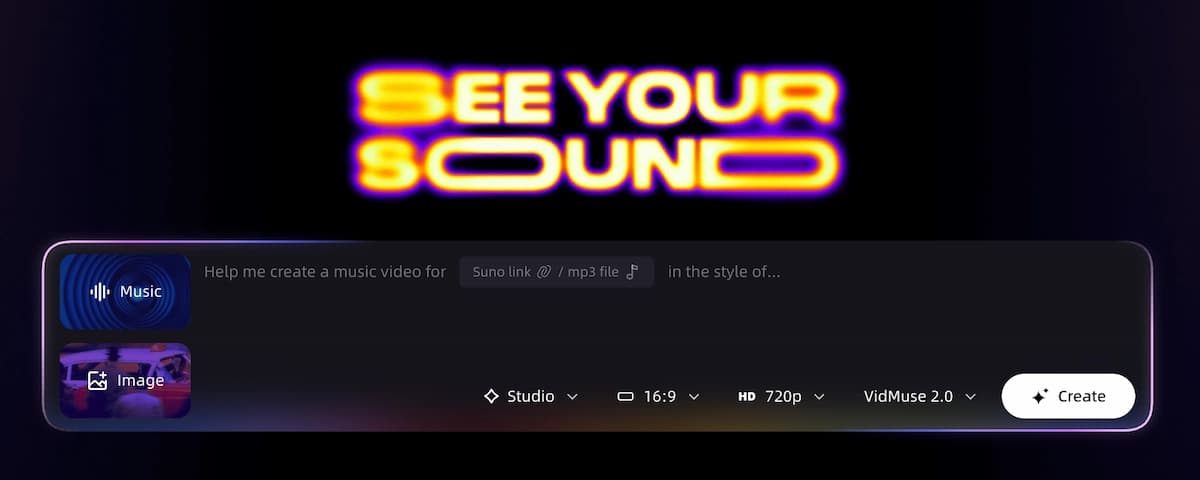
A traditional visualizer reacts to sound. VidMuse is positioned as an AI Director for audio-visual creation, which means the workflow can start with a creative brief and move through reference generation, scene and shots list, storyboard, and video generation.
That difference matters for indie musicians, Suno or Udio creators, and small teams that want a more finished music-video direction. Instead of asking for “cool particles around my song,” you can plan a visual concept:
- A Story MV for a track with lyrics, characters, or emotional progression
- An Abstract MV for mood-driven electronic, ambient, or experimental music
- A Performance MV when the artist persona should stay central
- A Viral Short for release teasers or hook-driven clips
- A TVC or Explainer for SMB marketing content using music-led visuals
VidMuse also separates creation modes. Studio is the flagship mode for best-quality production, while Lite uses the Seed series for faster, cost-efficient generation. That makes the platform relevant for both polished release assets and faster social experiments.
For a Spotify-related workflow, VidMuse is most useful in three places.
Create Your Spotify Music Visualizer in One Click
Turn your idea into a spotify music visualizer video with VidMuse AI.
Creating a Spotify Canvas concept
Spotify Canvas is short, vertical, and loop-based. Because Spotify notes that Canvas clips do not sync with lyrics, the better creative goal is not literal lyric timing; it is mood, identity, and repeatability.
Use VidMuse to create a short visual idea that matches the song’s world: a looping city light reflection, a surreal performance silhouette, a texture from the album cover, or a repeated motion that feels seamless.
Expanding a visualizer into a music video
A basic waveform can make a track visible. A planned MV can make it memorable.
VidMuse’s workflow is designed around Creative Brief → Reference Generation → Scene & Shots List → Storyboard → Video Generation. That structure helps creators define the visual direction before generating clips.
For example, an indie musician could start with a Suno AI track, build an Abstract MV concept, generate references, refine shots, and then use VidMuse 2.0 features such as Shot Refine by Quoting, Timeline Editor, and Asset Library & Memory to keep the visual world more consistent.
Creating a multi-platform release package
A single Spotify music visualizer rarely covers every promotional need.
A stronger release package may include:
- 3–8 second Spotify Canvas loop
- 15 second vertical teaser
- 30 second Viral Short
- 60–120 second music video segment
- Lyric video cutdown
- Album-art visualizer for YouTube
VidMuse is most relevant when you want these assets to feel connected instead of randomly generated.
Best Spotify Music Visualizer Options by Use Case
The best Spotify music visualizer is the one that matches your output: live ambience, a reusable app, a social post, or an artist campaign.
Here is a practical decision table.
| Use case | Best-fit visualizer type | Why it works | Main tradeoff |
|---|---|---|---|
| Casual listening | Spotify music visualizer online | Fast to test, often no install | May need account login, browser permissions, or audio routing |
| Party or TV display | Desktop visualizer app | Stable full-screen visuals | More setup and device-specific behavior |
| Free experimentation | Open-source or browser visualizer | Low cost, flexible | Fewer templates and less polish |
| Artist release | Spotify Canvas | Appears inside Spotify mobile Now Playing | Not audio-reactive and only 3–8 seconds |
| TikTok, Reels, Shorts | Exportable music visualizer video | Shareable outside Spotify | Requires rights to audio and visuals |
| Full MV or promo content | AI music video workflow | Better narrative, scenes, and brand identity | More planning than a one-click visualizer |
For many users, the “best spotify music visualizer” is not one product. It is a workflow. Use a real-time visualizer when you are listening. Use Canvas when you are improving a track page. Use an AI music video generator when you need a finished asset for promotion.
When a Visualizer Is Not the Right Approach
A visualizer is not the right approach when your goal requires storytelling, performance, product explanation, or platform-specific conversion.
Use a simple visualizer when you need ambience.
Use a Canvas when you need a Spotify mobile loop.
Use a lyric video when the words drive the song.
Use an AI music video workflow when the track needs scenes, characters, narrative, or a more branded visual identity.
For SMB marketing, a generic audio visualizer may not explain the offer. For artists, a spectrum ring may not express the song’s world. For social campaigns, slow abstract visuals may not create a strong opening hook.
The safest rule: if the visual would still make sense with any song, it may be too generic for a release campaign.
Common Mistakes and Troubleshooting
Most Spotify visualizer problems come from choosing the wrong tool, using the wrong audio source, or designing for the wrong platform.
Mistake 1: Assuming Spotify has a built-in visualizer
Spotify Canvas is not the same as a full audio visualizer. If you want real-time waveforms or particles during playback, use a third-party tool.
Mistake 2: Trying to export Spotify streams as video assets
Do not treat Spotify playback as an editable source file. For public videos, use audio you own, control, or have licensed.
Spotify’s terms describe access as personal and non-commercial and say users may not redistribute Spotify content.
Mistake 3: Choosing an online tool without checking permissions
Some Spotify visualizer online tools require account connection. Review the requested permissions before authorizing access.
Mistake 4: Designing horizontal visuals for vertical platforms
Canvas, TikTok, Reels, and Shorts work best in 9:16 vertical. A horizontal visualizer may crop badly or feel small on mobile.
Mistake 5: Using too much flashing motion
Spotify’s Canvas guidance recommends avoiding rapid cuts or intense flashing graphics because they may overwhelm viewers. That advice also applies to social videos and live playback visuals.
Mistake 6: Expecting every tool to react accurately to Spotify
Some tools react to microphone input, some to system audio, some to local files, and some to Spotify metadata. If your visualizer is not moving, check the selected input source first.
Quick troubleshooting checklist
- Is Spotify playing on the same device as the visualizer?
- Does the browser or app have microphone/audio permission?
- Is the tool listening to system audio, microphone input, or a virtual device?
- Is Spotify Connect playing on another speaker instead of your computer?
- Is the output format correct for the platform?
- Are you using an owned or licensed audio file for public exports?
FAQ
Does Spotify have a visualizer?
Spotify does not currently offer a standard built-in visualizer that listeners can turn on for every song. Spotify Canvas adds short artist-uploaded visuals to the Now Playing view, but it is not a real-time audio visualizer. For live waveforms, particles, or spectrum visuals, use a third-party visualizer.
Does Spotify have an audio visualizer?
Spotify does not have a full built-in audio visualizer for general listener playback. Canvas is visual, but it is a short loop uploaded by artists and does not automatically react to beats, vocals, or frequency changes. A Spotify audio visualizer usually means an external online tool, desktop app, or system-audio visualizer.
What is the best spotify music visualizer?
The best spotify music visualizer depends on your goal. For casual listening, try a browser or desktop tool that reacts to system audio. For artists, use Spotify Canvas for in-app visuals and an AI music video or lyric video workflow for promotional clips outside Spotify.
Is there a Spotify music visualizer free option?
Yes, there are free and freemium visualizer options, especially browser-based tools, open-source visualizers, and desktop audio visualizer apps. Free tools are useful for casual playback, but they may have setup limits, fewer templates, no export option, or watermarks. Always check permissions before connecting your Spotify account.
Can I use a Spotify music visualizer online?
Yes, a Spotify music visualizer online can work for casual playback or browser-based visual effects. Some tools connect to Spotify, while others listen through microphone or virtual audio routing. If a browser visualizer cannot hear Spotify, the issue is usually audio-source access rather than the music itself.
What is the best Spotify music visualizer online free workflow?
The best Spotify music visualizer online free workflow is to play Spotify on the same computer, open a trusted browser visualizer, grant only necessary audio permissions, and test whether it reacts to system audio. If the browser cannot capture Spotify directly, use a virtual audio device or choose a desktop visualizer app instead.
What is the best Spotify music visualizer app?
The best Spotify music visualizer app depends on your device and tolerance for setup. Desktop apps are usually better for full-screen visuals and system-audio reaction, while mobile apps are better for quick social clips. For professional release assets, use an export-focused editor or AI music video workflow rather than a playback-only app.
Can I make a Spotify Canvas with a music visualizer?
Yes, but the result must follow Spotify Canvas requirements. A Canvas should be a 3–8 second vertical 9:16 loop, 720–1080px tall, and MP4 or JPG. Since Canvas does not need to sync with the full song, design it as a seamless mood loop rather than a complete audio-reactive video.
Can I upload a visualizer video made from someone else’s Spotify song?
Do not upload visualizer videos using music you do not own or have permission to use. Spotify streaming access does not give you redistribution rights for the underlying music. For public content, use your own track, a licensed song, royalty-free audio, or music created for your project.
Can AI create a music visualizer from a Spotify track?
AI can help create music-led visuals, but you should use an audio file you own or have rights to use for public outputs. Tools like VidMuse are better suited to planning a visual concept, storyboard, and generated scenes than simply reacting to a Spotify stream. That makes AI useful for release videos, Canvas concepts, lyric clips, and MV-style assets.
Conclusion
A spotify music visualizer is useful, but the right choice depends on the job.
For listeners, Spotify does not currently provide a built-in real-time audio visualizer, so third-party online or desktop tools are the practical path. For artists, Spotify Canvas is the native visual feature, but it is a short vertical loop rather than a beat-reactive visualizer. For creators who want shareable content, a rendered visualizer, lyric video, or AI-planned music video will usually do more than abstract motion alone.
Use a simple visualizer when you want atmosphere. Use Canvas when you want a stronger Spotify mobile presence. Use VidMuse when you want to turn a song into a planned audio-visual asset with creative brief, references, shots, storyboard, and video generation working together.
Create Your Spotify Music Visualizer in One Click
Turn your idea into a spotify music visualizer video with VidMuse AI.

Written By
VidMuse Team
Continue Reading
Latest blog posts related to AI video creation.
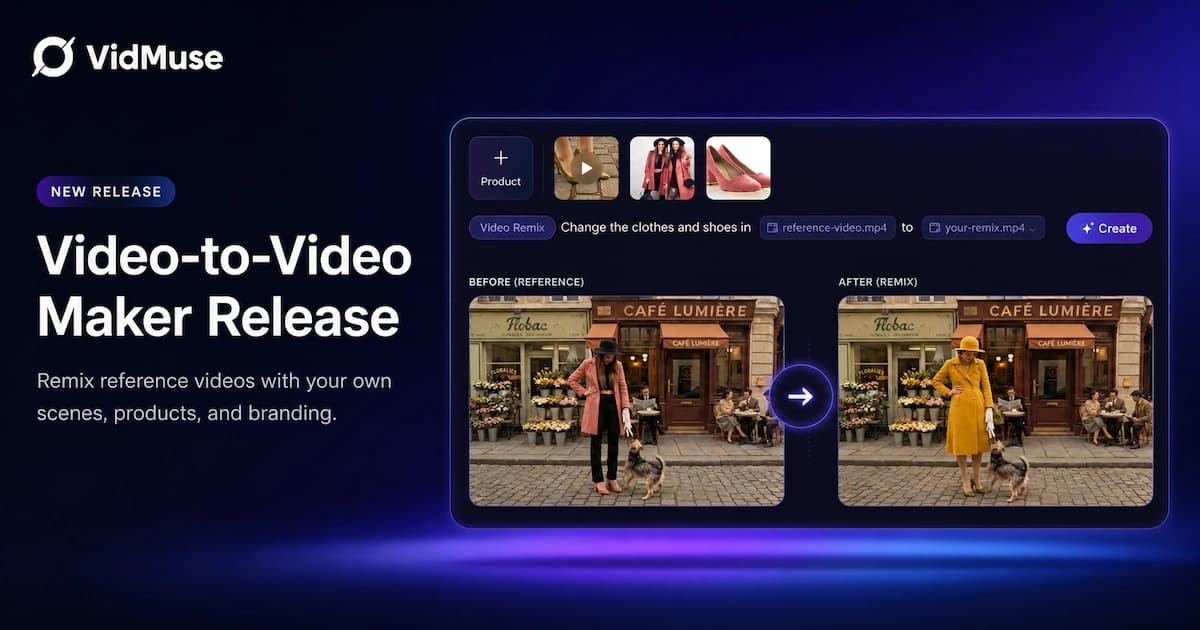
Video to Video Maker: VidMuse AI Is Now Live
VidMuse's video to video maker lets you remix, recreate, and transform any video into a polished ad or MV using AI—no editing skills required.
Music AI: Best Tools & How They Work in 2026
Discover the best music AI tools of 2026—from free generators to pro platforms—and how to turn your AI tracks into stunning music videos with VidMuse.
VidMuse Launches AI Ad Generator for Product Video Ads — From One Image to a Finished Video Ad
VidMuse's new Product Ad Video feature turns a single product image into a storyboarded, music-synced, remix-ready ad for TikTok, Reels, and Shorts.